
Roland PM-200
Roland PM-200 Electronic V-Drum Monitor: Instruction Manual
This manual provides essential information for the safe and effective use of your Roland PM-200 Compact Electronic V-Drum Set Monitor.
1. Product Overview
The Roland PM-200 is a premium all-in-one monitor designed for use with V-Drums electronic percussion products. It features 180 watts of power, a custom 12-inch speaker, and a horn tweeter, optimized for reproducing the expressive V-Drums sound. The angled design provides optimal sound coverage for seated players. It includes integrated mixing and direct output capabilities for interfacing with other devices.
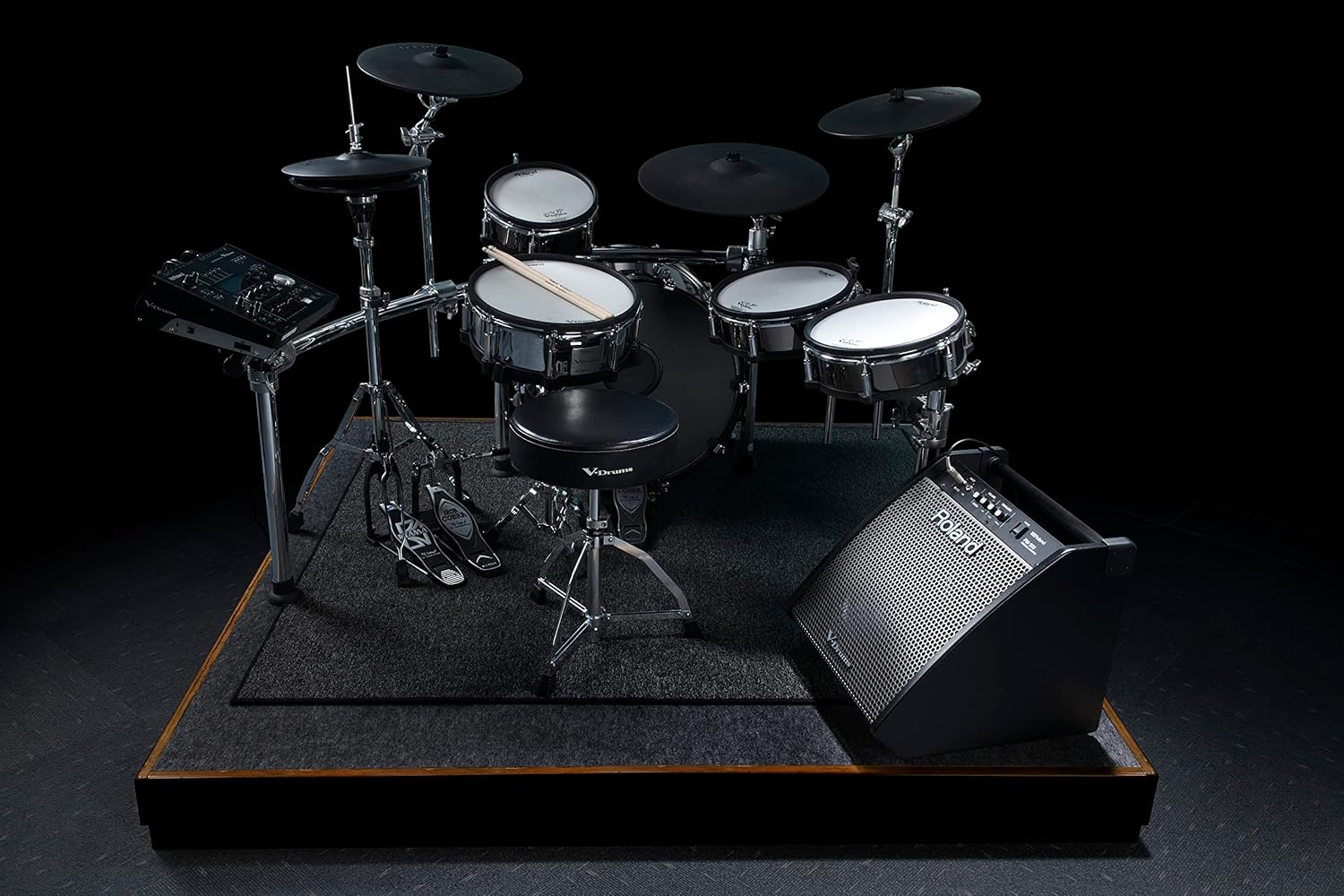
Figure 1: Roland PM-200 monitor in a V-Drums setup.
2. Setup
2.1 Unpacking and Placement
Carefully remove the PM-200 monitor from its packaging. Place the monitor on a stable, flat surface. The angled design is intended to direct sound towards a seated player, so position it accordingly for optimal listening.
2.2 Power Connection
Connect the provided power cord to the AC IN jack on the rear panel of the PM-200 and then to a suitable AC outlet.
2.3 Connecting Your V-Drums
Use a standard 1/4-inch TRS cable to connect the output of your V-Drums module to the dedicated V-Drums input on the PM-200's control panel. Ensure the cable is securely connected.
2.4 Connecting Other Devices
The PM-200 features 1/4-inch and 1/8-inch line inputs for connecting additional electronic percussion pads, smartphones, or music players. Use appropriate cables for these connections.
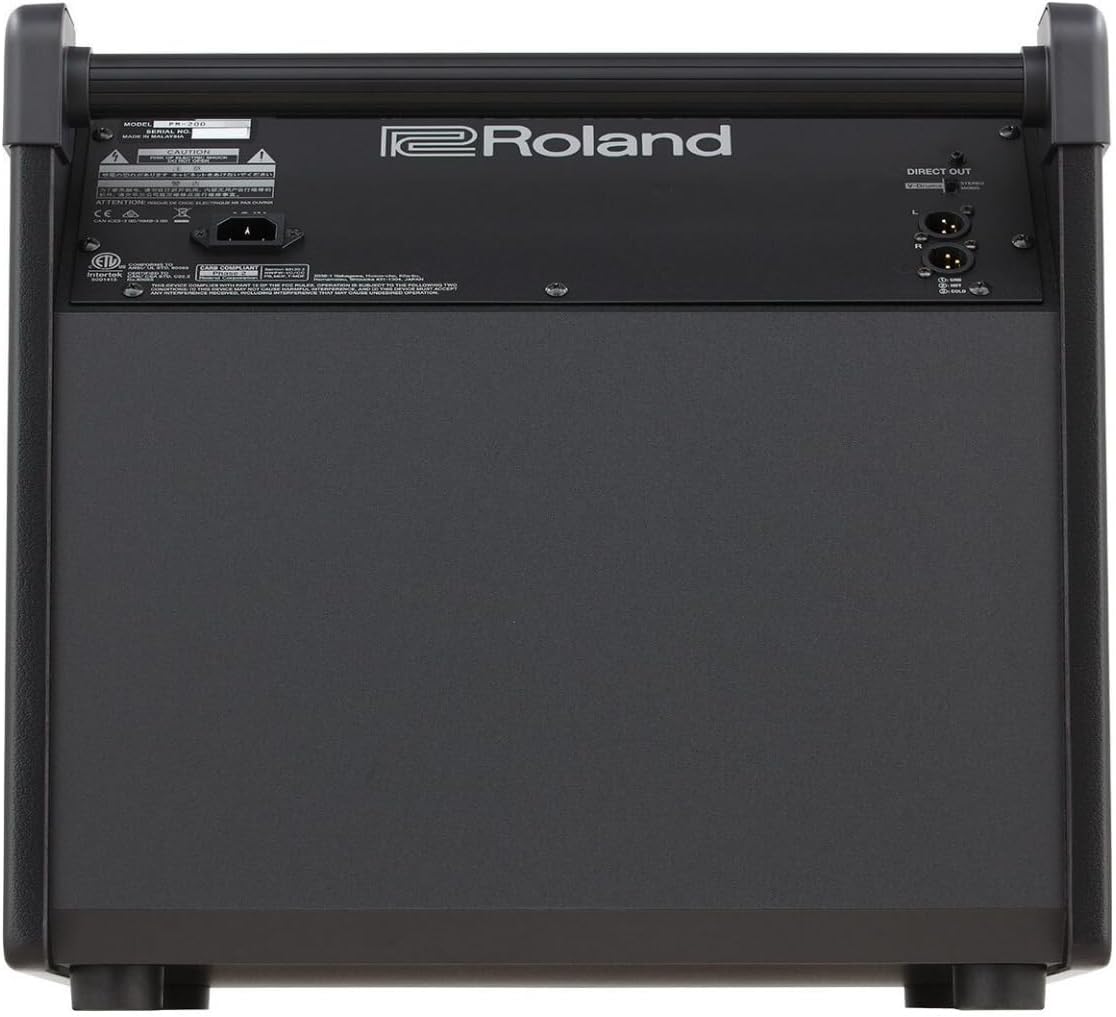
Figure 2: Rear panel connections of the PM-200.
3. Operating Instructions
3.1 Powering On/Off
Press the POWER switch located on the control panel to turn the unit on or off. The power indicator LED will illuminate when the unit is on.
3.2 Adjusting Volume
The PM-200 features independent volume controls for the V-Drums input and the line inputs. Adjust these knobs to achieve the desired balance between your V-Drums and any connected external audio sources.
3.3 Using the Equalizer
The integrated mixer includes a global EQ with Bass and Treble controls. Adjust these knobs to fine-tune the overall tonal characteristics of the monitor's output to suit your preference or room acoustics.
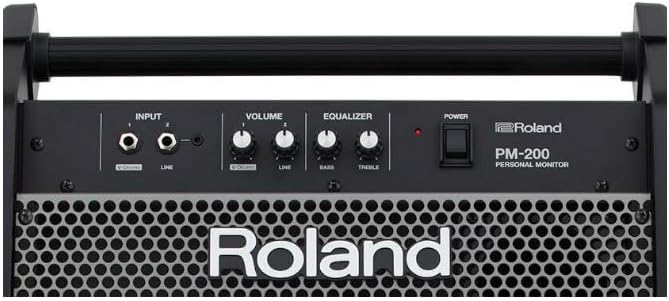
Figure 3: Control panel of the PM-200.
3.4 Official Product Video
Video 1: An overview of the Roland PM series Personal Monitor Amplifiers, demonstrating features and sound capabilities.
4. Maintenance
4.1 Cleaning
To clean the unit, use a soft, dry cloth. Avoid using abrasive cleaners, waxes, or solvents, as these can damage the finish. Ensure the unit is powered off and unplugged before cleaning.
4.2 Storage
When not in use for extended periods, store the PM-200 in a cool, dry place away from direct sunlight and extreme temperatures. Protect it from dust and moisture.
5. Troubleshooting
5.1 No Sound Output
- Ensure the power cable is securely connected and the unit is powered on.
- Check all audio cables for secure connections to both the V-Drums module/external device and the PM-200.
- Verify that the volume knobs on the PM-200 are turned up and not at their minimum setting.
- Confirm that the volume on your V-Drums module or connected device is also turned up.
5.2 Distorted Sound
- Reduce the volume levels on both the PM-200 and the connected V-Drums module/external device. Overdriving the input or output can cause distortion.
- Check the equalizer settings (Bass, Treble). Excessive boosting of certain frequencies can lead to distortion.
- Inspect audio cables for damage or loose connections.
6. Specifications
| Feature | Specification |
|---|---|
| Brand | Roland |
| Model Name | PM-200 |
| Speaker Type | Monitor |
| Speaker Maximum Output Power | 180 Watts |
| Woofer Diameter | 12 Inches |
| Frequency Response | 20 KHz |
| Connectivity Technology | XLR |
| Audio Output Mode | Mono, Stereo |
| Product Dimensions | 20"D x 22.81"W x 21.62"H |
| Item Weight | 52.8 Pounds |
| Included Components | 1 Amplifier |

Figure 4: Dimensions of the Roland PM-200 monitor.
7. Warranty and Support
7.1 Warranty Information
The Roland PM-200 comes with a limited warranty. Please refer to the warranty card included with your product or visit the official Roland website for detailed terms and conditions.
7.2 Customer Support
For technical assistance, product inquiries, or service, please contact Roland customer support through their official website or the contact information provided in your product documentation.
Related documentsPM-200


Ask a question about this manual
Ask about setup, troubleshooting, compatibility, parts, safety, or missing instructions. Manuals+ will review the question and use this page’s manual context to help answer it.