
1. Introduction
This manual provides essential information for the safe and efficient operation of your AUXUS iRis AX32LSP01-SM 32-inch Smart Android LED TV. Please read these instructions thoroughly before using the product and retain them for future reference.
The AUXUS iRis AX32LSP01-SM features a 32-inch HD Ready LED display, integrated Android operating system for smart functionality, wireless display capabilities, and multiple connectivity options. It is designed to provide an immersive viewing and interactive experience.

Figure 1.1: Front view of the AUXUS iRis 32-inch Smart Android LED TV, showcasing its display.
2. Safety Information
Observe the following safety precautions to prevent damage to the TV and ensure personal safety:
- Do not expose the TV to rain or moisture to prevent fire or electric shock.
- Do not open the TV casing. Refer all servicing to qualified personnel.
- Ensure proper ventilation. Do not block ventilation openings.
- Place the TV on a stable, level surface to prevent it from falling.
- Protect the power cord from being walked on or pinched.
- Unplug the TV during lightning storms or when unused for long periods.
3. Package Contents
Verify that all items are present in the package:
- 1 x AUXUS iRis 32-inch LED TV
- 1 x Table Top Stand (set)
- 1 x User Manual (this document)
- 1 x Warranty Card
- 1 x Remote Control
4. Setup
4.1 Unpacking
Carefully remove the TV and all accessories from the packaging. Retain the packaging materials for future transport or servicing.
4.2 Stand Installation
If using the table-top stand, attach the stand bases to the bottom of the TV using the provided screws. Ensure the stand is securely fastened before placing the TV on a flat, stable surface.
4.3 Wall Mounting
The TV supports VESA-compatible wall mounts (not included). Consult a professional for wall mounting to ensure proper installation and safety.
4.4 Connecting Peripherals
Refer to the back panel diagram for port locations. Ensure the TV is powered off before making any connections.
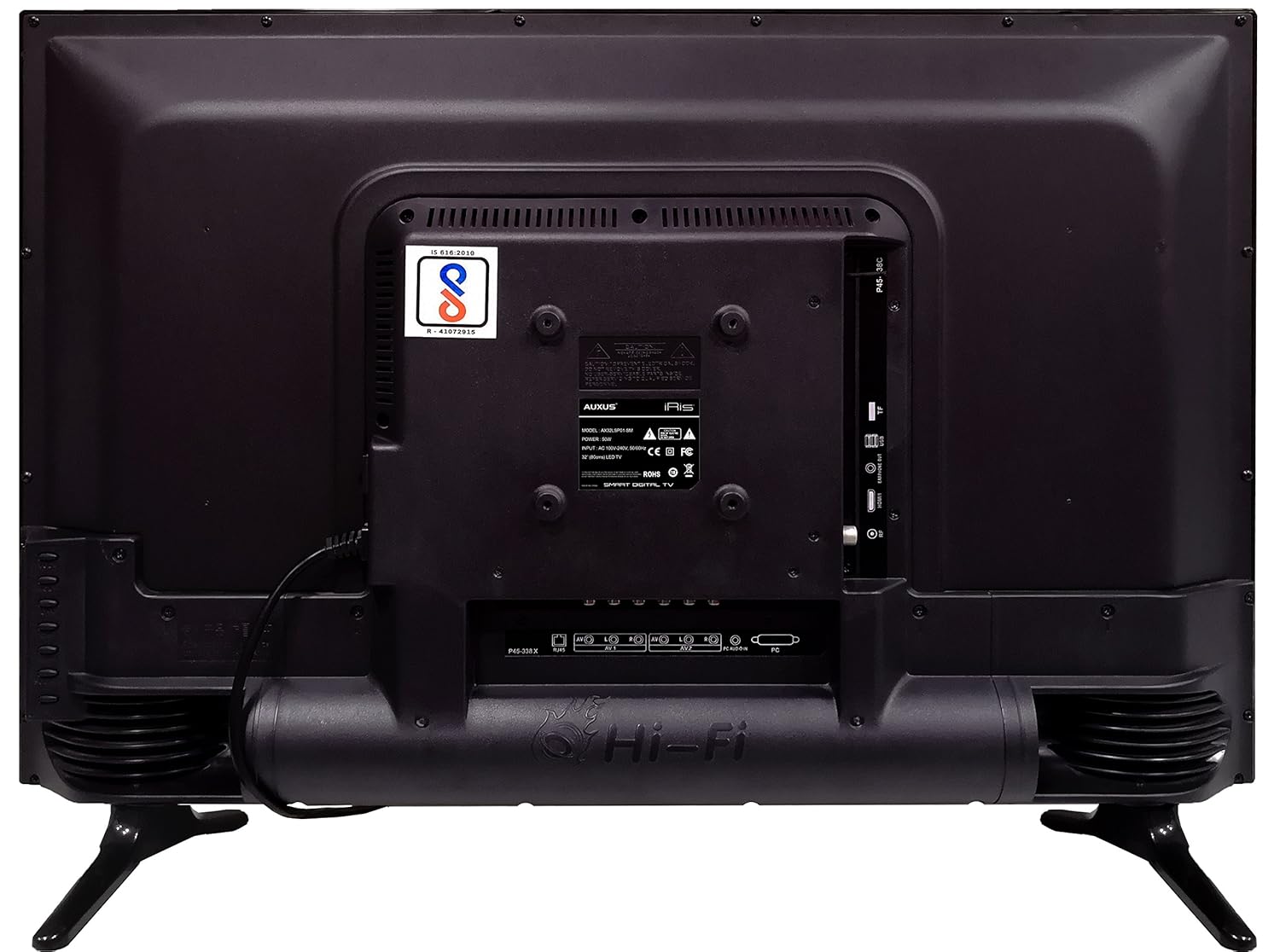
Figure 4.1: Rear panel of the TV with various input/output ports.

Figure 4.2: Detailed view of the bottom interface ports.

Figure 4.3: Icons representing multiple connectivity options.
- Power: Connect the power cord to the TV and then to a wall outlet.
- Antenna/Cable: Connect an antenna or cable TV signal to the RF port.
- USB: Insert USB drives for media playback or software updates into the USB ports. The TV has 2 USB ports.
- Ethernet (RJ45): Connect an Ethernet cable for a wired internet connection.
- AV (Audio/Video): Use RCA cables for older devices. The TV has AV1 and AV2 inputs.
- PC IN (VGA): Connect a computer using a VGA cable for video and a 3.5mm audio cable for sound (PC AUDIO IN).
- Headphone: Connect headphones to the 3.5mm jack for private listening.
5. Operating the TV
5.1 First Time Setup
- After connecting the power, press the Power button on the remote control or TV.
- Follow the on-screen prompts to select your language, country, and time zone.
- Connect to your network: Choose Wi-Fi and enter your password, or ensure an Ethernet cable is connected.
- Complete the channel scan if connecting an antenna/cable.
5.2 Remote Control
The remote control allows you to navigate menus, adjust volume, change channels, and access smart features. Familiarize yourself with its buttons for optimal use.
5.3 Smart TV Features (Android OS)
Your TV runs on the Android operating system, providing access to a variety of applications and internet services.

Figure 5.1: TV displaying a smart interface, such as Netflix.
- Navigation: Use the directional pad and 'OK' button on the remote to browse the Android interface.
- Wireless Display: Utilize the built-in wireless display feature to mirror content from compatible smartphones or tablets to your TV.
- Internet Browsing & Apps: Connect to the internet to browse websites or download and use applications from the app store.
- Gaming: The Android platform supports various games, offering an adrenaline-pumping gaming experience.
5.4 Picture and Sound Settings
Access the TV's settings menu to customize picture and sound preferences.
- Picture: Adjust brightness, contrast, color, sharpness, and select picture modes (e.g., Standard, Dynamic, Movie).
- Sound: Optimize audio with settings for volume, balance, equalizer, and sound modes. The TV features 'Boomr Speakers' for enhanced audio output.
5.5 Input Source Selection
Press the 'Source' or 'Input' button on your remote to switch between connected devices (HDMI 1, HDMI 2, AV 1, AV 2, PC, TV).
6. Maintenance
6.1 Cleaning the TV
- Always unplug the TV before cleaning.
- Use a soft, dry cloth to wipe the screen and TV casing.
- For stubborn marks on the screen, use a screen cleaner specifically designed for LED displays, applied to the cloth, not directly to the screen.
- Avoid using abrasive cleaners, waxes, or solvents.
6.2 Software Updates
Periodically check for software updates through the TV's settings menu to ensure optimal performance and access to the latest features.
7. Troubleshooting
If you encounter issues with your TV, refer to the following common problems and solutions:
| Problem | Possible Solution |
|---|---|
| No power | Check if the power cord is securely connected and the power outlet is working. |
| No picture, but sound is present | Ensure the correct input source is selected. Check cable connections to external devices. |
| No sound, but picture is present | Check volume level and mute status. Verify audio cable connections. |
| Remote control not working | Replace batteries. Ensure no obstructions between remote and TV. |
| Android system hangs or is slow | Restart the TV by unplugging it for a few minutes. Close unused applications. |
| Network connection issues | Check Wi-Fi password or Ethernet cable connection. Restart your router. |
8. Specifications
| Feature | Specification |
|---|---|
| Brand | AUXUS |
| Model Name | AX32LSP01-SM |
| Screen Size | 32 Inches (82 cm) |
| Display Technology | LED, IPS Panel |
| Resolution | HD Ready (1366 x 768p) |
| Viewing Angle | 178 Degrees |
| Operating System | Android |
| Digital Storage Capacity | 8 GB |
| RAM | 1 GB |
| Audio Output Mode | Surround (Boomr Speakers) |
| HDMI Ports | Multiple |
| USB Ports | 2 |
| Connectivity Technology | Ethernet, Wi-Fi (Wireless Display) |
| Other Ports | AV (RCA), PC IN (VGA), PC Audio In, Headphone (3.5mm), RF (Antenna) |
| Mounting Type | Wall Mount / Table Top Stand |
| Product Dimensions (LxWxH) | 84 x 13 x 59 cm |
| Item Weight | 6.5 kg |
9. Warranty and Support
Your AUXUS iRis AX32LSP01-SM TV comes with a warranty. Please refer to the included Warranty Card for specific terms, conditions, and duration of the warranty coverage.
For technical support, service requests, or further inquiries, please contact AUXUS customer service. Contact details can typically be found on the warranty card or the official AUXUS website.