
1. Introduction
This manual provides detailed instructions for the installation, operation, maintenance, and troubleshooting of your Zyxel GS1200-5 5-Port Gigabit Web Managed Switch. Please read this manual thoroughly before using the device to ensure proper and safe operation. The Zyxel GS1200-5 is designed to provide reliable and high-speed network connectivity for small office and home office environments, offering advanced management features through a user-friendly web interface.
2. Safety Information
- Ensure the device is placed on a stable, flat surface away from direct sunlight, heat sources, and moisture.
- Do not block ventilation openings. Adequate airflow is essential to prevent overheating.
- Use only the power adapter supplied with the device. Using an incorrect adapter may damage the switch and void the warranty.
- Do not open the device casing. Refer all servicing to qualified personnel.
- Keep the device away from liquids and avoid spilling any liquids onto it.
- Disconnect the power cable during lightning storms or when unused for long periods.
3. Package Contents
Verify that your package contains the following items:
- Zyxel GS1200-5 5-Port Gigabit Web Managed Switch
- Power Adapter
- Quick Start Guide
4. Product Overview
The Zyxel GS1200-5 switch features five Gigabit Ethernet ports, providing high-speed connectivity for your wired devices. It is designed for silent operation due to its fanless design and offers web-based management for advanced network configurations.
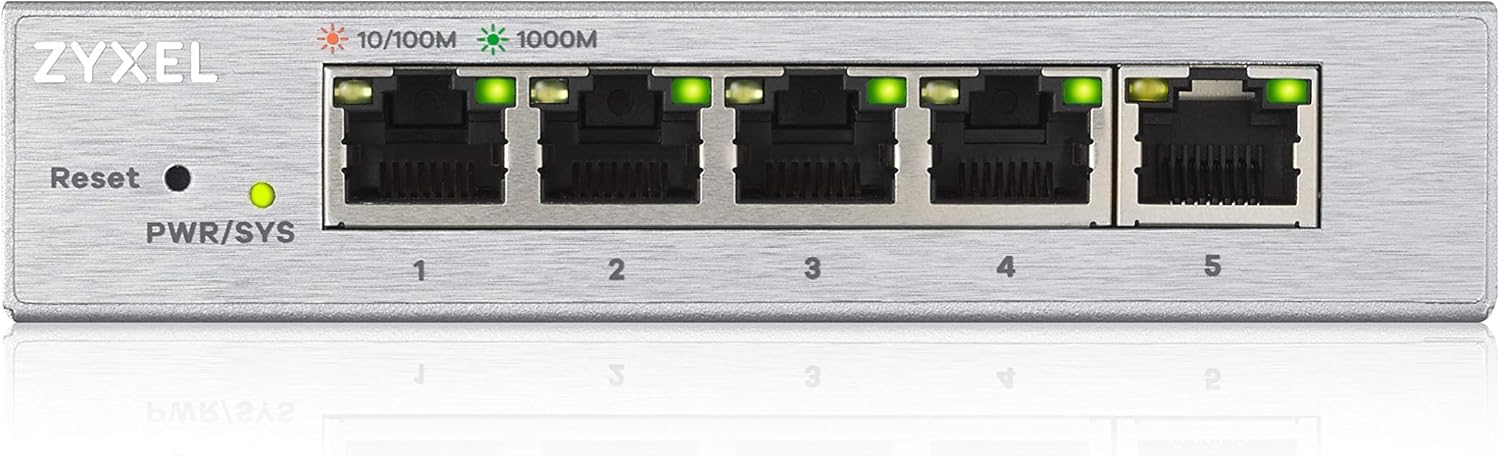
Figure 4.1: Front view of the Zyxel GS1200-5 switch, highlighting the five Gigabit Ethernet ports, the Reset button, and the Power/System LED indicators. The LEDs above each port indicate 10/100M (orange) and 1000M (green) link status.

Figure 4.2: Angled view of the Zyxel GS1200-5 switch, showcasing its compact and durable metal casing, designed for efficient heat dissipation without a fan.

Figure 4.3: Detailed view of the internal hardware design, illustrating the robust and high-quality components used in the Zyxel GS1200-5, contributing to its reliability and longevity.

Figure 4.4: This image highlights the user-friendly aspects of the switch, featuring both 'Plug & Play' simplicity for basic use and a 'Web Based GUI' for advanced configuration and management.

Figure 4.5: Depiction of the switch's 'Zero Noise Operation', indicating its fanless design which ensures quiet performance, suitable for various environments including offices and homes.

Figure 4.6: This image illustrates the benefit of 'IGMP Snooping', a feature that optimizes multimedia traffic delivery, ensuring smooth streaming of 4K video, music, and other content across the network.
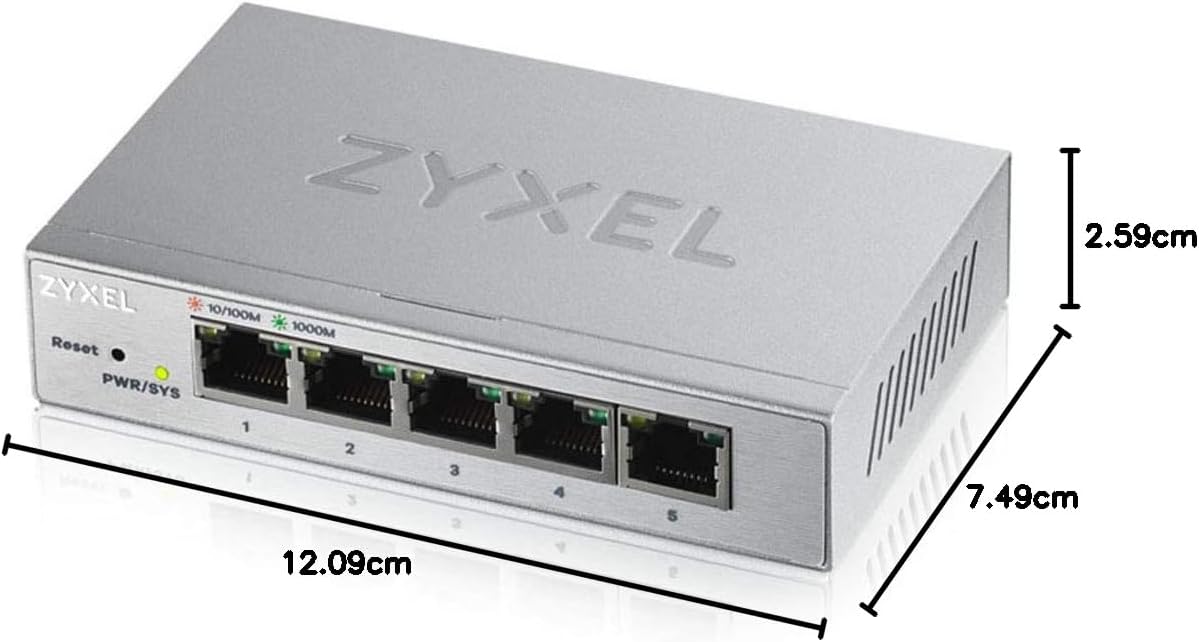
Figure 4.7: Physical dimensions of the Zyxel GS1200-5 switch, showing its compact size of approximately 12.09 cm (length) x 7.49 cm (width) x 2.59 cm (height), making it easy to place in various locations.
LED Indicators
- PWR/SYS LED:
- Solid Green: Power on, system operating normally.
- Off: No power or system error.
- Port LEDs (10/100M - Orange, 1000M - Green):
- Solid: Link established.
- Flashing: Activity (data transmission).
- Off: No link.
5. Setup
5.1 Physical Connection
- Place the Zyxel GS1200-5 switch on a stable surface.
- Connect your network devices (computers, servers, IP cameras, VoIP phones, etc.) to the switch's Ethernet ports using standard Ethernet cables.
- Connect the supplied power adapter to the switch's power input and then plug it into a power outlet. The PWR/SYS LED will illuminate green, indicating the switch is powered on.
5.2 Initial Web Management Access
The Zyxel GS1200-5 is a web-managed switch, allowing configuration via a web browser. By default, the switch obtains an IP address via DHCP. If no DHCP server is available, it will use a fallback IP address (e.g., 192.168.1.1).
- Ensure your computer is connected to the switch.
- Open a web browser (e.g., Chrome, Firefox, Edge).
- If your network has a DHCP server, find the IP address assigned to the switch (check your router's DHCP client list). If not, try the default IP address (refer to the Quick Start Guide for the exact default IP, commonly 192.168.1.1).
- Enter the switch's IP address into the browser's address bar and press Enter.
- You will be prompted for a username and password. Refer to the Quick Start Guide for default credentials. It is highly recommended to change the default password immediately after the first login for security purposes.
6. Operating
Once connected and configured, the Zyxel GS1200-5 switch operates automatically for basic network connectivity. Its web management interface provides access to advanced features:
- VLAN (Virtual Local Area Network): Segment your network into smaller, isolated groups for improved security and efficiency. This is useful for separating guest networks, voice traffic, or specific departments.
- QoS (Quality of Service): Prioritize network traffic for critical applications like voice (VoIP) and video streaming to ensure smooth performance and reduce latency. The switch supports port-based QoS.
- Link Aggregation (LAG): Combine two Ethernet ports to create a single, higher-bandwidth connection. This can increase throughput and provide redundancy for uplink/downlink traffic to other network devices like servers or other switches.
- IGMP Snooping: Optimize multicast traffic delivery, which is crucial for efficient streaming of multimedia content (e.g., IPTV) by preventing unnecessary flooding of multicast packets to all ports.
- Loop Prevention: Detect and prevent network loops that can cause broadcast storms and network instability.
Refer to the full user manual (available on the Zyxel support website) for detailed instructions on configuring these advanced features via the web interface.
7. Maintenance
7.1 Cleaning
To maintain optimal performance and extend the lifespan of your switch, periodically clean its exterior with a soft, dry cloth. Do not use liquid or aerosol cleaners. Ensure the ventilation openings are free from dust and debris.
7.2 Firmware Updates
Zyxel periodically releases firmware updates to improve performance, add new features, or address security vulnerabilities. It is recommended to check the Zyxel support website for the latest firmware for your GS1200-5 model. Follow the instructions provided with the firmware update package carefully to avoid damaging the device during the update process.
8. Troubleshooting
This section provides solutions to common issues you might encounter with your Zyxel GS1200-5 switch.
8.1 No Power / PWR/SYS LED Off
- Ensure the power adapter is securely connected to the switch and the power outlet.
- Verify that the power outlet is functional by plugging in another device.
- Confirm you are using the original Zyxel power adapter supplied with the switch.
8.2 No Link / Port LED Off
- Check if the Ethernet cable is securely plugged into both the switch port and the connected device.
- Try a different Ethernet cable to rule out a faulty cable.
- Ensure the connected device (e.g., computer, router) is powered on and its network adapter is enabled.
- Try connecting the device to a different port on the switch.
8.3 Cannot Access Web Management Interface
- Verify that your computer is on the same network segment as the switch. If the switch is using a default IP (e.g., 192.168.1.1), ensure your computer's IP address is in the same subnet (e.g., 192.168.1.X, with X being any number except 1).
- Clear your browser's cache and cookies, or try a different web browser.
- If you have forgotten the password, you may need to perform a factory reset. Refer to the Quick Start Guide for instructions on performing a reset (usually involves pressing and holding the Reset button). Note: A factory reset will erase all custom configurations.
8.4 Slow Network Performance
- Check the port LEDs to ensure devices are connecting at Gigabit speed (green LED). If orange, the connection is 10/100Mbps.
- Ensure your Ethernet cables are rated for Gigabit speeds (Cat5e or higher).
- Check for excessive network traffic or bandwidth-intensive applications.
- Consider configuring QoS to prioritize critical traffic.
9. Specifications
| Feature | Specification |
|---|---|
| Model Number | GS1200-5-EU0101F |
| Brand | Zyxel |
| Number of Ports | 5 |
| Interface Type | RJ45 |
| Data Transfer Rate | 12 Gigabits per second (total switching capacity) |
| Maximum Power Consumption | 2.67 Watts |
| Wattage | 2.03 Watts |
| Voltage | 5 Volts |
| Current | 1 Ampere |
| Product Dimensions (L x W x H) | 7.5 x 2.6 x 12.1 cm |
| Item Weight | 190 g |
| Housing Material Type | Metal |
| Fanless Design | Yes |
| Managed Type | Web Managed |
| Included Components | Switch |
| Color | Silver |
| Compatible Devices | Desktop, laptop, server, IP-camera, VoIP-phone |
| GTIN | 04718937598670 |
10. Warranty and Support
The Zyxel GS1200-5 5-Port Gigabit Web Managed Switch comes with a lifetime warranty, providing peace of mind regarding its durability and reliability. Warranty terms, service availability, and service response times may vary by country or region.
For technical support, firmware updates, and additional resources, please visit the official Zyxel support website. You can also find FAQs and community forums there to assist with common queries.
Zyxel Support Website: www.zyxel.com/support


