
1. Introduction
This manual provides detailed instructions for the setup, operation, and maintenance of your FEELWORLD FW703 7-inch IPS 3G SDI 4K HDMI DSLR Monitor. Please read this manual thoroughly before using the device to ensure proper functionality and safety.
The FEELWORLD FW703 is a high-resolution field monitor designed for professional photography and videography. It features a 1920x1200 IPS display, versatile input/output options including 3G-SDI and 4K HDMI, and a suite of broadcast-quality monitoring tools.
2. Package Contents
Verify that all items listed below are included in your package. If any items are missing or damaged, please contact your retailer.
- 1 × FEELWORLD FW703 Monitor
- 1 × Mini HDMI Cable
- 1 × Sunshade
- 1 × Hot Shoe Mount
- 1 × F970 Battery Plate
- 1 × Operation Manual (this document)
Note: Battery and power adapter are not included in the package.

3. Features
The FEELWORLD FW703 monitor is equipped with advanced features to enhance your video production workflow:
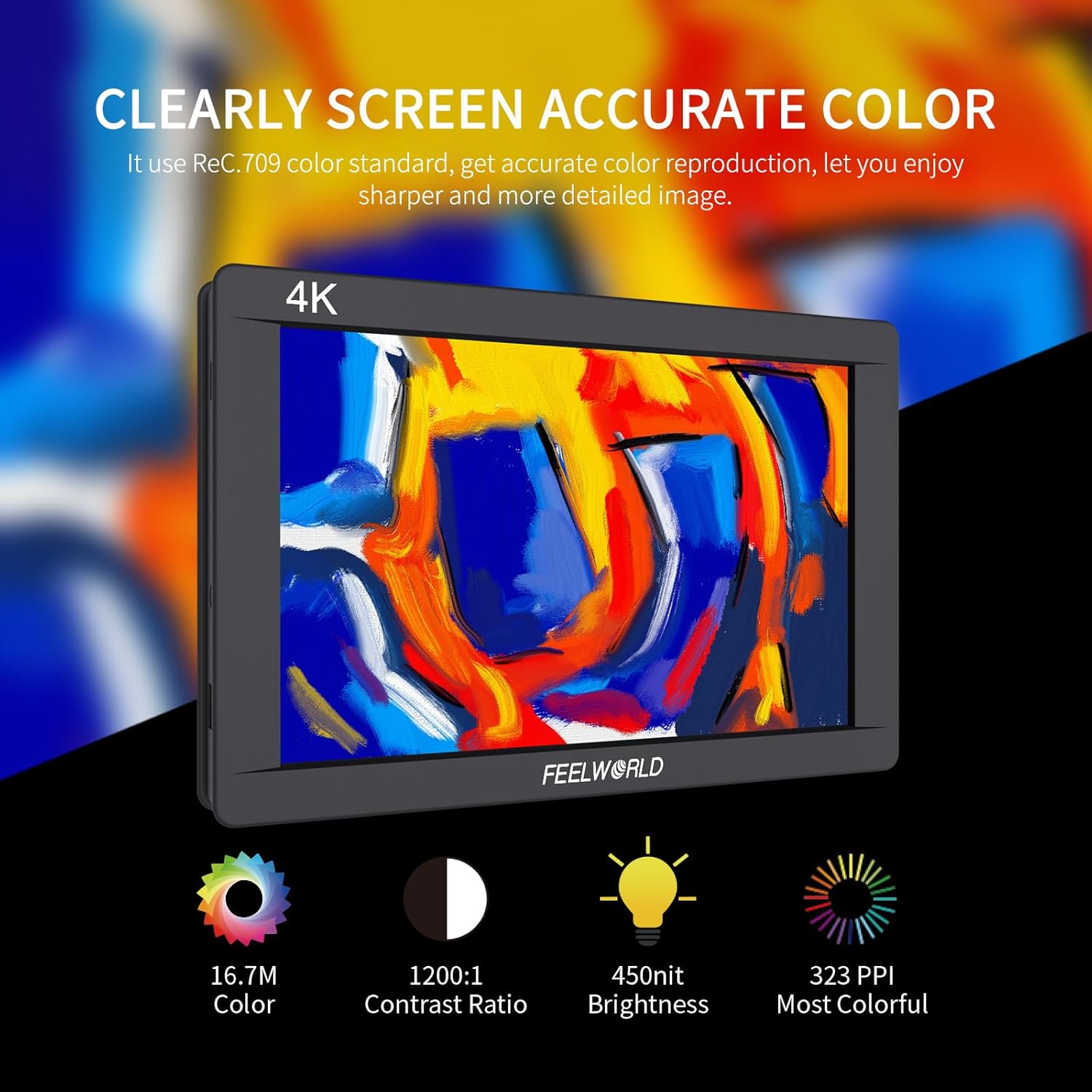
- High-Resolution Display: 7-inch IPS screen with 1920x1200 resolution and 323 PPI, providing sharp and detailed images. Brightness of 450 nits ensures clear viewing.
- Professional Color Calibration: Supports Rec.709 color standard for accurate color reproduction, ensuring true-to-life visuals during shooting.
- Versatile Input/Output Options: Features 3G-SDI and 4K HDMI inputs and outputs, compatible with a wide range of cameras, DSLRs, and camcorders.
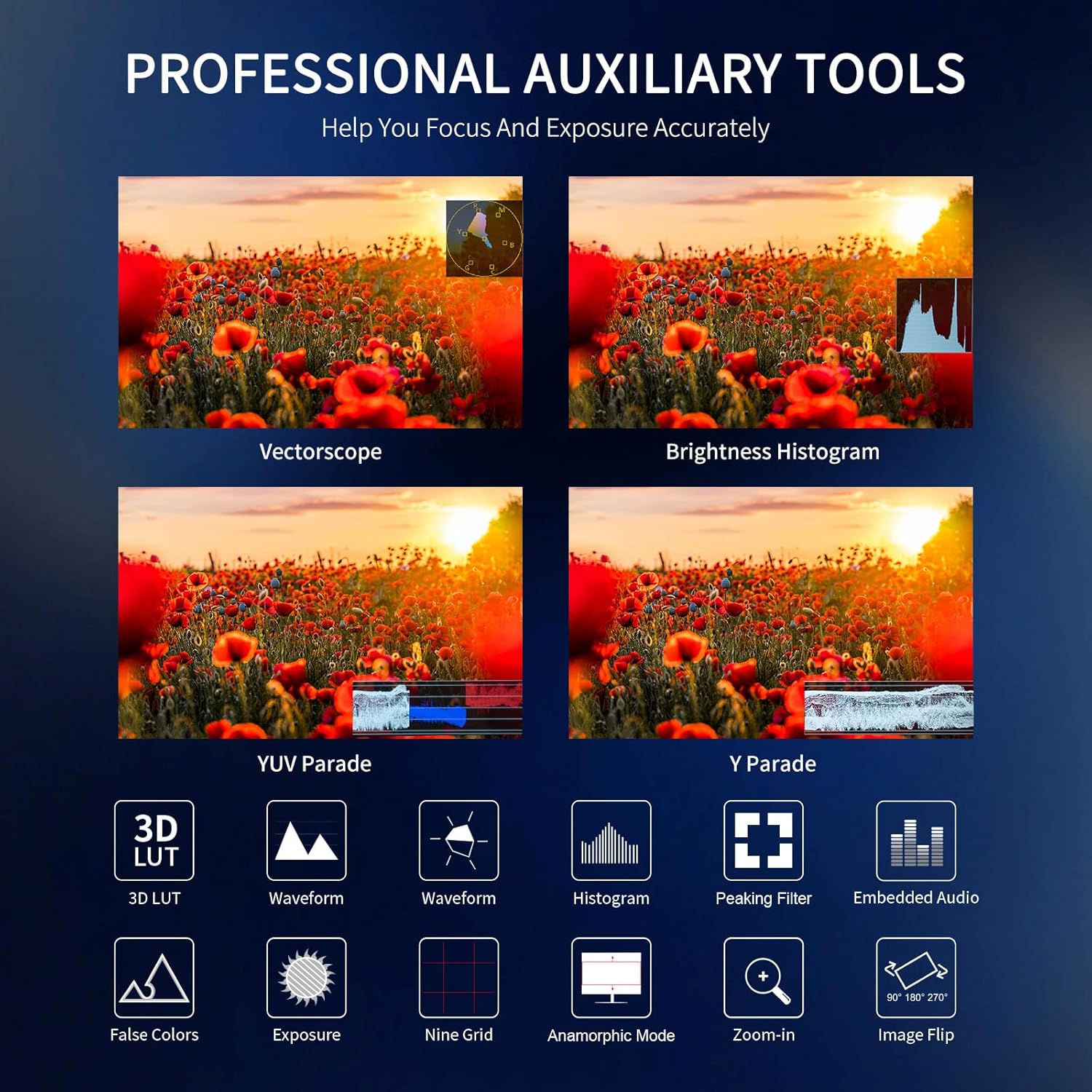
- Broadcast-Quality Monitoring Tools: Includes professional tools such as Waveform, Vectorscope, RGB Histogram, Peaking Filter, False Colors, Exposure, Embedded Audio, Nine Grid, Anamorphic Mode, Zoom-in, DSLR Scale, Pixel to Pixel, Check Field, and Image Flip for precise exposure and focus control.
- Custom 3D LUT Support: Allows loading up to 32 custom LUTs for real-time preview of filming looks, streamlining post-production.
- Ultra-Thin Lightweight Design: With a 22mm thickness and 320g weight, the monitor is highly portable for on-location shoots.
- Flexible Power Supply: Supports Sony F970 battery plate (battery not included) and can also be powered by a 12V 1.5A power adapter.

4. Setup
4.1 Powering the Monitor
The FW703 monitor can be powered using an NP-F series battery (F970, F960, F950, F770, F750, F730, F570, F550, F530) via the included F970 battery plate, or by a 12V 1.5A DC power adapter (not included).
- Battery Installation: Attach the F970 battery plate to the back of the monitor. Slide a compatible NP-F series battery onto the plate until it clicks into place.
- DC Power: Connect a 12V 1.5A DC power adapter to the DC 12V input port on the side of the monitor.

4.2 Connecting to a Camera/Device
The FW703 supports both 3G-SDI and 4K HDMI inputs and outputs.
- HDMI Connection: Use the included Mini HDMI cable to connect your camera's HDMI output to the HDMI-IN port on the monitor. For 4K signals, ensure your camera and cable support 4K 2160P 30Hz.
- SDI Connection: Connect your camera's SDI output to the SDI-IN port on the monitor using an SDI cable. The monitor supports all SD, HD, and SDI formats up to 1080p 60Hz.
- Outputting Signal: Use the HDMI-OUT or SDI-OUT ports to loop through the signal to another monitor or device.

4.3 Mounting the Monitor
The FW703 can be mounted to a camera rig or hot shoe using the included hot shoe mount.
- Attach the hot shoe mount to the bottom 1/4-inch screw hole of the monitor.
- Secure the hot shoe mount to your camera's hot shoe or a compatible rig.

4.4 Attaching the Sunshade
The portable sunshade can be easily attached to the monitor to improve visibility in bright outdoor conditions.
- Align the sunshade with the grooves around the monitor's screen.
- Gently press the sunshade into place until it is securely attached.

5. Operating Instructions
5.1 Basic Operation
- Power On/Off: Press and hold the power button (usually located on the side or top) to turn the monitor on or off.
- Input Switching: Use the MODE button to switch between HDMI and SDI input signals.
- Volume Control: Use the '<' and '>' buttons to adjust the volume of the embedded audio.

5.2 Menu Navigation
The monitor features a user-friendly menu system for accessing various settings and monitoring tools.
- Press the MENU button to enter the main menu.
- Use the arrow buttons (usually '<' and '>') to navigate through menu options.
- Press the V button (or similar confirmation button) to select an option or confirm a setting.
- Use the F1 and F2 buttons as user-definable function buttons for quick access to frequently used features.
5.3 Advanced Monitoring Functions
The FW703 offers a range of professional monitoring tools accessible through the menu:
- Histogram: Displays the distribution of brightness levels in the image.
- Peaking Filter: Highlights sharp edges in the image to assist with focus.
- False Colors: Uses color overlays to represent exposure levels, helping to identify overexposed or underexposed areas.
- Exposure (Zebras): Displays zebra patterns on areas exceeding a set exposure threshold.
- Waveform: Provides a graphical representation of the luminance and chrominance levels in the video signal.
- Vectorscope: Shows the color information of the video signal, useful for checking color balance.
- Embedded Audio: Displays audio levels from the input signal.
- Image Flip: Flips the image horizontally or vertically, useful for various mounting orientations.
6. Maintenance
- Cleaning: Use a soft, dry cloth to clean the monitor's screen and body. For stubborn smudges, a slightly damp cloth with a mild, non-abrasive cleaner can be used. Avoid harsh chemicals.
- Storage: When not in use, store the monitor in a cool, dry place away from direct sunlight and extreme temperatures. Use the sunshade or a protective case to prevent scratches to the screen.
- Handling: Handle the monitor with care to avoid dropping or impacting it, which can damage internal components or the screen.
- Firmware Updates: Periodically check the FEELWORLD official website for firmware updates. Updates can be installed via the USB UPGRADE port.
7. Troubleshooting
| Problem | Possible Cause | Solution |
|---|---|---|
| No image on screen / "No Signal" message | Incorrect input selected, loose cable connection, incompatible signal format, camera not outputting signal. |
|
| Monitor does not power on | Battery depleted, power adapter not connected or faulty, power button not pressed correctly. |
|
| Image is distorted or flickering | Faulty cable, signal interference, incorrect display settings. |
|
If the problem persists after attempting these solutions, please contact FEELWORLD customer support.
8. Specifications
| Feature | Detail |
|---|---|
| Model Number | FW703 |
| Screen Size | 7 Inch IPS |
| Resolution | 1920x1200 |
| Brightness | 450nit |
| Pixel Density | 323PPI |
| Input Ports | 3G-SDI, 4K HDMI |
| Output Ports | 3G-SDI, 4K HDMI |
| Power Input | DC 12V, NP-F Battery Plate |
| Product Dimensions | 10 x 10 x 12 inches |
| Item Weight | 1.85 pounds |
| Manufacturer | FEELWORLD |
| Date First Available | January 21, 2018 |
9. Warranty and Support
FEELWORLD products typically come with a 1-year warranty. For detailed warranty information, technical support, or service inquiries, please refer to the official FEELWORLD website or contact their customer service directly.
Official Website: www.feelworld.cn
For further assistance, you may also refer to the top reviews section on the product page for common user experiences and tips.