Introduction
This manual provides instructions for the setup, operation, maintenance, and troubleshooting of your Sony HT-S200F 2.1ch Soundbar. This soundbar features a built-in subwoofer and Bluetooth connectivity, designed to enhance your television audio experience.
The soundbar offers a compact design and includes HDMI ARC and Bluetooth technology for seamless connection to your TV. Input and output terminals include HDMI (ARC), Optical-audio input, and USB Type A.
Package Contents
Before beginning setup, ensure all items are present in the box:
- Sony HT-S200F Soundbar
- Remote Control
- Batteries for remote commander (2 AA batteries)
- Optical Cable
- AC Adapter
- AC Cord
- Foot Pad
Setup
1. Placement
Place the soundbar directly in front of your television, ensuring it does not obstruct the TV screen or the remote control sensor. The compact design allows for versatile placement in various home environments.
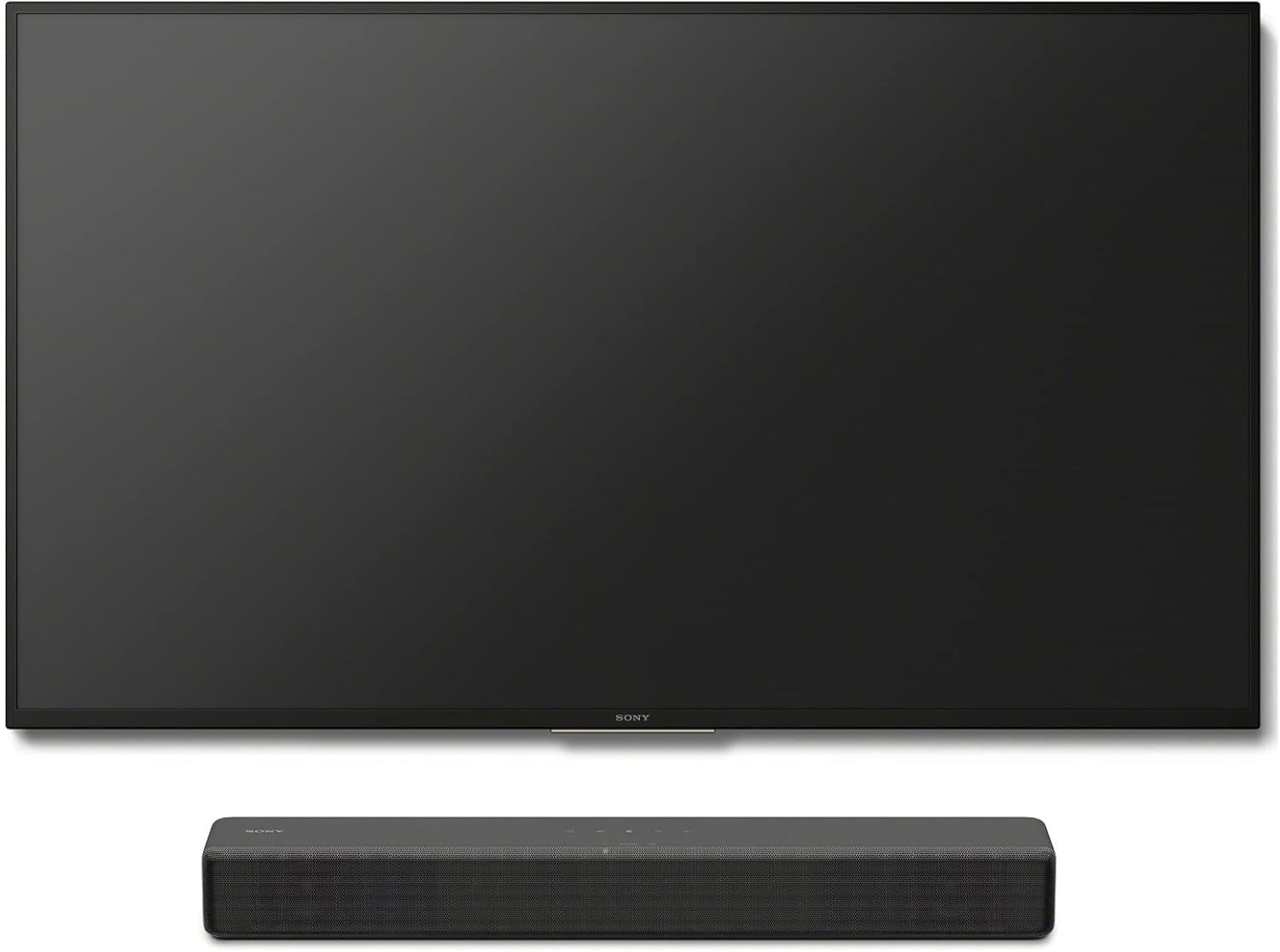
Image: Sony HT-S200F Soundbar positioned below a television.

Image: The soundbar integrated into a modern living room setup.
2. Connections
Connect the soundbar to your television using one of the following methods:
- HDMI ARC (Recommended): Connect an HDMI cable from the HDMI ARC port on the soundbar to the HDMI ARC port on your TV. This allows for audio return channel functionality, enabling TV audio to be sent to the soundbar and control of the soundbar with your TV remote.
- Optical-audio input: Connect the included optical cable from the OPTICAL IN port on the soundbar to the optical digital audio output port on your TV.
- USB Type A: For playing audio from a USB device.

Image: Rear panel of the soundbar, highlighting the various input ports for connectivity.
3. Power Connection
Connect the AC adapter to the soundbar and then plug the AC cord into a wall outlet.
Operating Instructions
1. Power On/Off
Press the power button on the soundbar or the remote control to turn the unit on or off.
2. Input Selection
Use the 'Input' button on the remote control to cycle through available input sources: HDMI, Optical, or Bluetooth.
3. Volume Control
Adjust the volume using the Volume + and - buttons on the remote control. If connected via HDMI ARC, your TV remote may also control the soundbar volume.
4. Sound Modes
The soundbar offers various sound modes to optimize your listening experience:
- Auto Sound: Automatically optimizes sound settings based on the content.
- Standard: Provides balanced audio for general listening.
- Cinema: Enhances the sound for movies, creating a wider soundstage.
- Music: Optimized for music playback.
- Voice: Strengthens dialogue, ideal for TV content with hushed conversations or conference calls.
- Night Mode: Reduces dynamic range for quieter listening without losing clarity.
5. Bluetooth Pairing
To connect a Bluetooth device:
- Press the Bluetooth button on the soundbar or remote control to enter pairing mode.
- On your mobile device, search for available Bluetooth devices and select 'HT-S200F'.
- Once paired, you can stream audio from your device to the soundbar.
Maintenance
To ensure the longevity and optimal performance of your Sony HT-S200F Soundbar, follow these maintenance guidelines:
- Cleaning: Use a soft, dry cloth to wipe the exterior surfaces of the soundbar. Avoid using abrasive cleaners, waxes, or solvents as they can damage the finish.
- Avoid Liquids: Do not expose the soundbar to water or excessive moisture. If liquid spills on the unit, immediately disconnect it from the power source and contact customer support.
- Ventilation: Ensure adequate ventilation around the soundbar to prevent overheating. Do not block any ventilation openings.
- Storage: When not in use for extended periods, store the soundbar in a cool, dry place away from direct sunlight and extreme temperatures.
Troubleshooting
If you encounter issues with your soundbar, refer to the following common troubleshooting steps:
No Sound
- Check all cable connections between the soundbar and your TV/audio source.
- Ensure the correct input source is selected on the soundbar.
- Verify that the volume on both the soundbar and your TV is not muted or set too low.
- If using an optical connection, check your TV's audio output settings to ensure it's set to 'PCM' or 'Stereo'.
Poor Sound Quality
- Try different sound modes (e.g., Standard, Music, Cinema) to see if it improves audio.
- Ensure the audio source (TV, streaming device) is providing high-quality audio.
- Check for any obstructions around the soundbar that might be affecting sound dispersion.
Remote Control Not Working
- Replace the batteries in the remote control.
- Ensure there is a clear line of sight between the remote and the soundbar's sensor.
Bluetooth Pairing Issues
- Ensure the soundbar is in Bluetooth pairing mode.
- Make sure your Bluetooth device is within the 10-meter range.
- Try unpairing and re-pairing the device.
TV Control Issues (HDMI ARC)
- Verify that your TV's HDMI port supports ARC and that the feature is enabled in your TV's settings.
- Ensure the HDMI cable is securely connected to both the soundbar and the TV.
Specifications
| Feature | Specification |
|---|---|
| Model Name | HT-S200F |
| Speaker Type | Subwoofer, Soundbar |
| Surround Sound Channel Configuration | 2.1 |
| Connectivity Technology | Bluetooth, HDMI, Optical, USB |
| Wireless Communication Technology | Bluetooth |
| Bluetooth Range | 10 Meters |
| Speaker Maximum Output Power | 80 Watts |
| Product Dimensions | 6.31"D x 25.38"W x 7"H |
| Item Weight | 7.45 Pounds |
| Material | Plastic |
| Color | Black |
| Control Method | Remote |

Image: Dimensions of the Sony HT-S200F Soundbar.
Warranty Information
The Sony HT-S200F Soundbar comes with a Limited Warranty. For detailed information regarding the terms, conditions, and duration of your warranty, please refer to the warranty card included in your product packaging or visit the official Sony support website.
Support
For further assistance, technical support, or service inquiries, please contact Sony customer support. You can find contact information and additional resources on the official Sony website.