
Nexxt Solutions Nyx1200-AC
Contents
Nexxt Solutions Nyx1200-AC AC1200 Dual-Band Wireless Router User Manual
Model: Nyx1200-AC
1. Introduction
This manual provides instructions for setting up, operating, and maintaining your Nexxt Solutions Nyx1200-AC AC1200 Dual-Band Wireless Router. The Nyx1200-AC is designed to provide high-speed wireless connectivity for homes and small offices, supporting simultaneous dual-band Wi-Fi at speeds up to 1200Mbps (300Mbps on 2.4GHz and 867Mbps on 5.0GHz).

Image 1.1: Front view of the Nexxt Solutions Nyx1200-AC Dual-Band Wireless Router.

Image 1.2: Overview of key features including dual-band transmission, beamforming, guest access, parental control, and universal repeater mode.
2. Package Contents
Please check the package contents carefully. If any item is missing or damaged, please contact your retailer.
- Nexxt Solutions Nyx1200-AC Wireless Router
- Power Adapter
- Ethernet Cable
- Quick Installation Guide
3. Product Overview
3.1. Rear Panel Layout

Image 3.1: Detailed view of the router's rear panel, showing all ports and buttons.
- WPS Button: Press to establish a secure wireless connection with WPS-enabled devices without entering a password.
- Reset Button: Press and hold for 5-10 seconds to restore the router to factory default settings.
- LAN1/LAN2 Ports: (10/100Mbps) Connect to your local network devices such as computers, smart TVs, or gaming consoles.
- WAN Port: (10/100Mbps) Connect to your modem or internet service provider's network.
- DC Power Input: Connect the provided power adapter here.
3.2. LED Indicators
The LED indicators on the front panel provide information about the router's status:
- Power LED:
- Solid On: Router is powered on.
- Off: Router is powered off.
- WAN LED:
- Solid On: WAN port is connected.
- Blinking: Data is being transmitted or received through the WAN port.
- LAN LEDs (1-2):
- Solid On: Corresponding LAN port is connected.
- Blinking: Data is being transmitted or received through the LAN port.
- 2.4G/5G Wi-Fi LEDs:
- Solid On: Wireless network is active.
- Blinking: Data is being transmitted or received wirelessly.
4. Setup
4.1. Hardware Connection
Follow these steps to connect your router:
- Power Off: Turn off your modem and computer.
- Connect WAN Port: Connect one end of an Ethernet cable to the WAN port (blue) of the router and the other end to your modem's Ethernet port.
- Connect LAN Port (Optional): If you wish to connect a computer directly, use another Ethernet cable to connect your computer's Ethernet port to one of the LAN ports (yellow) on the router.
- Connect Power: Connect the power adapter to the DC power input of the router and plug the adapter into a power outlet.
- Power On: Power on your modem, then wait for its indicator lights to stabilize. Then, power on the router.
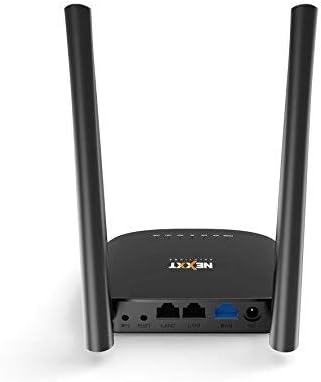
Image 4.1: Connection diagram illustrating how to connect the router to a modem and client devices.
4.2. Initial Configuration
After connecting the hardware, you can configure the router via a web browser:
- Connect to Router:
- Wired: Ensure your computer is connected to a LAN port of the router.
- Wireless: Connect your wireless device (laptop, smartphone) to the router's default Wi-Fi network. The default SSID (network name) and password are usually printed on a label on the bottom of the router.
- Access Web Interface: Open a web browser (e.g., Chrome, Firefox) and type the default IP address (usually http://192.168.0.1 or http://192.168.1.1) into the address bar and press Enter.
- Login: Enter the default username and password (usually "admin" for both, or as specified on the router label).
- Run Setup Wizard: Follow the on-screen instructions of the Quick Setup Wizard to configure your internet connection (e.g., DHCP, Static IP, PPPoE) and set up your Wi-Fi network name (SSID) and password.
- Save Settings: Save your changes and restart the router if prompted.
5. Operating Modes
The Nyx1200-AC router supports multiple operating modes to suit various networking needs:
- Router Mode (Default): Connects to your modem to share internet access with multiple devices via Wi-Fi and Ethernet.
- Access Point (AP) Mode: Connects to an existing wired network to create a wireless network, extending Wi-Fi coverage without routing functions.
- Universal Repeater Mode: Extends the coverage of an existing wireless network by rebroadcasting its signal.
You can switch between these modes through the router's web management interface under the "Operation Mode" or "Wireless Settings" section.
6. Advanced Features
6.1. Guest Network
Create separate Wi-Fi networks for guests to provide internet access while isolating them from your main network, enhancing security. This feature can be configured in the web interface under "Wireless Settings" or "Guest Network".
6.2. Parental Controls
Manage and restrict internet access for specific devices or users. You can set time limits, block websites, or filter content. Access these settings in the web interface under "Parental Control" or "Security".
6.3. Bandwidth Control (QoS)
Prioritize network traffic for specific applications or devices. This ensures that bandwidth-intensive activities like HD streaming or online gaming receive sufficient bandwidth, reducing lag and buffering. Configure this under "QoS" or "Bandwidth Control" in the web interface.
6.4. Beamforming Technology
Beamforming technology focuses Wi-Fi signals directly towards connected devices, rather than broadcasting in all directions. This results in stronger, more reliable connections and improved range for compatible devices.

Image 6.1: Visual representation of beamforming technology enhancing Wi-Fi signal strength and reliability for multiple devices.
7. Maintenance
- Firmware Updates: Regularly check the Nexxt Solutions website for firmware updates. Updating firmware can improve performance, add new features, and fix security vulnerabilities.
- Restarting: If you experience network issues, try restarting the router by unplugging the power adapter for 10 seconds and then plugging it back in.
- Physical Cleaning: Keep the router in a well-ventilated area. Periodically clean dust from the vents using a soft, dry cloth.
- Password Security: Change the default administrator password and Wi-Fi passwords regularly to maintain network security.
8. Troubleshooting
| Problem | Solution |
|---|---|
| Cannot access the internet. |
|
| Cannot access the router's web management page. |
|
| Wi-Fi signal is weak or unstable. |
|
| Forgot Wi-Fi password or router login password. |
|
9. Specifications
| Model | Nyx1200-AC |
| Wireless Standard | IEEE 802.11ac/n/g/b/a |
| Frequency | 2.4GHz and 5GHz (Dual-Band) |
| Wireless Speed | Up to 300Mbps (2.4GHz), Up to 867Mbps (5GHz), Total 1200Mbps |
| Ethernet Ports | 1x 10/100Mbps WAN Port, 2x 10/100Mbps LAN Ports |
| Antennas | 2x High-Gain External Antennas |
| Security | WPA/WPA2-PSK, WPA/WPA2, WEP |
| Operating Modes | Router, Access Point, Universal Repeater |
| Special Features | Beamforming, Guest Access, Parental Control, Bandwidth Control (QoS), WPS |
| Power Supply | External Power Adapter |
| Weight | 4.8 ounces |
10. Warranty and Support
Nexxt Solutions provides a 2-year warranty for this product. For warranty claims or technical support, please contact Nexxt Solutions customer service or visit their official website. Keep your purchase receipt as proof of purchase.
Nexxt Solutions Website: www.nexxtsolutions.com
Ask a question about this manual
Ask about setup, troubleshooting, compatibility, parts, safety, or missing instructions. Manuals+ will review the question and use this page’s manual context to help answer it.