
1. Introduction
Thank you for choosing the Rampage SMX-R12 Hawker Gaming Mouse. This manual provides detailed instructions for setting up, operating, and maintaining your new gaming mouse. The SMX-R12 Hawker is designed for precision and comfort, featuring an advanced optical sensor, adjustable DPI settings, and multiple programmable buttons to enhance your gaming experience.
2. Product Overview
Familiarize yourself with the components of your Rampage SMX-R12 Hawker Gaming Mouse:
- Left Click Button: Standard primary click function.
- Right Click Button: Standard secondary click function.
- Scroll Wheel: For scrolling and can also function as a middle click button.
- DPI Adjustment Buttons: Buttons to cycle through different DPI sensitivity levels.
- Forward/Backward Buttons: Side-mounted buttons for navigation or custom functions.
- Optical Sensor: Located on the bottom, provides high-resolution tracking.
- On/Off Switch: Located on the bottom, to power the mouse on or off.
- Micro USB Charging Port: Located at the front, for charging the internal battery.
- USB Receiver: Small dongle for wireless connectivity, often stored in a compartment on the mouse's bottom.

Figure 2.1: Top view of the Rampage SMX-R12 Hawker Gaming Mouse, showing the left/right click buttons, scroll wheel, and DPI adjustment buttons.

Figure 2.2: Side view of the Rampage SMX-R12 Hawker Gaming Mouse, highlighting the ergonomic design and side buttons.

Figure 2.3: Bottom view of the Rampage SMX-R12 Hawker Gaming Mouse, showing the optical sensor, On/Off switch, and USB receiver storage compartment.
3. Setup
- Unpack the Mouse: Carefully remove the mouse and its accessories from the packaging. Ensure you have the Rampage SMX-R12 Hawker mouse, the USB wireless receiver, and the micro USB charging cable.
- Locate the USB Receiver: The small USB wireless receiver is typically stored in a compartment on the bottom of the mouse for safe keeping during transport. Remove it from its slot.
- Connect the USB Receiver: Plug the USB wireless receiver into an available USB port on your computer. Your operating system should automatically detect and install the necessary drivers.
- Power On the Mouse: Locate the On/Off switch on the bottom of the mouse and slide it to the 'On' position. The mouse should now connect wirelessly to your computer.
- Initial Charge (Recommended): For optimal performance, it is recommended to fully charge the mouse before first use. Connect the micro USB charging cable to the mouse's charging port and the other end to a USB power source (e.g., computer USB port, USB wall adapter).
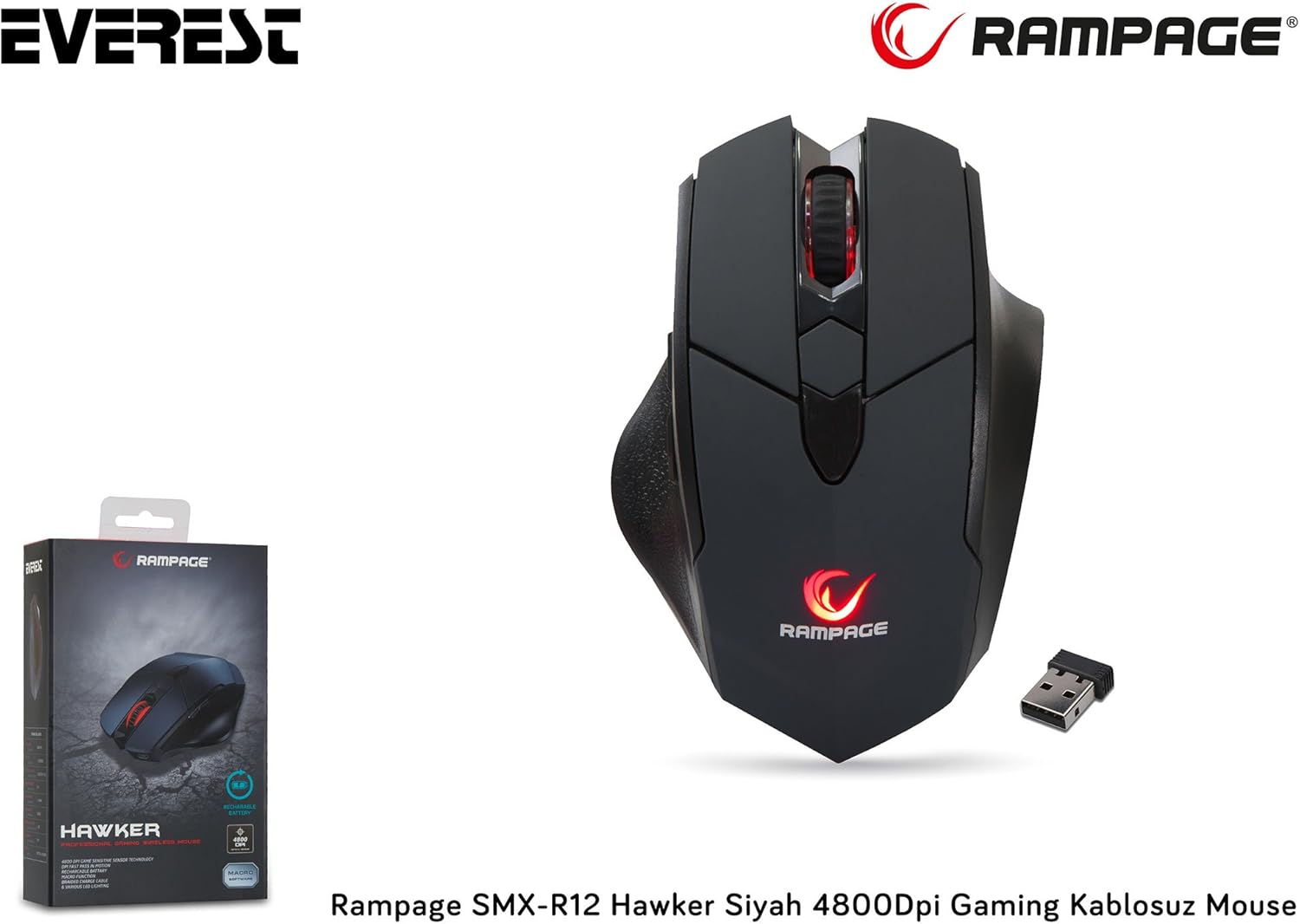
Figure 3.1: The Rampage SMX-R12 Hawker Gaming Mouse with its USB receiver and charging cable.
4. Operating Instructions
Once connected, your Rampage SMX-R12 Hawker mouse is ready for use. Here are its primary functions:
- Basic Navigation: Move the mouse across a flat surface to control the cursor on your screen.
- Clicking: Use the left and right click buttons for primary and secondary actions.
- Scrolling: Rotate the scroll wheel up or down to navigate through documents and web pages. Press the scroll wheel for a middle-click function.
- Side Buttons: The side buttons typically function as 'Forward' and 'Backward' in web browsers and file explorers. These buttons may be programmable through specific software (if available from the manufacturer) for custom in-game actions.
5. DPI Settings
The Rampage SMX-R12 Hawker features an optical sensor with adjustable DPI (Dots Per Inch) settings, allowing you to change the mouse's sensitivity on the fly. Higher DPI means the cursor moves further with less physical mouse movement, ideal for fast-paced gaming. Lower DPI provides more precise control, suitable for tasks requiring accuracy.
Use the dedicated DPI adjustment buttons (usually located behind the scroll wheel) to cycle through the available DPI levels. The mouse typically has visual indicators (e.g., LED color changes) to show the current DPI setting, though specific details may vary.
The mouse supports a maximum DPI of 4800, offering a wide range of sensitivity options.
6. Charging the Mouse
The Rampage SMX-R12 Hawker Gaming Mouse is equipped with a rechargeable internal battery, eliminating the need for disposable batteries. When the battery level is low, the mouse's indicator light may flash or change color.
- Connect the Cable: Insert the micro USB end of the charging cable into the charging port located at the front of the mouse.
- Connect to Power: Plug the standard USB-A end of the charging cable into a powered USB port on your computer or a USB wall adapter.
- Charging Indicator: The mouse will typically display an LED indicator to show that it is charging. This light may turn solid when fully charged.
- Charging Time: A full charge usually takes a few hours. You can continue to use the mouse while it is charging.

Figure 6.1: The micro USB charging port located at the front of the Rampage SMX-R12 Hawker Gaming Mouse.
7. Maintenance
To ensure the longevity and optimal performance of your mouse, follow these maintenance guidelines:
- Cleaning: Use a soft, dry cloth to wipe the surface of the mouse. For stubborn dirt, slightly dampen the cloth with water. Avoid using harsh chemicals or abrasive materials.
- Sensor Cleaning: Occasionally, dust or debris may accumulate around the optical sensor. Use a cotton swab or compressed air to gently clean the sensor area.
- Battery Care: To prolong battery life, avoid fully discharging the mouse frequently. Charge it when the low battery indicator appears.
- Storage: When not in use, especially during travel, store the USB receiver in its designated compartment on the mouse's bottom to prevent loss.
8. Troubleshooting
If you encounter issues with your Rampage SMX-R12 Hawker mouse, refer to the following common solutions:
| Problem | Possible Solution |
|---|---|
| Mouse not responding |
|
| Cursor erratic or jumpy |
|
| Mouse not charging |
|
| Side buttons not working |
|
9. Specifications
| Feature | Detail |
|---|---|
| Brand | Rampage |
| Model | SMX-R12 Hawker |
| Sensor Type | Optical |
| DPI (Dots Per Inch) | Up to 4800 DPI |
| Number of Buttons | 7 (Left, Right, Scroll Click, 2 DPI, 2 Side) |
| Connectivity | 2.4GHz Wireless (via USB Receiver) |
| Battery Type | Rechargeable (500mAh capacity) |
| Charging Port | Micro USB |
| Charging Cable Length | 1.7 meters |
| Dimensions (L x W x H) | 12.5 x 4.2 x 8.3 cm |
| Weight | 270 grams |
| Operating System Compatibility | Windows, macOS, ChromeOS (general compatibility) |
10. Warranty and Support
Rampage products are designed for quality and reliability. For information regarding warranty coverage, technical support, or service, please refer to the warranty card included with your product or visit the official Rampage website. Keep your proof of purchase for any warranty claims.
For further assistance, please contact Rampage customer support through their official channels.


