
OBO HANDS UID
OBO HANDS UID IC Card Instruction Manual: 13.56MHz Writable RFID Cards
Model: UID
1. Introduction
This instruction manual provides detailed guidance for the OBO HANDS UID IC Cards. These cards are designed for various access control and identification systems, offering the unique capability to rewrite the User ID (UID) in Sector 0, Block Zero. This feature allows for flexible application in scenarios requiring card cloning or replacement without re-enrollment in the system.
2. Product Overview
2.1 Key Features
- Material: PVC
- Rewrite Times: Up to 100,000 times
- Read Distance: 0-10 cm (dependent on the reader/writer device)
- Security: Read-write capability with different access passwords or logical encryption versions for enhanced product security.
- Compatibility: Fully compatible with MIFARE Classic 1K, featuring a 4-byte UID and 1K Byte memory, organized into 16 sectors of 4 blocks. Compliant with ISO/IEC 14443A protocol.
- Functionality: All block sectors are writable and rewritable, providing full utility.
- Durability: Waterproof and dustproof design.
2.2 Package Contents
Each package contains 10 pieces of UID IC Cards, individually protected in clear plastic sleeves.
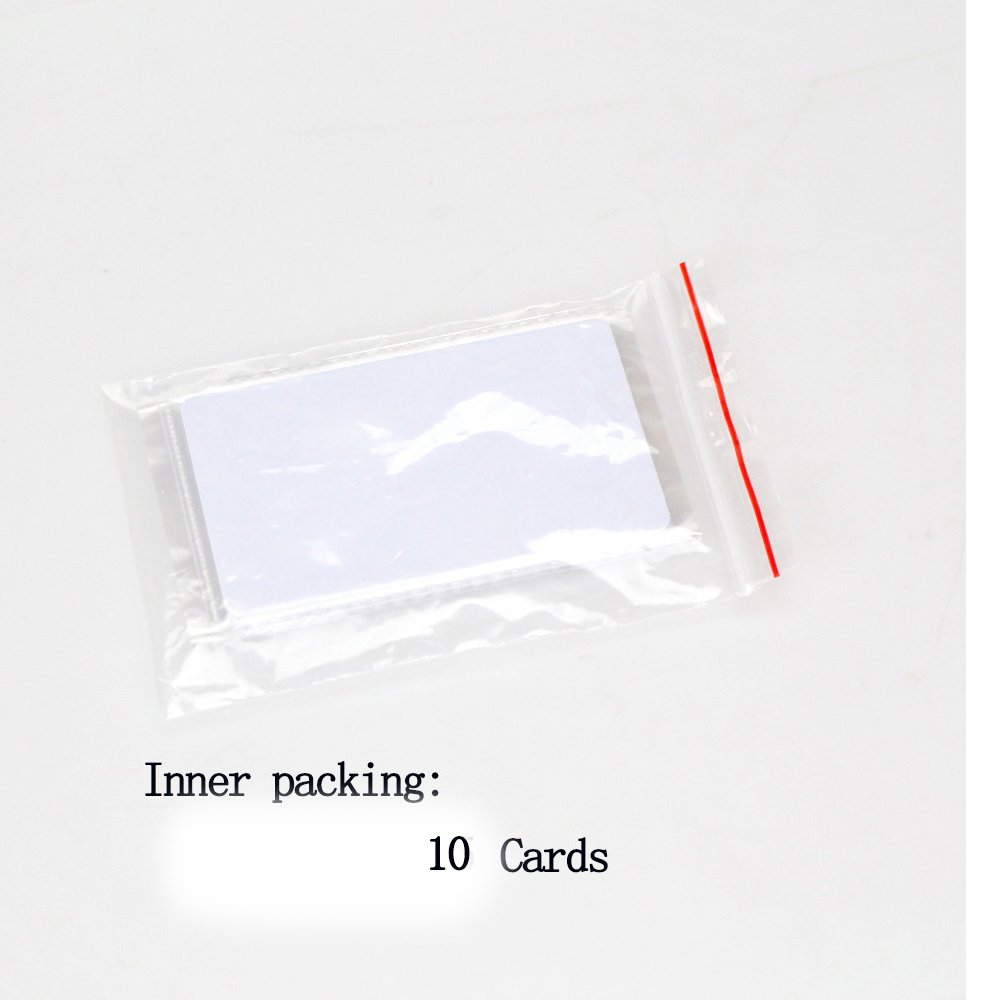
Image: Inner packaging showing 10 UID IC Cards sealed in a clear plastic bag.

Image: A stack of OBO HANDS UID IC Cards, each enclosed in a clear protective plastic sleeve.
2.3 Applications
These UID IC Cards are suitable for a wide range of applications, including but not limited to:
- Access control systems
- Hotel locks
- Staff attendance tracking
- School campus access
- Membership management
- Payment control
- Identification and security systems
- Parking lot entry
- Social security management
- Transportation
- Municipal and ancillary services

Image: Visual examples of RFID card usage in various settings, such as public transport, access control, and time attendance.
3. Setup
To utilize the OBO HANDS UID IC Cards, a compatible card reader/writer device is required. These cards are blank and need to be programmed with the desired UID and data before use in an access control or identification system.
- Acquire a Compatible Reader/Writer: Ensure you have an RFID card reader/writer that supports 13.56MHz MIFARE Classic 1K cards and has the capability to write to Sector 0, Block Zero (the Manufacturer's Block where the UID is stored).
- Software Installation: Install any necessary software or drivers for your card reader/writer device on your computer or programming tool.
- Card Placement: Place an OBO HANDS UID IC Card onto the designated reading/writing area of your device.
Image: A stack of five blank white OBO HANDS UID IC Cards, ready for programming.
4. Operating Instructions
The primary function of these cards is their ability to have their UID rewritten. This section details the process.
4.1 Rewriting the UID (Sector 0, Block Zero)
The unique feature of these cards is the ability to reprogram Sector 0, Block Zero, which stores the Chip UID. This allows you to clone an existing card's UID or assign a new one.
- Connect Reader/Writer: Ensure your card reader/writer is connected and recognized by your computer or programming tool.
- Launch Software: Open the software provided with your card reader/writer.
- Place Card: Place an OBO HANDS UID IC Card on the reader.
- Read Original Card (if cloning): If you are cloning an existing card, first read its UID using your reader/writer software. Note down the UID.
- Enter New UID: In your software, locate the function to write to Sector 0, Block Zero. Enter the desired UID (either the cloned UID or a new one).
- Execute Write Operation: Initiate the write command. The software should confirm successful writing.
- Verify: After writing, read the card again to confirm that the UID has been successfully changed to the new value.
Important Note: This UID card requires a dedicated card reader/writer to write the inner code (UID). General NFC tools like Android Mifare Classic Tool or NFC Tools typically only write data to other sectors, not the UID in Sector 0, Block Zero.
4.2 Writing Data to Other Sectors
Beyond the UID, all other sectors and blocks on the card are rewritable and useful for storing application-specific data.
- Select Sector/Block: In your card reader/writer software, select the specific sector and block where you wish to write data.
- Enter Data: Input the data you intend to store.
- Execute Write Operation: Perform the write command.
- Verify: Read the card to confirm the data has been correctly written to the selected sector/block.
5. Maintenance
OBO HANDS UID IC Cards are designed for durability. Follow these guidelines for optimal performance and longevity:
- Handling: Handle cards by their edges to avoid fingerprints or scratches on the surface, which could affect readability.
- Cleaning: If necessary, gently wipe the card surface with a soft, dry cloth. Avoid abrasive cleaners or solvents.
- Storage: Store cards in a cool, dry place away from direct sunlight, extreme temperatures, and strong magnetic fields.
- Protection: While waterproof and dustproof, avoid prolonged submersion in liquids or exposure to harsh chemicals.
6. Troubleshooting
If you encounter issues with your OBO HANDS UID IC Cards, consider the following troubleshooting steps:
| Problem | Possible Cause | Solution |
|---|---|---|
| Card not detected by reader. |
|
|
| Unable to write UID (Sector 0, Block Zero). |
|
|
| Data writing fails or is corrupted. |
|
|
7. Specifications
| Specification | Detail |
|---|---|
| Model Number | UID |
| Material | PVC |
| Frequency | 13.56MHz |
| Chip Type | Compatible with MIFARE Classic 1K |
| Memory | 1K Byte, organized in 16 sectors of 4 blocks |
| UID Type | 4-byte UID, rewritable (Magic Gen1a compatible) |
| Protocol | ISO/IEC 14443A |
| Rewrite Cycles | 100,000 times |
| Read Distance | 0-10 cm (reader dependent) |
| Environmental Protection | Waterproof and dustproof |
| Card Dimensions | 86 mm x 54 mm (Standard Credit Card Size) |
| Package Dimensions | 3.58 x 2.32 x 0.35 inches |
| Item Weight | 1.76 ounces (for 10 cards) |

Image: Diagram showing the dimensions of a single UID IC Card: 86 mm length and 54 mm width.
8. Warranty and Support
OBO HANDS products undergo rigorous quality testing to ensure reliability and durability. For any questions or issues regarding your UID IC Cards, please contact OBO HANDS customer support.
Customer Support:
- WhatsApp: +86 177 2255 8183
- Availability: Monday - Sunday, 24/7
For more information about OBO HANDS and our products, please visit the OBO HANDS Store on Amazon.
Ask a question about this manual
Ask about setup, troubleshooting, compatibility, parts, safety, or missing instructions. Manuals+ will review the question and use this page’s manual context to help answer it.