
3nStar RPT008
Thermal Receipt Printer RPT008 User Manual
Model: RPT008 | Brand: 3nStar
1. Introduction
This manual provides comprehensive instructions for the installation, operation, and maintenance of your 3nStar RPT008 Thermal Receipt Printer. The RPT008 is designed for efficient and reliable receipt printing, featuring high-speed output and versatile connectivity options.
Please read this manual thoroughly before using the printer to ensure proper operation and to maximize its lifespan.
2. Safety Information
- Ensure the printer is connected to a power source with the correct voltage as specified on the power adapter.
- Do not expose the printer to water or excessive humidity.
- Avoid placing the printer in direct sunlight or near heat sources.
- Do not attempt to disassemble or repair the printer yourself. Refer to qualified service personnel.
- Use only recommended paper types to prevent damage to the print head.
3. Package Contents
Verify that all items listed below are included in your package:
- 3nStar RPT008 Thermal Receipt Printer
- Power Adapter
- Power Cable
- USB Cable
- Paper Roll (Starter)
4. Product Overview
Familiarize yourself with the main components and interfaces of the RPT008 printer.

Figure 4.1: Front view of the 3nStar RPT008 Thermal Receipt Printer, showing the paper output slot and power switch.
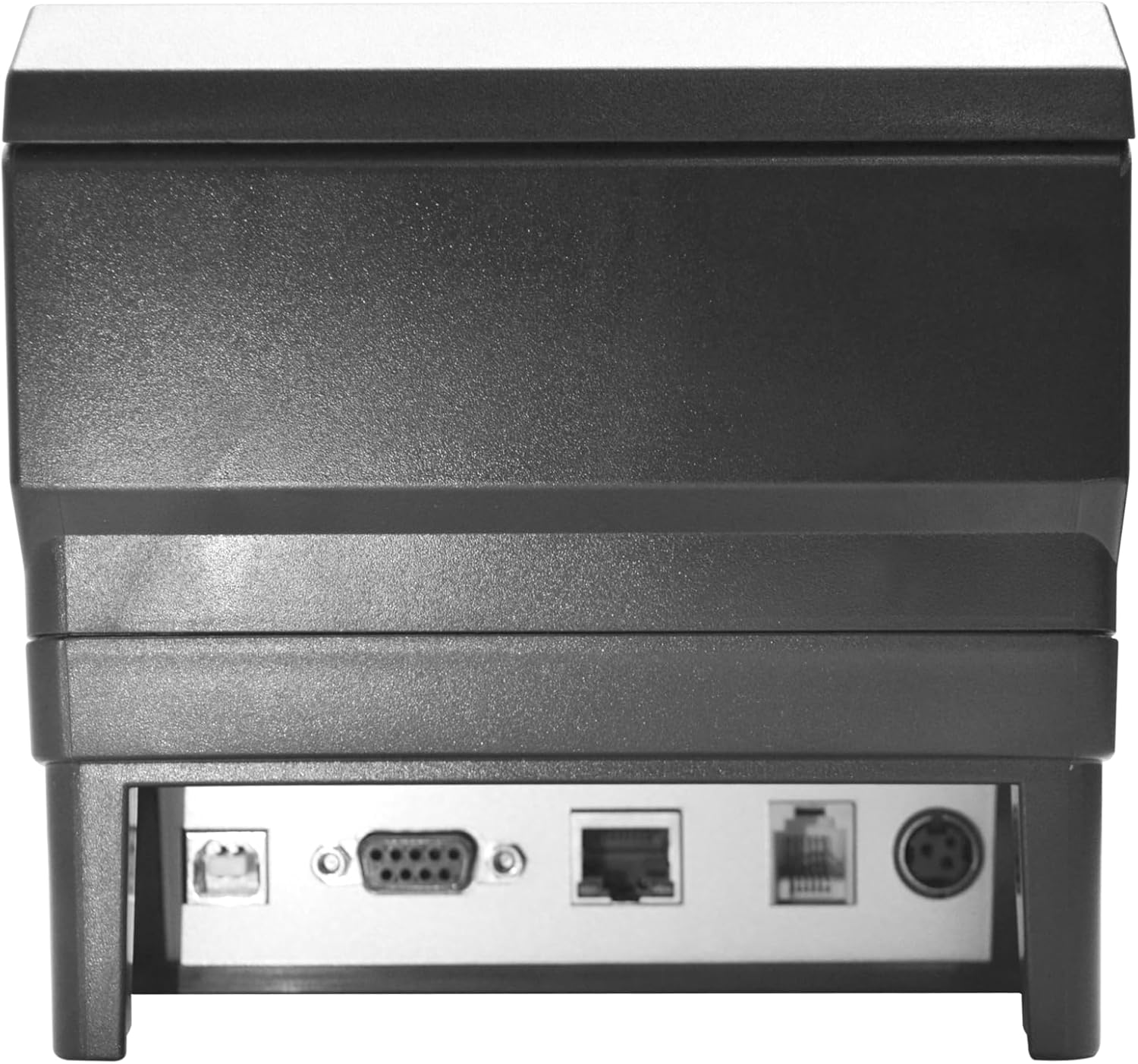
Figure 4.2: Rear view of the 3nStar RPT008 Thermal Receipt Printer, highlighting the USB, Serial (RS-232), and Ethernet ports.
Key Components:
- Power Switch: Located on the front, used to turn the printer on/off.
- Paper Output Slot: Where printed receipts exit.
- Power Port: Connects the power adapter.
- USB Port: For direct connection to a computer.
- Ethernet (LAN) Port: For network connectivity.
- Serial (RS-232) Port: For serial data communication.
- Indicator Lights: (e.g., Power, Error, Paper) - provide status feedback.
5. Setup
5.1. Connecting the Printer
- Connect Power: Insert the power cable into the power adapter, then connect the adapter to the printer's power port. Plug the power cable into a suitable electrical outlet.
- Connect Data Cable:
- USB Connection: Connect one end of the USB cable to the printer's USB port and the other end to an available USB port on your computer.
- Ethernet (LAN) Connection: Connect an Ethernet cable from the printer's LAN port to your network router or switch.
- Serial Connection: Connect a serial cable from the printer's RS-232 port to your device's serial port.
- Power On: Flip the power switch on the front of the printer to the 'On' position. The power indicator light should illuminate.
5.2. Loading Paper

Figure 5.1: Top view of the printer showing the paper compartment and a loaded paper roll.
- Open the paper compartment cover by pushing the release latch (usually located on the side or top).
- Insert the thermal paper roll into the compartment, ensuring the paper feeds from the bottom of the roll and the leading edge comes out towards the front of the printer.
- Pull a small amount of paper out past the cutter.
- Close the paper compartment cover firmly until it clicks into place.
5.3. Driver Installation
The RPT008 supports various operating systems including Windows and Linux. Drivers are typically provided on a CD included with the printer or can be downloaded from the 3nStar official website.
- For Windows:
- Insert the driver CD or download the latest driver package.
- Run the setup executable and follow the on-screen instructions.
- During installation, select the appropriate connection type (USB, Ethernet, or Serial) and printer model.
- For Linux:
- Refer to the specific Linux driver installation guide provided by 3nStar, usually involving CUPS setup.
6. Operating Instructions
6.1. Basic Printing
Once the printer is connected and drivers are installed, you can send print jobs from your application (e.g., POS software, word processor).
- Ensure the printer is powered on and has paper loaded.
- From your application, select the 3nStar RPT008 printer from the print dialog.
- Adjust print settings if necessary (e.g., paper size, print quality).
- Click 'Print'. The printer will automatically cut the receipt after printing.
6.2. Indicator Lights
| Indicator | Status | Meaning |
|---|---|---|
| POWER | Solid Green | Printer is powered on and ready. |
| PAPER | Flashing Red | Paper out or paper jam. |
| ERROR | Solid Red | General error (e.g., print head overheat, cover open). |
6.3. QR Code Printing
The RPT008 supports QR code printing. This functionality is typically controlled by the software sending the print commands. Ensure your POS or printing application is configured to send QR code data in a compatible format (e.g., ESC/POS commands for QR code generation).
7. Maintenance
7.1. Cleaning the Printer
Regular cleaning helps maintain print quality and extends the printer's lifespan.
- Print Head: Use a cotton swab lightly dampened with isopropyl alcohol to gently wipe the thermal print head. Allow it to dry completely before use. Clean the print head regularly, especially if print quality degrades.
- Paper Path: Use a soft, dry cloth or a small brush to remove any paper dust or debris from the paper path.
- Exterior: Wipe the exterior of the printer with a soft, damp cloth. Do not use abrasive cleaners or solvents.
Caution: Always turn off and unplug the printer before cleaning.
7.2. Replacing Paper Roll
When the paper runs out, the PAPER indicator will typically flash. Follow the steps in Section 5.2 to load a new paper roll.
8. Troubleshooting
| Problem | Possible Cause | Solution |
|---|---|---|
| Printer does not power on. | No power supply. | Check power cable connection and power outlet. Ensure power adapter is securely connected. |
| No printing. | Paper out; Incorrect driver/port; Printer offline. | Load paper; Verify driver installation and port settings; Check printer status in OS. |
| Poor print quality. | Dirty print head; Low quality paper. | Clean the print head (Section 7.1); Use recommended thermal paper. |
| Paper jam. | Improper paper loading; Foreign object. | Open cover, remove jammed paper carefully; Ensure paper is loaded correctly. |
| Printer not recognized by computer. | Driver not installed; Loose cable connection. | Install/reinstall drivers; Check USB/Ethernet/Serial cable connections. |
9. Specifications
| Feature | Detail |
|---|---|
| Model Name | RPT008 |
| Printing Technology | Thermal |
| Print Speed | Up to 260mm/s |
| Resolution | 8 dots/mm, 576 dots/line |
| Maximum Media Size | 80 x 80 mm |
| Interfaces | USB, Ethernet (LAN), Serial (RS-232) |
| Command Support | ESC/POS Command Set |
| Input Buffer | 2048KB |
| Product Dimensions (D x W x H) | 7"D x 6"W x 5"H |
| Item Weight | 2.2 pounds (approx. 1 kg) |
| Compatible Devices | Smartphones (via specific apps/drivers), PCs (Windows, Linux) |
| Included Components | Printer, Adapter, Power Cable, USB Cable, Paper Roll |
10. Warranty and Support
10.1. Warranty Information
The 3nStar RPT008 Thermal Receipt Printer comes with a 1 Year Limited Warranty from the date of purchase. This warranty covers manufacturing defects and malfunctions under normal use. It does not cover damage caused by misuse, accidents, unauthorized repairs, or consumables like paper rolls.
Please retain your purchase receipt as proof of purchase for warranty claims.
10.2. Technical Support
For technical assistance, driver downloads, or troubleshooting beyond this manual, please visit the official 3nStar website or contact their customer support. Contact information can typically be found on the manufacturer's website or on the product packaging.
Online Resources: Visit the 3nStar Store on Amazon
Related documentsRPT008


Ask a question about this manual
Ask about setup, troubleshooting, compatibility, parts, safety, or missing instructions. Manuals+ will review the question and use this page’s manual context to help answer it.