
FVTLED Z0039
FVTLED WiFi RGBW LED Controller User Manual
Model: Z0039
Introduction
This manual provides detailed instructions for the installation, operation, and maintenance of your FVTLED WiFi RGBW LED Controller. This controller is designed for wireless smart control of FVTLED RGBW LED Deck lights via a dedicated mobile application on Android and iOS devices. Please read this manual thoroughly before use to ensure proper functionality and safety.
Safety Information
- Ensure the power supply is disconnected before installation or maintenance.
- This controller is designed for use with FVTLED RGBW LED Deck lights only. Do not connect to other lighting systems.
- Verify correct voltage (120 Volts) and wattage (15 watts) compatibility.
- Keep the device away from water and excessive moisture.
- Do not attempt to disassemble or modify the controller. Refer all servicing to qualified personnel.
Package Contents
Please check the package for the following items:
- 1 x FVTLED WiFi RGBW LED Controller
- 1 x Remote Control (Batteries not included: Requires 2 AAA batteries)
- User Manual (this document)
Product Overview
The FVTLED WiFi RGBW LED Controller allows you to manage your FVTLED RGBW deck lights with ease, offering both a physical remote control and a comprehensive mobile application for advanced features.

Image: FVTLED WiFi RGBW LED Controller and its accompanying remote control.

Image: Detailed layout of the remote control buttons, indicating functions such as ON/OFF, brightness adjustment, color temperature control, and RGB color cycling.
Setup
1. Wiring Connection
The controller features two connection ends:
- The 2-pin end connects to your power supply.
- The 5-pin end connects directly to your FVTLED RGBW LED deck lights.
Ensure all connections are secure and properly aligned before applying power.
2. Mobile Application Download
To utilize the smart control features, download the official FVTLED application. Search for "FVTLED" in your device's app store:
- For Android devices: Google Play Store
- For iOS devices: Apple App Store

Image: Visual guide for downloading the FVTLED application and an overview of its key features, including 16 million colors, music sync, voice control, and scheduling.
3. Connecting the Controller to Wi-Fi
Follow these steps within the FVTLED app to connect your controller to your home Wi-Fi network:
- Open the FVTLED app.
- Sign Up for a new account or Log In if you already have one.
- From the main screen, tap the "Add device" button (often represented by a '+' icon).
- The app will automatically search for nearby devices. Select your controller (e.g., "DeviceBCF2").
- Enter your Wi-Fi network name and password when prompted.
- Once connected, you can name your device and assign it to a specific room for better organization.

Image: Step-by-step screenshots illustrating the process of signing up, logging in, adding a device, connecting to Wi-Fi, and organizing the device within the FVTLED app.
Operating the Controller
1. Using the Remote Control
The included remote control provides basic functions:
- ON/OFF: Power the lights on or off.
- Brightness: Adjust light intensity (10 levels of dimming).
- Color Temperature: Adjust between warm white (3000K), neutral white (4000K), and cool white (6500K).
- RGB Buttons: Cycle through various RGB colors and modes (three speeds for color cycling).
- Night Light Mode: Activates a low-intensity light setting.
2. Using the FVTLED Mobile App
The mobile app unlocks the full potential of your RGBW LED Controller:
- 16 Million Colors: Select any color from a vast spectrum.
- Brightness & Saturation Control: Fine-tune light intensity and color vibrancy.
- Music Mode: Lights can synchronize with music played through your device.
- Voice Control: Integrate with smart home systems (Wi-Fi, Alexa, Google Assistant) for voice commands.
- Timer & Schedule: Set automated on/off times and lighting scenes.
- Multiple Modes: Access various pre-programmed lighting effects and scenes.

Image: A user demonstrating control of green deck lights using the FVTLED mobile application on a smartphone.
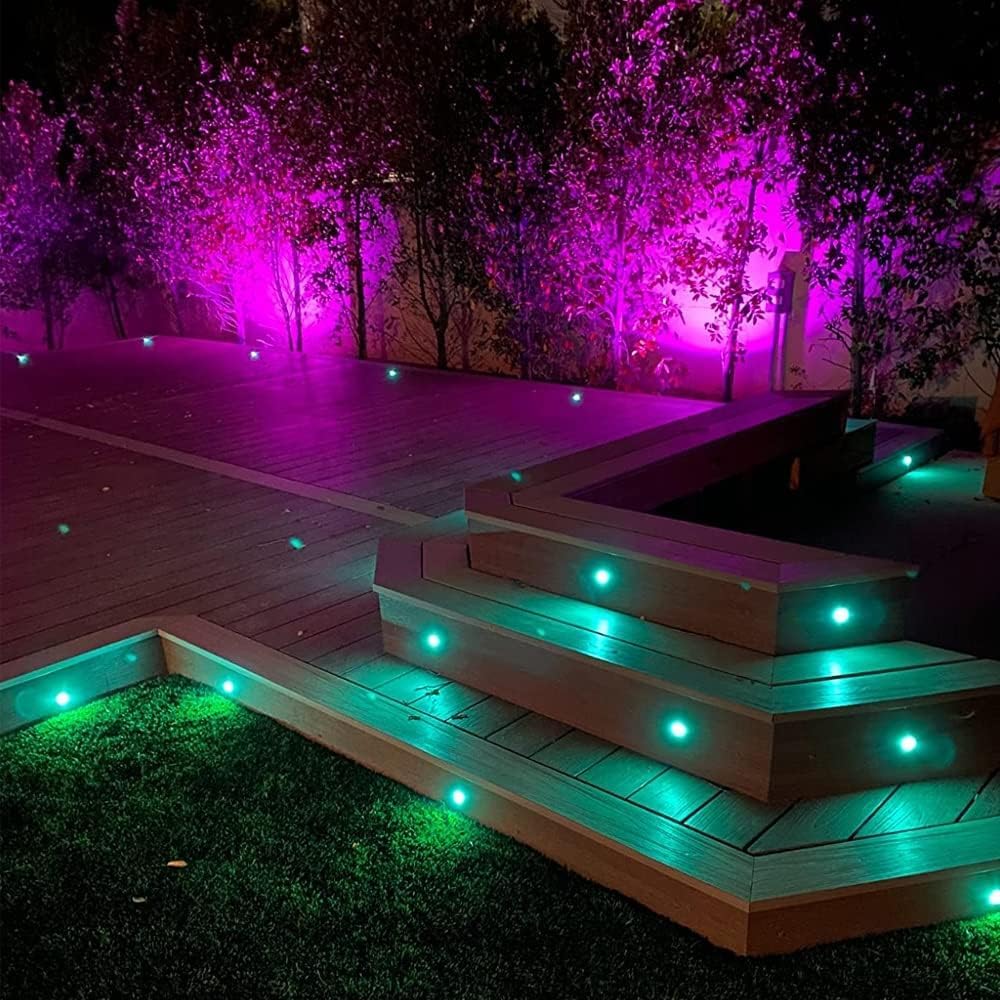
Image: An outdoor deck illuminated with FVTLED RGBW lights displaying vibrant purple and green colors, showcasing the controller's capabilities.

Image: An outdoor deck and stairs illuminated with warm white FVTLED deck lights, providing a cozy ambiance.

Image: A spacious outdoor deck area featuring FVTLED deck lights displaying a range of vibrant colors, demonstrating the RGB capabilities.
Maintenance
The FVTLED WiFi RGBW LED Controller requires minimal maintenance:
- Keep the controller clean and free from dust and debris. Use a soft, dry cloth for cleaning.
- Ensure the controller is installed in a location that is protected from direct exposure to harsh weather conditions, although it is designed for outdoor use with appropriate protection.
- Regularly check wiring connections for any signs of wear or damage.
- Replace remote control batteries (2 x AAA) as needed to ensure proper function.
Troubleshooting
| Problem | Possible Cause | Solution |
|---|---|---|
| Lights do not turn on. | No power to controller; Loose connections; Incorrect wiring; Faulty lights. | Check power supply connection. Ensure 2-pin connector is secure. Verify 5-pin connector to lights is secure. Confirm lights are functional. |
| Controller not connecting to Wi-Fi. | Incorrect Wi-Fi password; Out of Wi-Fi range; Router issues. | Double-check Wi-Fi password. Move controller closer to router. Restart your Wi-Fi router. Ensure 2.4GHz network is used if applicable. |
| Remote control not working. | Dead batteries; Remote out of range; Obstruction. | Replace AAA batteries. Ensure remote is within effective range of the controller. Remove any physical obstructions between remote and controller. |
| Lights not responding to app commands. | Controller offline; App glitch; Network interference. | Check app to confirm controller is online. Restart the app. Restart the controller by disconnecting and reconnecting power. Check for Wi-Fi interference. |
Specifications
| Feature | Detail |
|---|---|
| Model Number | Z0039 |
| Brand | FVTLED |
| Manufacturer | SEVEN COLORS LIGHTING TECHNOLOGY CO., LTD |
| Color | Wifi RGBW Controller |
| Power Source | DC Power Supply |
| Voltage | 120 Volts |
| Wattage | 15 watts |
| Item Weight | 1.58 ounces |
| Package Dimensions | 7 x 6.26 x 0.89 inches |
| Connectivity | WiFi |
| Compatibility | Android, iOS, Alexa, Google Assistant |
| Included Components | WiFi RGB controller and RGBW LED lights (controller only in this package) |
| Date First Available | October 16, 2015 |
Warranty and Support
For warranty information and customer support, please refer to the official FVTLED website or contact the manufacturer directly. Details regarding product registration, warranty claims, and technical assistance can typically be found through these channels.
Manufacturer: SEVEN COLORS LIGHTING TECHNOLOGY CO., LTD
For further assistance, please visit the FVTLED Store on Amazon.
Related documentsZ0039

Ask a question about this manual
Ask about setup, troubleshooting, compatibility, parts, safety, or missing instructions. Manuals+ will review the question and use this page’s manual context to help answer it.