
1. Introduction and Overview
The Roccat Horde AIMO RGB Gaming Keyboard is designed for optimal gaming performance and user customization. It features a precision key layout, quick-fire macro keys, a configurable tuning wheel, and advanced AIMO intelligent lighting. This manual provides essential information for setting up, operating, maintaining, and troubleshooting your keyboard.
Key Features:
- Precision Key Layout: Finger-cap design for enhanced key distinction and dirt resistance.
- AIMO Lighting System: Intelligent lighting that synchronizes across multiple compatible devices.
- RGB Lighting: Configurable, multi-zone, multi-color illumination.
- Membrane Keys: Engineered for a precise actuation point.
- Configurable Tuning Wheel & Buttons: On-the-fly control for multimedia, lighting, and more.
- Quick-Fire Macros: Low-profile macro keys designed to prevent accidental activation.
- Enhanced Anti-Ghosting: Ensures every key press is registered accurately.
- Detachable Palm Rest: Ergonomic design for increased comfort during extended gaming sessions.
- Roccat Swarm: Comprehensive driver and software system for customization.
2. Setup
2.1 Connecting the Keyboard
Connect the keyboard to your computer using the integrated USB 2.0 cable. Ensure the USB connector is fully inserted into an available USB port on your PC.
2.2 Software Installation (Roccat Swarm)
For full functionality and customization, install the Roccat Swarm software. An internet connection is required for driver installation and software updates.
- Visit the official Roccat website to download the latest version of the Roccat Swarm software.
- Run the installer and follow the on-screen instructions.
- Restart your computer if prompted.
System Requirements: The keyboard is compatible with Windows 8 and Windows 10 operating systems.
2.3 Attaching the Palm Rest
The detachable palm rest provides ergonomic support. Align the palm rest with the bottom edge of the keyboard and gently push until it clicks into place. To remove, pull the palm rest away from the keyboard.
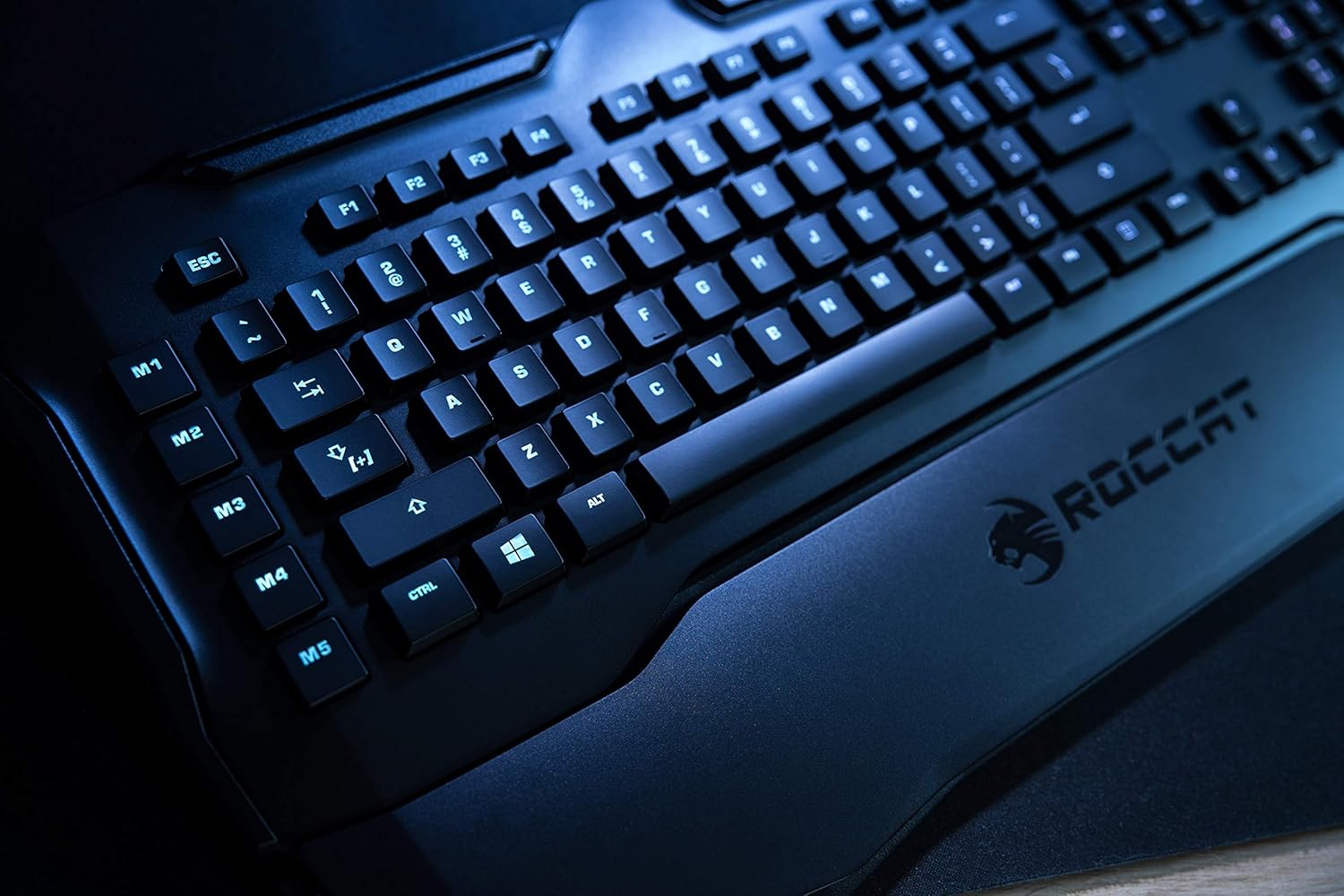
Figure 1: Roccat Horde AIMO keyboard with detachable palm rest.
3. Operating the Keyboard
3.1 AIMO and RGB Lighting
The AIMO intelligent lighting system provides dynamic, multi-zone RGB illumination. You can customize lighting effects, colors, and synchronization with other AIMO-compatible devices through the Roccat Swarm software.

Figure 2: Roccat Horde AIMO keyboard showcasing RGB lighting.
3.2 Configurable Tuning Wheel and Buttons
The tuning wheel and dedicated buttons located on the top right of the keyboard allow for quick adjustments without interrupting your workflow or game. These can be configured via Roccat Swarm to control multimedia playback, adjust lighting brightness, switch profiles, and more.

Figure 3: Detail of the tuning wheel and numpad.
3.3 Quick-Fire Macro Keys (M1-M5)
The five dedicated macro keys (M1-M5) on the left side of the keyboard can be programmed for complex commands or frequently used actions. Their low-profile design helps prevent accidental presses during intense gaming. Use the Roccat Swarm software to assign macros.

Figure 4: Macro keys M1-M5 and WASD section.
3.4 Anti-Ghosting
The enhanced anti-ghosting feature ensures that all simultaneous key presses are registered accurately, which is crucial for fast-paced gaming scenarios.
4. Maintenance
4.1 Cleaning the Keyboard
To maintain your keyboard's performance and appearance:
- Disconnect the keyboard from your computer before cleaning.
- Use a soft, slightly damp cloth to wipe down the surface of the keyboard and keys.
- Avoid using harsh chemicals, abrasive cleaners, or excessive moisture.
- For dust and debris between keys, use compressed air.
4.2 Palm Rest Care
The detachable palm rest can be cleaned with a damp cloth. Ensure it is completely dry before reattaching it to the keyboard.
5. Troubleshooting
If you encounter issues with your Roccat Horde AIMO keyboard, please refer to the following common solutions:
- Keyboard Not Responding:
- Ensure the USB cable is securely connected to both the keyboard and the computer.
- Try connecting the keyboard to a different USB port.
- Restart your computer.
- Lighting Issues:
- Verify that the Roccat Swarm software is installed and up to date.
- Check lighting settings within the Roccat Swarm software.
- Ensure no conflicting software is running that might interfere with RGB control.
- Macros Not Working:
- Open Roccat Swarm and confirm that your macros are correctly assigned and saved to the active profile.
- Ensure the software is running in the background.
- Software Not Detecting Keyboard:
- Reinstall the Roccat Swarm software.
- Update your operating system to the latest version.
For further assistance, please visit the official Roccat support website.
6. Specifications
| Brand | ROCCAT |
| Model Name | Horde AIMO |
| Model Number Item | ROC-12-350-BK |
| Product Dimensions | 5.5 x 47 x 20 cm; 1.1 kg |
| Color | Black |
| Connectivity Technology | USB |
| Number of USB 2.0 Ports | 1 |
| Voltage | 5 Volt |
| Power Source | USB |
| Operating System | Windows 10 |
| Supported Software | Windows 8 |
| Keyboard Description | Ergonomic |
| Recommended Uses | Gaming, PC / Server |
| Special Features | Wrist Rest |
| First Available Date | January 15, 2020 |
7. Warranty and Support
7.1 Product Warranty
Your Roccat Horde AIMO RGB Gaming Keyboard is covered by a manufacturer's warranty. Please refer to the warranty card included with your product or visit the official Roccat website for detailed warranty terms and conditions specific to your region.
7.2 Technical Support
For technical assistance, software updates, and frequently asked questions, please visit the Roccat support page on their official website. The Roccat Swarm software also provides access to support resources and ensures your device firmware is up to date.
Roccat Official Website: www.roccat.com

