
Introduction
Welcome to the user manual for the iRiver IR-SB200 USB Powered Curved Sound Bar Speaker. This manual provides essential information for setting up, operating, maintaining, and troubleshooting your new sound bar. Please read these instructions carefully to ensure optimal performance and longevity of your device.
Product Overview
The iRiver IR-SB200 is a 2-channel, 12W USB-powered curved sound bar speaker designed to enhance the audio experience for your computer, desktop, TV, or laptop. Its stylish and modern design, combined with powerful sound output, makes it an ideal audio solution for various environments.

An overall view of the iRiver IR-SB200 curved sound bar speaker, showcasing its sleek design and compact form factor on a desk setup.
Key Features:
- USB Powered: Conveniently powered via a standard USB port.
- 2-Channel Stereo Sound: Delivers clear and powerful 12W audio.
- Curved Design: Modern aesthetic that complements various setups.
- Integrated Controls: Easy access to volume adjustment.
- Auxiliary Ports: Includes headphone and microphone jacks for personal audio and communication.

Close-up view of the front panel of the iRiver IR-SB200 speaker, highlighting the dedicated headphone and microphone input jacks for convenient access.
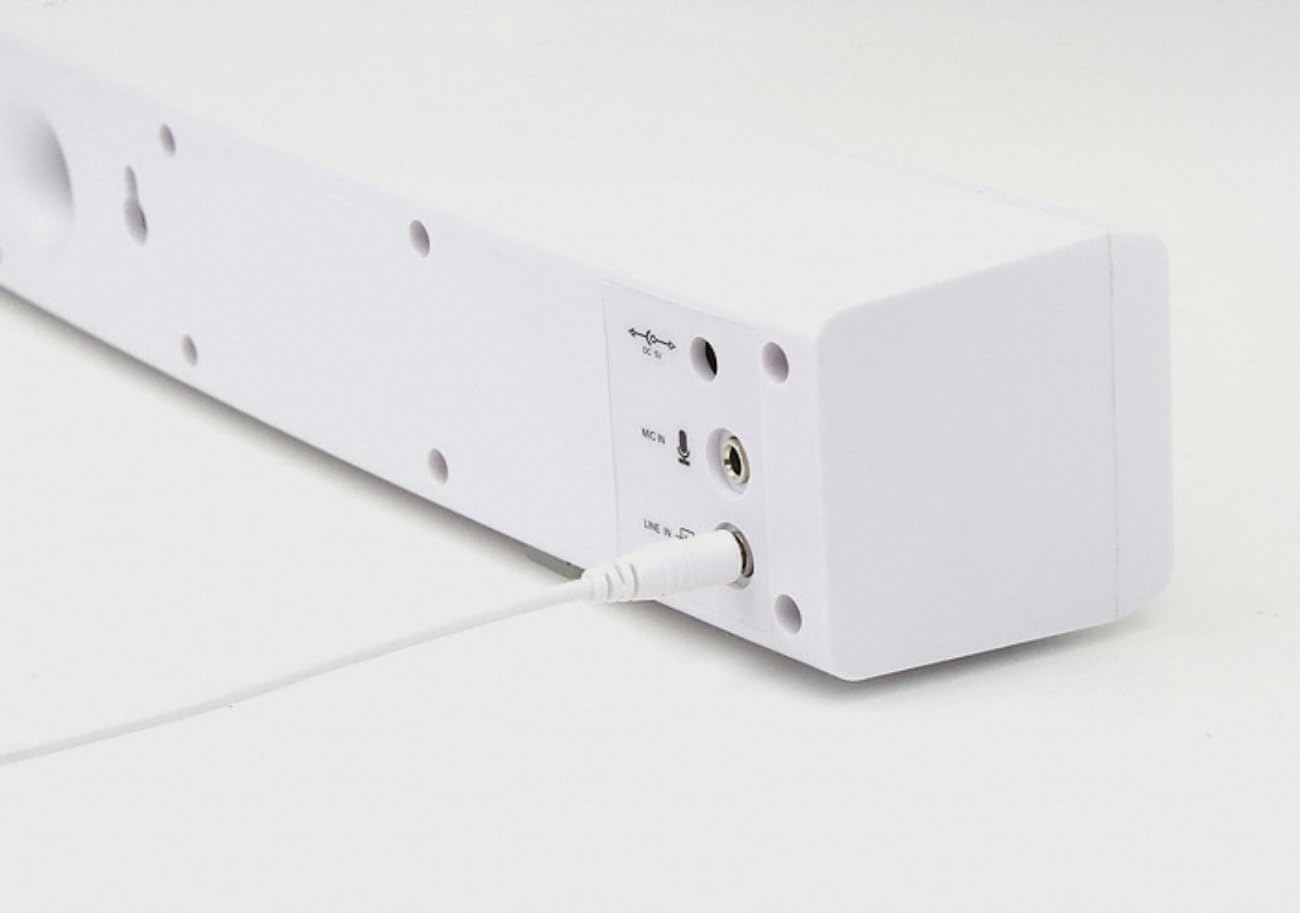
Detailed view of the rear panel of the iRiver IR-SB200 speaker, showing the DC In power port and the Line In audio input port.

Side profile of the iRiver IR-SB200 speaker, featuring the integrated rotary volume control knob with '+' and '-' indicators for easy adjustment.
Setup Instructions
Connecting the Speaker
Follow these steps to connect your iRiver IR-SB200 sound bar to your device:
- Placement: Position the sound bar on a stable, flat surface near your computer, laptop, or TV. Ensure there is adequate space for cable connections.
- Power Connection: Connect the USB power cable from the sound bar to an available USB port on your computer, laptop, TV, or a compatible USB power adapter (5V/1A recommended). The speaker will power on automatically.
- Audio Connection: Connect the 3.5mm audio cable (Line In) from the sound bar to the audio output jack (headphone jack) of your computer, laptop, or TV.
- Verify Connection: Once connected, ensure both the USB power and 3.5mm audio cables are securely plugged in.
Initial Audio Test
After connecting, play some audio from your device (e.g., music, video) and adjust the volume using the sound bar's control knob or your device's volume settings.
Operating Instructions
Power On/Off
- The sound bar powers on automatically when connected to a powered USB port.
- To power off, disconnect the USB power cable.
Volume Control
- Rotate the knob on the side of the sound bar clockwise to increase the volume.
- Rotate the knob counter-clockwise to decrease the volume.
- You can also adjust the volume using your connected device's operating system or media player controls.
Using Headphone and Microphone Jacks
- Headphone Jack: Plug your headphones into the headphone jack on the front of the sound bar for private listening. This will mute the sound bar's speakers.
- Microphone Jack: Connect an external microphone to the microphone jack on the front of the sound bar for voice input. Ensure your device's audio settings are configured to use the external microphone.
Maintenance
Proper care ensures the longevity and performance of your sound bar:
- Cleaning: Use a soft, dry cloth to wipe the exterior of the sound bar. Do not use liquid cleaners, aerosols, or solvents.
- Storage: When not in use for extended periods, store the sound bar in a cool, dry place away from direct sunlight and extreme temperatures.
- Avoid Moisture: Keep the sound bar away from water and high humidity to prevent damage to internal components.
- Handle with Care: Avoid dropping or subjecting the sound bar to strong impacts.
Troubleshooting
If you encounter issues with your iRiver IR-SB200 sound bar, refer to the following common problems and solutions:
- No Sound:
- Ensure the USB power cable is securely connected and receiving power.
- Verify the 3.5mm audio cable is firmly plugged into both the sound bar's Line In port and your device's audio output.
- Check the volume level on both the sound bar and your connected device. Increase the volume.
- Confirm that your device's audio output is set to the correct port (e.g., external speakers/headphones).
- If headphones are plugged into the sound bar, unplug them to enable speaker output.
- Distorted Sound:
- Reduce the volume on both the sound bar and your device.
- Ensure audio cables are not damaged or loosely connected.
- Test with a different audio source or device to rule out source issues.
- Microphone Not Working:
- Ensure the microphone is correctly plugged into the sound bar's microphone jack.
- Check your device's audio input settings to ensure the external microphone is selected as the input device.
- Test the microphone with another device if possible.
- Speaker Not Powering On:
- Ensure the USB power source is active and providing power. Try a different USB port or power adapter.
- Check the USB cable for any visible damage.
Specifications
Detailed technical specifications for the iRiver IR-SB200 Sound Bar Speaker:
| Feature | Specification |
|---|---|
| Brand | iRiver |
| Model Number | IR-SB200 |
| Speaker Type | Soundbar |
| Speaker Maximum Output Power | 12 Watts |
| Number of Audio Channels | 2.0 |
| Audio Output Mode | Stereo |
| Connectivity Technology | USB |
| Connectivity Protocol | USB |
| Power Source | Corded Electric (USB Powered) |
| Control Method | Touch (Volume Knob) |
| Mounting Type | Tabletop Mount |
| Compatible Devices | Laptop, Personal Computer, Television |
| Item Weight | 1.52 Pounds |
| Color | Rose Gold |
| Additional Features | USB Port, Headphone Jack, Microphone Jack |
Warranty and Support
For detailed information regarding the product warranty, technical support, or service, please refer to the official documentation provided with your purchase or visit the iRiver official website. Warranty terms and conditions may vary by region and retailer.
If you require further assistance beyond the troubleshooting steps provided in this manual, please contact iRiver customer support through their official channels.