
DJI CP.ZM.00000064.01
DJI Osmo Mobile 2 Handheld Smartphone Gimbal Instruction Manual
Model: CP.ZM.00000064.01
Brand: DJI
1. Introduction
The DJI Osmo Mobile 2 is a handheld smartphone gimbal designed to capture smooth, cinematic footage with your mobile device. Its lightweight design, intelligent functions, and long-lasting battery enable users to record stable videos and photos on the go.
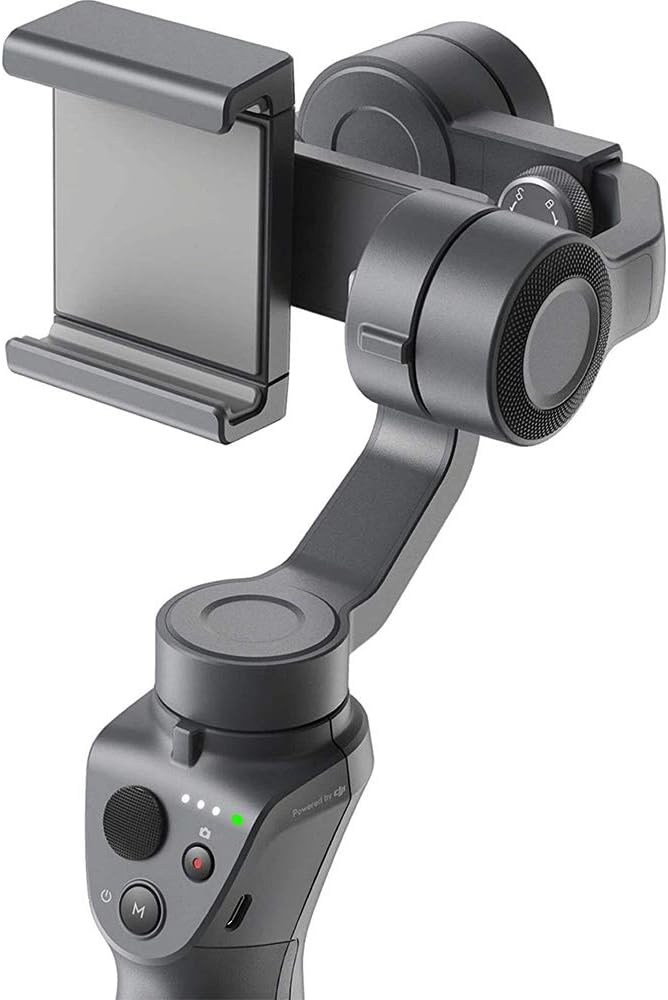
Image 1.1: The DJI Osmo Mobile 2 Handheld Smartphone Gimbal.
2. What's in the Box
Upon unboxing your DJI Osmo Mobile 2, you should find the following components:
- DJI Osmo Mobile 2 Gimbal
- USB-A to Micro-USB Charging Cable
- Storage Pouch
- Wrist Strap
- Instruction Manual and Documentation
For a visual guide to unboxing, please refer to the video below:
Video 2.1: Unboxing the DJI Osmo Mobile 2, showing the contents and initial setup.
3. Setup
3.1 Mounting Your Smartphone
Carefully extend the phone clamp on the gimbal and insert your smartphone. Ensure the phone is securely held and centered within the clamp. For optimal performance, it is recommended to remove any bulky phone cases before mounting to ensure proper balance and prevent interference with the gimbal's motors.

Image 3.1: A smartphone securely mounted in the DJI Osmo Mobile 2 gimbal.
3.2 Balancing the Gimbal
Proper balancing is crucial for smooth operation and to prevent strain on the gimbal motors. With your phone mounted, adjust its position within the clamp until it remains level when the gimbal is powered off. This typically involves sliding the phone left or right until it balances horizontally. If using external accessories like microphones, ensure they are attached before balancing.
3.3 Powering On and App Connection
To power on the Osmo Mobile 2, press and hold the power button located on the handle for a few seconds until the indicator lights illuminate. Download the DJI Mimo app from your smartphone's app store. Enable Bluetooth on your phone and open the DJI Mimo app to connect to your Osmo Mobile 2. The app provides access to various shooting modes, settings, and firmware updates.
4. Operating Instructions
4.1 Controls Overview
- Joystick: Controls the pan and tilt movements of your smartphone.
- Record Button: Press once to start/stop video recording or take a photo.
- Mode Button (M): Press to switch between different gimbal modes (e.g., Follow, Lock, FPV).
- Zoom Slider: Located on the side, allows for cinematic zoom control directly from the gimbal.
- Trigger Button: Located on the back of the handle, can be used for quick re-centering or switching modes.
4.2 Key Features
- ActiveTrack: Select a subject on your screen, and the Osmo Mobile 2 will automatically follow it, keeping it centered in the frame.
- Time in Motion: Create dynamic timelapses with smooth camera movements.
- Panoramas: Capture wide, detailed panoramic photos with ease.
- Live Streaming: Utilize the long battery life (up to 15 hours) to stream live content for extended periods.
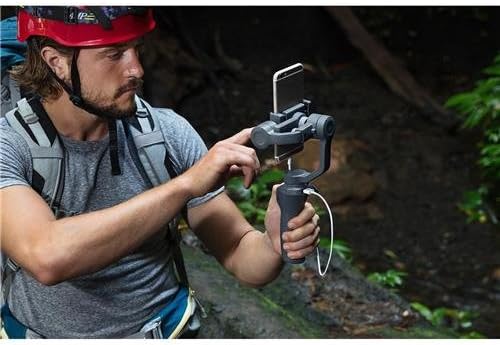
Image 4.1: A user operating the DJI Osmo Mobile 2 to capture stable footage.
5. Maintenance
To ensure the longevity and optimal performance of your DJI Osmo Mobile 2, follow these maintenance guidelines:
- Cleaning: Use a soft, dry cloth to clean the gimbal. Avoid using liquid cleaners or solvents.
- Storage: Store the gimbal in its protective pouch or case when not in use to prevent dust and damage. Keep it in a cool, dry place.
- Battery Care: Fully charge the battery before long-term storage. Recharge every three months to maintain battery health.
- Avoid Overloading: Do not attach accessories that exceed the gimbal's weight capacity, as this can damage the motors.
6. Troubleshooting
6.1 Common Issues and Solutions
- Gimbal Not Balancing: Ensure your smartphone is properly centered and any bulky cases are removed. Re-balance the gimbal manually before powering it on.
- App Connectivity Issues: Ensure Bluetooth is enabled on your phone and the DJI Mimo app is up to date. Restart both the gimbal and the app if connection fails.
- Unstable Footage/Motor Noise: This often indicates improper balancing or an overloaded gimbal. Re-balance your phone and ensure no excessive weight is added.
For specific issues or unexpected behavior, refer to the following videos for further assistance:
Video 6.1: Demonstrating potential motor issues and how to address them.
Video 6.2: Addressing common device malfunctions and potential fixes.
7. Specifications
| Feature | Detail |
|---|---|
| Product Dimensions | 6.2 x 3.5 x 12 inches (2.83"D x 4.45"W x 11.61"H) |
| Item Weight | 1.08 pounds (1.1 Pounds) |
| Item Model Number | CP.ZM.00000064.01 |
| Batteries | 1 Lithium Metal battery required (included) |
| Compatible Devices | Camera, Cellphone |
| Folded Size | Approximately 114 x 64 x 10 mm |
| UPC | 190021308411 |
| Manufacturer | DJI |
8. Warranty and Support
For detailed warranty information, technical support, and service inquiries, please visit the official DJI website or contact their customer service. Keep your proof of purchase for warranty claims.
Related documentsCP.ZM.00000064.01


Ask a question about this manual
Ask about setup, troubleshooting, compatibility, parts, safety, or missing instructions. Manuals+ will review the question and use this page’s manual context to help answer it.