1. Introduction
This manual provides essential information for setting up, operating, and maintaining your SEGA Genesis Flashback HD 2017 Console. Please read these instructions carefully to ensure proper use and enjoyment of your console.
2. Package Contents
Verify that all items listed below are included in your package:
- SEGA Genesis Flashback HD Console
- Two (2) 2.4 GHz Wireless Controllers
- AC Power Adapter
- HDMI Cable
- Instruction Manual (this document)

Image: Retail packaging of the SEGA Genesis Flashback HD 2017 Console, illustrating the console, two wireless controllers, and a selection of included game titles.
3. Setup Instructions
3.1 Connecting the Console
- Connect one end of the HDMI cable to the HDMI port on the back of the SEGA Genesis Flashback HD Console.
- Connect the other end of the HDMI cable to an available HDMI input on your television or display.
- Connect the AC power adapter to the power input port on the console.
- Plug the AC power adapter into a standard electrical outlet.
- Turn on your television and select the correct HDMI input source.
- Slide the ON/OFF switch on the console to the 'ON' position. The console does not require Wi-Fi for operation.
3.2 Controller Setup
Each wireless controller requires 2 AAA batteries (not included).
- Open the battery compartment on the back of each wireless controller.
- Insert 2 AAA batteries, ensuring correct polarity (+/-).
- Close the battery compartment.
- Slide the P1/P2 switch on each controller to the 'ON' position. The controllers will automatically pair with the console.

Image: The SEGA Genesis Flashback HD 2017 Console displayed with its two accompanying wireless controllers, ready for connection.
4. Operating Instructions
4.1 Powering On/Off
- To power on, slide the ON/OFF switch on the console to 'ON'.
- To power off, slide the ON/OFF switch on the console to 'OFF'.
4.2 Navigating the Menu
Use the directional pad (D-pad) on your wireless controller to navigate through the console's main menu. The 'Start' button typically confirms selections, and the 'Menu' button (if present on the controller) may return to the main menu or pause the game.

Image: The console's on-screen game selection menu, displaying a list of built-in titles organized alphabetically, with options for 'My Favorites', 'Sega Games', and 'Bonus Games'.
4.3 Playing Built-in Games
The console comes with 85 built-in games. From the main menu, select the desired game using the D-pad and press 'Start' to begin playing.

Image: A user's hands holding one of the wireless controllers, actively playing the game Sonic The Hedgehog, which is displayed on a television screen in the background.
4.4 Using Game Cartridges
The console features a cartridge slot for playing original SEGA Genesis game cartridges. Insert a compatible cartridge into the slot on the console. The console should automatically detect the cartridge and allow you to select it from the menu.
4.5 Saving Game Progress
Some games on the console support save, resume, and rewind features. Consult the in-game instructions or the console's menu options for specific details on how to utilize these functions for individual games.
5. Game List
The SEGA Genesis Flashback HD 2017 Console includes 85 built-in games. This collection features classic titles such as:
- Sonic The Hedgehog, Sonic The Hedgehog II, Sonic 3D Blast, Sonic Spinball, Sonic Chaos, Sonic Drift II, Sonic & Knuckles, Sonic The Hedgehog: Triple Trouble
- Mortal Kombat, Mortal Kombat II, Mortal Kombat III
- Golden Axe, Golden Axe II, Golden Axe III
- Phantasy Star, Phantasy Star II, Phantasy Star III: Generations Of Doom, Phantasy Star IV
- Altered Beast, Comix Zone, Ristar, Shinobi III: Return of the Ninja Master, Vectorman, Vectorman II
- And many more classic SEGA titles.

Image: A screenshot from the game Mortal Kombat, featuring characters Kano and Johnny Cage in a fighting arena.
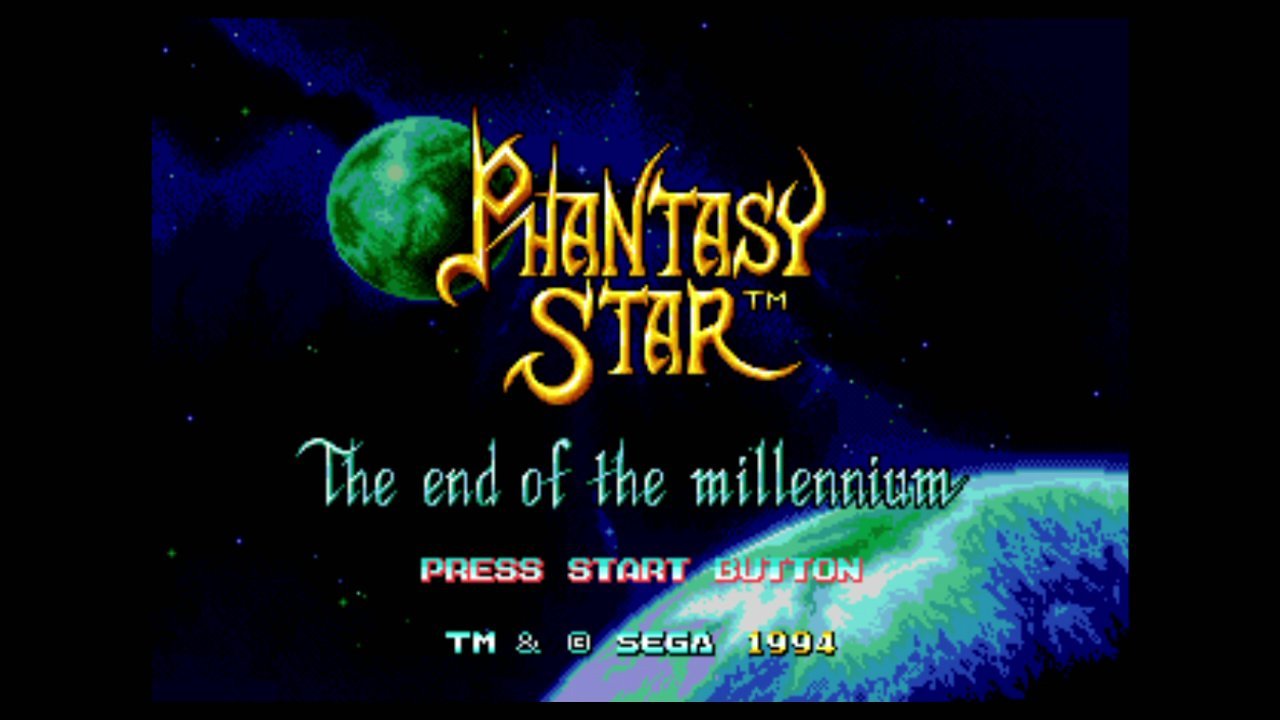
Image: The title screen for the game Phantasy Star IV, displaying the game's logo and a cosmic background.
6. Maintenance
- Keep the console and controllers clean by wiping them with a soft, dry cloth.
- Avoid exposing the console to extreme temperatures, direct sunlight, or moisture.
- Do not attempt to disassemble or modify the console or controllers, as this will void any warranty.
- Remove batteries from controllers if they will not be used for an extended period to prevent leakage.
7. Troubleshooting
7.1 No Power
- Ensure the AC power adapter is securely connected to both the console and a working electrical outlet.
- Verify the ON/OFF switch on the console is in the 'ON' position.
7.2 No Picture/Sound on TV
- Check that the HDMI cable is firmly connected to both the console and the TV.
- Ensure your TV is set to the correct HDMI input source.
- Confirm the console is powered on.
7.3 Controllers Not Responding
- Check that fresh AAA batteries are correctly installed in both controllers.
- Ensure the P1/P2 switch on each controller is in the 'ON' position.
- Move closer to the console to ensure a clear signal for the wireless controllers.
7.4 Game Cartridge Not Loading
- Ensure the game cartridge is fully and correctly inserted into the console's cartridge slot.
- Clean the cartridge's connectors with a cotton swab and rubbing alcohol if necessary.
8. Specifications
| Feature | Detail |
|---|---|
| Model Number | 0857847003837 |
| Dimensions | 12 x 10 x 6 inches |
| Weight | 2.65 pounds |
| Built-in Games | 85 |
| Controllers | Two (2) 2.4 GHz Wireless Controllers |
| Power Source | AC Power Adapter |
| Controller Batteries | 4 AAA batteries required (2 per controller) |
| Video Output | HDMI |
| Manufacturer | At Games |
| Date First Available | November 5, 2017 |
9. Warranty and Support
For warranty information and technical support, please refer to the documentation included with your product at the time of purchase or visit the manufacturer's official website. Keep your purchase receipt as proof of purchase.


