
1. Introduction and Overview
The ViewSonic M1 is an ultra-portable LED projector designed for convenient entertainment in various settings. Its compact and lightweight design makes it easy to transport, while its long operational life ensures years of multimedia enjoyment. Featuring an integrated smart stand for flexible setup and dual Harman Kardon speakers for clear audio, the M1 offers versatile connectivity options for seamless content sharing.
2. What's in the Box
Upon opening your ViewSonic M1 Portable LED Projector package, please ensure all the following items are included:
- M1 Portable Projector
- USB Type C Cable
- Remote
- Projector Case
- User Manual (this document)

This image displays the M1 Projector, USB-C Cable, Remote Control, Projector Case, and Quick Start Guide, which are all part of the standard package contents.
3. Setup
The ViewSonic M1 is designed for quick and easy setup. Its integrated smart stand allows for flexible positioning, and the projector automatically powers on when ready for use.
3.1 Powering On and Positioning
To power on the projector, simply uncover the lens by rotating the integrated smart stand. The projector will automatically power on with full brightness. The smart stand can rotate 360 degrees, allowing you to project images onto walls, ceilings, or any flat surface at various angles.
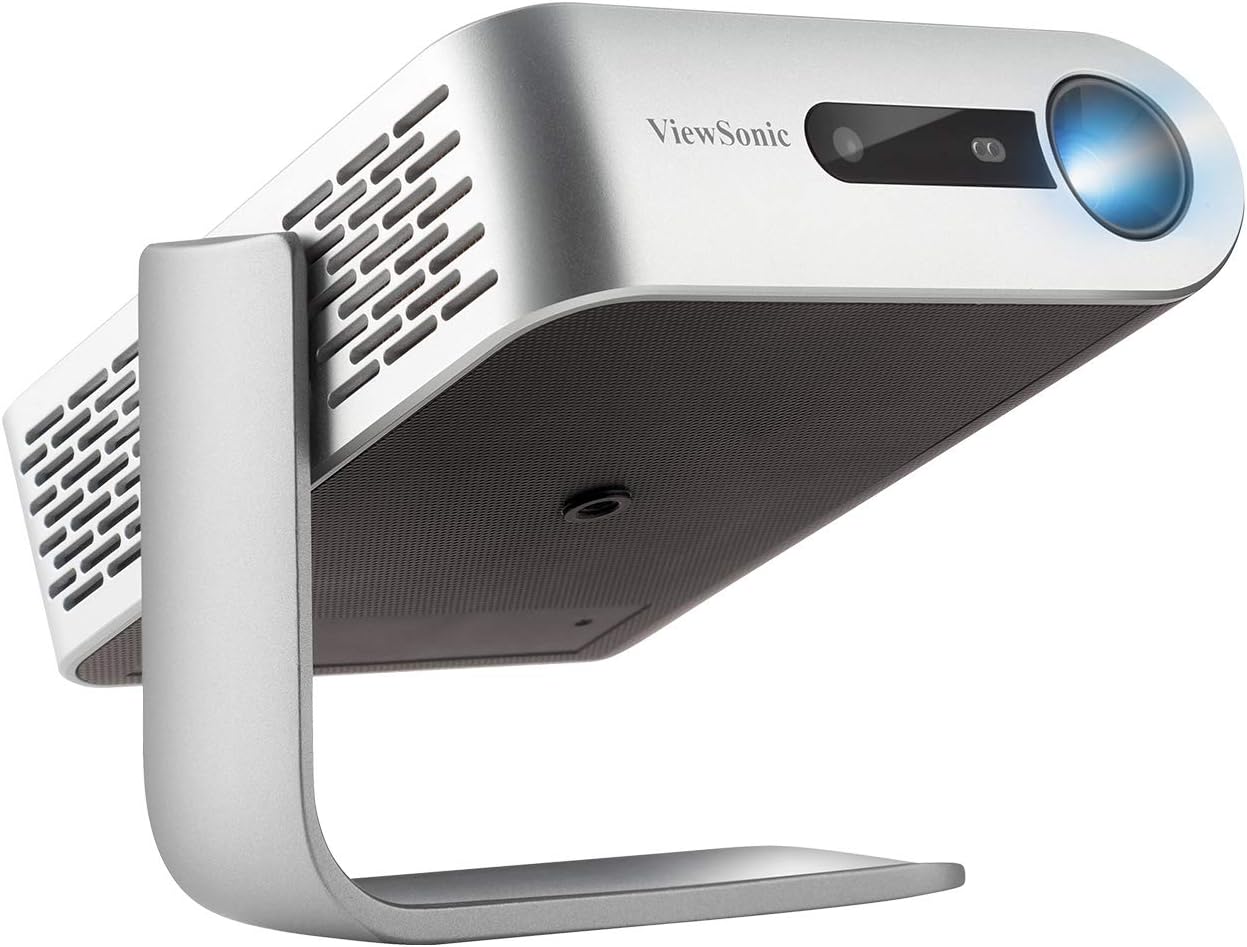
This image shows the ViewSonic M1 projector in an upright position, demonstrating its integrated smart stand which also functions as a lens cover.
3.2 Initial Setup and Features Overview
Watch this official product video for a comprehensive overview of the ViewSonic M1's features and initial setup process.
This video provides a detailed look at the ViewSonic M1 Portable Projector, showcasing its design, portability, and key functionalities, including the smart stand and audio capabilities.
4. Operating the Projector
The M1 offers a variety of connectivity options to display content from your devices.
4.1 Connectivity Options
The projector supports HDMI, USB Type-A, USB Type-C, and MicroSD card inputs. These versatile options allow you to connect most media players, PCs, Macs, and mobile devices.

This image clearly labels the various input ports available on the ViewSonic M1 projector, including HDMI, USB-C, USB-A, and Micro SD, along with indicators for battery life and lamp life.
4.2 Connecting Smart Devices via USB Type-C
The USB Type-C port provides fast data, audio, video, and charging over a single cable, making it ideal for connecting modern smartphones and tablets. Please note that not all devices with a USB Type-C port support the display function; some may only support charging.
This video tutorial demonstrates the process of connecting various smart devices, such as phones, tablets, and laptops, to the ViewSonic projector using the USB Type-C port for seamless content display and charging.
5. Key Features
The ViewSonic M1 is packed with features designed to enhance your viewing experience:
- Premium Audio: Built-in dual Harman Kardon speakers deliver crisp and clear room-filling audio.
- Long-lasting LED Light Source: The LED light source provides over 30,000 hours of operational life, ensuring years of reliable use.
- Built-in Battery: Enjoy up to 6 hours of power on the go, allowing for extended viewing sessions without needing an external power source. The USB Type-C port can also charge mobile devices when the power adapter is plugged in.
- Short Throw Lens: Project large images, up to 100-inches, from a short distance of 8-feet 9-inches, making it suitable for small spaces.
- Auto Keystone: The projector features automatic keystone correction for quick and easy image alignment.

This image highlights the Harman Kardon speakers integrated into the ViewSonic M1 projector, emphasizing its audio quality.

This image provides a visual representation of the ViewSonic M1 projector's compact dimensions, indicating its height, width, and depth in both centimeters and inches.
6. Maintenance
To ensure the longevity and optimal performance of your ViewSonic M1 projector, follow these general maintenance guidelines:
- Cleaning the Lens: Use a soft, lint-free cloth specifically designed for optical lenses. Avoid abrasive materials or harsh chemicals.
- Cleaning the Exterior: Wipe the projector's exterior with a soft, dry cloth. Do not use liquid cleaners directly on the device.
- Ventilation: Ensure the projector's ventilation openings are clear and unobstructed to prevent overheating.
- Storage: When not in use for extended periods, store the projector in its case in a cool, dry place away from direct sunlight and extreme temperatures.
7. Troubleshooting
If you encounter issues with your ViewSonic M1 projector, refer to the following common troubleshooting tips:
- No Power: Ensure the projector is fully charged or connected to a power source. Check the power adapter and cable connections.
- No Image: Verify that the lens cover (smart stand) is fully open. Check the input source connection (HDMI, USB-C, etc.) and ensure the correct input is selected on the projector.
- Blurry Image: Adjust the focus wheel located near the lens. Ensure the projection surface is flat and the projector is stable.
- No Audio: Check the volume settings on both the projector and the connected device. Ensure external speakers are properly connected if used.
- Connectivity Issues: For USB-C connections, confirm that your device supports video output over USB-C, not just charging. Try a different cable or port.
For more detailed troubleshooting, please consult the full User Manual PDF linked in the Warranty and Support section.
8. Specifications
Below are the key technical specifications for the ViewSonic M1 Portable LED Projector:
| Feature | Value |
|---|---|
| Product Dimensions | 4.96 x 1.59 x 5.83 inches |
| Item Weight | 1.76 pounds |
| Item Model Number | M1 |
| Batteries Required | 1 A batteries |
| Brand | ViewSonic |
| Recommended Uses | Education, Home Cinema, Business |
| Special Features | Built-In Speaker, Lightweight |
| Connectivity Technology | USB |
| Display Resolution | 854 x 480 (WVGA) |
| First Available Date | January 1, 2018 |
9. Warranty and Support
For detailed warranty information, technical support, or to download the complete user manual, please visit the official ViewSonic support website or refer to the PDF document below:
User Manual (PDF): Download Here
For further assistance, please contact ViewSonic customer support.


