
ZealSound K08U Microphone Series
ZealSound Studio Recording Microphone User Manual
Model: K08U Microphone Series
1. Product Overview
The ZealSound Studio Recording Microphone is a versatile condenser microphone designed for high-quality audio capture across various platforms. It features a built-in sound card, echo and volume controls, active noise cancellation, and real-time monitoring capabilities, making it suitable for recording, streaming, gaming, and online communication.
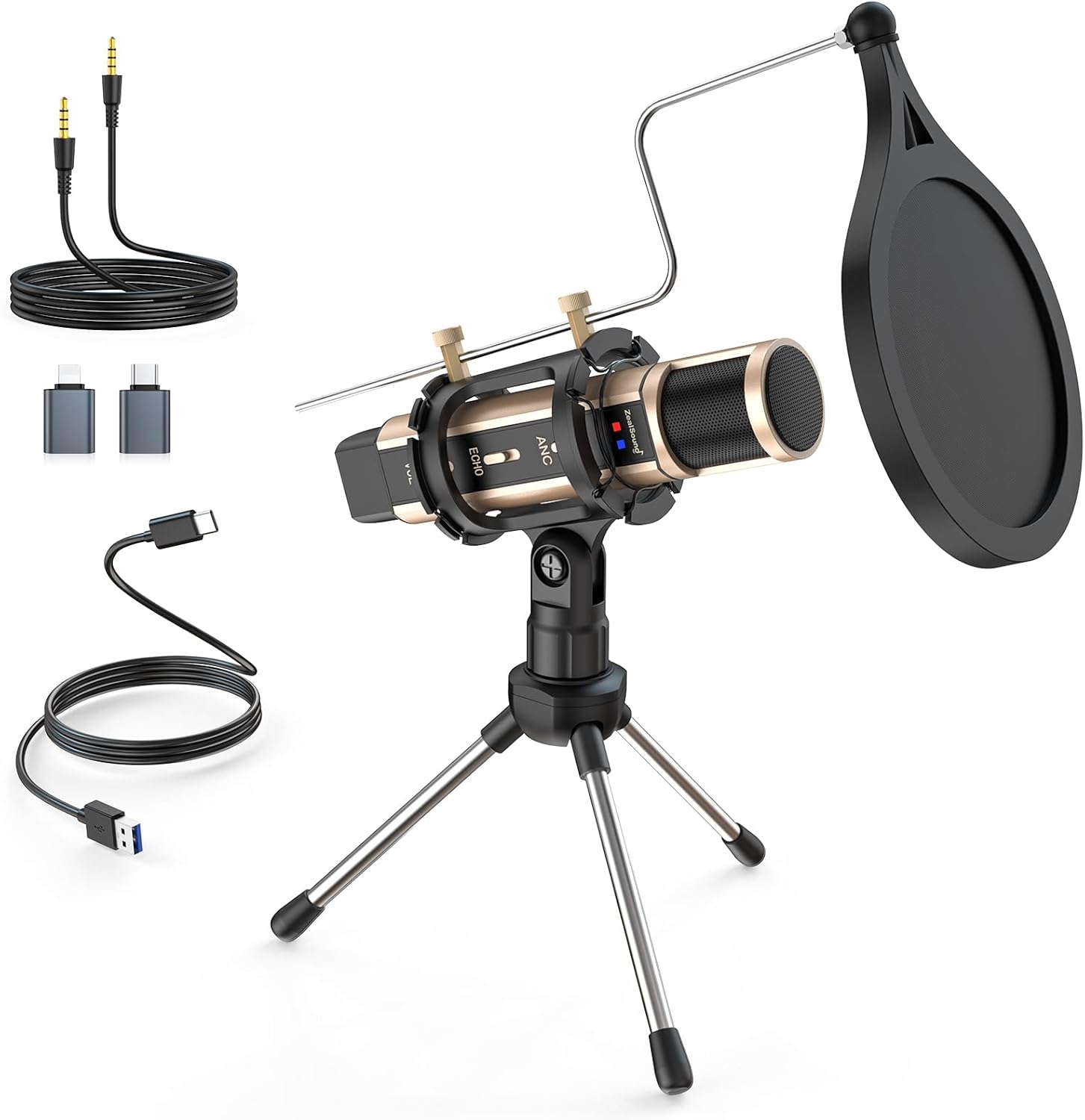
Figure 1: ZealSound Studio Recording Microphone with its stand, pop filter, and various connection cables.
2. Package Contents
Please verify that all items are present in your package:
- 1 x ZealSound Studio-Grade Microphone
- 1 x Heavy-Duty Steel Shock Mount and Tripod Stand
- 1 x Dual-Layer Pop Filter
- 1 x 70.87 inch (180cm) USB Audio Cable
- 1 x 3.5mm Audio Cable
- 1 x USB Adapter for iPhone and iPad
- 1 x Type-C Adapter
- 1 x User Manual
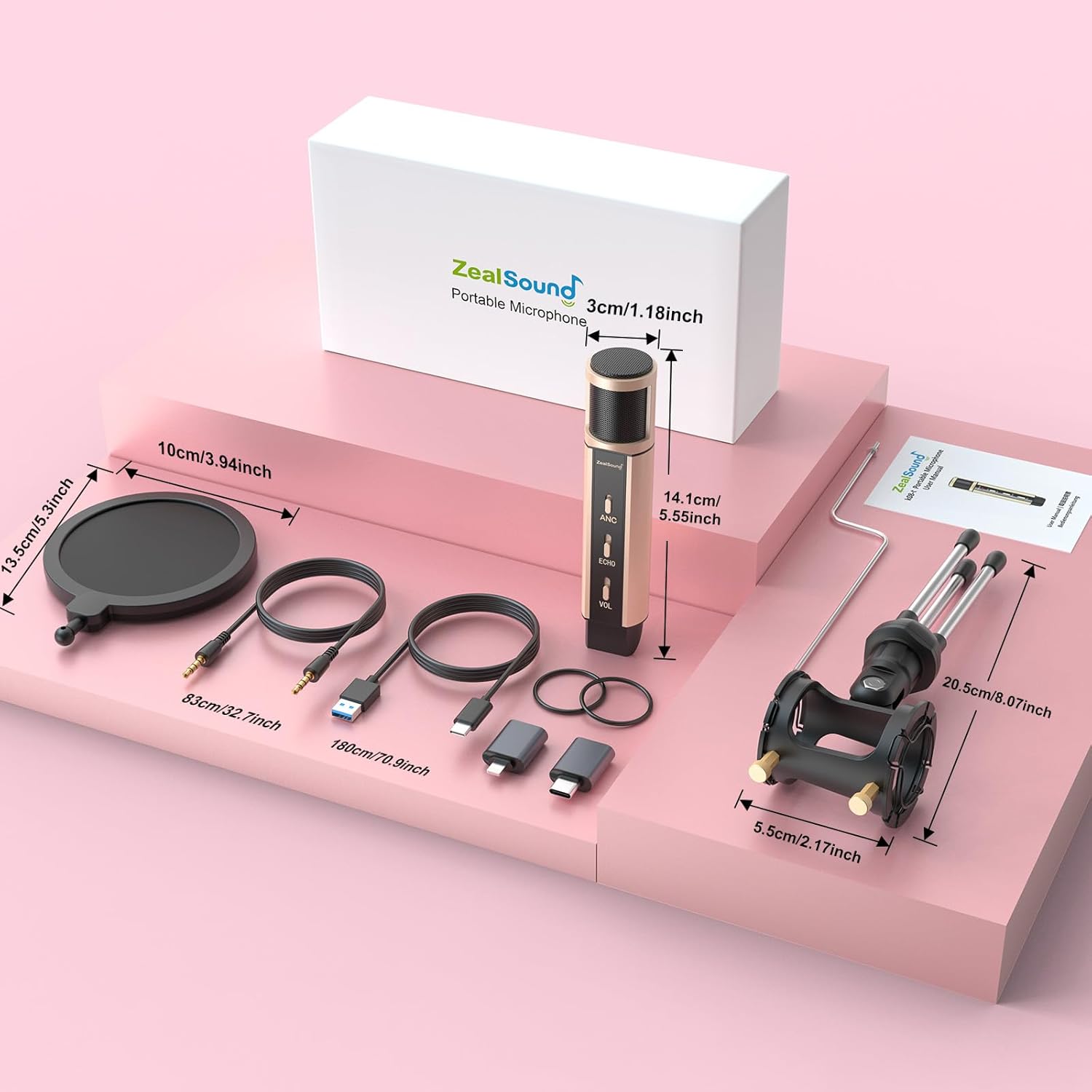
Figure 2: Contents of the ZealSound microphone package, including the microphone, stand, pop filter, and various cables and adapters.
3. Setup Instructions
- Assemble the Tripod Stand: Unfold the legs of the tripod stand to create a stable base.
- Attach the Microphone: Securely mount the microphone onto the shock mount on the tripod stand. Ensure it is firmly in place.
- Position the Pop Filter: Attach the dual-layer pop filter to the stand and position it approximately 15-25 cm (5.9-9.84 inches) in front of the microphone. This helps minimize plosive sounds (like 'p' and 'b').
- Connect to Your Device:
- For USB Devices (PC, Laptop, PS4/PS5): Use the provided USB Audio Cable to connect the microphone directly to an available USB port on your computer or console.
- For iPhone/iPad: Use the USB Audio Cable in conjunction with the USB Adapter for iPhone/iPad.
- For Type-C Devices (including iPhone 15): Use the USB Audio Cable with the Type-C Adapter.
- For Devices with 3.5mm Jack: Use the provided 3.5mm Audio Cable.
The microphone is designed for plug-and-play operation and typically requires no additional drivers for Windows, iOS, macOS, Linux, and Android devices.

Figure 3: Plug & Play compatibility with various devices including iPhone/iPad, Windows, Mac OS, and PS4/PS5.
4. Operating Instructions
4.1. Controls and Features
The microphone features intuitive controls for optimal audio performance:
- Echo Control: Adjust the echo effect using the slide button. This allows for fine-tuning the reverberation to suit your recording environment or preference. The echo function can also be disabled.
- Volume Control: Adjust the microphone's sensitivity and output volume using the slide button. Sliding the volume button to the bottom will smoothly mute the microphone without any clicking sound.
- Mute Indicator: When the microphone is muted, the LED indicator will turn red, providing a clear visual cue.
- Active Noise Cancellation (ANC): The noise-canceling function is initially off. To activate, slide the "ANC" button upwards until the LED indicator turns green. This feature is ideal for reducing ambient noise in various recording environments.

Figure 4: Detailed view of the microphone's controls for Volume, Echo, and Active Noise Cancellation (ANC).
4.2. Real-Time Monitoring
The microphone includes a 3.5mm headphone interface for direct, zero-latency monitoring of your audio. This allows you to hear your voice and device audio in real-time, ensuring optimal sound capture and preventing issues like audio clipping or excessive background noise during live broadcasts, recordings, or online calls.
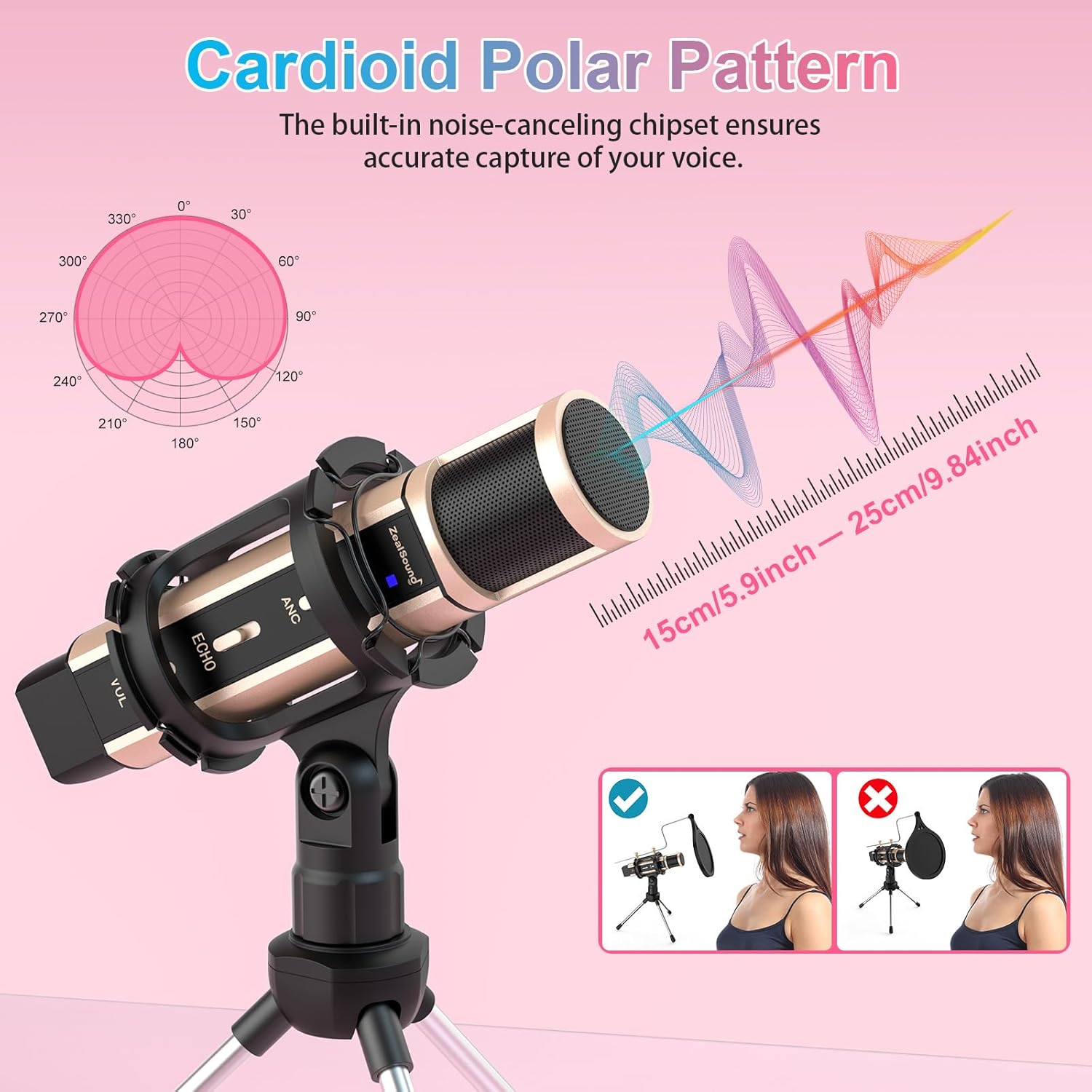
Figure 5: Real-time monitoring feature via the 3.5mm headphone jack.
4.3. Cardioid Polar Pattern
The ZealSound microphone utilizes a Cardioid polar pattern, which means it is most sensitive to sound coming from directly in front of it and less sensitive to sounds from the sides and rear. This focused pickup pattern helps to effectively reject unwanted off-axis noise, resulting in clear and intelligible vocals for various applications such as ASMR, gaming, streaming, podcasting, and video recording.
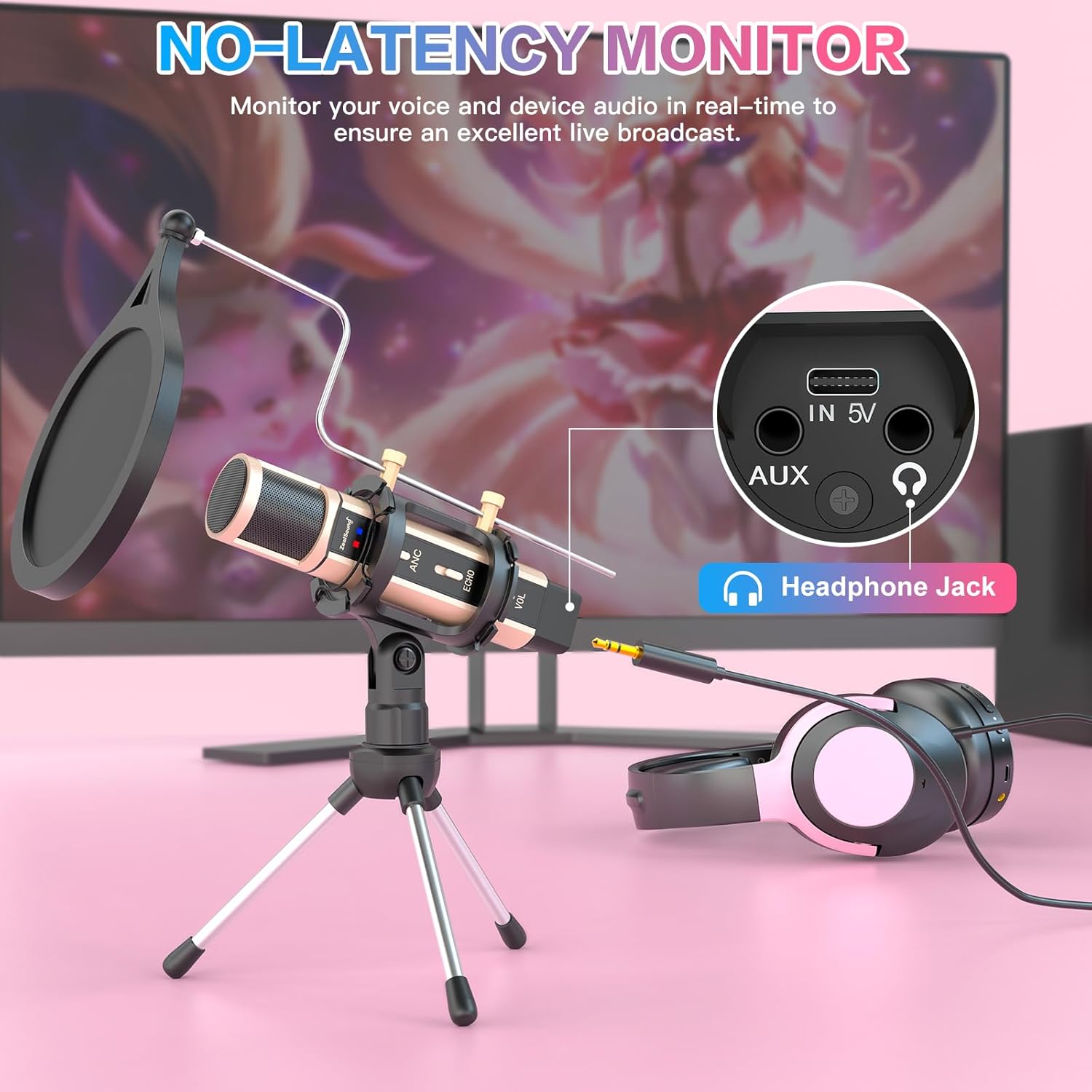
Figure 6: Visual representation of the Cardioid polar pattern, highlighting the microphone's directional sensitivity.
5. Maintenance
To ensure the longevity and optimal performance of your ZealSound microphone, follow these maintenance guidelines:
- Cleaning: Use a soft, dry cloth to wipe down the microphone and stand. Avoid using harsh chemicals or abrasive materials that could damage the finish or internal components.
- Storage: When not in use, store the microphone and its accessories in a clean, dry place, away from extreme temperatures and humidity. The original packaging can be used for safe storage.
- Charging: The microphone contains a Lithium Polymer battery. It is recommended to charge the microphone for 2 hours before initial use. Do NOT use the microphone while it is charging.
- Handling: Handle the microphone with care. Avoid dropping it or subjecting it to strong impacts, as this can damage the internal components and affect sound quality.
6. Troubleshooting
If you encounter issues with your ZealSound microphone, please refer to the following common problems and solutions:
| Problem | Possible Cause | Solution |
|---|---|---|
| No sound or low volume output. |
|
|
| Static or unclear audio. |
|
|
| Pop filter issues (e.g., not screwing on well). |
|
|
| Microphone not recognized by MacBook or Type-C device. |
|
|
7. Specifications
| Feature | Detail |
|---|---|
| Brand | ZealSound |
| Model Name | K08U Microphone Series |
| Connectivity Technology | USB/Type C/iPhone Jack/3.5mm Jack |
| Polar Pattern | Unidirectional (Cardioid) |
| Audio Sensitivity | 112 dB |
| Signal-to-Noise Ratio | 60 dB |
| Frequency Range | 20-22KHz |
| Microphone Form Factor | Portable and Compact |
| Power Source | Corded Electric (USB powered) |
| Battery Type | 1 Lithium Polymer battery (included) |
| Material | Aluminum, Acrylonitrile Butadiene Styrene, Sturdy Material |
| Item Weight | 5.9 ounces (167.26 grams) |
| Dimensions (Microphone) | 143 x 30 mm (5.63 x 1.18 inches) |
| Compatible Devices | Type-C Devices, Computer & Laptop & Macbook, Compatible with iPhone & Smartphones & Tablets, PS4&5 |
| Special Features | Battery Indicator Light, Volume Control, Real-time Monitor, Echo Control, Active Noise Cancellation |
8. Warranty and Support
ZealSound is committed to providing high-quality products and excellent customer service. Your ZealSound microphone comes with gratis technical support.
For any technical assistance, questions, or concerns, please contact ZealSound customer support. You can also visit the official ZealSound store for more information and resources:
ZealSound has specialized in high-quality microphones and audio mixers for over 16 years, trusted in over 150 countries. Their mission is to make great sound available to all, and they are committed to earning your trust with every product.
Ask a question about this manual
Ask about setup, troubleshooting, compatibility, parts, safety, or missing instructions. Manuals+ will review the question and use this page’s manual context to help answer it.