1. Introduction
This manual provides detailed instructions for the installation, operation, and maintenance of your AMASE AUDIO Android 14 Car Radio. This 7-inch in-dash navigation system is designed to enhance your driving experience with advanced features and connectivity.
1.1. Vehicle Compatibility
This unit is compatible with the following Mercedes-Benz models:
- E-Class W211 (2002-2008): E200, E220, E240, E270, E280, E300, E320, E350, E400, E420, E55, E500
- G-Class W463 (2001-2008): G350, G500, G55
- CLS-Class W209 (2005-2006)
- CLS-Class W219 (2004-2011): CLS350, CLS500, CLS55, CLS66 AMG
Important Note: If your vehicle is equipped with a fiber optic line, Bose sound system, or Harman Kardon sound system, additional components may be required for proper installation. You may need to purchase a separate decoder box (ASIN: B0B5YWLGDL, B0B5ZFBSJ5, or B0B1PCY681) or an extended cable (ASIN: B0CWTQMG5Y). Please consult the detailed installation section for more information.
2. Product Components
The following items are included with your AMASE AUDIO Android 14 Car Radio:
- AMASE AUDIO Android 14 Car Radio Unit
- Power Cables
- SIM Card Cable
- Radio Antenna Adapter Cable
- USB Adapter Cables (multiple)
- BT/WiFi/Rear Camera Antenna
- Canbus Decoder
- WiFi Antenna
- Radio Antenna Connector
- GPS Antenna
- Rear Camera
- External Microphone
- Disassembly Tools
- User Manual (this document)

Figure 2.1: Overview of included accessories and cables for the car radio unit.
3. Setup and Installation
Professional installation is recommended for this product. Ensure the vehicle's battery is disconnected before beginning installation.
3.1. Pre-Installation Check
Before removing your original car radio, verify the compatibility and identify any specific audio system configurations in your vehicle (e.g., fiber optic, Bose, Harman Kardon). This will determine if additional decoder boxes or extended cables are necessary.

Figure 3.1: Visual comparison of the dashboard before and after installing the AMASE AUDIO car radio in a Mercedes-Benz W211.
3.2. Wiring Diagram
Refer to the following diagram for proper wiring connections. Ensure all cables are securely connected to their corresponding ports on the car radio unit and the vehicle's harness.

Figure 3.2: Comprehensive wiring diagram for the car radio unit.
3.3. Rear Panel Connections
The rear panel of the unit features various ports for power, audio output, antennas, and peripheral devices. Familiarize yourself with these connections before installation.
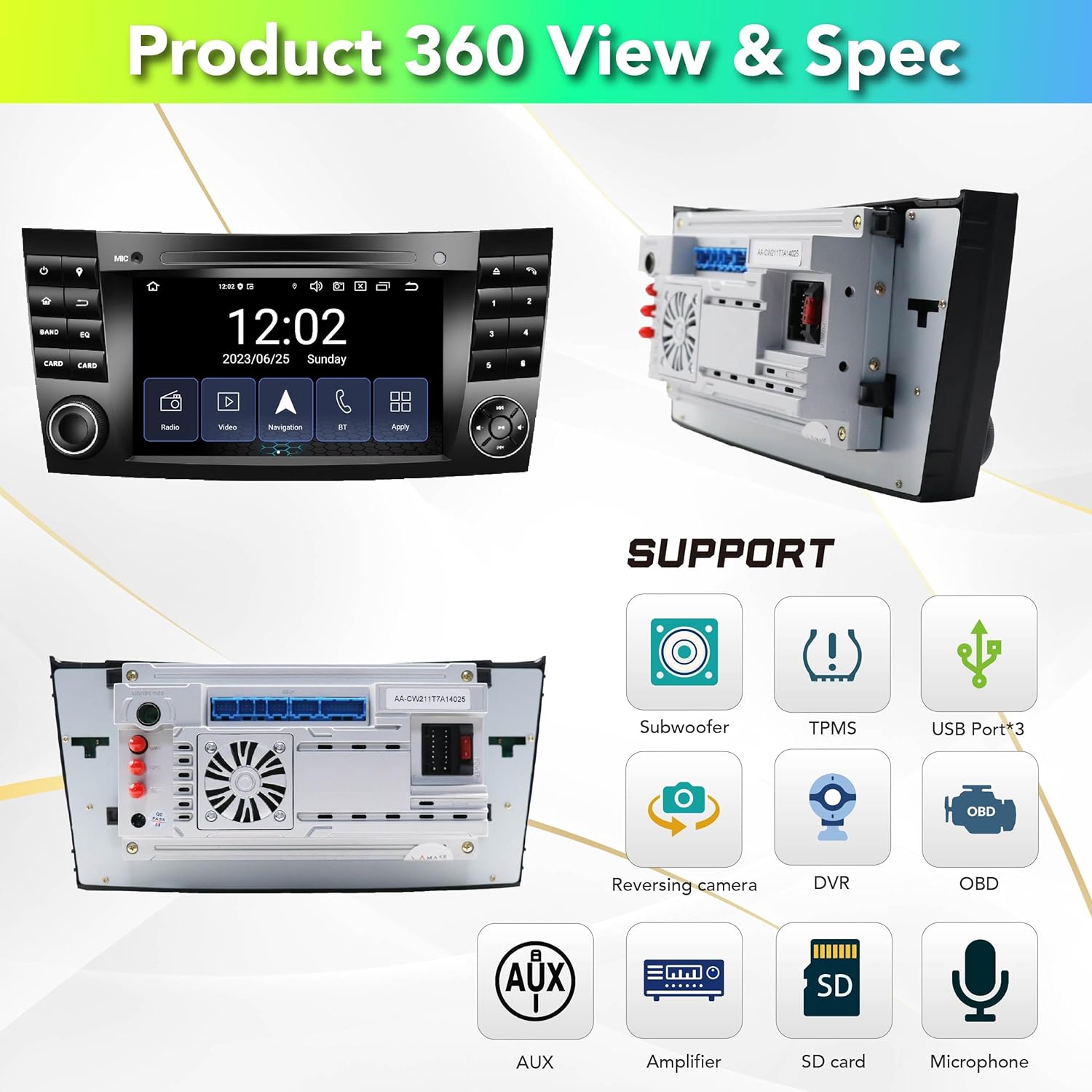
Figure 3.3: Rear panel connections and supported features.
4. Operating Instructions
4.1. System Overview
The car radio operates on a Real Android 14 system, powered by an Octa-Core processor with 4GB RAM and 64GB ROM. It features a fast boot design and a built-in Digital Sound Processor (DSP) for enhanced audio quality.

Figure 4.1: Key system specifications and features.
4.2. User Interface and Customization
The 7-inch touchscreen display offers an intuitive user interface. You can customize the appearance with extra themes, change the wallpaper, adjust brightness, and modify button colors. The split-screen function allows for multitasking.
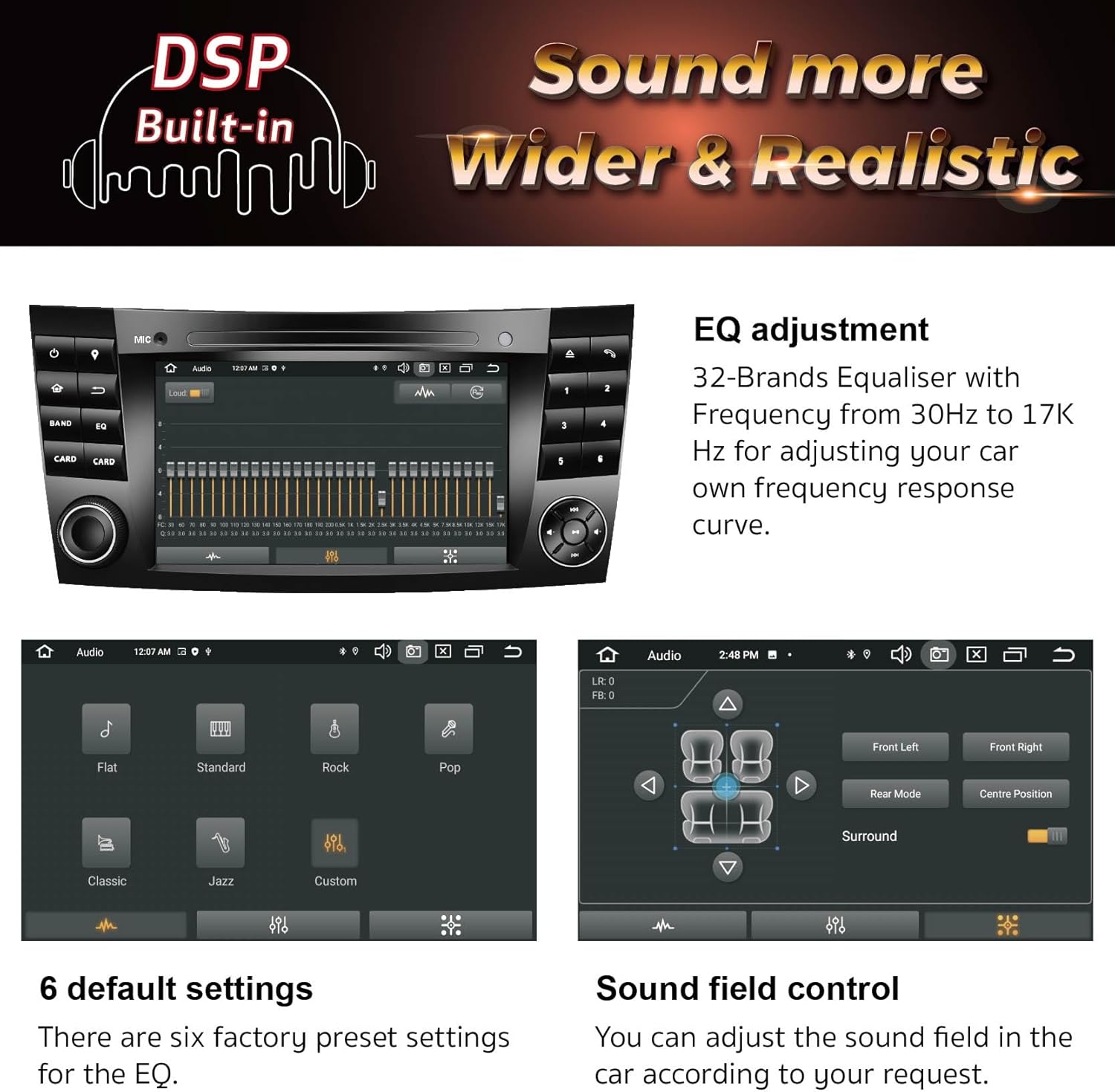
Figure 4.2: Overview of the user interface and available applications.

Figure 4.3: UI customization features.
4.3. Wireless Carplay and Android Auto
The unit features built-in Wireless Carplay for Apple devices and Wireless Android Auto for Android devices. Connect your smartphone via Bluetooth for seamless integration without the need for additional dongles or cables.

Figure 4.4: Wireless Carplay functionality.
4.4. Connectivity (WiFi, Bluetooth, 4G)
The system supports 2.4GHz WiFi and Bluetooth 5.0, allowing you to connect to the internet and pair your devices wirelessly. A 4G cellular network connection is also supported for continuous online access.

Figure 4.5: Bluetooth features and connectivity.
4.5. GPS Navigation
Utilize the built-in Google Maps for GPS navigation. The system supports worldwide map types, providing reliable guidance for your journeys.

Figure 4.6: GPS navigation interface.
4.6. Audio Features (DSP)
The integrated DSP (Digital Sound Processor) allows for precise audio customization. Adjust your sound with a 32-band equalizer and control the sound field to optimize your in-car audio experience.

Figure 4.7: DSP features for sound adjustment.
4.7. Multimedia Playback
Enjoy 1080p video playback and access to FM/AM radio stations. The unit supports various media formats for a comprehensive entertainment experience.

Figure 4.8: FM/AM radio interface.
4.8. Rear Camera Functionality
A rear camera is included in this package. When connected, the unit automatically displays the rear view with parking assist lines when the vehicle is in reverse, enhancing safety and ease of parking.

Figure 4.9: Rear camera display features.
4.9. Steering Wheel Controls
The unit supports integration with your vehicle's existing steering wheel controls, allowing you to manage audio, calls, and other functions without taking your hands off the wheel. Configuration may be required.

Figure 4.10: Steering wheel control integration.
5. Maintenance
5.1. Software Updates
The system supports Over-The-Air (OTA) software updates. Regularly check for and install updates to ensure optimal performance, enhance security, and benefit from the latest Android version improvements. Follow the on-screen prompts for update procedures.

Figure 5.1: System software update screen.
6. Troubleshooting
If you encounter issues with your AMASE AUDIO car radio, please refer to the following common troubleshooting steps:
- No Power: Ensure all power cables are securely connected. Check the vehicle's fuse box for any blown fuses.
- No Sound: Verify speaker connections. If your car has a fiber optic, Bose, or Harman Kardon system, confirm that the necessary decoder box or extended cable is correctly installed and functioning.
- GPS Signal Issues: Ensure the GPS antenna is properly installed and has a clear line of sight to the sky.
- Bluetooth/WiFi Connectivity Problems: Check that Bluetooth and WiFi are enabled on both the car radio and your device. Try restarting both devices.
- Touchscreen Unresponsive: Perform a system reset (refer to the device settings for the reset option).
- Steering Wheel Controls Not Working: Ensure the Canbus decoder is correctly connected and configured. Some vehicles may require manual mapping of controls in the system settings.
For persistent issues or complex problems, please contact AMASE AUDIO customer support for assistance.
7. Specifications
| Feature | Detail |
|---|---|
| Operating System | Real Android 14 |
| Processor | Octa-Core |
| Memory (RAM) | 4GB |
| Storage (ROM) | 64GB |
| Display Size | 7 Inches |
| Display Resolution | 1024 x 600 |
| Wireless Connectivity | 2.4GHz WiFi, Bluetooth 5.0, 4G Cellular Network Support |
| Navigation | Built-in Google Maps, Worldwide Map Type |
| Audio Features | Built-in DSP, 32-Band Equalizer |
| Smartphone Integration | Wireless Apple Carplay, Wireless Android Auto |
| Video Playback | 1080p Support |
| Included Components | Rear Camera |
| Mounting Type | Dashboard Mount |
| Product Dimensions | 10.47 x 7.32 x 4.92 inches |
| Item Weight | 3.3 pounds |
8. Warranty and Support
8.1. Product Warranty
This AMASE AUDIO product comes with a one-year warranty. This warranty covers defects in materials and workmanship, excluding the screen if human-damaged. For warranty claims, please retain your proof of purchase.
8.2. Customer Support
For technical assistance, troubleshooting, or warranty inquiries, please contact AMASE AUDIO customer support. Refer to the contact information provided with your product packaging or visit the official AMASE AUDIO website for support details.