
Hama MC-500
Hama MC-500 Wired Optical Mouse User Manual
1. Introduction
Thank you for choosing the Hama MC-500 Wired Optical Mouse. This manual provides essential information for the safe and efficient operation of your device. The MC-500 is a 6-button optical mouse designed for comfortable use with its ergonomic shape and precise Bluewave technology. Its silent buttons ensure a quiet working environment.
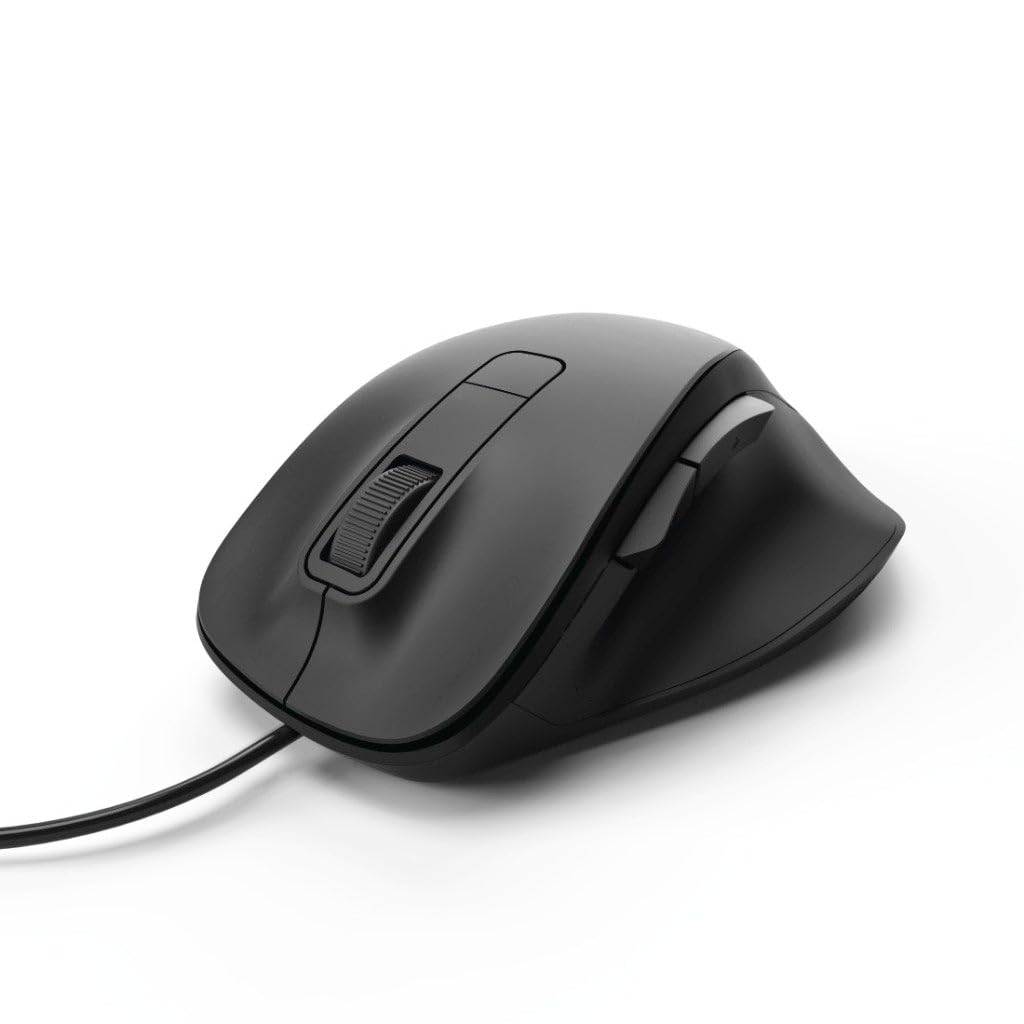
Image 1: Hama MC-500 Wired Optical Mouse. This image shows the black ergonomic mouse from a top-down perspective, highlighting the scroll wheel, left and right click buttons, and the two thumb buttons on the left side. The USB cable extends from the front.
2. Package Contents
Please check the package contents to ensure all items are present:
- 1 Hama MC-500 Wired Optical 6-Button Mouse
- 1 Instruction Manual
3. Product Features
- Bluewave Technology: Enables precise tracking on nearly all surfaces.
- DPI Switch: Allows on-the-fly adjustment of cursor speed.
- Silent Buttons: Left, right, and side buttons are designed for quiet operation.
- 6 Buttons: Includes left, right, scroll wheel (middle button), DPI switch, and two thumb buttons for enhanced navigation.
- Ergonomic Design: Shaped for comfortable right-hand use.
- Wired USB Connection: Ensures reliable and lag-free performance.
4. Setup
Setting up your Hama MC-500 mouse is straightforward:
- Connect the USB Cable: Locate an available USB port on your computer (PC or notebook). Insert the USB connector of the Hama MC-500 mouse firmly into the USB port.
- Automatic Driver Installation: Your operating system (Windows 10/8/7/Vista, MAC OS 10.10 or higher) will automatically detect the mouse and install the necessary drivers. This process usually takes a few seconds.
- Ready for Use: Once the drivers are installed, the mouse is ready for immediate use. No additional software installation is required.
5. Operating Instructions
The Hama MC-500 mouse offers intuitive controls for various tasks:
- Left Click Button: Standard function for selecting items, opening files, and confirming actions.
- Right Click Button: Opens context menus for additional options.
- Scroll Wheel (Middle Button):
- Scrolling: Roll the wheel up or down to navigate through documents and web pages.
- Middle Click: Press the wheel down to open links in new tabs or activate other application-specific functions.
- DPI Switch Button: Located behind the scroll wheel. Press this button to cycle through different DPI (dots per inch) settings. Changing the DPI adjusts the cursor speed and sensitivity, allowing you to find the optimal setting for your tasks, from precise graphic work to fast-paced browsing.
- Thumb Buttons (Forward/Backward): Located on the left side of the mouse. These buttons typically function as 'Forward' and 'Backward' in web browsers and file explorers, allowing for quick navigation.
6. Maintenance
To ensure the longevity and optimal performance of your Hama MC-500 mouse, follow these maintenance guidelines:
- Cleaning: Use a soft, slightly damp, lint-free cloth to clean the mouse. Avoid using harsh cleaning agents, solvents, or abrasive materials, as these can damage the surface.
- Sensor Care: Keep the optical sensor on the underside of the mouse clean and free from dust or debris. A cotton swab can be used gently if needed.
- Storage: When not in use, store the mouse in a clean, dry environment away from extreme temperatures and direct sunlight.
- Cable Management: Avoid sharply bending or twisting the USB cable to prevent internal damage.
7. Troubleshooting
If you encounter issues with your Hama MC-500 mouse, try the following solutions:
- Mouse Not Responding:
- Ensure the USB cable is securely plugged into a working USB port on your computer.
- Try plugging the mouse into a different USB port.
- Restart your computer.
- Erratic Cursor Movement:
- Clean the optical sensor on the underside of the mouse.
- Ensure you are using the mouse on a suitable surface. Bluewave technology works on most surfaces, but highly reflective or transparent surfaces may cause issues. A mouse pad is recommended for optimal performance.
- Check for any software conflicts or outdated drivers. Although plug-and-play, ensuring your operating system is up-to-date can help.
- Buttons Not Functioning:
- Verify the mouse is properly connected.
- Test the mouse on another computer to determine if the issue is with the mouse or the computer's settings.
8. Specifications
| Brand | Hama |
| Model Name | MC-500 |
| Model Number | 00182612 |
| Color | Black |
| Connectivity Technology | USB (Wired) |
| Movement Detection Technology | Optical (Bluewave Sensor) |
| Number of Buttons | 6 |
| Hand Orientation | Right |
| Product Dimensions | 12 x 4.2 x 8.5 cm |
| Item Weight | 93.16 g |
| Compatible Operating Systems | Windows 10/8/7/Vista, MAC OS 10.10 or higher |
| Recommended Applications | Office, PC/Notebook |
9. Warranty and Support
For warranty information, technical support, or further assistance with your Hama MC-500 mouse, please refer to the official Hama website or contact Hama customer service directly. Details regarding warranty periods and service procedures can typically be found in the warranty card included with your purchase or on the manufacturer's support pages.
You can visit the official Hama website for the most up-to-date information and support resources: www.hama.com
Related documentsMC-500


Ask a question about this manual
Ask about setup, troubleshooting, compatibility, parts, safety, or missing instructions. Manuals+ will review the question and use this page’s manual context to help answer it.