
1. Introduction
This manual provides detailed instructions for the installation, operation, and maintenance of your FVTLED WiFi RGB Low Voltage LED Deck Lights Kit. This kit is designed to provide versatile and customizable lighting for both indoor and outdoor environments, featuring RGB color options, smart control via WiFi, and compatibility with voice assistants.
2. Safety Information
Please read and understand all safety instructions before installing or using this product. Failure to follow these instructions may result in electric shock, fire, or other hazards.
- Ensure the power supply is disconnected before installation or maintenance.
- This product operates on DC12V low voltage. Do not connect directly to AC power without the provided power supply.
- All lights and cables are IP67 waterproof, suitable for outdoor use. However, ensure all connections are securely tightened to maintain water resistance.
- Do not modify the product or its components. Any modifications may void the warranty and create safety risks.
- Keep the power supply unit in a dry, protected area, away from direct water exposure.
- Consult a qualified electrician if you are unsure about any part of the installation process.
3. Package Contents
Verify that all components are present and undamaged upon opening the package:
- 10 x LED Inground Lights (Model D45)
- 1 x 12W LED Power Supply
- 1 x LED WiFi Controller
- 1 x 24-Key IR Remote Controller

Image 3.1: Contents of the FVTLED Deck Lights Kit, including 10 LED lights, power supply, WiFi controller, and remote control.
4. Setup and Installation
Follow these steps for proper installation of your FVTLED deck lights:
- Planning: Determine the desired layout for your lights. The distance between each light is approximately 1 meter (3.28 ft). Ensure the total length of connected lights does not exceed the capacity of the power supply.
- Drilling Holes: Drill mounting holes of approximately Φ1.38 inches (35mm) in diameter. The light fixture itself has a diameter of Φ1.77 inches (45mm) and a height of 1.02 inches (26mm).
- Insert Lights: Carefully insert each LED deck light into the drilled holes. The spring clips on the sides will secure the light in place.
- Connect Lights: Connect the lights in series using the male and female waterproof connectors. Ensure each connection is firmly pushed together and the screw cap is tightened to maintain the IP67 waterproof rating.
- Connect to Controller: Connect the string of lights to the LED WiFi Controller.
- Connect Power Supply: Connect the LED WiFi Controller to the 12W LED Power Supply.
- Power On: Plug the power supply into a standard electrical outlet.

Image 4.1: Detailed dimensions for drilling and a diagram illustrating the series connection of the LED deck lights to the driver.
Note: The distance between the light and the controller should be less than 3 meters for optimal performance.
5. Operating Instructions
5.1. Remote Control Operation
The included 24-key IR remote control allows for basic functions:
- ON/OFF: Power the lights on or off.
- Color Selection: Choose from various preset colors.
- Brightness Adjustment: Increase or decrease the light intensity.
- Mode Selection: Cycle through different dynamic lighting modes.
The remote control has an effective range of up to 15 meters.
5.2. WiFi / Smart App Control
For advanced features and smart home integration, use the dedicated mobile application.
- Download the App: Search for the companion app (e.g., 'Magic Home' or similar, as indicated in the product packaging or quick start guide) on your smartphone's app store (iOS or Android).
- Connect to WiFi: Follow the in-app instructions to connect your LED WiFi Controller to your home WiFi network. This typically involves turning the lights on and off a few times to enter pairing mode, then selecting the controller from the app and entering your WiFi credentials.
- Color Selection: Use the app's color wheel to select from 16 million colors.
- Brightness Adjustment: Precisely adjust the brightness level from 1% to 100%.
- Dynamic Functions: Explore various lighting modes such as gradual changes, cross fades, and strobe effects. You can also adjust the speed of these functions.
- Music Mode: Synchronize the lights with music played from your device or through the app's microphone sensitivity feature.
- Camera Color Capture: Use your phone's camera to capture a color from your surroundings, and the lights will replicate it.
- Timer Function: Set schedules for the lights to automatically turn on/off, change colors, or activate specific functions at designated times.
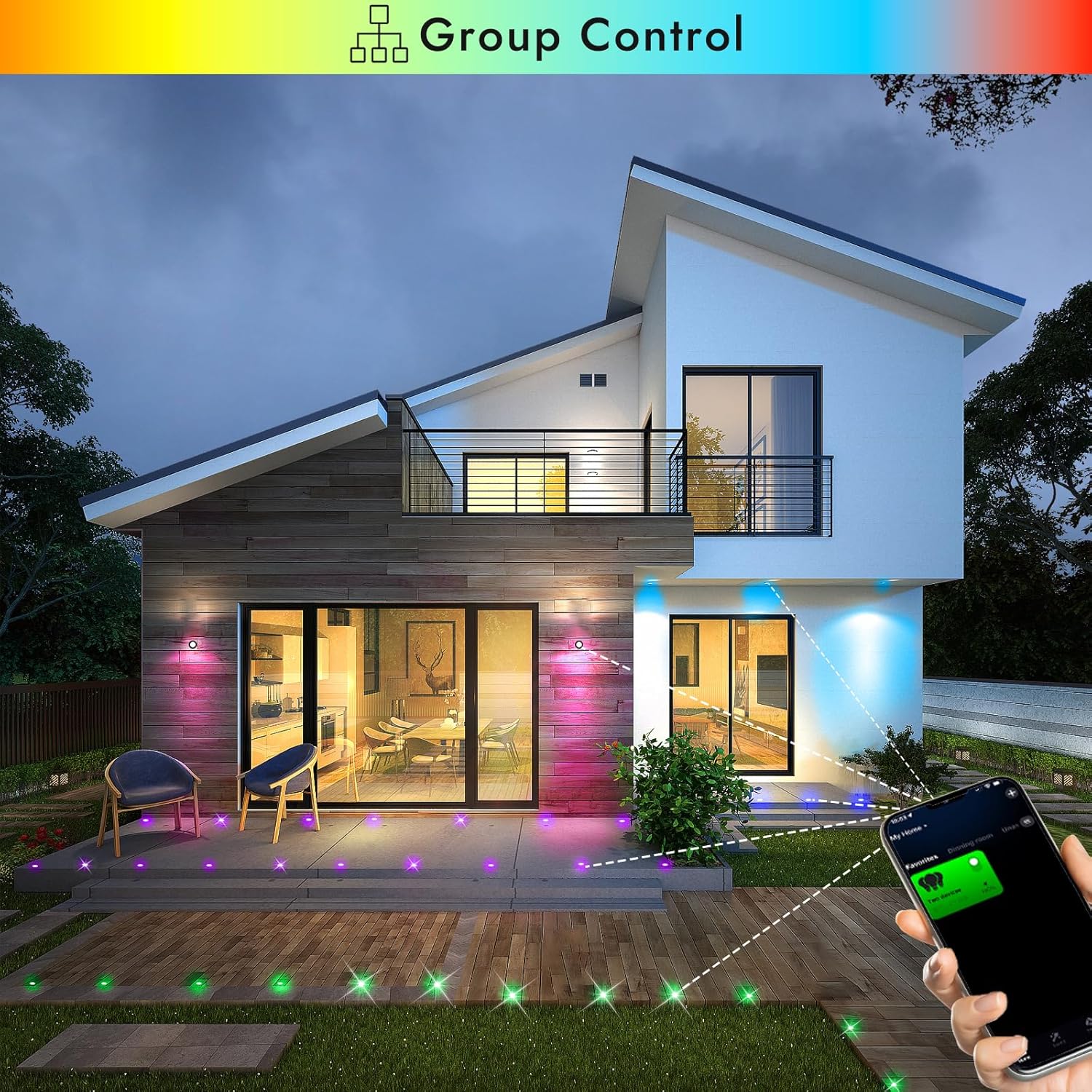
Image 5.1: Smartphone app demonstrating group control of multiple FVTLED deck lights.

Image 5.2: The app interface displaying the music mode feature, allowing lights to react to sound.

Image 5.3: The app interface demonstrating the timer function for scheduling light operations.
5.3. Voice Control (Alexa & Google Home)
The FVTLED WiFi RGB Deck Lights are compatible with Amazon Alexa and Google Home for convenient voice control.
- Enable Skill/Action: In your Alexa or Google Home app, search for and enable the corresponding skill or action for your FVTLED lights (e.g., 'Magic Home' or similar).
- Link Account: Link your FVTLED app account with your Alexa or Google Home account.
- Discover Devices: Ask Alexa or Google Home to discover new devices.
- Voice Commands: You can now control your lights using voice commands such as:
"Alexa, turn on the deck lights."
"Hey Google, change deck lights to blue."
"Alexa, dim the deck lights to 50%."
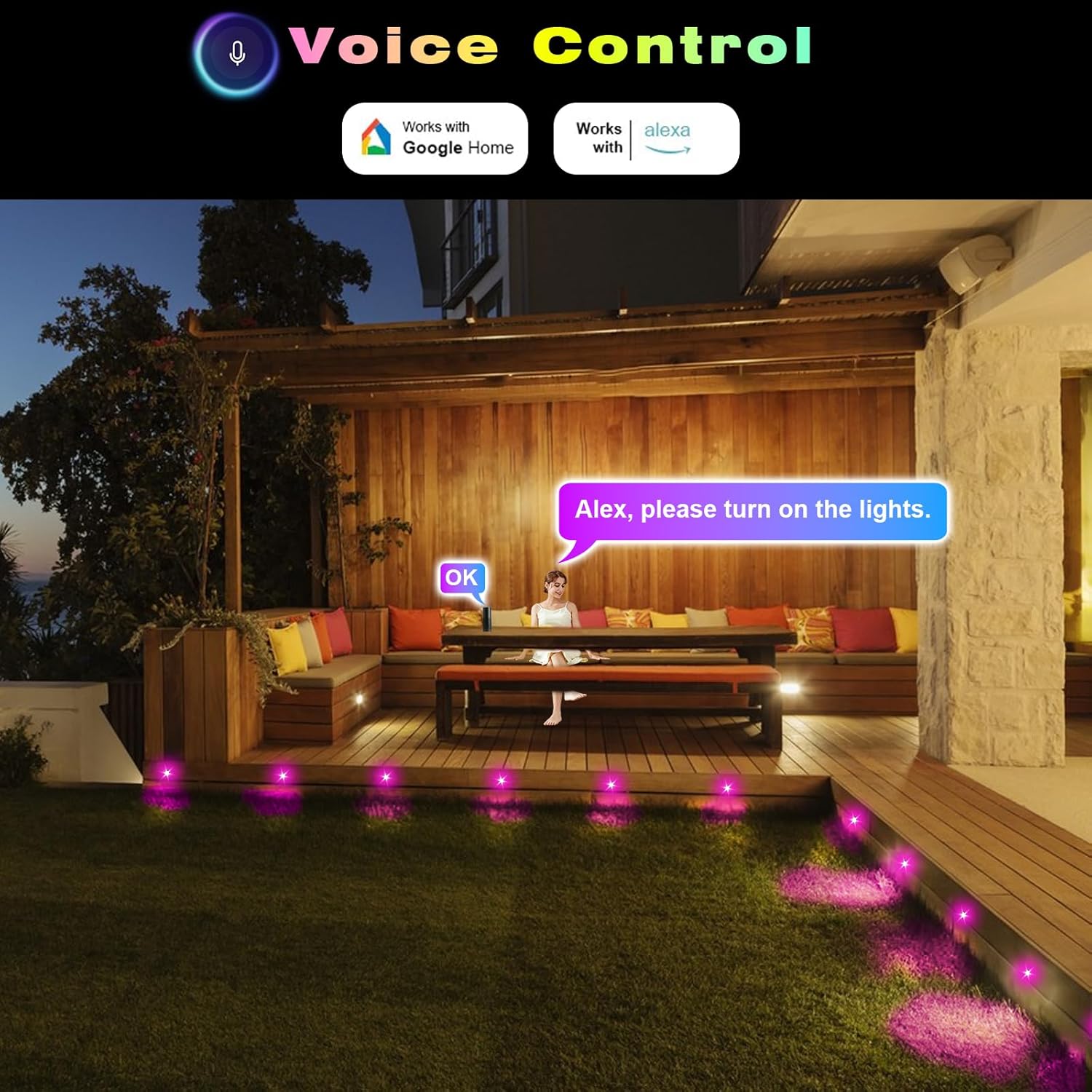
Image 5.4: An example of using voice commands with Alexa to control the FVTLED deck lights in an outdoor setting.
5.4. Video Demonstration: WiFi Controller and App Features
Video 5.5: A comprehensive demonstration of the FVTLED WiFi Controller and its features, including app connectivity, color selection, dynamic modes, and timer settings.
6. Maintenance
To ensure the longevity and optimal performance of your FVTLED deck lights, follow these maintenance guidelines:
- Cleaning: Periodically clean the surface of the lights with a soft, damp cloth to remove dirt and debris. Avoid abrasive cleaners or solvents.
- Connection Check: Annually inspect all cable connections to ensure they remain tight and free from corrosion. Re-tighten waterproof caps if necessary.
- Cable Inspection: Check cables for any signs of damage, cuts, or fraying. Replace damaged cables immediately to prevent electrical hazards.
- Power Supply: Ensure the power supply unit is kept in a well-ventilated area and is not covered, to prevent overheating.
7. Troubleshooting
If you encounter issues with your FVTLED deck lights, refer to the following common problems and solutions:
- Lights Not Turning On:
- Check if the power supply is properly plugged into a working outlet.
- Verify all cable connections are secure and tightened.
- Ensure the remote control or app is sending the 'ON' command.
- Test the power supply with another compatible device if possible.
- WiFi Connectivity Issues:
- Ensure your smartphone is connected to a 2.4GHz WiFi network (5GHz networks are often not supported by smart devices).
- Confirm the WiFi controller is within range of your router.
- Try resetting the WiFi controller (refer to app instructions for specific reset procedures, often involves cycling power).
- Verify that location services are enabled on your phone and allowed for the app during setup.
- Remote Control Not Working:
- Check the battery in the remote control (1 CR2 battery required, included).
- Ensure there are no obstructions between the remote and the WiFi controller.
- Confirm the remote is pointed directly at the IR receiver on the controller.
- Inconsistent Light Colors/Brightness:
- This can sometimes occur with long cable runs due to voltage drop. Ensure your setup adheres to recommended cable lengths.
- Check for any loose connections that might be affecting power delivery to individual lights.
8. Specifications
| Feature | Specification |
|---|---|
| Brand | FVTLED |
| Model Name | WIFI RGB Low Voltage LED Deck Lights Kit |
| Item Model Number | WIFI-10*D45-RGB |
| Light Fixture Form | Recessed |
| Material | Stainless Steel, Polycarbonate |
| Color | RGB (Multicolor) |
| Voltage | DC 12V |
| Wattage | 0.5 Watts (Multi-color) / 0.2W (Single-color) |
| Lumen Output | 12 LM (per light) |
| Beam Angle | 120° |
| IP Rating | IP67 (Lights and Cables) |
| Product Dimensions | Φ1.77"L x 1.77"W x 1.02"H (Φ45*H26mm) |
| Mount Hole Size | Φ1.38" (Φ35mm) |
| Cable Length (Per Light) | 1.64 ft (Double 0.5M) |
| Distance Between Lights | 3.28 ft (1M) |
| Control Method | Remote, Amazon Alexa, Google Home, Wi-Fi App |
| Batteries | 1 CR2 battery required (included for remote) |
| Assembly Required | Yes |
9. Warranty and Support
This FVTLED product comes with a Limited Warranty. For specific warranty details, claims, or technical support, please refer to the warranty card included in your package or contact FVTLED customer service directly through their official website or the retailer where the product was purchased.