
Zoom H1n
Zoom H1n Handy Recorder User Manual
Model: H1n | Brand: Zoom
1. Product Overview
The Zoom H1n Handy Recorder (2018 Model) is a compact and versatile audio recording device designed for musicians, podcasters, filmmakers, and content creators. It features a streamlined body with a matte finish and a newly designed protective mic enclosure, making it ideal for on-the-go recording. With its intuitive controls and high-quality built-in microphones, the H1n provides excellent audio capture for various applications.

Figure 1: Front view of the Zoom H1n Handy Recorder, showcasing its compact design and built-in X/Y stereo microphones.
2. What's in the Box
Upon unboxing your Zoom H1n Handy Recorder, please ensure all the following items are present:
- Zoom H1n Handy Recorder Unit
- 2 x AAA Batteries (for immediate use)
- User Manual (PDF available online)
Note: A microSD card is required for recording and is not included with the unit. Please purchase one separately (up to 32GB capacity recommended).
3. Initial Setup
3.1. Installing Batteries
- Locate the battery compartment on the back of the H1n unit.
- Slide open the battery compartment cover.
- Insert the two AAA batteries, ensuring correct polarity (+/-) as indicated inside the compartment.
- Close the battery compartment cover securely.

Figure 2: Rear view of the Zoom H1n, showing the battery compartment and overall compact size.
3.2. Inserting a microSD Card
- Locate the microSD card slot on the side of the H1n.
- Gently insert a formatted microSD card (up to 32GB) into the slot until it clicks into place.
- To remove, push the card in slightly until it springs out.
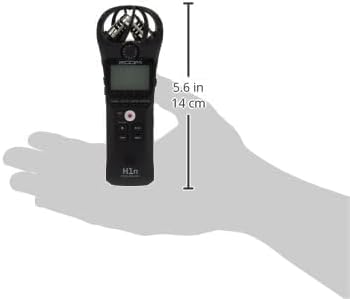
Figure 3: Side view of the Zoom H1n, highlighting the microSD card slot and other side controls.
3.3. Powering On/Off
To power on the device, slide the power switch to the ON position. To power off, slide the switch to the OFF position and hold until the display turns off.
4. Basic Operation
4.1. Recording Audio
- Ensure batteries and a microSD card are installed.
- Power on the H1n.
- Adjust the input level using the VOLUME dial on the side to prevent clipping (distortion). The display will show input levels.
- Press the large REC button (red circle) to start recording. The REC indicator will light up.
- Press the REC button again to pause recording.
- Press the STOP button (square) to stop recording and save the file.

Figure 4: Close-up of the Zoom H1n's display and main control buttons, including REC, STOP, and playback controls.
4.2. Playback
- Press the PLAY/PAUSE button (triangle/two vertical bars) to begin playback of the last recorded file.
- Use the REWIND and FAST FORWARD buttons to navigate between files.
- Adjust playback volume using the VOLUME dial.
- Connect headphones to the LINE OUT jack for private monitoring.
4.3. Connecting to a Computer
The H1n can be connected to a computer via its USB port to transfer recorded files. It functions as a USB microphone or a card reader. Use a standard USB cable (not included) to connect the device to your computer.
5. Key Features
- Streamlined Body: Features a matte finish and a newly designed protective mic enclosure for durability and portability.
- Built-in Stereo Condenser Microphones: Utilizes 90-degree X/Y format for clear, wide-range stereo recording.
- One-touch Button Controls: Simplifies operation for quick recording and playback.
- Localized and Intuitive Menus: Easy navigation through settings for efficient use.
- Playback Speed Control: Allows adjustment of playback speed without changing pitch.
- Voice Emphasize Filter: Enhances vocal clarity for interviews or lectures.
- Stereo Overdubbing Functions: Enables layering of audio tracks for creative projects.
- Long Battery Life: Approximately 10 hours of continuous recording time using built-in mic (44.1 kHz/16-bit) with alkaline batteries.
6. Technical Specifications
| Attribute | Value |
|---|---|
| Item Weight | 2.4 ounces |
| Product Dimensions | 5.4 x 1.9 x 1.2 inches (1.5"D x 5.5"W x 1"H) |
| Item Model Number | H1n |
| Batteries Required | 1 AA batteries (Alkaline recommended) |
| Color Name | Black |
| Compatible Devices | Laptop |
| Connector Type | USB |
| Hardware Interface | USB |
| Media Format | WAV |
| Power Source | Battery Powered |
| Standing Screen Display Size | 1.25 inches |
| Microphone Form Factor | Built-In |
| Headphones Jack | 2.5 millimeters |
| Memory Storage Capacity | 32 GB (max SDHC) |
| Input Impedance | 2 kΩ |
7. Troubleshooting
7.1. Excessive Handling Noise
The H1n's lightweight plastic body can sometimes transmit handling noise to the sensitive built-in microphones. To minimize this:
- Hold the device as still as possible during recording.
- Consider using a shock mount if recording while moving or attaching to a camera.
- For outdoor use, a foam windscreen (not included) is highly recommended to reduce wind noise.
7.2. No Recording or File Not Saved
- Ensure a formatted microSD card is properly inserted.
- Check battery levels. Replace or recharge batteries if low.
- Verify that the device is not in USB mode (if connected to a computer).
7.3. Poor Audio Quality
- Check the input level. If it's too high, audio may be distorted (clipping). Adjust the VOLUME dial down.
- If the level is too low, audio may be noisy. Increase the VOLUME dial.
- Ensure the microphones are not obstructed.
- Consider the recording environment; excessive background noise will be captured.
8. Care and Maintenance
- Cleaning: Use a soft, dry cloth to clean the exterior of the unit. Do not use liquid cleaners or solvents.
- Storage: Store the H1n in a cool, dry place away from direct sunlight and extreme temperatures.
- Batteries: Remove batteries if the unit will not be used for an extended period to prevent leakage.
- Microphones: Avoid applying direct pressure or impact to the microphone capsules.
9. Warranty and Support
For detailed warranty information, technical support, or further assistance, please refer to the official user manual provided with your product or visit the Zoom Official Store on Amazon.
An extended user manual in PDF format is available for download: Download User Manual (PDF).
Related documentsH1n


Ask a question about this manual
Ask about setup, troubleshooting, compatibility, parts, safety, or missing instructions. Manuals+ will review the question and use this page’s manual context to help answer it.