
1. Introduction
This manual provides detailed instructions for the installation, operation, and maintenance of your KingSpec 128GB PCIe NVMe 3D NAND M.2 Internal Solid State Drive (Model NE-128 2280). Please read this manual thoroughly before proceeding with installation to ensure proper functionality and to avoid potential issues.
The KingSpec NE-128 2280 is a high-performance internal SSD designed for desktop computers, offering enhanced data transfer speeds and improved system responsiveness compared to traditional hard drives.
2. Setup and Installation
2.1. Pre-installation Checklist
- Ensure your motherboard has an available M.2 slot that supports NVMe PCIe Gen3 x4 SSDs. Refer to your motherboard's manual for compatibility.
- Gather necessary tools: a Phillips head screwdriver and an anti-static wrist strap (recommended).
- Back up any important data from your existing storage drive before proceeding.
- Power off your computer and disconnect it from the power source.
2.2. Physical Installation
Follow these steps to physically install the KingSpec NE-128 2280 SSD into your computer:
- Open your computer case. Locate the M.2 slot on your motherboard. It typically looks like a small horizontal slot with a screw hole at the end.
- Carefully insert the KingSpec M.2 NVMe SSD into the M.2 slot at a 30-degree angle. The gold contacts on the SSD should align with the pins in the slot.
- Gently push the SSD down until it is parallel with the motherboard. Secure it with the small screw provided with your motherboard or the SSD.
- Close your computer case and reconnect the power source.

Image: KingSpec M.2 NVMe SSD showing its dimensions (80.0mm length, 22.0mm width) and M Key PCIe interface, crucial for proper slot identification.
Video: This video demonstrates the physical installation process of an M.2 NVMe SSD into a motherboard slot, including securing it with a screw.
2.3. Initializing and Formatting the SSD
After physical installation, the SSD needs to be initialized and formatted for use by your operating system. The steps may vary slightly depending on your OS (Windows, Linux, macOS).
For Windows:
- Boot your computer.
- Right-click on the Start button and select "Disk Management".
- You should see the new SSD listed as "Unallocated" or "Not Initialized". Right-click on it and select "Initialize Disk".
- Choose MBR (Master Boot Record) or GPT (GUID Partition Table). GPT is recommended for drives larger than 2TB and modern UEFI systems.
- After initialization, right-click on the "Unallocated" space and select "New Simple Volume". Follow the wizard to create a new partition and format it (NTFS is standard for Windows).
For Linux:
Use tools like GParted or command-line utilities like fdisk / parted to partition and format the drive (e.g., ext4 filesystem).
For macOS:
Use Disk Utility to erase and format the drive (e.g., APFS or HFS+ filesystem).
3. Operation
Once installed and formatted, your KingSpec NVMe SSD will function as a standard storage device. You can install your operating system, applications, and store data on it. For optimal performance, it is recommended to install your operating system on the NVMe SSD.

Image: KingSpec M.2 NVMe SSD shown installed within a laptop, illustrating its application in portable computing devices.
3.1. Performance Considerations
- NVMe Driver: Ensure your operating system has the latest NVMe drivers installed for optimal performance. Windows 10/11 typically includes native NVMe support.
- PCIe Lane Allocation: Verify that your motherboard's BIOS/UEFI settings allocate sufficient PCIe lanes (x4) to the M.2 slot for maximum speed.
- Cooling: While NVMe SSDs are efficient, sustained heavy workloads can generate heat. Some motherboards include M.2 heatsinks. The KingSpec NE-128 2280 may benefit from additional cooling in high-performance scenarios.
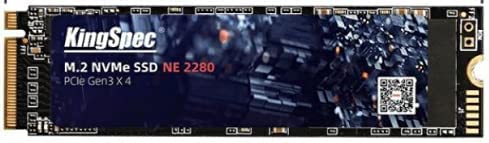
Image: KingSpec M.2 NVMe SSD featuring a cooling sticker, which functions as a heat sink to help manage operating temperatures.
4. Maintenance
Proper maintenance helps ensure the longevity and performance of your SSD.
- TRIM Command: Ensure TRIM is enabled in your operating system. TRIM helps the SSD manage data blocks efficiently, preventing performance degradation over time. Windows typically enables TRIM automatically for SSDs.
- Firmware Updates: Periodically check the KingSpec official website for firmware updates for your specific SSD model. Firmware updates can improve performance, stability, and resolve known issues.
- Avoid Full Capacity: While SSDs perform well even when nearly full, leaving some free space (e.g., 10-15%) can help maintain optimal performance and extend lifespan.
- Monitoring Health: Use S.M.A.R.T. (Self-Monitoring, Analysis, and Reporting Technology) tools (e.g., CrystalDiskInfo for Windows) to monitor the health and temperature of your SSD.
5. Troubleshooting
If you encounter issues with your KingSpec NVMe SSD, refer to the following common problems and solutions:
| Problem | Possible Cause | Solution |
|---|---|---|
| SSD not detected by BIOS/OS | Incorrect installation, M.2 slot disabled, incompatible motherboard, outdated BIOS. |
|
| Slow performance | TRIM disabled, outdated drivers, high temperature, full drive, incorrect PCIe lane allocation. |
|
| SSD not initializing/formatting | Corrupt drive, OS issue, incorrect steps. |
|
6. Specifications
Key technical specifications for the KingSpec NE-128 2280 SSD:
| Feature | Detail |
|---|---|
| Model Number | NE-128 2280 |
| Digital Storage Capacity | 128 GB |
| Hard Disk Interface | NVMe |
| Form Factor | M.2 2280 |
| Hardware Connectivity | PCI Express x4 |
| Read Speed | Up to 1800 MB/s |
| Write Speed | Up to 600 MB/s |
| NAND Flash Type | 3D NAND |
| Compatible Devices | Desktop PCs (with M.2 NVMe slot) |
| Installation Type | Internal Hard Drive |
| Item Weight | 35 Grams |
7. Warranty and Support
7.1. Warranty Information
KingSpec products are manufactured to the highest quality standards. This product comes with a limited warranty against defects in materials and workmanship. The specific terms and duration of the warranty may vary by region and product. Please retain your proof of purchase for warranty claims.
7.2. Technical Support
For technical assistance, troubleshooting, or warranty inquiries, please visit the official KingSpec website or contact their customer support. You may need to provide your product model number (NE-128 2280) and proof of purchase.
Official KingSpec Website: www.kingspec.com
