
FreedConn T-MAX
Contents
FreedConn T-MAX Bluetooth Motorcycle Intercom Headset User Manual
Model: T-MAX
1. Introduction
The FreedConn T-MAX Bluetooth Motorcycle Intercom Headset is designed to provide clear and reliable communication for motorcyclists. This device supports full-duplex intercom communication for up to 6 riders, with a maximum range of 1500 meters. It integrates seamlessly with mobile phones for calls, GPS navigation, and music playback, and includes an FM radio function. Its robust, waterproof design ensures performance in various riding conditions.
Key Features:
- Bluetooth Intercom Range: Up to 1500 meters.
- Group Intercom: Supports up to 6 riders simultaneously.
- Multi-device Connectivity: Connects to mobile phones, GPS, and MP3 players.
- Integrated FM Radio.
- Voice Prompts.
- Usable while charging.
- Noise Reduction Technology.
- IP65 Waterproof Rating.
- Long Battery Life: Up to 10 hours talk time (phone), 8 hours (intercom), 1 week standby.
2. Product Components
The FreedConn T-MAX package includes all necessary components for installation and operation. Please verify all items are present upon unboxing.

Figure 2.1: Detailed diagram of the FreedConn T-MAX unit, highlighting its main components such as the speakers, microphone, LED indicator, multi-function key, knob, headphone port, charging port, and the hard cable connecting the microphone and speakers.

Figure 2.2: An overview of the items included in the FreedConn T-MAX package. This includes the T-MAX main unit, a speaker and microphone set, a USB charging cable, a small screwdriver for installation, four headphone velcro pads, a plastic clamp for helmet mounting, and the user manual.
Package Contents:
- 1 x Bluetooth Receiver (T-MAX unit)
- 1 x Universal Clamp
- 1 x Microphone and Speaker Set
- 1 x USB Cable
- 4 x Headphone Velcro Pads
- 1 x Small Screwdriver
- 1 x User Manual
3. Setup
3.1. Installation on Helmet
- Attach Clamp: Secure the universal clamp to the side of your helmet. Ensure it is firmly attached and does not obstruct your vision or helmet functionality.
- Mount T-MAX Unit: Slide the T-MAX main unit onto the clamp until it clicks into place.
- Install Speakers: Use the velcro pads to attach the speakers inside the helmet, positioning them directly over your ears for optimal sound.
- Position Microphone: Attach the microphone to the inside of the helmet, ensuring it is close to your mouth but not interfering with your breathing or helmet closure.
- Connect Cables: Plug the speaker and microphone cable into the headphone port on the T-MAX unit.
3.2. Charging the Device
Before first use, fully charge the T-MAX unit. The device can also be used while charging.
- Connect the provided USB cable to the charging port on the T-MAX unit and to a DC5V 500mA power adapter or a computer USB port.
- The LED indicator will show charging status (refer to manual for specific light patterns).
- A full charge takes approximately 2.5 hours.

Figure 3.1: Illustration of the T-MAX unit connected to a power source for charging, highlighting its 2.5-hour charging time and the ability to use the device while it is charging.
3.3. Power On/Off
- Power On: Press and hold the Multi-function key for approximately 3 seconds until the LED indicator flashes.
- Power Off: Press and hold the Multi-function key for approximately 3 seconds until the LED indicator turns off.
3.4. Pairing with Bluetooth Devices (Phone, GPS, MP3)
The T-MAX can connect to up to three Bluetooth devices simultaneously.
- Ensure the T-MAX is powered off.
- Press and hold the Multi-function key for about 5-7 seconds until the LED indicator flashes red and blue alternately, indicating pairing mode.
- On your mobile phone, GPS, or MP3 player, enable Bluetooth and search for available devices.
- Select "FreedConn T-MAX" from the list. If prompted, enter "0000" as the PIN.
- Once paired, the LED indicator will flash blue slowly.

Figure 3.2: The T-MAX unit's capability to pair with multiple Bluetooth devices such as a mobile phone, GPS unit, and MP3 player at the same time.
3.5. Intercom Pairing (Group Communication)
The T-MAX supports group intercom for up to 6 riders. For optimal performance, pair devices in sequence (A to B, B to C, etc.).
- Ensure both intercom units are powered off.
- On Unit A, press and hold the Multi-function key for 5-7 seconds until the LED flashes red and blue.
- On Unit B, press and hold the Multi-function key for 5-7 seconds until the LED flashes red and blue.
- Briefly press the Multi-function key on Unit A. The units will search and connect. Once connected, both LEDs will flash blue slowly.
- To add Unit C, pair Unit B with Unit C using the same method. Continue this process for up to 6 units.

Figure 3.3: A visual representation of the group intercom mode, demonstrating how up to 6 riders can communicate over a maximum distance of 1500 meters using their T-MAX units.
4. Operating Instructions
The T-MAX unit features a Multi-function key and a Knob for various operations.
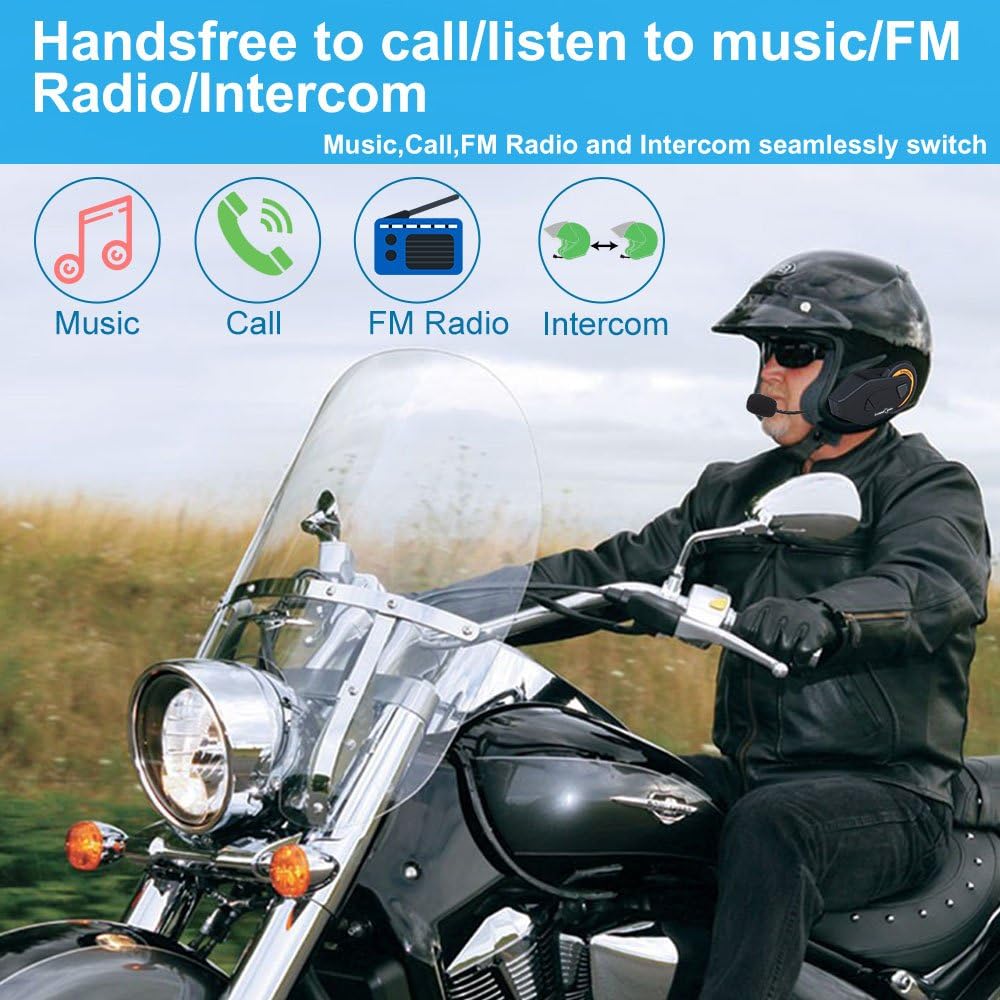
Figure 4.1: A motorcyclist demonstrating the hands-free capabilities of the T-MAX intercom, allowing seamless switching between music, phone calls, FM radio, and intercom communication.
4.1. Phone Call Functions
- Answer Call: Briefly press the Multi-function key.
- Reject Call: Press and hold the Multi-function key for 2 seconds.
- End Call: Briefly press the Multi-function key.
- Redial Last Number: Double-press the Multi-function key.
4.2. Music Playback
- Play/Pause: Briefly press the Multi-function key.
- Next Track: Rotate the Knob clockwise.
- Previous Track: Rotate the Knob counter-clockwise.
4.3. FM Radio
- Turn On/Off FM Radio: Press and hold the Knob for 2 seconds.
- Scan Channels: Briefly rotate the Knob clockwise or counter-clockwise to switch between preset stations.
4.4. Intercom Communication
- Start Intercom: Briefly press the Multi-function key to initiate communication with a paired intercom unit.
- End Intercom: Briefly press the Multi-function key again.
- Switch Intercom Partner (for multiple paired units): Rotate the Knob to cycle through paired intercom partners.
4.5. Volume Control
- Increase Volume: Rotate the Knob clockwise.
- Decrease Volume: Rotate the Knob counter-clockwise.
5. Maintenance
- Cleaning: Use a soft, damp cloth to clean the exterior of the T-MAX unit. Do not use harsh chemicals or abrasive cleaners.
- Water Resistance: The device is IP65 waterproof, meaning it is protected against dust and low-pressure water jets. Avoid submerging the unit in water. Ensure the charging port cover is securely closed when not charging.
- Battery Care: To prolong battery life, avoid fully discharging the battery frequently. Charge the device regularly, even if not in use for extended periods. Store in a cool, dry place.
- Storage: When not in use, store the T-MAX unit and accessories in a dry environment, away from extreme temperatures.
6. Troubleshooting
| Problem | Possible Cause | Solution |
|---|---|---|
| Device does not power on. | Low battery. | Charge the device for at least 30 minutes. |
| No sound from speakers. | Volume too low; Speakers not connected properly; Faulty speakers. | Increase volume; Check speaker connection; Test with another speaker set if available. |
| Cannot pair with phone/intercom. | Device not in pairing mode; Bluetooth on other device is off; Too many devices paired. | Ensure T-MAX is in pairing mode (red/blue flashing LED); Verify Bluetooth is active on the other device; Clear previous pairings and try again. |
| FM Radio not working or poor reception. | Weak signal; Incorrect operation. | Move to an area with better signal; Ensure FM radio is activated correctly (press and hold Knob for 2 seconds). |
| Intercom connection drops frequently. | Out of range; Obstructions; Interference. | Stay within 1500m range; Avoid large physical obstructions; Reduce electronic interference. |
7. Specifications
| Feature | Detail |
|---|---|
| Bluetooth Version | 4.1 |
| Frequency | 2.4 GHz |
| Bluetooth Profiles Supported | A2DP, AVRCP |
| Waterproof Level | IP65 |
| Battery Type | Rechargeable Li-polymer 570 mAh |
| Talk Time (Phone) | Up to 10 hours |
| Talk Time (Intercom) | Up to 8 hours |
| Standby Time | Up to 1 week |
| Charging Time | 2.5 hours |
| Power Supply | DC5V |
| Connectivity Technology | Wireless |
| Headphone Jack | USB |
8. Warranty and Support
The FreedConn T-MAX Bluetooth Motorcycle Intercom Headset comes with a comprehensive warranty and dedicated customer support.
- Money-Back Guarantee: Enjoy a 45-day money-back guarantee from the date of purchase.
- Warranty Period: The product is covered by a 12-month customer service warranty, ensuring support for any manufacturing defects or operational issues.
- Customer Support: For technical assistance, warranty claims, or any inquiries, please refer to the contact information provided in your product packaging or visit the official FreedConn website.
Documents and downloads
Ask a question about this manual
Ask about setup, troubleshooting, compatibility, parts, safety, or missing instructions. Manuals+ will review the question and use this page’s manual context to help answer it.