
Inateck BCST-60-BK
Inateck BCST-60-BK 2.4GHz Wireless Laser Barcode Scanner User Manual
Model: BCST-60-BK
1. Introduction
The Inateck BCST-60-BK is a 2.4GHz wireless laser barcode scanner designed for efficient and accurate data capture. It offers robust performance, a long-lasting battery, and multiple scanning modes to suit various applications, including retail, warehousing, and logistics. This manual provides detailed instructions to help you set up, operate, and maintain your scanner effectively.

Image: The Inateck BCST-60-BK wireless laser barcode scanner, shown with its accompanying USB receiver.
2. Package Contents
Please check the package for the following items:
- Inateck BCST-60-BK Barcode Scanner
- 2.4GHz USB Receiver
- USB Charging Cable
- User Manual
3. Product Overview
The Inateck BCST-60-BK scanner features a durable and ergonomic design for comfortable use. Key components include the scanning window, trigger button, and charging port.

Image: A hand holding the Inateck BCST-60-BK scanner, highlighting its ergonomic design for comfortable and stable operation.
3.1 Key Features
- 2.4GHz Wireless Connectivity: Provides a stable connection up to 35 meters.
- High Precision Scanning: Accurately reads 1D barcodes, including dirty or irregular ones.
- Long Battery Life: 2600mAh battery offers 144 hours of non-stop scanning or 180 days of standby time.
- Durable Design: 360° shockproof construction with reinforced internal parts and TPU material, withstands 1.8m drops.
- Multiple Scan Modes: Manual, Continuous, and Inventory modes available.
- Customizable Options: Add prefix/suffix, hide characters, adjust volume, and set keyboard language.
- Wide Compatibility: Supports Windows, macOS, Linux, Raspberry Pi, and Android (with OTG).
4. Setup
4.1 Charging the Scanner
Before first use, fully charge the scanner using the provided USB cable. Connect the cable to the scanner's charging port and a USB power source (e.g., computer USB port, USB wall adapter). The indicator light will show charging status.
4.2 Connecting the 2.4GHz USB Receiver
The scanner connects wirelessly via a 2.4GHz USB receiver. No drivers are typically required for most operating systems.
- Insert the 2.4GHz USB receiver into an available USB port on your computer or compatible device.
- Turn on the barcode scanner. It should automatically pair with the receiver. A successful connection is usually indicated by a specific sound or light on the scanner.
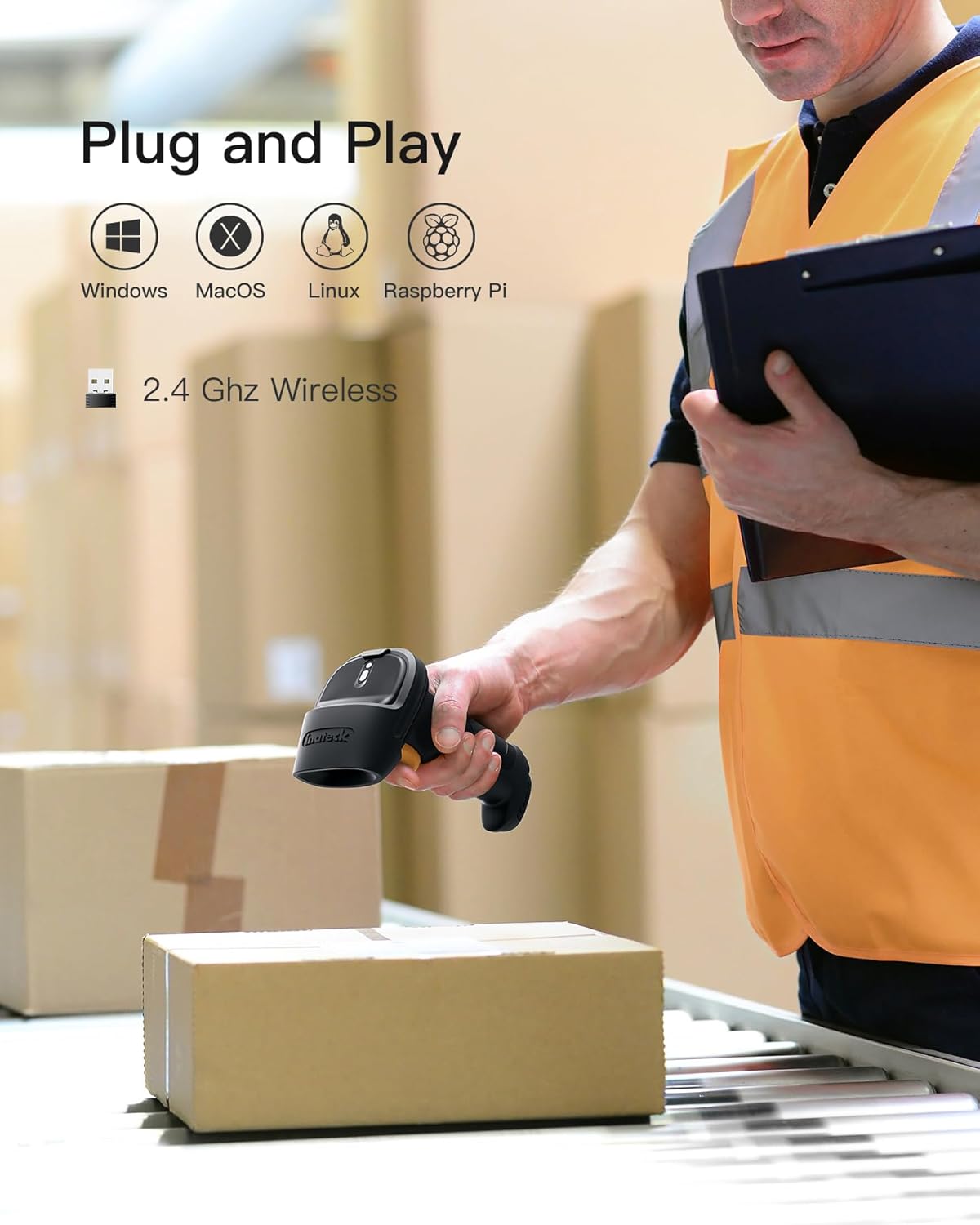
Image: The scanner demonstrating its plug-and-play compatibility with various operating systems via its 2.4 GHz wireless connection.
4.3 OS Compatibility
The Inateck BCST-60-BK is compatible with a wide range of operating systems, including:
- Windows 10/8.1/8/7/Vista/XP/CE
- MAC OS X
- Linux
- Unix
- Android (with OTG support)
- Raspberry Pi
5. Operating Modes
The scanner supports multiple operating modes to adapt to different scanning needs.
5.1 Manual Scan Mode
This is the most common mode. Press the trigger button once to scan a barcode. The scanned data will be transmitted to your connected device immediately.
5.2 Continuous Scan Mode
In this mode, the scanner will continuously scan at a set frequency without requiring a trigger press for each scan. This is useful for high-volume scanning environments like factory production lines.
5.3 Inventory Mode
Inventory mode allows the scanner to store barcodes internally without a constant connection to a host device. This is ideal for inventory checks where mobility is crucial.
- The scanner can store up to 5000 barcodes.
- To upload stored data, connect the scanner to your device and activate the upload function (refer to the full manual for specific barcode commands).

Image: The scanner's decoding capability for various 1D barcode types, showing its high precision.
6. Customization
The Inateck BCST-60-BK offers several customization options to tailor its functionality to your specific needs. These settings are typically configured by scanning special programming barcodes found in the comprehensive user manual.
6.1 Prefix/Suffix Addition
You can add a prefix or suffix of up to 32 characters to the scanned barcode data. This is useful for identifying data origin or formatting.
6.2 Character Deletion
Up to 99 characters can be removed from the beginning or end of a scanned barcode. This helps in cleaning up unnecessary data.
6.3 Volume Adjustment
Adjust the scanner's beep volume to suit your working environment.
6.4 Keyboard Language
Set the keyboard language to match your system's input language. Supported languages include German, English, French, Italian, and Spanish.
7. Maintenance
7.1 Battery Care and Charging
The scanner is equipped with a 2600mAh Lithium-ion battery. To ensure optimal battery life:
- Charge the scanner fully before first use.
- Avoid completely draining the battery regularly.
- Store the scanner in a cool, dry place when not in use for extended periods.
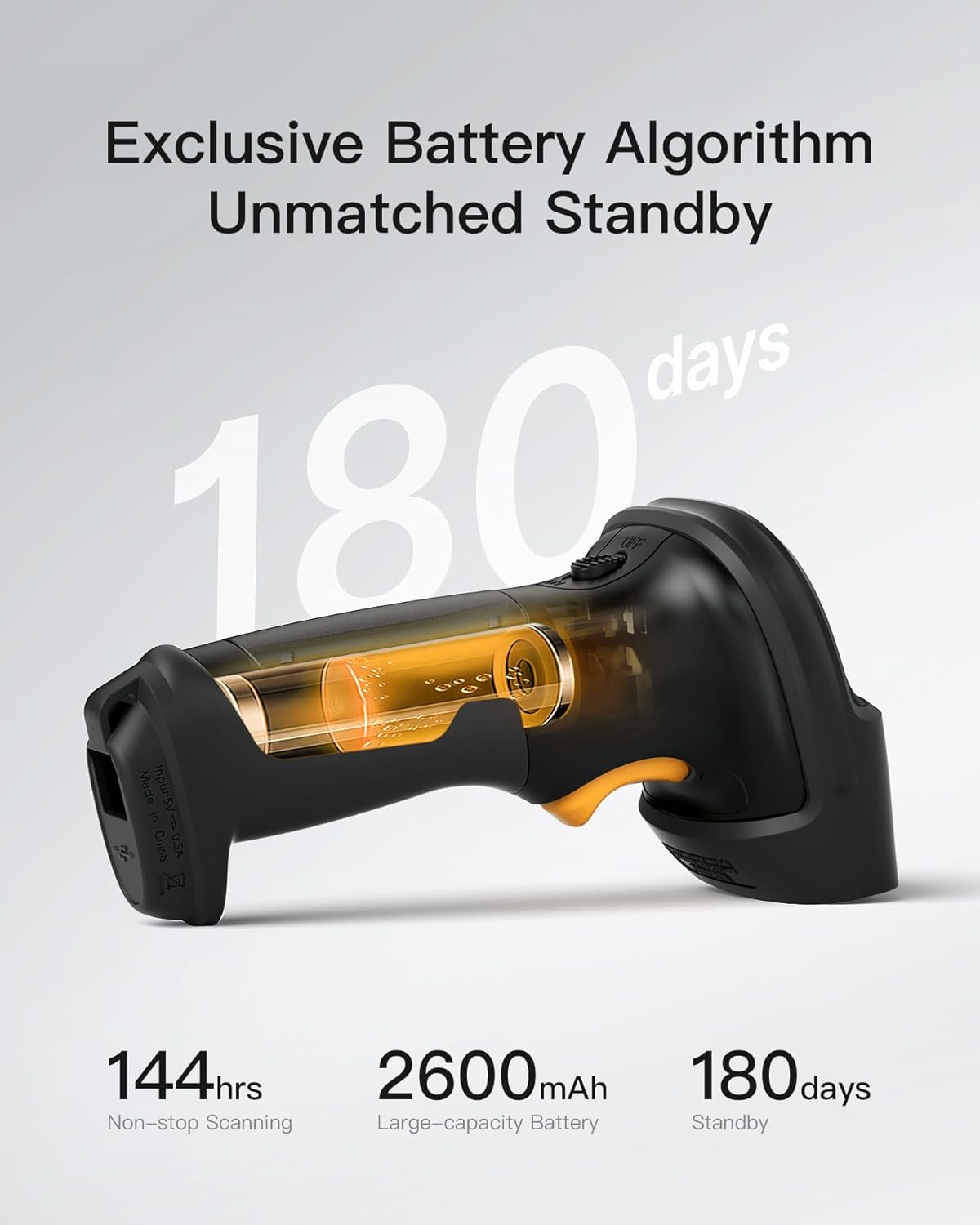
Image: An illustration of the scanner's internal battery, emphasizing its capacity and long standby time.
7.2 Cleaning
To clean the scanner, use a soft, dry cloth. For stubborn dirt, a slightly damp cloth can be used. Avoid harsh chemicals or abrasive materials that could damage the device.
7.3 Durability
The scanner features a 360° shockproof design, reinforced with TPU material, allowing it to withstand drops from up to 1.8 meters onto concrete. However, continuous rough handling should be avoided to prolong its lifespan.

Image: A diagram illustrating the scanner's robust 360-degree shockproof protection, including TPU material for enhanced durability.
8. Troubleshooting
If you encounter issues with your Inateck BCST-60-BK scanner, please refer to the following common problems and solutions:
- Scanner not connecting:
- Ensure the USB receiver is properly inserted into the host device.
- Verify the scanner is powered on and charged.
- Try re-pairing the scanner with the receiver (refer to the full manual for pairing instructions).
- Test on a different USB port or computer.
- Scanner not reading barcodes:
- Ensure the barcode is clean, undamaged, and within the scanner's reading range.
- Check if the barcode type is supported by the scanner (see Specifications).
- Verify ambient lighting conditions are not too extreme.
- Confirm the scanner is in the correct operating mode.
- Incorrect data output (e.g., wrong characters):
- Check the keyboard language setting of the scanner and ensure it matches your computer's input language.
- Reset the scanner to factory defaults (refer to the full manual for the reset barcode).
- Battery not holding charge:
- Ensure the USB charging cable is not damaged and is properly connected.
- Try charging with a different USB power source.
- If the issue persists, contact customer support.
9. Specifications
| Feature | Detail |
|---|---|
| Brand | Inateck |
| Model Number | BCST-60NEW4-BK |
| Color | Black |
| Connectivity Technology | 2.4GHz Wireless, USB |
| Compatible Devices | Computer |
| Operating System Compatibility | Windows 10/8.1/8/7/Vista/XP/CE, MAC OS X, Linux, Unix, Android (with OTG), Raspberry Pi |
| Battery Capacity | 2600mAh |
| Battery Composition | Lithium-ion |
| Rechargeable Battery | Yes |
| Scan Rate | 300 images per second |
| Wireless Range | Up to 35 meters |
| Standby Time | 180 days |
| Drop Protection | 1.8 meters (onto concrete) |
| Compliant Specifications | CE |
| Supported Barcodes | Codabar, Code 11, Code 128, Code 39, Code 93, EAN-8, EAN-13, ISBN, ISSN, MSI, UPC-A, UPC-E, Industrial 25, Standard 25, Interleaved 25, Matrix 25, China Post, FedEx, USPS, NIV |
| Keyboard Languages | German, English, French, Italian, Spanish |
10. Warranty and Support
Inateck products come with a standard manufacturer's warranty. For specific warranty details, please refer to the warranty card included in your package or visit the official Inateck website.
If you require technical assistance, troubleshooting beyond this manual, or have any questions, please contact Inateck customer support. Contact information can typically be found on the Inateck website or on the product packaging.
Related documentsBCST-60-BK


Ask a question about this manual
Ask about setup, troubleshooting, compatibility, parts, safety, or missing instructions. Manuals+ will review the question and use this page’s manual context to help answer it.