Introduction
The Snom D120 is an entry-level VoIP phone designed for environments requiring a reliable and easy-to-use communication device. Its robust construction and essential features make it suitable for large-scale deployments in various industries. This manual provides comprehensive instructions for setting up, operating, maintaining, and troubleshooting your Snom D120 phone.
Product Overview
Key Features
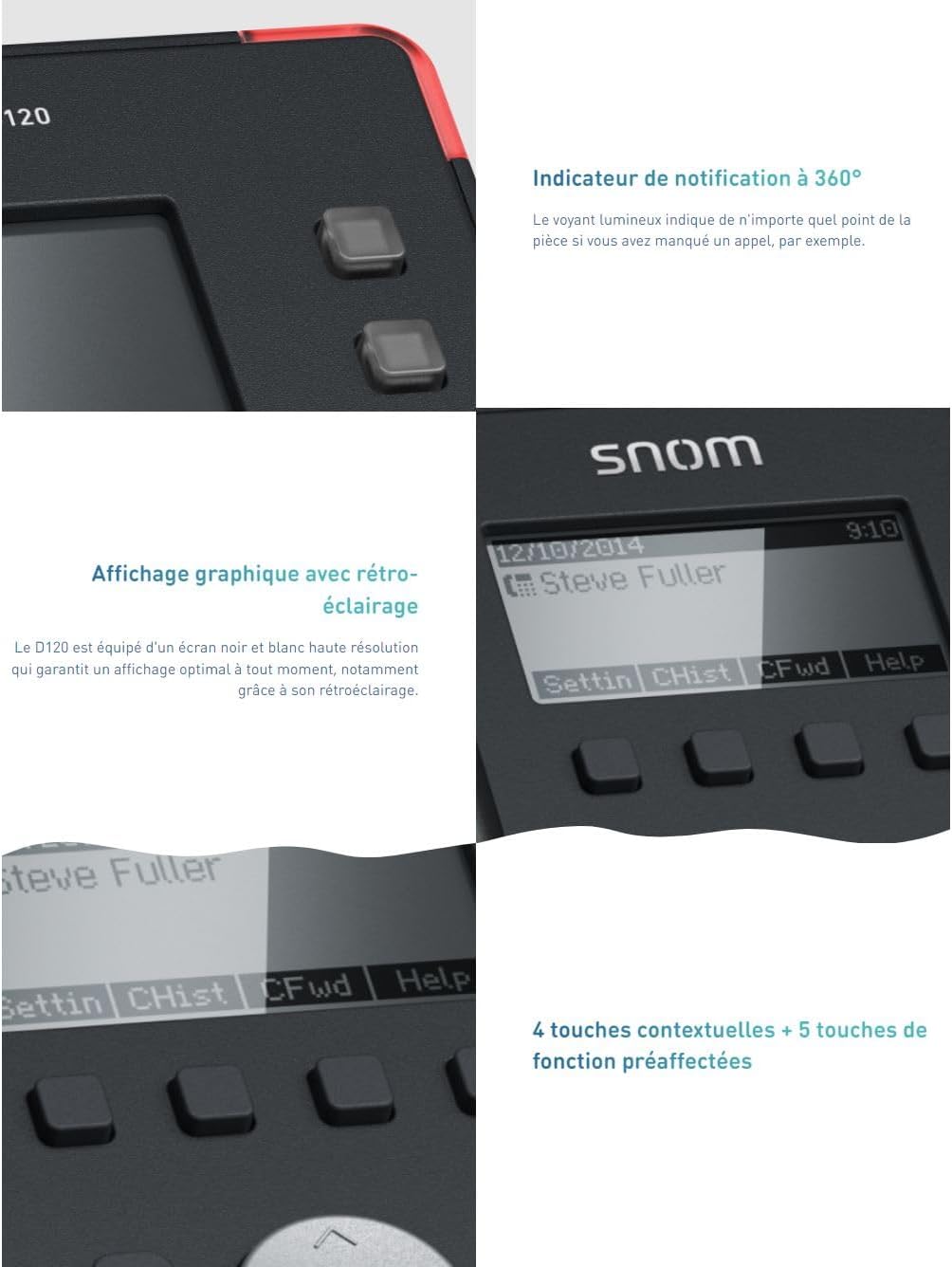
- Backlit Graphical Display: Provides clear visibility of call information and menus.
- Hearing Aid Compatible (HAC): Designed for users with hearing aids.
- Power over Ethernet (PoE): Allows the phone to receive power and data through a single Ethernet cable.
- IPv6 & IPv4 Support: Compatible with both Internet Protocol versions for network flexibility.
- Security (TLS & SRTP): Supports common security protocols for secure communication.
- Headset Connectivity: Features a dedicated port for connecting a headset.
- Integrated Phonebook: Allows storage and quick access to contacts.
- HD Audio: Delivers high-quality audio for clear conversations.
- Contextual and Function Keys: Four contextual keys and five pre-assigned function keys for intuitive operation.
Components

The Snom D120 VoIP phone, showcasing its compact design and essential features.

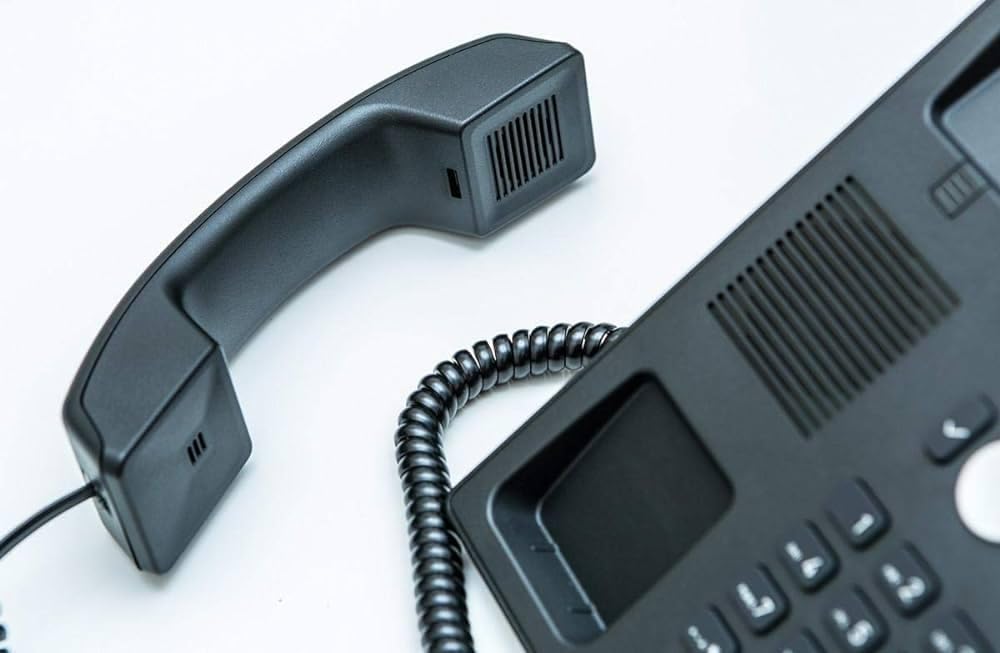
Front view of the Snom D120, highlighting the display, keypad, and function buttons.
Side view of the Snom D120, showing the ergonomic design.

Rear view of the Snom D120, illustrating the stand and cable management.
Package Contents
Before proceeding with the setup, please verify that all items listed below are present in your product package:
- Snom D120 Phone Unit
- Handset
- Handset Cord
- Ethernet Cable
- Quick Installation Guide
- GNU General Public License document
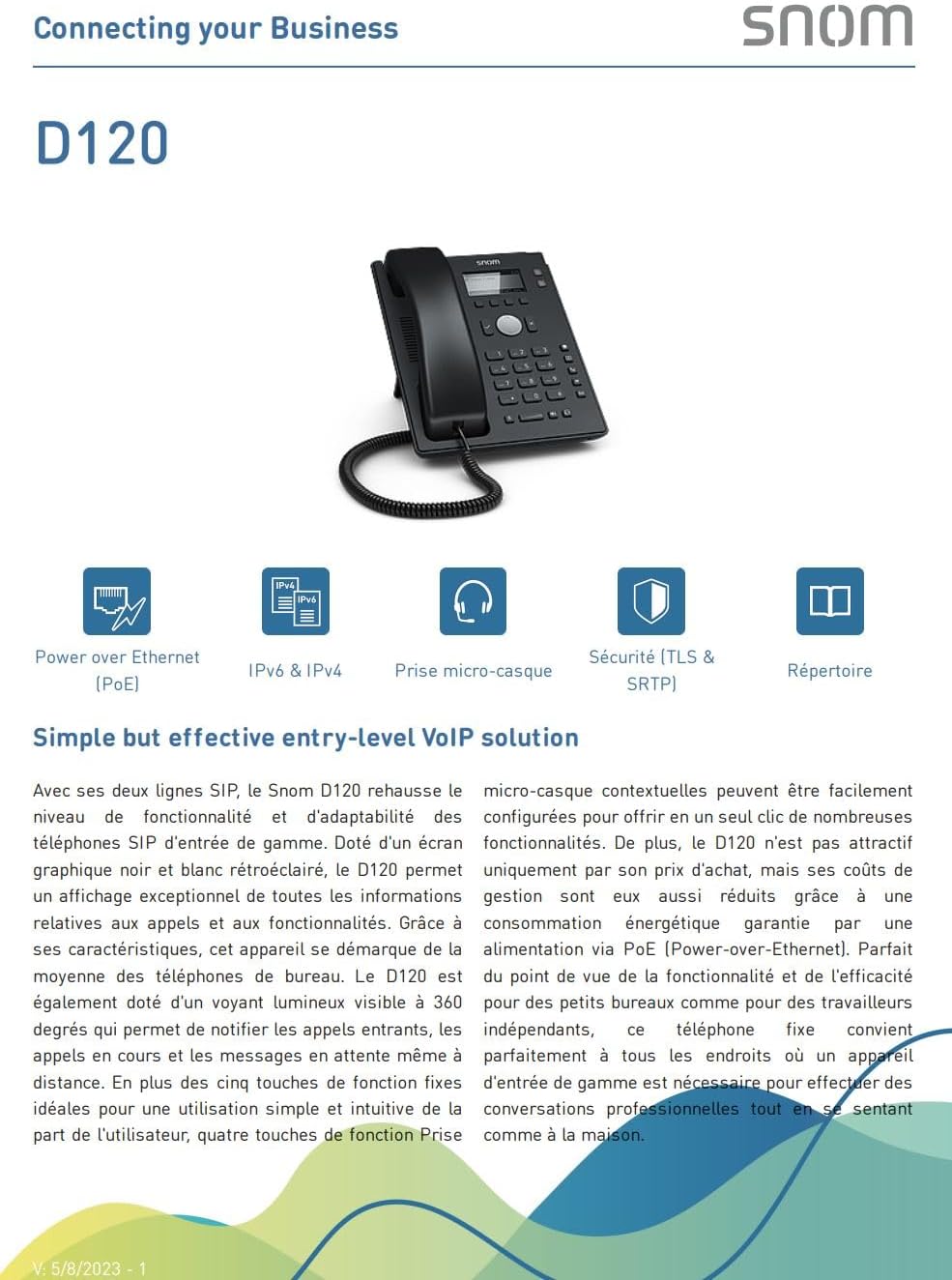
Diagram illustrating the contents included in the Snom D120 product package.
Setup
Physical Connections
- Connect Handset: Connect the coiled handset cord to the port labeled with a handset icon on the phone base and to the handset.
- Connect Network/Power: For Power over Ethernet (PoE), connect an Ethernet cable from your network switch to the LAN port on the phone. If PoE is not available, connect a standard Ethernet cable to the LAN port and the optional 5V DC power adapter (not included) to the power input.
- Optional Headset: Connect a compatible headset to the headset port if desired.

Diagram showing the connection ports on the rear of the Snom D120 phone, including LAN, PC, handset, and optional headset and power connections.
Initial Boot-up
Once connected, the phone will power on automatically and begin its boot sequence. The display will show the Snom logo and then proceed to load the firmware. This process may take a few moments.
Operating Instructions
Display and Navigation
The Snom D120 features a backlit graphical display. Use the central navigation button (up, down, left, right, and OK) to navigate through menus and confirm selections. The four contextual keys below the display change function based on the current screen.
Close-up view of the Snom D120's display and contextual function keys, illustrating the user interface.
Making and Receiving Calls
Making a Call
- Pick up the handset or press the Speaker button.
- Dial the desired number using the keypad.
- Press the green checkmark button or wait for the call to connect.
Receiving a Call
When the phone rings, pick up the handset or press the Speaker button to answer. The notification indicator will flash.
Call Management
Volume Control
Adjust the call volume using the dedicated volume buttons located below the keypad.
Mute
Press the Mute button to mute your microphone during a call. Press it again to unmute.
Speakerphone
Press the Speaker button to toggle speakerphone mode on or off.
Headset
If a headset is connected, press the Headset button to switch audio output to the headset.
Hold
During an active call, press the Hold button to place the call on hold. Press Retrieve or the Hold button again to resume the call.
Transfer
During an active call, press the Transfer button, dial the new number, and then press Transfer again to complete the transfer.
Do Not Disturb (DND)
Press the DND button to activate or deactivate Do Not Disturb mode, which will send incoming calls directly to voicemail or a busy signal.
Directory
Press the Directory button to access the integrated phonebook.
Maintenance
Cleaning
To clean the phone, use a soft, slightly damp cloth. Do not use abrasive cleaners, solvents, or strong chemicals, as these can damage the surface. Ensure the phone is unplugged from its power source before cleaning.
General Care
Avoid exposing the phone to extreme temperatures, direct sunlight, or excessive moisture. Do not drop or subject the phone to strong impacts. Ensure proper ventilation around the device to prevent overheating.
Troubleshooting
Common Issues
Phone Does Not Power On / Display is Off
Ensure the Ethernet cable is securely connected to the LAN port and that your network switch provides Power over Ethernet (PoE). If not using PoE, verify the optional 5V DC power adapter is correctly connected and functioning. Check the power source and try a different outlet if necessary.
No Dial Tone
Verify the network connection. Ensure the phone is registered with your VoIP service provider. Check the handset cord connection to ensure it is firmly plugged into both the handset and the phone base.
Poor Audio Quality
Check your network connection and internet speed, as poor bandwidth can affect call quality. Ensure the handset or headset is properly connected. Adjust the volume settings on the phone. If using a headset, ensure it is fully compatible and correctly plugged in.
Buttons Feel Plastic/Stiff
This is a characteristic of the device's design. Consistent use may slightly improve tactile feedback over time. This does not indicate a defect.
Slow Startup
Initial boot-up and firmware loading can take some time. If the issue persists after multiple reboots, ensure the phone's firmware is up to date. Consult Snom's support resources for firmware update procedures.
Specifications
| Feature | Value |
|---|---|
| Product Dimensions | 9.33 x 8.43 x 2.6 inches |
| Item Weight | 1.76 pounds (800 Grams) |
| ASIN | B078KJY6NR |
| Item Model Number | 4361 |
| Batteries Required | 2 AAA batteries (not included, for specific functions if applicable) |
| Is Discontinued By Manufacturer | No |
| Date First Available | December 17, 2017 |
| Manufacturer | SNOM TECHNOLOGY |
| Brand | Snom |
| Telephone Type | Corded |
| Dialer Type | Single Keypad |
| Answering System Type | Digital |
| Phone Standby Time | 1 week |
| Caller Identification | Yes |
| Global Trade Identification Number (GTIN) | 04260059582230 |
| Visible Screen Diagonal | 4" / 9 cm |
Warranty and Support
The Snom D120 VoIP Phone comes with a standard manufacturer's warranty. For detailed warranty information, technical support, or service inquiries, please visit the official Snom website or contact their customer support directly. Keep your purchase receipt as proof of purchase for warranty claims.
For quick reference, please note the following product identifiers:
- Model Number: 4361
- UPC: 04260059582230


