
Douk Audio MC102
Little Bear MC102 Mini Audio Switcher User Manual
Model: MC102 | Brand: Douk Audio
1. Product Overview
The Little Bear MC102 Mini Audio Switcher is a versatile 2-way 3.5mm AUX stereo passive selector designed for seamless audio management. It functions as both a 2-in-1-out and 1-in-2-out switch box, allowing you to easily transition between multiple audio sources or direct a single source to multiple output devices.
Key features include:
- Versatile Connectivity: Easily switch between two audio sources with our 2-in-1-out/1-in-2-out configuration, perfect for seamless transitions between gaming, calls, and music.
- Compact & Portable: MC102’s ultra-small design fits any desk setup or travel bag, making it the ideal audio solution for on-the-go professionals and audiophiles.
- No Power Needed: Enjoy a pure, unaltered audio experience with our passive selector that requires no external power, preserving sound quality without any interference.
- User-Friendly Controls: Manage your audio with ease using the intuitive A/B selector, volume control, and one-button mute function, all designed for quick adjustments.
- High-Quality Build: Constructed with customized potentiometers and isolation modules, MC102 ensures minimal background noise and reliable performance for all your audio needs.

Figure 1: Front view of the Little Bear MC102 Mini Audio Switcher.

Figure 2: Top-down view with labeled input/output jacks, A/B selector, volume control, and mute button.
2. Setup and Connections
The MC102 offers flexible connectivity options without requiring external power. Ensure all audio cables are securely connected to prevent signal loss.
2.1. 1-IN-2-OUT Configuration
In this mode, one audio source can be directed to two different output devices. This is useful for sharing audio from a single device to both headphones and speakers, for example.
- Connect your audio source (e.g., PC, phone, CD player) to the IN/OUT port on the MC102.
- Connect your first output device (e.g., headphones) to port A.
- Connect your second output device (e.g., speakers) to port B.
- Use the A/B selector button to choose which output device receives the audio.

Figure 3: Connection diagram for 1-IN-2-OUT mode, showing a computer connected to the IN/OUT port, and headphones and speakers connected to ports A and B respectively.
2.2. 2-IN-1-OUT Configuration
In this mode, two different audio sources can be connected, and you can switch between them to output to a single device.
- Connect your first audio source (e.g., smartphone) to port A.
- Connect your second audio source (e.g., computer) to port B.
- Connect your single output device (e.g., active speakers, headphones) to the IN/OUT port.
- Use the A/B selector button to choose which input source is played through the output device.

Figure 4: Connection diagram for 2-IN-1-OUT mode, showing a smartphone and computer connected to ports A and B, and active speakers/headphones connected to the IN/OUT port.
2.3. Product Demonstration Video
Watch this video for a visual guide on connecting and operating the Little Bear MC102.
Video 1: Demonstration of the Little Bear MC102's features, including connection setup, volume control, and switching between outputs.
3. Operating Instructions
The MC102 is designed for simple and intuitive operation.
- A/B Selector: Press the button labeled 'A' or 'B' to select the desired input source (in 2-in-1-out mode) or output destination (in 1-in-2-out mode). The selected port will be active.
- Volume Control: Rotate the central knob clockwise to increase volume and counter-clockwise to decrease volume.
- Mute Function: Press the button with the mute icon to instantly mute the audio output. Press it again to unmute.
4. Maintenance and Care
To ensure the longevity and optimal performance of your Little Bear MC102, follow these simple maintenance guidelines:
- Keep the device in a dry environment, away from moisture and extreme temperatures.
- Clean the exterior with a soft, dry cloth. Avoid using liquid cleaners or abrasive materials.
- Do not disassemble the unit. Refer to professional service if repairs are needed.
- Ensure all cables are connected firmly but do not apply excessive force to the ports.
5. Troubleshooting and Important Notes
If you encounter issues with your MC102, please review the following points:
- Volume Adjustment/Background Noise: The upgraded MC102 Black version features customized potentiometers and isolation modules designed to address possible volume adjustment issues and background noises.
- Turntable Compatibility: The new MC102 is not compatible with turntables. PHONO signals are typically very low, which may result in a lower than usual output. Compatibility cannot be guaranteed.
- Passive Speaker Connection: This device cannot be connected directly with passive speakers. You must connect a sound source to a preamplifier, then to the MC102, and finally to active speakers. Alternatively, connect the sound source to the MC102, then to an amplifier, and then to passive speakers.
- New 3.5mm Port: You may notice a new 3.5mm port between the original A and B ports. This was added based on customer feedback to allow connecting all cables on one side. The opposite 3.5mm port still has priority over this new port.

Figure 5: Important notes regarding compatibility and connection methods.
6. Specifications
| Feature | Detail |
|---|---|
| Product Dimensions | 5.98 x 3.7 x 1.61 inches |
| Item Weight | 3.84 ounces |
| Item Model Number | GFJ556 |
| Color | black |
| Connector Type | 3.5mm Jack, RCA |
| Brand | Douk Audio |
| Compatible Devices | PC |
| Cable Type | Auxiliary |
| Manufacturer | Nobsound |
| Date First Available | December 12, 2017 |
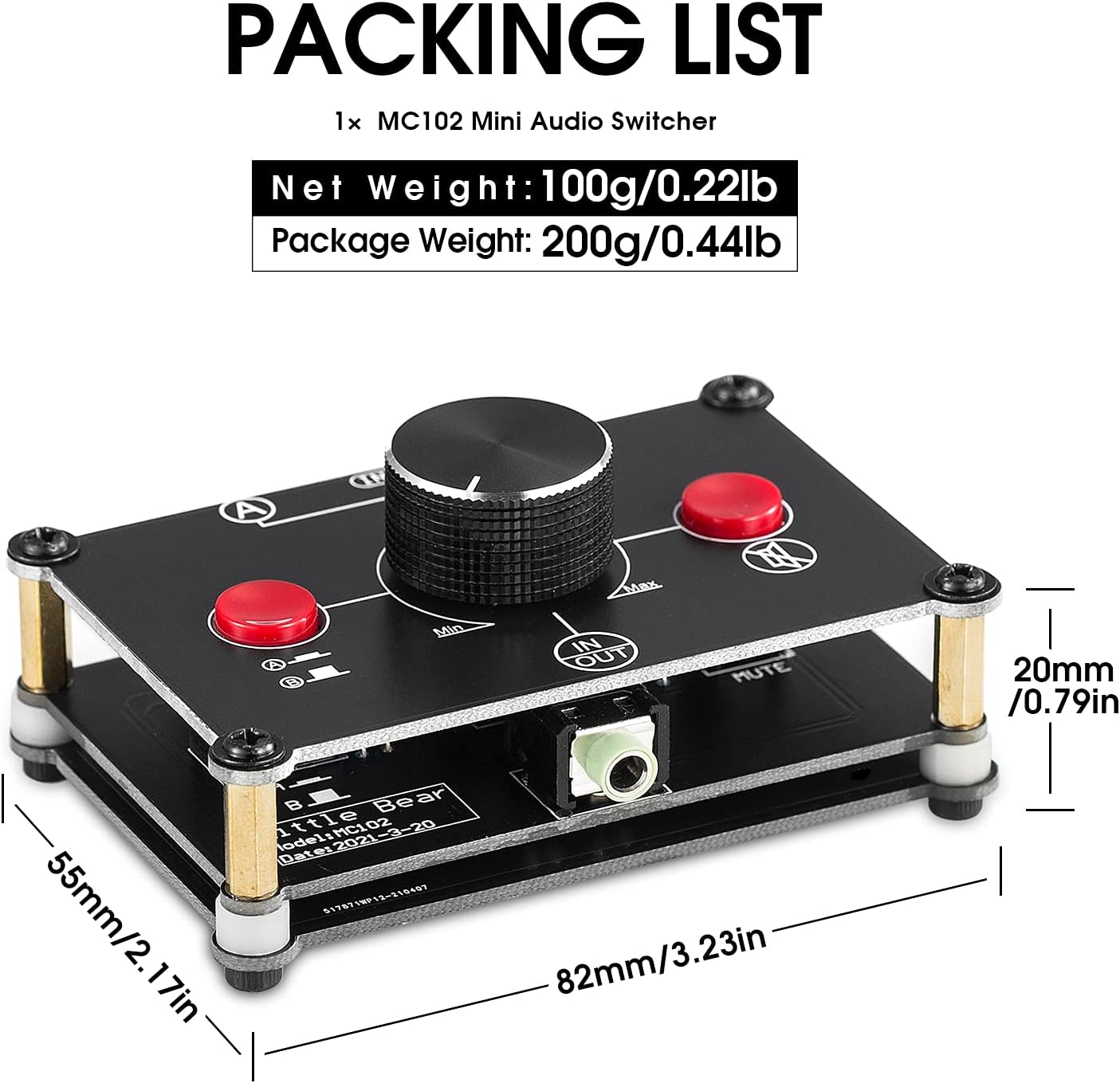
Figure 6: Packaging contents and physical dimensions of the MC102.
7. Warranty and Support
For warranty information and technical support, please refer to the official Douk Audio website or contact their customer service directly. Keep your purchase receipt for any warranty claims.
You can also find additional resources and contact information on the Douk Audio Store on Amazon.
Related documentsMC102


Ask a question about this manual
Ask about setup, troubleshooting, compatibility, parts, safety, or missing instructions. Manuals+ will review the question and use this page’s manual context to help answer it.