1. Introduction
This manual provides essential information for the installation, operation, and maintenance of your ASUS ROG Strix RX Vega 64 graphics card. Please read this manual thoroughly before using the product to ensure proper setup and to maximize its performance and longevity. This graphics card is designed for high-performance computing and gaming, leveraging AMD's Vega architecture and 8GB of HBM2 memory.
2. Safety Information
Observe the following safety precautions to prevent damage to the graphics card or injury to yourself:
- Always disconnect the power supply from your computer before installing or removing any components.
- Handle the graphics card by its edges to avoid touching sensitive components.
- Ensure proper grounding to prevent electrostatic discharge (ESD) damage.
- Do not twist or bend the graphics card during installation or removal.
- Ensure the PCI Express card socket locking mechanism on the motherboard is open before inserting or removing the graphics card.
- Avoid shaking and excessive movement of the PC system when the graphics card is installed. If bundled, the support bracket should be removed when the PC system is being moved.
- Install the card in a well-ventilated computer case to prevent overheating.
3. Package Contents
Verify that all items are present in your product package:
- ASUS ROG Strix RX Vega 64 Graphics Card (Model: ROG-STRIX-RXVEGA64-O8G-GAMING)
- Warranty Card
- Support DVD (containing drivers and utilities)
- User Guide

Figure 3.1: The ASUS ROG Strix RX Vega 64 graphics card shown alongside its retail packaging.
4. Setup and Installation
4.1. Physical Installation
- Prepare your system: Turn off your computer and disconnect the power cable. Open the computer case.
- Locate the PCI Express slot: Identify an available PCI Express x16 slot on your motherboard.
- Remove slot covers: Remove the necessary slot covers from the back of your computer case corresponding to the graphics card's size.
- Insert the graphics card: Carefully align the graphics card with the PCI Express slot and press it down firmly until it is securely seated. The locking mechanism on the motherboard should click into place.
- Secure the card: Fasten the graphics card to the computer case with screws.

Figure 4.1: An angled view of the graphics card, highlighting its triple-fan cooling system and overall design.
4.2. Power Connection
The ASUS ROG Strix RX Vega 64 requires two 8-pin PCI Express power connectors from your power supply. Ensure your power supply has sufficient wattage and available connectors.
- Locate the two 8-pin PCI Express power cables from your power supply.
- Connect these cables firmly into the corresponding power sockets on the graphics card.
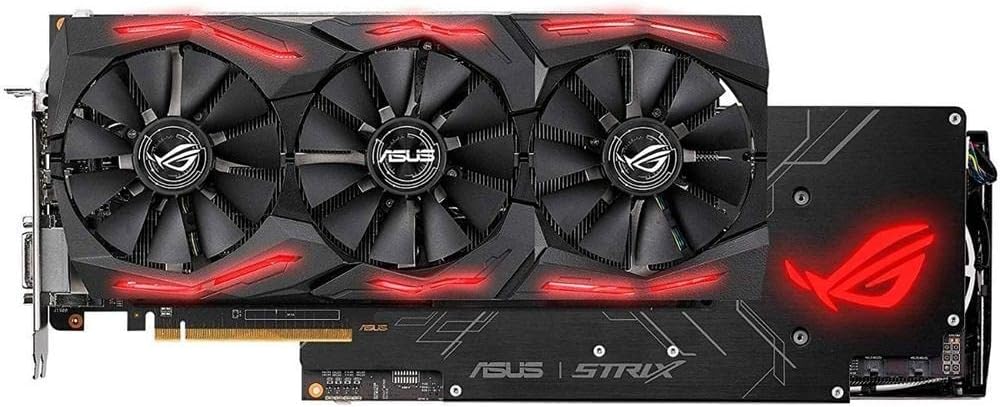
Figure 4.2: Top view of the graphics card, showing the triple fans and the location of the power connectors.
4.3. Display Connection
Connect your display monitor(s) to the appropriate output ports on the graphics card. This model features DisplayPort and HDMI outputs.

Figure 4.3: The I/O panel of the graphics card, displaying the DisplayPort and HDMI output options.
4.4. Software Installation
After physical installation, power on your computer and install the necessary drivers and utilities.
- Install Drivers: Insert the provided Support DVD or download the latest drivers from the ASUS official website. Follow the on-screen instructions to complete the driver installation.
- Install GPU Tweak II: This utility allows for intuitive performance monitoring and control, including overclocking and fan speed adjustments.
- Install ASUS Aura Sync: For customizing the RGB lighting effects on your graphics card and synchronizing them with other Aura Sync compatible components.
5. Operating Your Graphics Card
5.1. Basic Operation
Once drivers are installed, your graphics card will automatically handle graphics processing for your system. For optimal performance in games and applications, ensure your operating system and game settings are configured to utilize the dedicated graphics card.
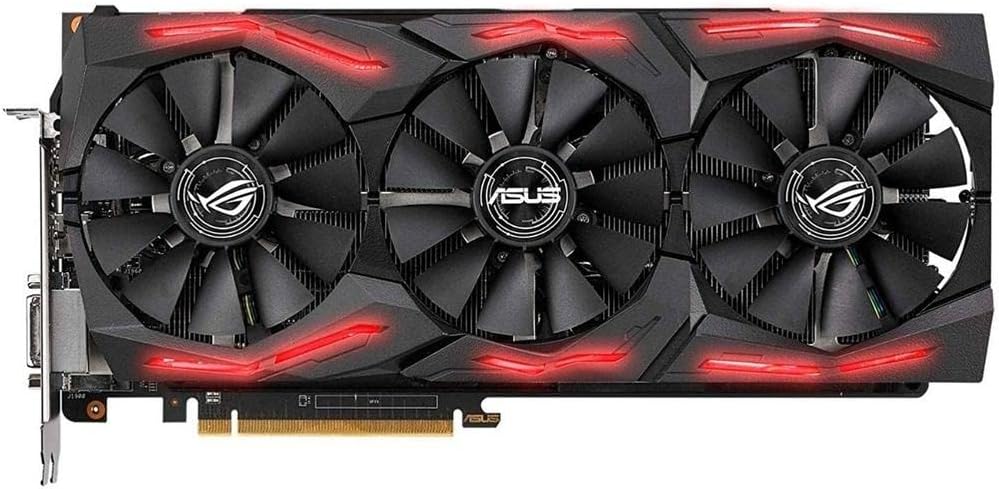
Figure 5.1: Front view of the graphics card, showcasing the three fans and the customizable RGB lighting elements.
5.2. ASUS Aura Sync RGB Lighting
The graphics card features ASUS Aura Sync RGB lighting, allowing for personalized aesthetic customization. Use the ASUS Aura Sync software to choose from a spectrum of colors and various lighting effects. You can also synchronize these effects with other ASUS Aura Sync compatible devices in your system.
5.3. GPU Tweak II
GPU Tweak II is a powerful utility for advanced users to fine-tune their graphics card. It provides features such as:
- Overclocking: Adjust GPU clock speed and memory clock for increased performance.
- Fan Control: Customize fan curves to balance cooling efficiency and noise levels.
- Monitoring: Real-time display of GPU temperature, usage, and clock speeds.
- Game Booster: Optimize system resources for gaming.
5.4. BIOS Switch Setting
The graphics card may feature a dual BIOS switch, offering different performance profiles. Refer to the quick installation guide or the support DVD for specific instructions on how to use this switch. Typically, these modes allow you to prioritize either maximum performance or quieter operation.

Figure 5.2: The backplate of the graphics card, featuring the ROG logo and providing structural support and heat dissipation.
6. Maintenance
6.1. Cleaning
Regular cleaning helps maintain optimal cooling performance and extends the lifespan of your graphics card.
- Ensure the computer is powered off and unplugged before cleaning.
- Use compressed air to gently remove dust from the fans and heatsink fins.
- Avoid using liquid cleaners directly on the card. If necessary, use a slightly damp, lint-free cloth for external surfaces.
6.2. Driver Updates
Periodically check the ASUS official website for the latest graphics drivers. Keeping your drivers updated ensures compatibility with new games and applications, and often provides performance improvements and bug fixes.
7. Troubleshooting
If you encounter issues with your graphics card, consider the following common troubleshooting steps:
- No Display:
- Ensure the monitor cable is securely connected to both the graphics card and the monitor.
- Verify that the graphics card is fully seated in the PCI Express slot.
- Check that all necessary power connectors are securely attached to the graphics card.
- Test with a different display cable or monitor if possible.
- System Instability/Crashes:
- Ensure your power supply meets the minimum wattage requirements for the graphics card.
- Update your graphics drivers to the latest version.
- Monitor GPU temperatures using GPU Tweak II to ensure it's not overheating. Improve case airflow if temperatures are high.
- If overclocking, revert to default settings to check for stability.
- Poor Performance in Games:
- Ensure your graphics drivers are up to date.
- Check in-game graphics settings; reduce settings if performance is unsatisfactory.
- Verify that the graphics card is operating at its expected clock speeds using GPU Tweak II.
8. Specifications
| Feature | Detail |
|---|---|
| Brand | ASUS |
| Model Number | ROG-STRIX-RXVEGA64-O8G-GAMING |
| Graphics Coprocessor | Radeon Pro Duo |
| Chipset Brand | AMD |
| Card Description | RADEON RX VEGA64 |
| Graphics RAM Size | 8 GB HBM2 |
| Memory Speed | 945 MHz (Base), 1590 MHz (Boost) |
| Max Screen Resolution | 8192 x 8192 |
| Video Output Interface | DisplayPort, HDMI |
| Item Weight | 3.5 pounds |
| Product Dimensions (LxWxH) | 11.73 x 2.07 x 5.47 inches |
| Compatible OS Platforms | Windows 10 (32/64 bit), Windows 8.1 (32/64 bit), Windows 8 (32/64 bit), Windows 7 (32/64 bit) |
9. Warranty and Support
Your ASUS ROG Strix RX Vega 64 graphics card comes with a manufacturer's warranty. Please refer to the included Warranty Card in your package for detailed terms and conditions, including warranty period and coverage.
For technical support, driver downloads, and additional product information, please visit the official ASUS support website. You may also find helpful resources and FAQs there.
ASUS Support Website: www.asus.com/support/


