
Introduction
The Nokia 8 is a high-performance smartphone designed for seamless user experience and robust functionality. It features a polished aluminum unibody construction, advanced camera optics, and a pure Android operating system. This manual provides essential information for setting up, operating, maintaining, and troubleshooting your device.

Figure 1: Front view of the Nokia 8 smartphone.
What's in the Box
Upon unboxing your Nokia 8, please ensure all the following items are present:
- Nokia 8 Device
- Charging Cable (USB Type-C)
- Charging Adapter
- Headphones
- User Manual (this document)
Product Features
The Nokia 8 is engineered with several key features to enhance your mobile experience:
- Powerful Performance: Equipped with the Qualcomm Snapdragon 835 Mobile Platform for excellent battery life and superior graphics performance.
- Stunning Display: Features a bright 5.3-inch 2K (1440x2560) polarized display, protected by sculpted Corning Gorilla Glass 5.
- Advanced Camera System: Includes a 13 MP autofocus rear camera with 4K video recording and ZEISS optics, alongside a second 13 MP front camera.
- Dual-Sight Mode: An exclusive camera feature allowing simultaneous use of both front and back cameras for split-screen photos and videos, creating the "bothie" effect.
- Pure Android Experience: Runs on Android One (upgradable to Android 9.0 Pie), offering a pure, secure, and up-to-date Android experience with regular monthly updates and no unnecessary extras.
- Robust Connectivity: Built-in advanced connection options including USB Type-C, Bluetooth 5.0 LE, OTG, and a fingerprint sensor.
- Durable Design: Precision machined from a single block of 6000 series aluminum with a polished mirror finish, ensuring a strong and seamless unibody construction.
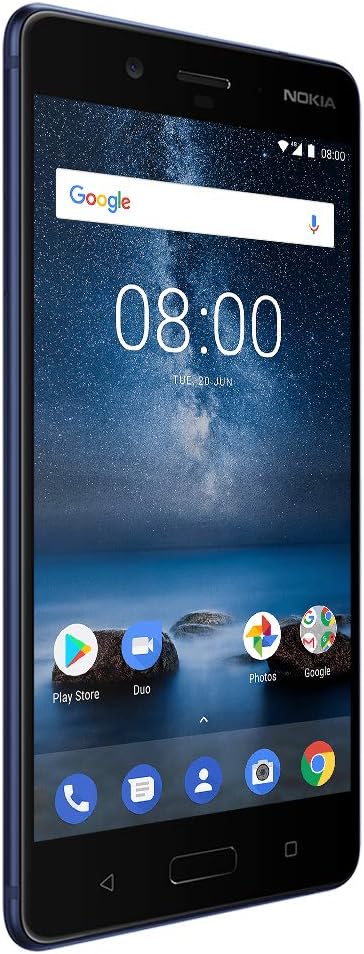
Figure 2: Rear view showcasing the ZEISS optics camera.

Figure 3: Slim profile of the Nokia 8.
Setup
1. Charging the Battery
Before first use, fully charge your Nokia 8. Connect the provided USB Type-C charging cable to the phone's charging port and the charging adapter to a power outlet. The battery indicator on the screen will show charging progress.
2. Inserting SIM and Memory Cards
Locate the SIM card tray on the side of your device. Use the SIM ejector tool (if provided) to open the tray. Insert your Nano-SIM card(s) and a microSD card (for expandable storage, up to 512GB) into the designated slots. Ensure the cards are correctly oriented as indicated on the tray. Gently push the tray back into the device until it clicks into place.
3. Initial Power On and Setup Wizard
Press and hold the power button until the Nokia logo appears. Follow the on-screen instructions to complete the initial setup, including selecting your language, connecting to Wi-Fi, signing in with your Google account, and setting up security features like the fingerprint sensor.
Operating Your Nokia 8
Basic Navigation
Your Nokia 8 operates using a touch-sensitive display. Swipe to navigate between home screens, tap to open apps, and pinch to zoom. The physical buttons on the side control power and volume.
Camera Usage
Access the camera app from your home screen or app drawer. The Nokia 8 features a 13 MP dual image-fusion rear camera with both color and monochrome sensors, and a wide-angle 13 MP phase detection auto-focus front camera, both with ZEISS optics. Utilize the exclusive Dual-Sight mode to capture photos and videos using both front and rear cameras simultaneously, creating a unique split-screen perspective.
For a visual demonstration of the Nokia 8's design and features, including the Dual-Sight mode, please watch the official product video below:
Video: Nokia 8 - Function & Form. This video highlights the design philosophy, heat management, antenna innovation, and camera features like Dual-Sight mode of the Nokia 8 smartphone.
Software and Apps
The Nokia 8 runs on Android One, ensuring a streamlined and secure Android experience. It comes with Google's most popular apps pre-installed, including Google Photos for unlimited high-quality photo storage and Google Assistant for voice commands and device control. Regular updates are provided to keep your device secure and up-to-date.
Maintenance
Cleaning Your Device
To clean your Nokia 8, use a soft, lint-free cloth. Avoid using abrasive cleaners or solvents that may damage the device's finish or screen. For stubborn smudges, slightly dampen the cloth with water.
Battery Care
To maximize battery lifespan, avoid exposing your device to extreme temperatures. It is recommended to keep the battery charge between 20% and 80% for optimal long-term health. Use only Nokia-approved chargers and cables.
Software Updates
Ensure your device is always running the latest software by regularly checking for updates. Go to Settings > System > System update to check for and install available updates. Updates often include performance improvements, security patches, and new features.
Troubleshooting
If you encounter issues with your Nokia 8, try the following common troubleshooting steps:
- Device Not Responding: Press and hold the power button for about 10-15 seconds to force a restart.
- Battery Draining Quickly: Check background app usage in Settings > Battery. Reduce screen brightness, disable unused connectivity features (Wi-Fi, Bluetooth, GPS), and limit notifications.
- Connectivity Issues (Wi-Fi/Bluetooth): Try toggling Wi-Fi or Bluetooth off and on. Restart your device. For Wi-Fi, try forgetting the network and reconnecting.
- App Crashes/Freezes: Clear the app's cache and data in Settings > Apps & notifications > [App Name] > Storage & cache. If the issue persists, uninstall and reinstall the app.
- Sound Issues: Ensure volume levels are adjusted correctly. Check if the device is in silent or vibrate mode. Test with headphones to determine if the issue is with the speaker or the audio output.
- Performance Slowdown: Clear unnecessary files and apps to free up storage space. Restart your device regularly.
If problems persist, consider performing a factory reset (Settings > System > Reset options > Erase all data (factory reset)). Warning: A factory reset will erase all data from your device. Back up important data before proceeding.
Specifications
| Feature | Detail |
|---|---|
| Model Number | TA-1012 |
| Operating System | Android One (Android 9.0 Pie upgradable) |
| Processor | Qualcomm Snapdragon 835 (2.45 GHz CPU Speed) |
| Display | 5.3 Inches, 2K (1440 x 2560) Polarized Display, Corning Gorilla Glass 5 |
| RAM | 4 GB |
| Internal Storage | 64 GB |
| Expandable Memory | Up to 512GB via microSD (not included) |
| Rear Camera | 13 MP autofocus (color + monochrome sensors) with ZEISS optics, 4K Video Recording |
| Front Camera | 13 MP wide-angle phase detection autofocus with ZEISS optics |
| Battery | 1 Lithium Ion battery (included) |
| Connectivity | USB Type-C, Bluetooth 5.0 LE, Wi-Fi, OTG |
| Special Features | Fingerprint Sensor, Dual-Sight Mode, Android Enterprise |
| Dimensions | 5.96 x 2.9 x 0.31 inches |
| Weight | 7.2 ounces |
| Color | Glossy Blue |
| First Available | December 15, 2017 |

Figure 4: Nokia 8 specifications in comparison with other models.
Warranty and Support
For warranty information, please refer to the warranty card included with your product or visit the official Nokia support website. For technical assistance, software updates, or service inquiries, please contact Nokia customer support or visit their online support portal.
Official Nokia Support Website: www.nokia.com/phones/support


