
1. Introduction
This manual provides detailed instructions for the installation, operation, and maintenance of your Amcrest UltraHD 4K (8MP) Outdoor Security PoE IP Camera, Model IP8M-2493EW. This camera is designed for outdoor surveillance, offering high-resolution video and advanced features to enhance your security system.

Image 1.1: Amcrest UltraHD 4K (8MP) Outdoor Security PoE IP Camera (Model IP8M-2493EW).
Key Features:
- UltraHD 4K (8-Megapixel) Resolution: Captures video at 3840x2160 pixels for clear, detailed images.
- Power Over Ethernet (PoE): Simplifies installation by providing power and data through a single Ethernet cable.
- Advanced Night Vision: Equipped with IR LEDs and a Sony Starvis image sensor for up to 98 feet of night vision.
- Wide Viewing Angle: Features a 112° super-wide viewing angle to cover larger areas.
- Weatherproof and Vandal Resistant: IP67-rated housing for outdoor use and IK10 vandal resistance.
- Smart Motion Detection: Includes human and vehicle detection, perimeter protection (tripwire, intrusion).
- Built-in Microphone: Allows for audio monitoring.
- Flexible Storage Options: Supports MicroSD card recording, Amcrest NVRs, NAS, FTP, and Amcrest Cloud.
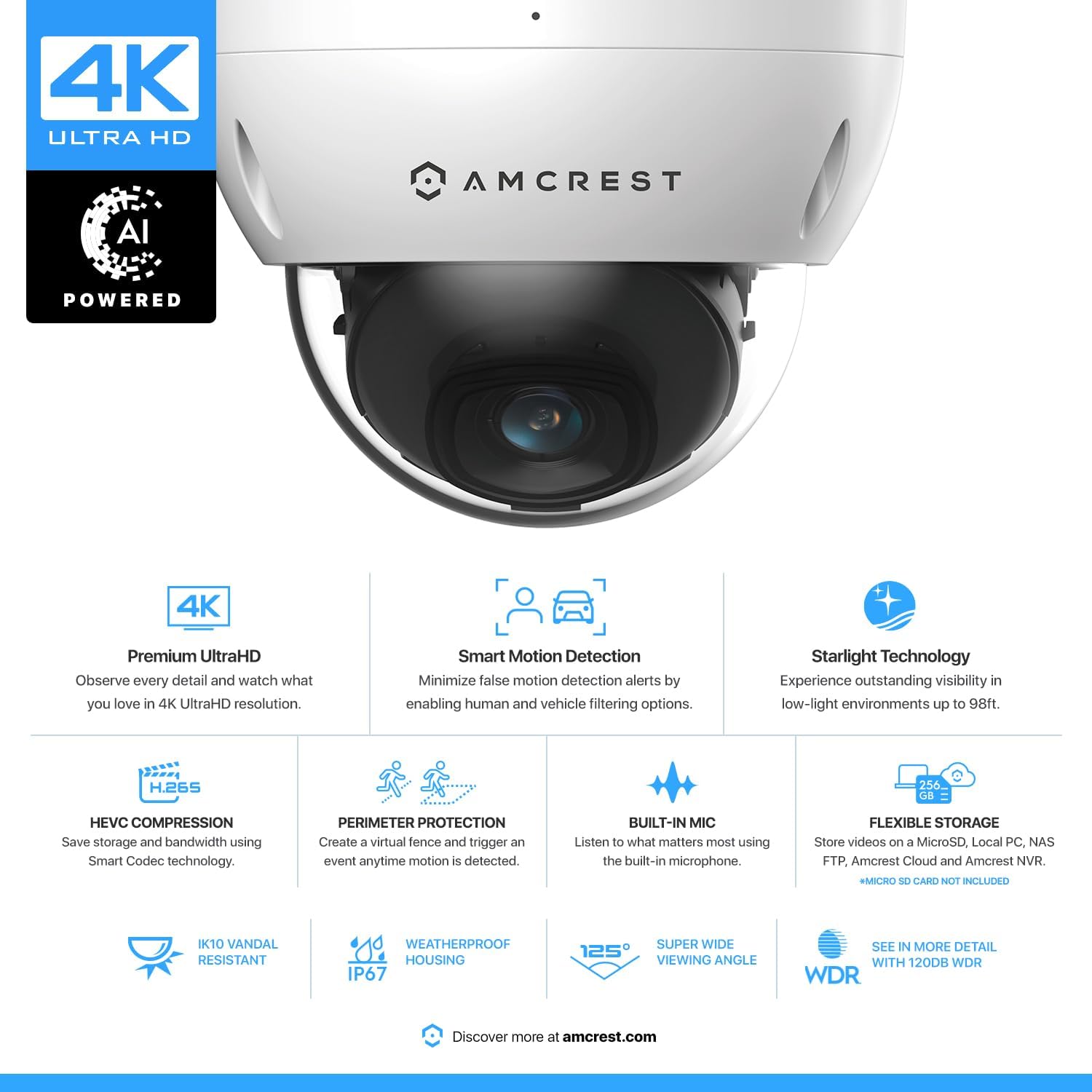
Image 1.2: Overview of Amcrest 4K UltraHD AI Powered Camera features, including Premium UltraHD, Smart Motion Detection, Starlight Technology, HEVC Compression, Perimeter Protection, Built-in Mic, Flexible Storage, IK10 Vandal Resistant, IP67 Weatherproof Housing, 125° Super Wide Viewing Angle, and WDR.
2. What's in the Box
Upon unpacking your Amcrest IP8M-2493EW camera, please verify that all components are present and in good condition.
- Amcrest UltraHD 4K (8MP) Outdoor Security PoE IP Camera (Model IP8M-2493EW)
- Quick Start Guide
- Mounting Hardware (screws, anchors)
Note: A PoE injector or switch is required for Power Over Ethernet functionality and is not included. A MicroSD card for local recording is also not included.
3. Setup
3.1 Physical Installation
The IP8M-2493EW camera is designed for surface mounting. Ensure the mounting surface is strong enough to support the camera's weight.
- Choose a Location: Select an outdoor location that provides the desired viewing angle and is within reach of an Ethernet cable connected to a PoE source.
- Prepare the Surface: Use the provided mounting template (if applicable) to mark drilling points for the screws.
- Drill Holes: Drill pilot holes and insert wall anchors if mounting on drywall or masonry.
- Secure the Camera: Attach the camera base to the mounting surface using the provided screws.
- Connect Ethernet Cable: Connect a standard Ethernet cable from your PoE injector or PoE switch to the camera's RJ45 Ethernet port. This will provide both power and data to the camera.
- Adjust Camera Angle: Loosen the adjustment screws on the dome to position the camera lens for optimal coverage. Tighten the screws once the desired angle is achieved.

Image 3.1: The Amcrest 4K UltraHD PoE IP Camera features a weatherproof housing, suitable for outdoor installation in various weather conditions.
3.2 Initial Configuration
After physical installation, configure your camera using the Amcrest View Pro app or Amcrest Surveillance Pro software.
- Download Amcrest View Pro App: Search for "Amcrest View Pro" on the App Store (iOS) or Google Play Store (Android) and install it on your smartphone.
- Launch App and Add Device: Open the app, create an account if you don't have one, and follow the on-screen instructions to add your camera. You will typically scan a QR code on the camera or manually enter its serial number.
- Set Password: For security, you will be prompted to set a strong password for your camera during the initial setup.
- Network Configuration: The camera will automatically obtain an IP address via DHCP from your network. Ensure your network provides internet access for remote viewing.

Image 3.2: Technical diagram of the Amcrest 4K UltraHD PoE IP Camera, highlighting the RJ45 Ethernet Port, 12V DC Power input, and dimensions. This image also lists key technical specifications.
4. Operating Instructions
4.1 Using the Amcrest View Pro App
The Amcrest View Pro app provides live viewing, playback, and configuration options for your camera.
- Live View: Access real-time video feed from your camera.
- Playback: Review recorded footage stored on a MicroSD card, NVR, or Amcrest Cloud.
- Settings: Adjust camera parameters such as resolution, motion detection zones, and recording schedules.

Image 4.1: The Amcrest View Pro 2 app interface showing multiple camera feeds, playback controls, and options for snapshot, record, clip, and fisheye view.
4.2 Motion Detection and Alerts
Configure motion detection settings to receive alerts and record events.
- Motion Zones: Define specific areas within the camera's view where motion detection should be active.
- Human & Vehicle Detection: Utilize AI-powered detection to filter out irrelevant motion from leaves or animals, focusing on human and vehicle activity.
- Perimeter Protection: Set up virtual tripwires or intrusion zones to trigger alerts when objects cross defined lines or enter specific areas.
- Notifications: Enable push notifications on your smartphone to receive instant alerts when motion is detected.

Image 4.2: Illustration of Amcrest's Human & Vehicle Detection feature, showing how the camera identifies and alerts for human and vehicle presence while filtering out environmental factors like leaves or raindrops.
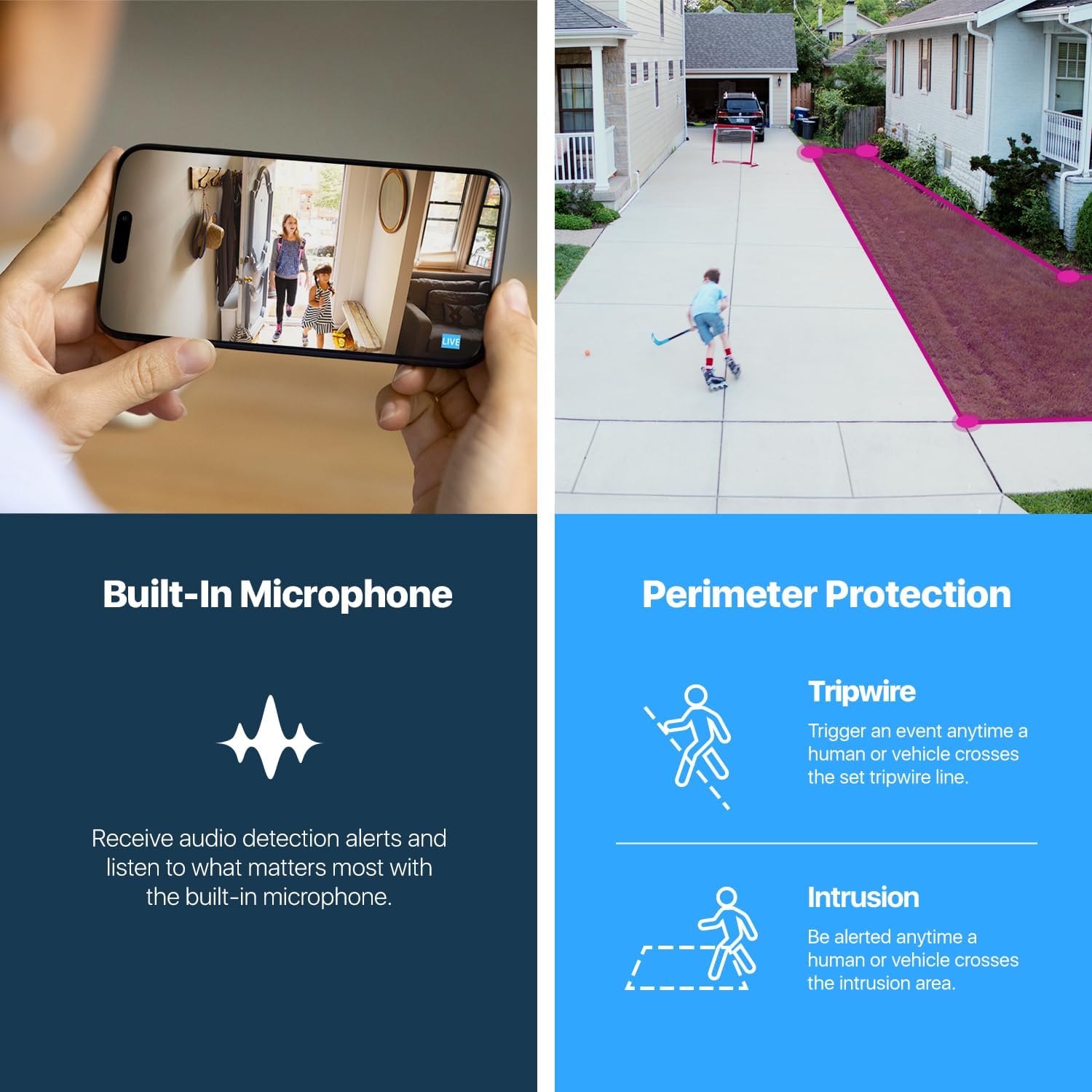
Image 4.3: Details on the camera's built-in microphone for audio detection and the Perimeter Protection features, including Tripwire and Intrusion detection.
4.3 Recording Options
Your camera offers several methods for recording and storing video footage:
- MicroSD Card: Insert a MicroSD card (up to 256GB, not included) into the camera's slot for local storage.
- Amcrest NVR: Connect the camera to a compatible Amcrest Network Video Recorder (NVR) for centralized recording and management.
- Amcrest Cloud: Subscribe to the Amcrest Cloud service for secure off-site storage of your video footage.
- NAS/FTP: Configure the camera to record to a Network Attached Storage (NAS) device or an FTP server.
5. Maintenance
5.1 Cleaning
Regular cleaning helps maintain optimal performance and image clarity.
- Lens: Gently wipe the camera lens with a soft, lint-free cloth. For stubborn dirt, use a lens cleaning solution designed for optics.
- Housing: Clean the camera housing with a damp cloth. Avoid harsh chemicals or abrasive materials that could damage the finish or seals.
- Dome Cover: If the clear dome cover becomes dirty, carefully clean it to prevent image distortion.
5.2 Firmware Updates
Amcrest regularly releases firmware updates to improve camera performance, add features, and enhance security. It is recommended to keep your camera's firmware up to date.
- Check the Amcrest website or the Amcrest View Pro app for available firmware updates.
- Follow the provided instructions carefully when performing a firmware update to avoid damaging the device.
6. Troubleshooting
If you encounter issues with your Amcrest IP8M-2493EW camera, refer to the following common troubleshooting steps:
| Problem | Possible Solution |
|---|---|
| No Power/Camera Not Turning On |
|
| No Video/Offline in App |
|
| Poor Image Quality |
|
| Motion Detection Not Working |
|
For more detailed troubleshooting or issues not covered here, please contact Amcrest support.
7. Specifications
Below are the technical specifications for the Amcrest UltraHD 4K (8MP) Outdoor Security PoE IP Camera (Model IP8M-2493EW).
| Feature | Specification |
|---|---|
| Model Name | IP8M-2493EW |
| Video Capture Resolution | 4K (3840x2160) |
| Effective Video Resolution | 8 MP |
| Image Sensor | Sony IMX274 Starvis 1/2.5" 8MP Progressive Image Sensor |
| Lens | 2.8mm Fixed Lens |
| Viewing Angle | 112° (Horizontal), 125° (Diagonal) |
| Night Vision Range | Up to 98 feet (30 meters) |
| Frame Rate | 20 frames per second (at 4K) |
| Video Compression | H.265 / H.264 |
| Connectivity Technology | Wired (PoE) |
| Power Source | Power Over Ethernet (PoE) or 12V DC |
| International Protection Rating | IP67 (Weatherproof) |
| Vandal Resistance | IK10 |
| Storage Options | MicroSD (up to 256GB), NVR, NAS, FTP, Amcrest Cloud |
| Audio | Built-in Microphone |
| Dimensions (L x W x H) | 6.1 x 6.1 x 5.4 inches |
| Item Weight | 1.28 pounds |
| Material | Metal |
8. Warranty and Support
Amcrest is committed to ensuring the safety and satisfaction of its customers.
- Warranty: This product includes a full 1-year US warranty.
- Lifetime Support: Lifetime support is provided directly from Amcrest.
For technical assistance, product inquiries, or warranty claims, please visit the official Amcrest support website or contact their customer service team.

Image 8.1: Amcrest's commitment to security, reliability, and support, highlighting the 1-year US warranty and lifetime support.


