
Introduction
This manual provides essential information for setting up, operating, maintaining, and troubleshooting your Lenovo Ideapad 210s laptop. Please read this guide thoroughly to ensure proper use and to maximize the performance and longevity of your device.
Setup
1. Unpacking and Initial Inspection
Carefully remove your laptop and all accessories from the packaging. Inspect the device for any signs of damage. If any components are missing or damaged, contact your retailer or Lenovo support immediately.
2. Connecting the Power Adapter
Before first use, connect the power adapter to the laptop's power input port and then to a wall outlet. Allow the battery to charge for at least 30 minutes before powering on the device for the first time.

Image: The Lenovo Ideapad 210s laptop, open and ready for initial setup, displaying the Windows 10 operating system interface.
3. First-Time Power On and Windows 10 Setup
Press the power button to turn on your laptop. Follow the on-screen instructions to complete the Windows 10 initial setup. This process includes selecting your region, language, creating a user account, and accepting the license agreement.
4. Connecting to Wi-Fi
During the Windows 10 setup, you will be prompted to connect to a Wi-Fi network. Select your network from the list and enter the password if required. A stable internet connection is necessary for system updates and software activation.
5. Activating Microsoft Office 365 Personal
Your laptop includes a 1-year subscription to Microsoft Office 365 Personal. Follow the on-screen prompts or locate the Office application to activate your subscription using your Microsoft account.
Operating Your Laptop
1. Keyboard and Touchpad
The laptop features a standard keyboard for typing and a multi-touch touchpad for navigation. Use two fingers on the touchpad for scrolling and pinch-to-zoom gestures.

Image: A top-down perspective of the Lenovo Ideapad 210s, highlighting the keyboard layout and integrated touchpad.
2. Connecting Peripherals
Your Ideapad 210s is equipped with various ports for connecting external devices:
- USB 3.0 Ports (x2): For high-speed data transfer with compatible USB devices.
- USB Type-C Port (x1): A versatile port for data, power, and video output with compatible Type-C devices.
- HDMI Output: Connect to external monitors or TVs for extended display options.
- Headphone/Microphone Combo Jack: For connecting headphones, external speakers, or a headset with a microphone.
- Media Reader: For simple photo and data transfer from compatible memory cards.
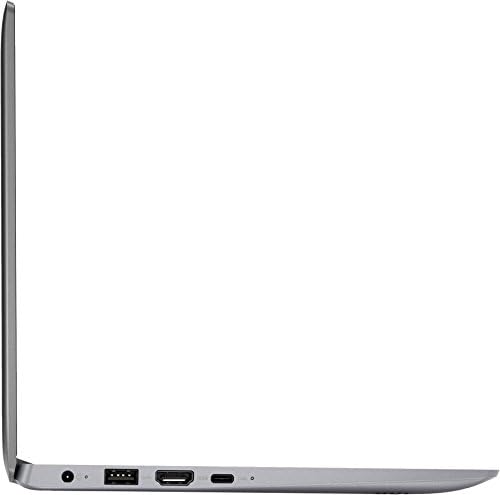
Image: A side profile of the Lenovo Ideapad 210s, illustrating the placement of its various connectivity ports including USB, HDMI, and the headphone jack.
3. Audio and Webcam
The laptop features integrated stereo speakers for audio output and a built-in webcam for video conferencing and capturing images.
Maintenance
1. Cleaning Your Laptop
Use a soft, lint-free cloth slightly dampened with water or a specialized screen cleaner to clean the display. For the keyboard and chassis, use a dry, soft cloth. Avoid harsh chemicals or abrasive materials.
2. Battery Care
To prolong battery life, avoid extreme temperatures. It is recommended to occasionally discharge the battery below 20% and then fully recharge it. If storing the laptop for an extended period, ensure the battery is charged to approximately 50%.
3. Software Updates and Storage Management
Regularly check for and install Windows updates to ensure system security and performance. Due to the 32GB eMMC storage, it is crucial to manage disk space effectively. Consider using cloud storage (e.g., OneDrive included with Office 365) or external storage devices (USB drives, microSD cards) for large files and applications to prevent storage-related performance issues.
Troubleshooting
- Laptop does not power on: Ensure the power adapter is securely connected and the battery has sufficient charge. Try holding the power button for 10-15 seconds to perform a hard reset.
- No Wi-Fi connection: Check if Wi-Fi is enabled in Windows settings. Restart your router and the laptop. Verify that your Wi-Fi password is correct.
- Slow performance: This can often be due to low storage space on the 32GB eMMC drive. Free up space by uninstalling unused applications, deleting temporary files, and moving large files to external storage or cloud services. Close unnecessary background applications.
- Screen issues: If the screen is blank or flickering, try connecting an external monitor via HDMI to determine if the issue is with the laptop's display or graphics output.
- Peripheral not recognized: Ensure the peripheral is correctly connected to the appropriate port. Try connecting it to a different port or another device to rule out a faulty peripheral.
For more detailed troubleshooting or persistent issues, please refer to the official Lenovo support website or contact their customer service.
Specifications
| Feature | Detail |
|---|---|
| Brand | Lenovo |
| Model Name | Ideapad 210s |
| Screen Size | 11.6 Inches (1366 x 768 HD) |
| Processor | Intel Celeron N3350 Dual-Core (1.1 GHz up to 2.0 GHz) |
| RAM Memory | 2 GB DDR3 SDRAM |
| Storage | 32 GB eMMC |
| Graphics | Intel HD Graphics 500 |
| Operating System | Windows 10 |
| Connectivity | 802.11ac Wi-Fi, Bluetooth 4.0 |
| Ports | 1x USB Type-C, 2x USB 3.0, 1x HDMI, Headphone/Microphone Combo Jack, Media Reader |
| Weight | 2.54 lbs (1.15 kg) |
| Dimensions | 0.7 inches thin |
| Special Features | Stereo Speakers, Webcam, 1-year Microsoft Office 365 Personal |
Warranty and Support
Warranty Information
Your Lenovo Ideapad 210s laptop is covered by a standard manufacturer's warranty. Please refer to the warranty card included with your product or visit the official Lenovo website for specific terms and conditions regarding your region and purchase date.
Customer Support
For technical assistance, product inquiries, or warranty claims, please contact Lenovo customer support. You can find contact information and online resources, including drivers, manuals, and FAQs, on the official Lenovo support website: