Introduction
The Smartab 7 HD tablet packs massive fun and entertainment into a device small enough to fit in your back pocket. With a quad-core processor and Google Android 7.1 Nougat operating system, this tablet is equipped to handle almost anything. The HD display is perfect for streaming video content or reading magazines and books, and it uses the front and rear HD cameras for video chatting or taking and sharing your best selfies. Take your mobile computing to the next level with the Smartab 7.0 HD tablet.
1. Setup
1.1 Unboxing and Initial Charge
Carefully remove all components from the packaging. Before first use, ensure the tablet is fully charged. Connect the provided USB cable to the tablet's charging port and the other end to a compatible USB power adapter. A full charge may take several hours.

Figure 1.1: Rear view of the SmarTab 7 tablet, highlighting the sleek design and camera placement.
1.2 Powering On and Initial Setup
Press and hold the power button located on the side of the tablet until the screen illuminates. Follow the on-screen prompts to complete the initial setup process. This includes selecting your language, connecting to a Wi-Fi network, and setting up your Google account.
- Language Selection: Choose your preferred language from the list.
- Wi-Fi Connection: Select your Wi-Fi network from the available list and enter the password. A stable internet connection is required for updates and Google account setup.
- Google Account: Sign in with an existing Google account or create a new one. This is essential for accessing the Google Play Store and other Google services.
2. Operating the Tablet
2.1 Navigating the Android 7.1 Nougat Interface
The SmarTab 7 runs on Android 7.1 Nougat, offering a user-friendly interface. Swipe left or right on the home screen to access different panels. Swipe down from the top of the screen to reveal the notification shade and quick settings panel.
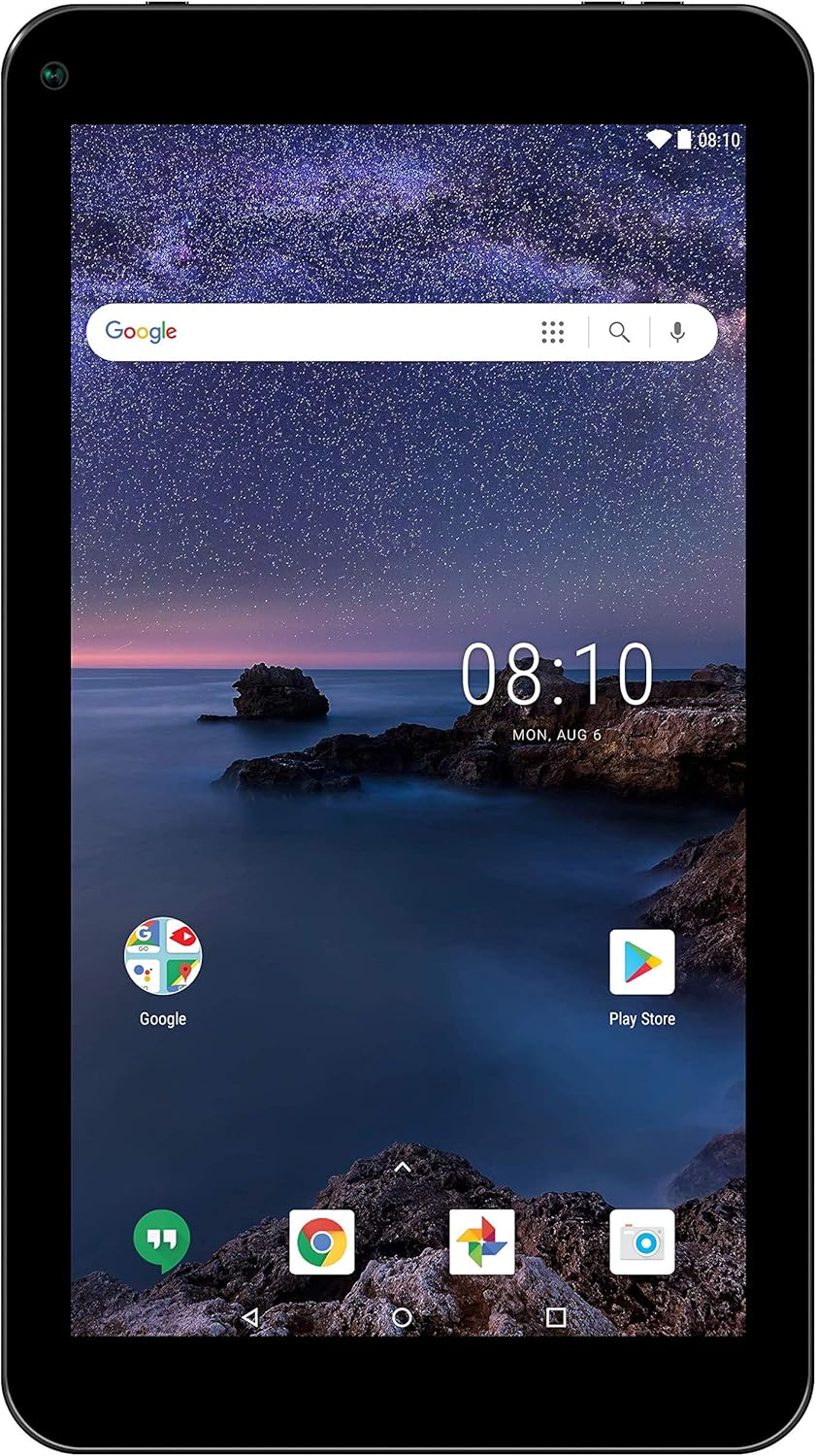
Figure 2.1: SmarTab 7 home screen, showing the Google search bar and various application shortcuts.
2.2 Applications and Google Play Store
Access the Google Play Store icon on your home screen or app drawer to download and install new applications, games, movies, and books. Ensure you are connected to Wi-Fi for optimal download speeds.
2.3 Using the Cameras
The tablet features both front and rear HD cameras. Open the Camera application to capture photos and videos. The front camera is ideal for video calls and selfies, while the rear camera is suitable for general photography.

Figure 2.2: User interacting with the SmarTab 7 tablet, demonstrating its portability and ease of use.
2.4 Connectivity
- Wi-Fi: Connect to wireless networks for internet access. Go to Settings > Wi-Fi to manage connections.
- USB: Use the USB port to connect to a computer for file transfer or to other compatible accessories.
3. Maintenance
3.1 Cleaning the Tablet
To clean the screen, use a soft, lint-free cloth specifically designed for electronics. For the body, a slightly damp cloth can be used, but ensure no moisture enters ports. Avoid abrasive cleaners or solvents.
3.2 Battery Care
To prolong battery life, avoid extreme temperatures. It is recommended to keep the battery charge between 20% and 80% for optimal longevity. Avoid completely draining the battery frequently.
3.3 Software Updates
Periodically check for system updates to ensure your tablet has the latest features and security patches. Go to Settings > About tablet > System updates.
3.4 Storage Management
Regularly review your installed applications and files to free up storage space. You can uninstall unused apps or transfer large files to cloud storage or an external device. Go to Settings > Storage to view usage.
4. Troubleshooting
This section addresses common issues you might encounter with your SmarTab 7 tablet.
| Problem | Solution |
|---|---|
| Tablet does not turn on. | Ensure the battery is charged. Connect the tablet to its charger and wait a few minutes before attempting to power on again. If it still doesn't turn on, try holding the power button for 10-15 seconds. |
| Wi-Fi connection issues. | Check if Wi-Fi is enabled in settings. Restart your Wi-Fi router. Forget the network and reconnect. Ensure you are within range of the Wi-Fi signal. |
| Applications are crashing or freezing. | Close and reopen the application. Clear the app's cache (Settings > Apps > [App Name] > Storage > Clear cache). If the problem persists, uninstall and reinstall the app. |
| Slow performance. | Close unused applications. Clear cache for frequently used apps. Free up storage space. Restart the tablet periodically. |
4.1 Factory Reset (Last Resort)
If severe issues persist, a factory reset can resolve many software-related problems. Warning: This will erase all data on your tablet. Back up important files before proceeding. Go to Settings > Backup & reset > Factory data reset.
5. Specifications
Detailed technical specifications for the SmarTab 7 tablet (Model: ST7150T).
| Feature | Detail |
|---|---|
| Brand | Smartab |
| Model Name | SmarTab 7 |
| Model Number | ST7150T |
| Operating System | Android 7.1 Nougat |
| Display Size | 7 Inches |
| Display Resolution | 1024 x 600 pixels (Max: 1280 x 800 pixels) |
| Processor Brand | Qualcomm |
| Number of Processors | 4 (Quad-Core) |
| RAM Size | 16 GB |
| Hard Disk Size (Storage) | 16 GB |
| Graphics Coprocessor | Quad Core (Integrated) |
| Connectivity Type | Wi-Fi (802.11n) |
| Rear Webcam Resolution | 720 Pixels |
| Battery Type | Lithium Ion (Integrated) |
| Product Dimensions | 19.05 x 11.43 x 1.27 cm; 272.16 g (7.5 x 4.5 x 0.5 inches; 0.6 lbs) |
Note: The RAM size listed as 16GB in some specifications may refer to internal storage capacity. Typical RAM for this type of tablet is 1-2GB. Please refer to the product packaging for exact RAM specifications.
6. Warranty and Support
6.1 Product Warranty
This product comes with a standard manufacturer's warranty. Please refer to the warranty card included in your product packaging for specific terms, conditions, and duration. Keep your proof of purchase for warranty claims.
6.2 Customer Support
For technical assistance, troubleshooting beyond this manual, or warranty inquiries, please contact Smartab customer support. Visit the official Smartab website for contact information, FAQs, and additional resources.
Note: Extended protection plans may be available from third-party providers, offering additional coverage beyond the manufacturer's warranty.


