
1. Introduction
The Autel MaxiSys Ultra EV 2025 is an advanced intelligent diagnostic system designed for comprehensive vehicle analysis, including both traditional gasoline and modern electric/hybrid vehicles. This device integrates a powerful diagnostic tablet with a 5-in-1 VCMI (Vehicle Communication Measurement Interface) and an EVDiag Kit, offering extensive capabilities such as ECU programming, intelligent diagnostics, high-voltage system analysis, and battery pack testing. This manual provides essential instructions for setting up, operating, and maintaining your MaxiSys Ultra EV to ensure optimal performance and accurate diagnostics.
2. Safety Information
Always observe the following safety precautions when using the MaxiSys Ultra EV:
- High Voltage Warning: When working on electric or hybrid vehicles, be aware of high-voltage components. Only qualified personnel should perform diagnostics or repairs on high-voltage systems. Always follow vehicle manufacturer's safety procedures.
- Personal Protective Equipment (PPE): Wear appropriate PPE, including safety glasses and gloves, when working on vehicles.
- Vehicle Compatibility: Ensure the diagnostic tool is compatible with the vehicle's make, model, and year before connecting.
- Power Supply: Use only the specified power adapter and cables provided with the device.
- Operating Environment: Operate the device in a well-ventilated area. Avoid exposure to extreme temperatures, humidity, or corrosive substances.
- Battery Safety: Do not disassemble, puncture, or expose the device's battery to high temperatures or fire.
3. What's in the Box
The MaxiSys Ultra EV package includes the following components:
- Main Unit (Diagnostic Tablet)
- MaxiFlash VCMI (Vehicle Communication Measurement Interface)
- Docking Station
- Main Cable v2.0
- USB 2.0 Cable v2
- AC-DC Adapter-12V (2 units)
- Clipper Cable
- Attenuator
- Breakout Lead (4*6pcs)
- Large Dolphin Clip
- Multimeter Test Lead
- Secondary Ignition Pickup
- Cigarette Lighter
- Scope Test Lead (3 units)
- USB to Ethernet Adapter
- Tool Box
- Soft Cloth
- Quick Reference Guide
- Packing List
- Carrying Case
- EV Diagnostic Kit: EVDiag Box, Breakout Lead (1, 2, 3, 4, 6pcs), EVDiag Box Main Cable (BPIC0001/01), Adapter BPIC0101/01, Adapter BPIC0102/01, Adapter BPIC0201/01, Adapter BPIC0202/01, Adapter BPIC0203/01, Dual Banana Plug (4pcs), Adapter BPIC0204/01, Adapter BPIC0206/01, Adapter BPIC1101/01, Adapter BPIC1102/01, DB25 Snake Cable (BPL0001/X1), Packing List, Carrying Case (634*170*404mm)

Figure 3.1: Autel MaxiSys Ultra EV 2025 Diagnostic Scanner and its comprehensive set of accessories, including the EVDiag Kit and 5-in-1 VCMI.
4. Setup
4.1 Initial Power-On
- Unpack all components from the carrying case.
- Connect the AC-DC power adapter to the MaxiSys Ultra EV tablet and plug it into a power outlet.
- Press and hold the Power button on the tablet until the screen illuminates.
- Follow the on-screen instructions to complete the initial setup, including language selection, Wi-Fi connection, and Autel ID registration.
4.2 Connecting the VCMI
The MaxiFlash VCMI serves as the communication interface between the tablet and the vehicle.
- Ensure the VCMI is charged or connected to a power source.
- Connect the Main Cable v2.0 to the VCMI.
- Connect the other end of the Main Cable v2.0 to the vehicle's OBD-II port.
- On the MaxiSys Ultra EV tablet, navigate to the VCMI Manager to establish a Bluetooth or USB connection with the VCMI.
4.3 Connecting the EVDiag Kit
For electric and hybrid vehicle diagnostics, the EVDiag Kit is essential.
- Connect the EVDiag Box to the MaxiFlash VCMI using the provided main cable.
- Depending on the vehicle and diagnostic procedure, select the appropriate breakout leads and adapters from the EVDiag Kit.
- Connect the breakout leads to the vehicle's high-voltage system components as instructed by the on-screen guidance or vehicle service manual.

Figure 4.1: Overview of the Autel MaxiSys Ultra EV, highlighting the EV Upgrade Kit and the 5-in-1 VCMI for comprehensive diagnostics.
5. Operating Instructions
5.1 General Navigation
The MaxiSys Ultra EV operates on an Android-based interface. Navigate using touch gestures on the 12.9-inch touchscreen. The main menu provides access to various diagnostic and service functions.
5.2 Intelligent Diagnostics
This feature provides guided troubleshooting and repair assistance.
- Topology Map 2.0: Offers a visual representation of the vehicle's network communication, displaying the status of all modules and DTCs in a clear, color-coded format. This helps in quickly identifying problematic areas.
- Motor TruSpeed Repair: Acts as an AI expert system, providing Technical Service Bulletins (TSB), DTC analysis, repair assistance, repair tips, and relevant case studies to guide technicians through complex repairs.

Figure 5.1: Illustration of Topology Mapping 2.0, showing a visual network of vehicle modules, and the Motor TruSpeed Repair feature.
5.3 EV Diagnosis
The Ultra EV is specifically designed for electric and hybrid vehicles.
- Battery Pack Analysis: Provides detailed information on the battery pack, including total voltage, total current, pack voltage data, temperature, State of Charge (SOC), and State of Health (SOH). It assists in identifying battery problems and offers maintenance advice.
- High-Voltage System Diagnostics: Performs automatic scanning of the HV system, reads and clears DTCs, and offers guided troubleshooting with system diagrams and component locations.

Figure 5.2: Diagram illustrating the various parameters monitored during Battery Pack Analysis, such as voltage, current, temperature, SOC, and SOH.

Figure 5.3: Screenshot showing the High-Voltage System Diagnostics interface, including options to scan the HV system, read/clear DTCs, and view system diagrams.
5.4 ECU Programming & Coding
The Ultra EV supports OE-level ECU programming and coding.
- ECU Programming: Allows programming adaptive data to new or used modules, repairing ECUs with data loss, upgrading ECU software versions, and online ECU programming. It supports J2534 reprogramming.
- ECU Coding: Enables online ECU coding, matching replaced modules after repair, activating advanced functions, and personalizing vehicle settings.

Figure 5.4: Visual representation of OE-Level ECU Programming and Coding capabilities, detailing functions like programming adaptive data, repairing ECUs, and online coding.
5.5 40+ Service Functions
The device offers over 40 common maintenance and service functions, including but not limited to:
- Oil Reset
- EPB (Electronic Parking Brake) Reset
- SAS (Steering Angle Sensor) Calibration
- BMS (Battery Management System) Reset
- Throttle Adaptation
- ABS Bleeding
- Injector Coding
- TPMS (Tire Pressure Monitoring System) Reset

Figure 5.5: Display of various maintenance functions available on the MaxiSys Ultra EV, such as Oil Reset, EPB Reset, and Injector Coding.
5.6 Bi-directional Control (Active Test)
This function allows the diagnostic tool to send commands to vehicle systems to perform specific tests, such as:
- Turning on/off lights, wipers, or windows.
- Modulating throttle.
- Performing pump tests.
- Activating solenoids.
5.7 VCMI Functions
The 5-in-1 VCMI combines multiple diagnostic tools:
- VCI (Vehicle Communication Interface): For standard vehicle communication.
- Oscilloscope: For detailed waveform analysis of electrical signals.
- Waveform Generator: To simulate sensor signals.
- Multimeter: For measuring voltage, current, and resistance.
- OBD2 CAN BUS Check: For verifying CAN bus integrity.
5.8 VAG Guided Functions
For Volkswagen, Audi, Skoda, and Seat vehicles, the guided functions simplify complex diagnostic steps by providing step-by-step instructions, often skipping the need for security access codes or channel numbers.
5.9 Pre & Post Scan Reports
Generate comprehensive reports before and after repairs. A pre-scan report identifies initial issues, while a post-scan report confirms that all problems have been resolved, providing documentation for customers or insurance.
5.10 Cloud Data Manager
This feature allows users to view, save, print, and share diagnostic reports on phones, tablets, and PCs via the Autel Cloud Server. Reports can be easily shared by scanning a QR code or sending via text message and email.
5.11 Software Updates
Regular software updates are crucial for maintaining compatibility with new vehicle models, functions, and software versions. The MaxiSys Ultra EV includes 1 year of free updates. Connect the device to Wi-Fi and check for updates periodically through the 'Update' application on the main menu.
6. Maintenance
- Cleaning: Use a soft, damp cloth to clean the tablet screen and exterior. Avoid abrasive cleaners or solvents.
- Battery Care: To prolong battery life, avoid fully discharging the battery frequently. Store the device in a cool, dry place when not in use for extended periods.
- Software Updates: Regularly check for and install software updates to ensure optimal performance and access to the latest vehicle data and functions.
- Cable Inspection: Periodically inspect all cables and connectors for damage. Replace any damaged components immediately.
7. Troubleshooting
If you encounter issues with your MaxiSys Ultra EV, refer to the following common troubleshooting steps:
- Device not powering on: Ensure the battery is charged or the device is connected to a power source. Try a different power outlet or adapter.
- VCMI connection issues: Verify that the VCMI is powered on and properly connected to the vehicle's OBD-II port. Check Bluetooth or USB connection settings on the tablet.
- No communication with vehicle: Confirm the vehicle's ignition is on. Check all cable connections. Ensure the vehicle's battery has sufficient charge. Verify the VCMI is correctly paired.
- Software freezing/crashing: Restart the tablet. Ensure the software is up to date. If the issue persists, perform a factory reset (note: this will erase user data).
- Inaccurate readings: Ensure all connections are secure. Check for any physical damage to cables or connectors. Perform a self-test on the VCMI if available.
8. Specifications
| Feature | Specification |
|---|---|
| Brand | Autel |
| Model | MaxiSys Ultra EV |
| Operating System | Android 11.0 |
| Screen Size | 12.9 inches |
| Memory | 4GB RAM + 256GB Storage |
| Battery Capacity | 18000mAh |
| Item Weight | 51.9 pounds |
| Package Dimensions | 28 x 20.5 x 15 inches |
| Connectivity | Wi-Fi, Bluetooth, USB, CAN FD/DoIP, D-PDU/J2534/RP1210 protocols |
| VCMI Functions | VCI, Oscilloscope, Waveform Generator, Multimeter, OBD2 CAN BUS Check |
| Vehicle Coverage | 150+ brands, 1996-2025 models (including FCA & Renault SGW) |
| UPC | 713830340832 |
| ASIN | B077MJR54G |
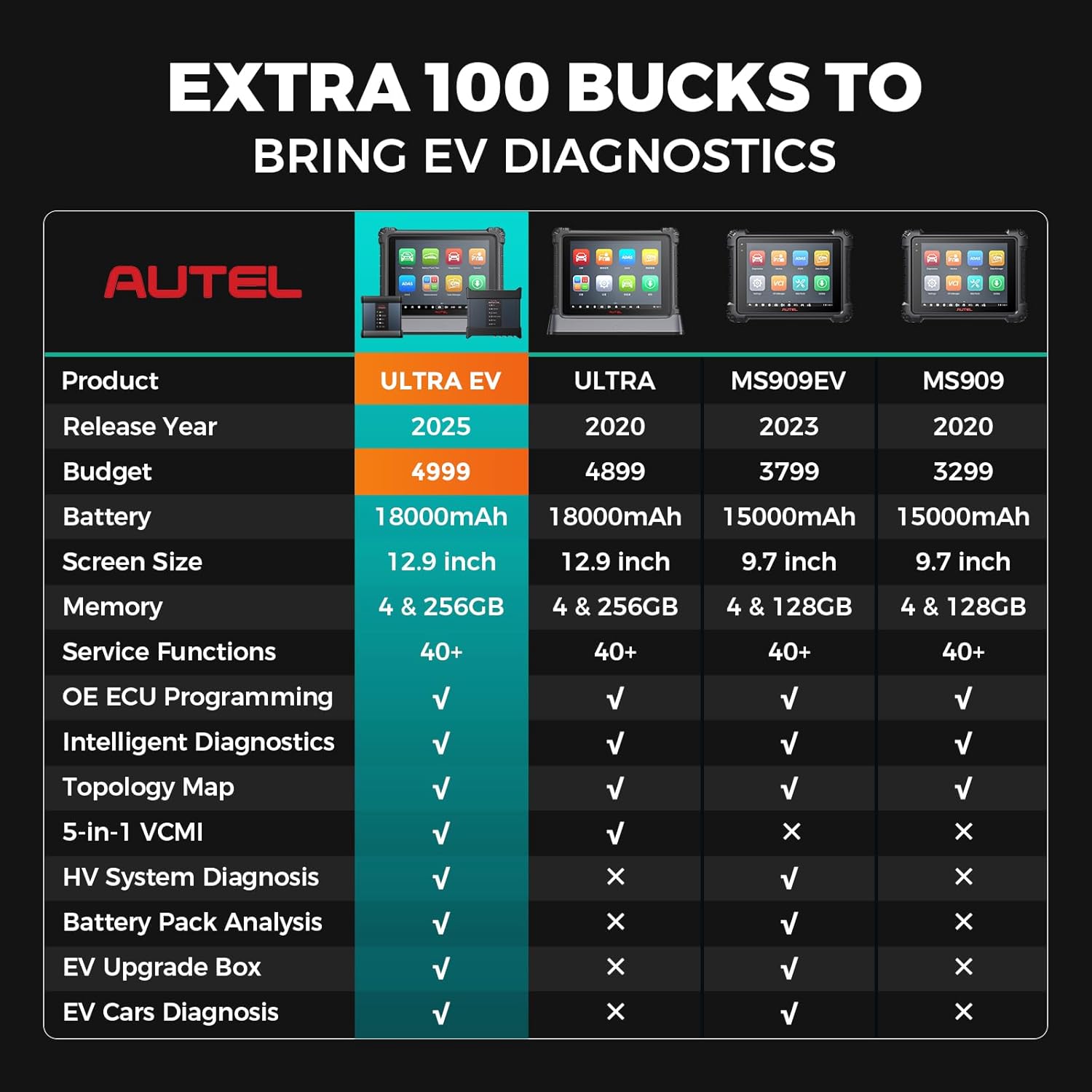
Figure 8.1: A comparison table highlighting the specifications and features of the MaxiSys Ultra EV against other Autel diagnostic tools.
9. Warranty and Support
The Autel MaxiSys Ultra EV comes with a 1-year quality undertaking and 1 year of free software updates from the date of purchase. This ensures you have access to the latest features and vehicle compatibility.
For technical support, warranty claims, or service inquiries, please refer to the contact information provided in your product packaging or visit the official Autel website. Ensure you have your product's serial number and proof of purchase available when contacting support.


