
1. Introduction
The HP Ultra-Slim Z4000 Wireless Optical Mouse is designed for portability and comfort, offering reliable 2.4 GHz wireless connectivity. Its sleek, low-profile design and ergonomic shape provide a natural fit for your hand, making it an ideal accessory for notebooks and tablets. This manual provides detailed instructions for the setup, operation, and maintenance of your mouse.

Figure 1: HP Z4000 Wireless Mouse, demonstrating its slim and stylish design alongside a keyboard.
2. Setup
2.1 Package Contents
Before you begin, ensure all items are present in the package:
- HP Z4000 Wireless Mouse
- 2.4GHz Micro Receiver (USB dongle)
- 1 AA Battery
- Quick Start Poster
- Product Notices
- Warranty Card
2.2 Battery Installation
- Locate the battery compartment on the underside of the mouse.
- Slide the battery cover open.
- Insert the provided AA battery, ensuring correct polarity (+/-).
- Close the battery cover securely.

Figure 2: Underside of the mouse, showing the battery compartment (under the main cover), CONNECT button, and ON/OFF switch.
2.3 Connecting the Receiver
- Locate the 2.4GHz Micro Receiver (USB dongle). This may be stored inside the mouse's battery compartment or included separately.
- Insert the USB receiver into an available USB port on your computer or tablet.
- Turn on the mouse using the ON/OFF switch located on the underside.
- Your computer should automatically detect and install the necessary drivers. The mouse is ready for use.
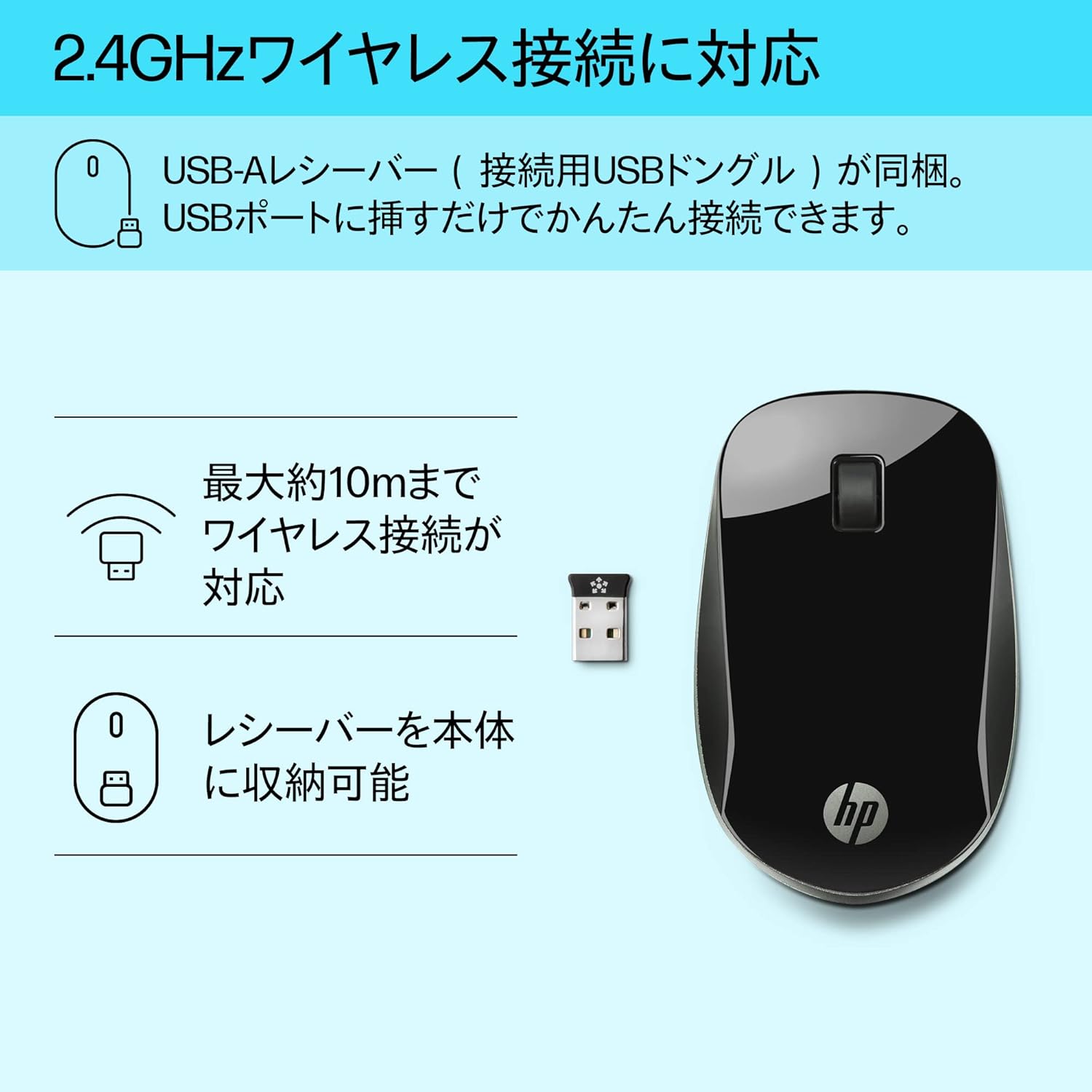
Figure 3: The HP Z4000 mouse and its 2.4GHz USB receiver, demonstrating the simple plug-and-play connection.
3. Operating the Mouse
The HP Z4000 mouse features a standard three-button layout and a scroll wheel for intuitive navigation.
3.1 Basic Functions
- Left Click: Primary button for selecting items, opening files, and executing commands.
- Right Click: Secondary button for accessing context menus and additional options.
- Scroll Wheel: Roll up or down to navigate through documents and web pages. The scroll wheel is also clickable for middle-click functionality (if supported by your operating system/application).

Figure 4: Top view of the mouse, indicating the left click, right click, and rubber scroll wheel for easy operation.
3.2 Ergonomics and Design
The mouse features an arch-shaped, symmetrical design that comfortably fits both left and right hands. Its ultra-slim profile (less than 2.6 cm in height) promotes a natural hand and wrist position, reducing strain during extended use.
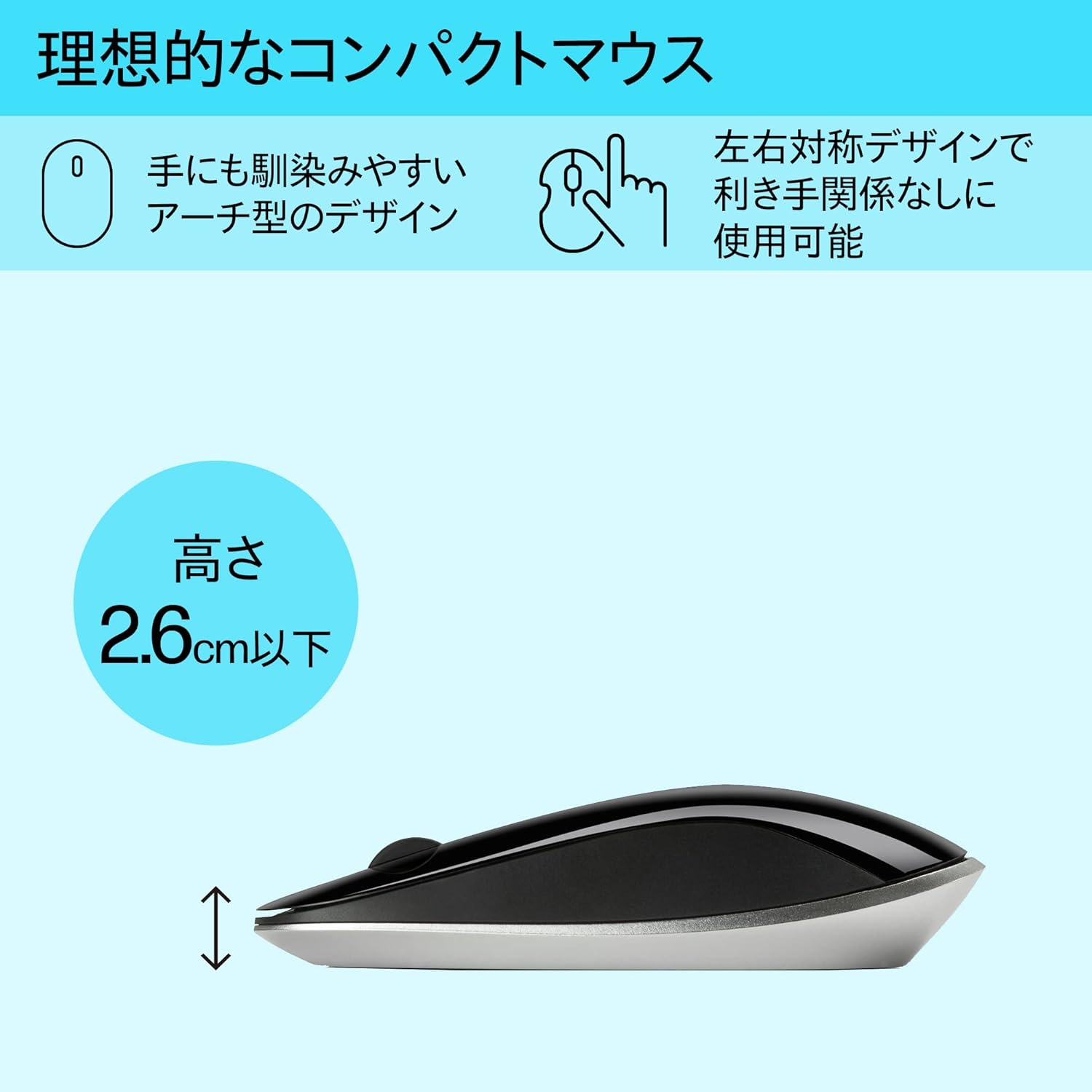
Figure 5: The ergonomic arch design and slim profile (under 2.6cm) of the HP Z4000 mouse, designed for comfortable use.
4. Maintenance
4.1 Cleaning the Mouse
- Ensure the mouse is turned off before cleaning.
- Use a soft, lint-free cloth lightly dampened with water or a mild cleaning solution.
- Wipe the surface of the mouse gently. Avoid excessive moisture.
- Do not use abrasive cleaners or solvents.
4.2 Battery Replacement
The mouse uses one AA battery, with an average battery life of 12 months. When the mouse performance degrades or it stops responding, it's time to replace the battery.
- Turn off the mouse using the ON/OFF switch.
- Open the battery compartment cover on the underside of the mouse.
- Remove the old AA battery.
- Insert a new AA battery, observing the correct polarity.
- Close the battery cover.
- Turn the mouse back on.
5. Troubleshooting
5.1 Mouse Not Responding
- Check Power: Ensure the mouse is turned on.
- Check Battery: Replace the AA battery if it is low or depleted.
- Check Receiver: Ensure the USB receiver is securely plugged into a working USB port on your computer. Try a different USB port.
- Re-establish Connection: If your mouse has a "CONNECT" button (refer to Figure 2), press it and then press the connect button on the receiver (if applicable, or simply re-insert the receiver).
- Distance: Ensure the mouse is within the 10-meter (30ft) operating range of the receiver.
5.2 Erratic Cursor Movement
- Surface: Use the mouse on a clean, non-reflective, and uniform surface. Avoid glass or highly reflective surfaces.
- Sensor Cleanliness: Check the optical sensor on the underside of the mouse for any dust or debris and clean it gently with a soft cloth.
- Interference: Move the mouse away from other wireless devices that might cause interference.
6. Specifications
| Feature | Detail |
|---|---|
| Brand | HP |
| Model Number | H5N61AA |
| Connectivity | 2.4 GHz Wireless (USB Receiver) |
| Movement Detection | Optical |
| Number of Buttons | 3 (Left, Right, Scroll Wheel Click) |
| Dimensions (LxWxH) | 10.1 x 2.5 x 6.4 cm (approx. 4 x 1 x 2.5 inches) |
| Weight | 231 g (approx. 8.1 oz) |
| Color | Black |
| Battery Type | 1 x AA Battery (included) |
| Average Battery Life | 12 Months |
| Compatible Operating Systems | Linux, Windows 7, Windows XP (and newer versions) |
7. Warranty and Support
The HP Ultra-Slim Z4000 Wireless Optical Mouse comes with a 1-year Manufacturer's Warranty from the date of purchase.
For warranty claims, technical support, or further assistance, please refer to the contact information provided in your product's warranty card or visit the official HP support website:
Please retain your proof of purchase for warranty validation.


