
1. Introduction
This manual provides detailed instructions for the installation, operation, maintenance, and troubleshooting of your FSP 400W Micro ATX Power Supply (Model FSP400-60GHS(85)-R1). This power supply unit is designed for compact small form factor PC systems, offering 400 watts of power output with 80 Plus Bronze certification for high efficiency. It is compatible with Intel and AMD CPU systems and standard PC configurations.
Please read this manual thoroughly before installation and operation to ensure proper usage and to prevent damage to the unit or other components.
2. Safety Information
WARNING: Power supplies contain high voltage components. Do not open the power supply casing. There are no user-serviceable parts inside. Opening the casing will void the warranty and poses a risk of electric shock.
- Ensure the power supply is disconnected from the AC power outlet before installation or maintenance.
- Install the power supply in a well-ventilated area.
- Do not operate the power supply in high humidity or extreme temperature environments.
- Use only the cables provided with the power supply.
- Ensure all cables are securely connected before powering on the system.
- This product is designed for use in personal computers. Do not use it for any other purpose.
3. Package Contents
Verify that all items listed below are present in your package:
- FSP 400W Micro ATX Power Supply (FSP400-60GHS(85)-R1)
- AC Power Cord
- SFX to PS2 Bracket
- User Manual
- Mounting Screws (typically included with PC cases, but sometimes with PSUs)

Figure 3.1: Package Contents. Shows the power supply unit, user manual, various power cables, an AC power cord, and an SFX to PS2 adapter bracket.
4. Product Overview
The FSP400-60GHS(85)-R1 is a compact power supply designed for small form factor systems. Key features include an 80mm cooling fan with thermal sensing technology and an energy-saving 1-watt standby mode.
4.1 Physical Layout

Figure 4.1: Angled view of the FSP 400W Micro ATX Power Supply, highlighting the fan grille, power switch, and AC power input.

Figure 4.2: Rear view of the power supply, detailing the main power switch and the AC power input socket.

Figure 4.3: Top view of the power supply, showing the protective grille over the 80mm cooling fan.
4.2 Output Connectors
The power supply includes various connectors to power your system components:
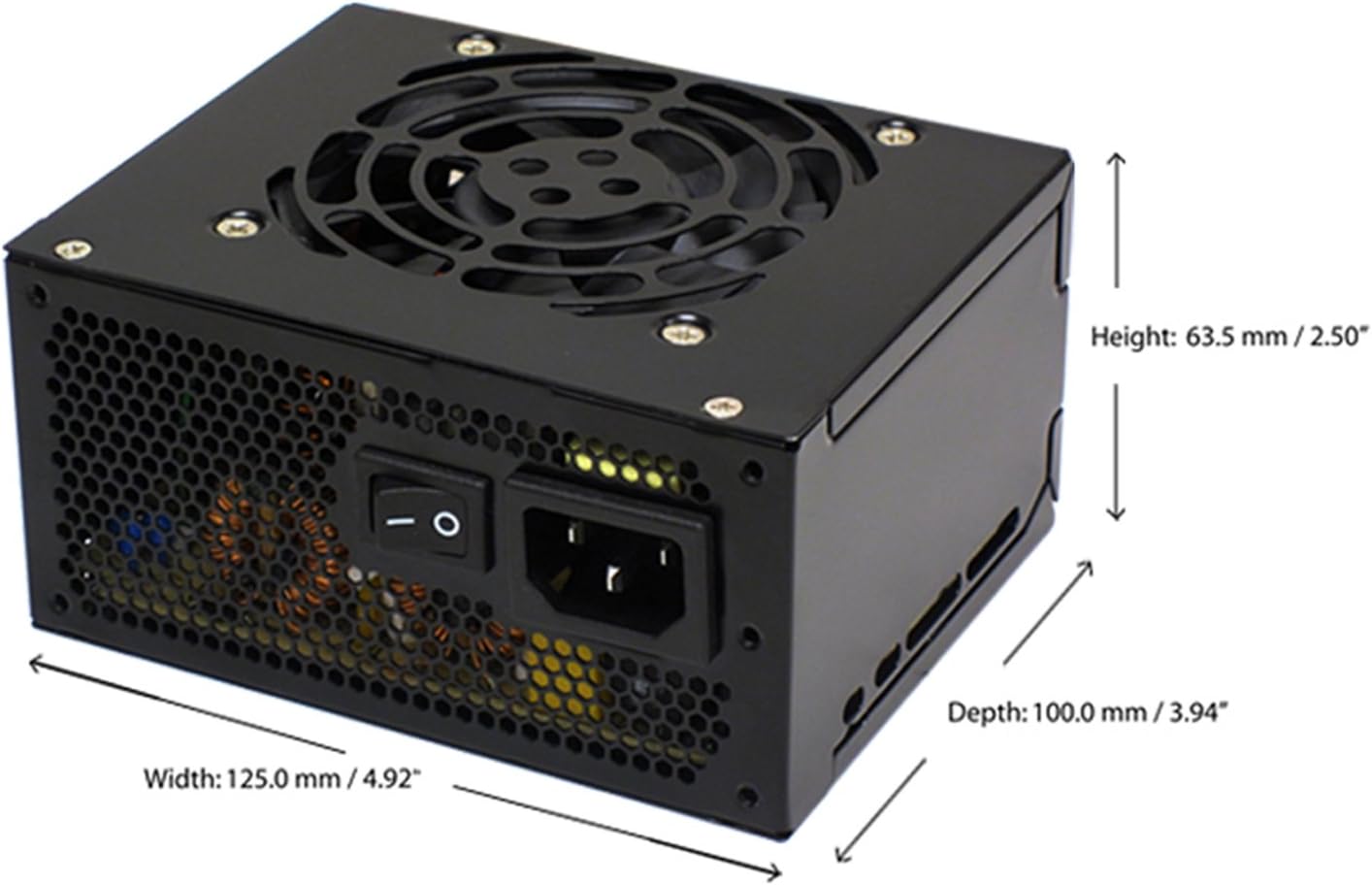
Figure 4.4: Diagram illustrating the types and quantities of output connectors available on the FSP400-60GHS(85)-R1 power supply.
- Main 24 Pin (1): For motherboard power.
- P4 | EPS 4+4 Pin (1): For CPU power.
- PCI-E 8 Pin (6+2) (1): For graphics cards.
- Molex 4 Pin (3): For older peripherals and fans.
- Serial ATA 15 Pin (3): For SATA hard drives and SSDs.
- FDD 4 Pin (1): For floppy disk drives or other legacy devices.
5. Setup and Installation
Before beginning installation, ensure your computer system is powered off and disconnected from the AC power outlet. It is recommended to wear an anti-static wrist strap to prevent electrostatic discharge (ESD) damage to components.
5.1 Installing the Power Supply
- Prepare the Case: Open your computer case. Identify the power supply mounting area.
- Mounting the PSU:
- For SFX cases: Insert the FSP400-60GHS(85)-R1 directly into the SFX power supply bay and secure it with screws.
- For standard ATX cases: Attach the included SFX to PS2 bracket to the power supply. Then, mount the power supply with the bracket into the ATX power supply bay and secure it with screws.

Figure 5.1: The FSP 400W Micro ATX Power Supply shown with the SFX to PS2 adapter bracket installed, ready for mounting in a standard ATX case.

Figure 5.2: Illustration demonstrating how the SFX power supply fits into a PS2 (ATX) case using the provided adapter bracket.
5.2 Connecting Cables
Connect the appropriate cables to your motherboard and components. Refer to your motherboard and component manuals for specific connection points.
- Motherboard Power: Connect the 24-pin ATX connector to the corresponding socket on your motherboard.
- CPU Power: Connect the 4+4-pin EPS/ATX 12V connector to the CPU power socket on your motherboard.
- Graphics Card Power: If your graphics card requires external power, connect the 6+2-pin PCI-E connector(s) to the graphics card.
- Storage Devices: Connect SATA power connectors to your SATA hard drives, SSDs, and optical drives.
- Peripherals: Use Molex 4-pin connectors for case fans or other legacy peripherals as needed.
- Cable Management: Route cables neatly to ensure proper airflow within the case.
Once all internal connections are made, close your computer case.
5.3 External Connection
- Connect the AC power cord to the power supply's AC inlet.
- Plug the other end of the AC power cord into a grounded wall outlet or surge protector.
- Ensure the power switch on the back of the power supply is in the "OFF" (O) position before plugging it in.
6. Operating Instructions
6.1 Powering On Your System
- After all connections are secure, flip the power switch on the back of the power supply to the "ON" (I) position.
- Press the power button on your computer case to start the system.
6.2 Thermal Control System
The FSP400-60GHS(85)-R1 features an 80mm cooling fan with thermal sensing technology. This system automatically adjusts the fan speed based on the internal temperature of the power supply, optimizing cooling performance while minimizing noise.
6.3 Energy Saver Standby Mode
This power supply is designed with an energy-saving 1-watt standby mode, reducing power consumption when the system is in a low-power state or turned off but still connected to AC power.
7. Maintenance
Proper maintenance ensures the longevity and optimal performance of your power supply.
- Cleaning: Periodically clean the exterior of the power supply and its fan grille to prevent dust buildup. Use a soft, dry cloth or compressed air. Ensure the power supply is disconnected from AC power before cleaning.
- Ventilation: Ensure that the power supply's fan and ventilation openings are not obstructed. Good airflow is crucial for cooling.
- Cable Integrity: Regularly check all power cables for any signs of wear, fraying, or damage. Replace damaged cables immediately.
Do not attempt to open the power supply unit for internal cleaning or repair. This will void the warranty and can be dangerous.
8. Troubleshooting
If you encounter issues with your power supply, refer to the following common problems and solutions:
8.1 No Power to System
- Check AC Power: Ensure the AC power cord is securely plugged into both the power supply and a working wall outlet.
- Power Switch: Verify that the power switch on the back of the power supply is in the "ON" (I) position.
- Internal Connections: Confirm that the 24-pin ATX and 4+4-pin EPS/ATX 12V connectors are firmly seated in the motherboard.
- Short Circuit: Disconnect all peripheral power cables (SATA, Molex, PCI-E) and attempt to power on. If the system powers on, a short circuit may exist in one of the connected components or cables. Reconnect them one by one to identify the faulty component.
8.2 System Instability or Random Shutdowns
- Overload: Ensure your system's power requirements do not exceed the 400W capacity of the power supply.
- Ventilation: Check for proper airflow within the case and ensure the power supply's fan is not obstructed. Overheating can cause instability.
- Cable Connections: Re-check all power connections to ensure they are secure. Loose connections can lead to intermittent power delivery.
8.3 Excessive Fan Noise
- Dust Buildup: Clean the fan grille and fan blades with compressed air.
- Obstruction: Ensure no cables or foreign objects are interfering with the fan's rotation.
- Operating Environment: High ambient temperatures can cause the thermal control system to increase fan speed. Ensure adequate room ventilation.
If troubleshooting steps do not resolve the issue, contact FSP customer support or your retailer for assistance.
9. Specifications
Detailed technical specifications for the FSP400-60GHS(85)-R1 power supply:
| Model Name | FSP 400W Micro ATX Power Supply |
| Model Number | FSP400-60GHS(85)-R1 |
| Brand | FSP |
| Output Wattage | 400 Watts |
| 80 Plus Certification | 80 Plus Bronze |
| Form Factor | Micro ATX (SFX with PS2 bracket) |
| Cooling Method | Air (80mm fan with thermal control) |
| Power Supply Design | Non-Modular |
| Input Voltage | 100 - 265 Volts (AC) |
| Dimensions (L x W x H) | 4.9 x 3.9 x 2.5 inches (125.0 x 100.0 x 63.5 mm) |
| Item Weight | 2.31 Pounds |
| Compatible Devices | Personal Computer (AMD/Intel CPU systems) |
| Connectors | Main 24 Pin (1), P4 | EPS 4+4 Pin (1), PCI-E 8 Pin (6+2) (1), Molex 4 Pin (3), Serial ATA 15 Pin (3), FDD 4 Pin (1) |
| Environmental Compliance | RoHS, Lead-Free, Green Product (G.P) |

Figure 9.1: Physical dimensions of the FSP 400W Micro ATX Power Supply.

Figure 9.2: Illustrative diagram showing typical cable lengths for the power supply connectors.
10. Warranty Information
The FSP 400W Micro ATX Power Supply (FSP400-60GHS(85)-R1) is covered by a 3-year manufacturer's warranty. This warranty guarantees the quality and performance of the product for the specified period from the date of purchase.
The warranty covers defects in materials and workmanship under normal use. It does not cover damage resulting from improper installation, accidents, misuse, abuse, natural disasters, or unauthorized modifications or repairs. Opening the power supply casing will void the warranty.
For warranty claims or service, please retain your proof of purchase and contact FSP customer support.
11. Customer Support
If you require further assistance, have questions, or need to report an issue that cannot be resolved using the troubleshooting guide, please contact FSP customer support.
- FSP Website: Visit the official FSP website for product information, FAQs, and support resources.
- Contact Information: Refer to the FSP website or your product packaging for the most current customer service contact details (phone, email, or support portal).
When contacting support, please have your product model number (FSP400-60GHS(85)-R1) and proof of purchase readily available.
