
1. Introduction
Thank you for purchasing the GPX PDB1077B Portable DVD Player. This device offers versatile entertainment with its 10.1-inch display, DVD/CD playback capabilities, and built-in Bluetooth wireless transmitter for audio streaming to compatible headphones. This manual provides detailed instructions for setup, operation, and maintenance to ensure optimal performance and longevity of your device.
2. Important Safety Information
Please read all safety warnings and instructions carefully before using this product. Retain this manual for future reference.
- Power Source: Use only the specified power adapter. Incorrect voltage may damage the device and void the warranty.
- Water and Moisture: Do not expose the device to rain, moisture, or immerse it in water.
- Heat: Keep the device away from heat sources such as radiators, heat registers, stoves, or other apparatus (including amplifiers) that produce heat.
- Ventilation: Ensure proper ventilation. Do not block any ventilation openings.
- Cleaning: Clean only with a dry cloth. Do not use liquid cleaners or aerosol cleaners.
- Servicing: Do not attempt to service this product yourself. Refer all servicing to qualified service personnel.
- Battery Safety: The device contains a rechargeable battery. Do not expose to excessive heat or direct sunlight. Dispose of batteries properly according to local regulations.
- Hearing Protection: Avoid listening at high volume levels for extended periods to prevent hearing damage.
3. Package Contents
Verify that all items listed below are included in your package:
- GPX PDB1077B Portable DVD Player
- Wireless Bluetooth Headphones
- Remote Control
- AC/DC Power Adapter
- Car Power Adapter
- AV Cable
- User Manual (this document)
4. Product Overview
Familiarize yourself with the components of your GPX PDB1077B Portable DVD Player.
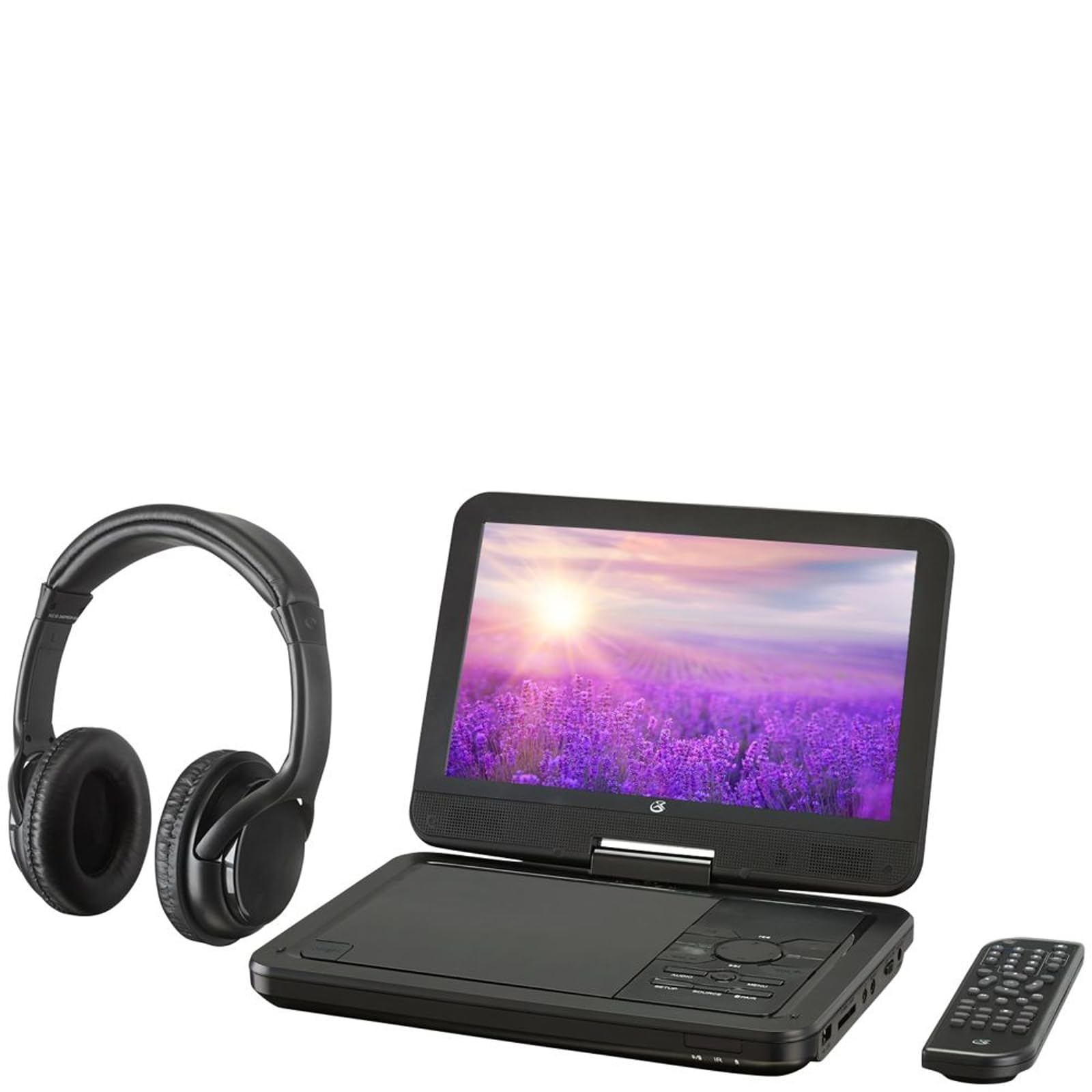
Figure 4.1: The GPX PDB1077B Portable DVD Player, showing the 10.1-inch screen, control panel, wireless Bluetooth headphones, and remote control.
4.1 Portable DVD Player Unit
The main unit features a swivel screen, disc tray, and control buttons. Key components include:
- 10.1-inch LCD Display: For viewing video content.
- Disc Tray: For inserting DVDs and CDs.
- Control Panel: Buttons for playback, menu navigation, volume, and source selection.
- Ports: USB, SD card slot, AV out, headphone jack, DC in.
- Speakers: Integrated stereo speakers.
4.2 Wireless Bluetooth Headphones
The included headphones connect wirelessly to the DVD player via Bluetooth for private listening.
Figure 4.2: A close-up view of the black wireless Bluetooth headphones, featuring padded earcups and an adjustable headband.
4.3 Remote Control
The remote control provides convenient access to all functions from a distance.
Figure 4.3: A close-up view of the compact black remote control with various buttons for playback, menu navigation, and volume adjustment.
5. Setup Guide
5.1 Charging the Device
- Connect the AC/DC power adapter to the DC IN port on the DVD player.
- Plug the adapter into a standard wall outlet.
- The charging indicator light will illuminate. Allow approximately 3-4 hours for a full charge.
- For in-car use, connect the car power adapter to the DC IN port and your vehicle's 12V power outlet.
5.2 Powering On/Off
- To power on, slide the POWER switch to the ON position. The screen will light up.
- To power off, slide the POWER switch to the OFF position.
5.3 Connecting Bluetooth Headphones
- Ensure the DVD player is powered on.
- Turn on the Bluetooth headphones and put them into pairing mode (refer to headphone manual if needed).
- On the DVD player, navigate to the Bluetooth settings menu.
- Select "Scan for Devices" or similar option.
- Choose your headphones from the list of available devices to pair.
- Once paired, audio will automatically transmit to the headphones.
5.4 Connecting to an External Display (Optional)
Use the included AV cable to connect the DVD player to a TV or monitor.
- Connect one end of the AV cable to the AV OUT port on the DVD player.
- Connect the other end to the AV IN ports (Yellow for Video, White for Left Audio, Red for Right Audio) on your external display.
- Select the correct AV input on your external display.
6. Operating Instructions
6.1 Playing DVDs and CDs
- Open the disc tray by gently lifting the screen.
- Place a DVD or CD onto the spindle with the label side facing up.
- Gently close the disc tray.
- The player will automatically detect the disc and begin playback or display the disc menu.
- Use the navigation buttons (Up, Down, Left, Right, Enter) on the control panel or remote to navigate menus.
- Press the PLAY/PAUSE button to start or pause playback.
- Press the STOP button to stop playback.
6.2 Using USB and SD Card Media
- Insert a USB flash drive into the USB port or an SD card into the SD card slot.
- Press the SOURCE button on the control panel or remote to select "USB" or "SD".
- Navigate through your files using the control buttons.
- Select a file (e.g., MP3, JPEG) and press ENTER to play or view.
6.3 Adjusting Settings
Access the system settings to customize your viewing and listening experience.
- Press the SETUP button on the remote or control panel.
- Use the navigation buttons to select options such as:
- Display Settings: Adjust brightness, contrast, color.
- Audio Settings: Adjust volume, equalizer.
- Language Settings: Select OSD language, audio language, subtitle language.
- Parental Control: Set rating levels for disc playback.
- Press ENTER to confirm selections and SETUP again to exit.
6.4 Using the Remote Control
The remote control provides full functionality. Ensure batteries are correctly inserted (2 x AAA, not included).
| Button | Function |
|---|---|
| POWER | Turns the player on or off. |
| SETUP | Accesses the system setup menu. |
| SOURCE | Switches between DVD, USB, SD, and AV input modes. |
| PLAY/PAUSE | Starts or pauses playback. |
| STOP | Stops playback. |
| VOL+/VOL- | Adjusts the volume level. |
| NAVIGATE (Up/Down/Left/Right/ENTER) | Navigates menus and confirms selections. |
| MENU | Accesses the disc menu during DVD playback. |
7. Maintenance
7.1 Cleaning the Device
- Ensure the device is powered off and unplugged before cleaning.
- Use a soft, dry, lint-free cloth to wipe the exterior surfaces.
- For the screen, use a screen-specific cleaning solution and a microfiber cloth, applying gentle pressure.
- Do not use abrasive cleaners, waxes, or solvents.
7.2 Disc Care
- Handle discs by their edges to avoid fingerprints.
- Store discs in their cases when not in use to prevent scratches.
- Clean dirty discs with a soft, lint-free cloth, wiping from the center outwards.
7.3 Battery Care
- To prolong battery life, fully charge the device before first use.
- If storing the device for an extended period, charge it to approximately 50% every few months.
- Avoid exposing the device to extreme temperatures.
8. Troubleshooting
If you encounter issues with your GPX PDB1077B, refer to the following common problems and solutions.
| Problem | Possible Cause | Solution |
|---|---|---|
| No Power | Battery drained; Power adapter not connected properly; Power switch off. | Charge the device; Ensure power adapter is securely connected; Slide power switch to ON. |
| No Disc Playback | Disc inserted incorrectly; Disc is dirty or scratched; Disc format not supported. | Reinsert disc label-side up; Clean or replace disc; Check supported media types in specifications. |
| No Sound | Volume too low; Mute function active; Headphones not connected/paired correctly. | Increase volume; Deactivate mute; Reconnect or re-pair headphones. |
| Bluetooth Headphones Not Pairing | Headphones not in pairing mode; Player not in Bluetooth scan mode; Interference. | Ensure headphones are in pairing mode; Activate Bluetooth scan on player; Move closer to player, away from other devices. |
| Remote Control Not Working | Batteries are dead or inserted incorrectly; Obstruction between remote and player; Remote sensor blocked. | Replace batteries, check polarity; Remove obstructions; Ensure remote sensor on player is clear. |
9. Specifications
Technical specifications for the GPX PDB1077B Portable DVD Player.
| Feature | Detail |
|---|---|
| Model | PDB1077B |
| Display Size | 10.1 inches |
| Display Type | LCD |
| Native Resolution | 1024 x 600 |
| Supported Media | DVD, DVD±R/RW, CD, CD-R/RW, MP3 CD, JPEG CD |
| Connectivity | Bluetooth wireless transmitter, USB port, SD card slot, AV Out, Headphone Jack, DC In |
| Power Source | Built-in rechargeable battery, AC/DC adapter, Car adapter |
10. Warranty and Customer Support
GPX products are designed for reliability and performance. For specific warranty information, please refer to the warranty card included with your purchase or visit the official GPX website. If you require technical assistance or have questions regarding your device, please contact GPX customer support.
GPX Official Website: www.gpx.com
Please note that warranty terms and customer support availability may vary by region.


