
Tronsmart G02
Tronsmart Mars G02 Wireless Game Controller User Manual
Model: G02
Introduction
Thank you for choosing the Tronsmart Mars G02 Wireless Game Controller. This manual provides detailed instructions for setting up, operating, and maintaining your controller to ensure optimal performance across various compatible devices, including smartphones, tablets, PCs, and smart TVs.
Package Contents
Please verify that all items are present in your package:
- Tronsmart Mars G02 Wireless Game Controller
- USB Charging Cable
- 2.4GHz USB Receiver
- User Manual (this document)

Image: Contents of the Tronsmart Mars G02 Wireless Game Controller package, showing the controller, USB receiver, charging cable, and user manual.
Product Overview
Familiarize yourself with the various components and controls of your Tronsmart Mars G02 controller.

Image: Front view of the Tronsmart Mars G02 controller, highlighting the D-pad, left and right joysticks, A/B/X/Y buttons, Start, Select, Home, and Turbo buttons.

Image: The Tronsmart Mars G02 controller with its integrated smartphone holder extended, ready to secure a mobile device for gaming.
Key Features:
- Dual Connectivity: Supports both Bluetooth and 2.4GHz wireless connections.
- Integrated Phone Holder: Adjustable holder for smartphones (3.5 to 6 inches).
- Multi-Platform Compatibility: Works with Android devices, PCs, and smart TVs.
- Ergonomic Design: Comfortable grip for extended gaming sessions.
- Turbo Function: Programmable turbo button for rapid fire.
Setup
1. Charging the Controller
Before initial use, fully charge the controller. Connect the supplied USB charging cable to the controller's charging port and the other end to a USB power source (e.g., computer USB port, USB wall adapter). The charging indicator light will show the charging status and turn off when fully charged.
2. Connecting to Devices
The Tronsmart Mars G02 offers two primary connection methods:
2.1. Bluetooth Connection (for Android Smartphones/Tablets)
- Ensure the controller is powered off.
- Press and hold the Home button and A button simultaneously for 3 seconds until the indicator light flashes rapidly, indicating pairing mode.
- On your Android device, go to Settings > Bluetooth and turn Bluetooth on.
- Scan for available devices and select "Tronsmart Mars G02" from the list.
- Once connected, the indicator light on the controller will become solid.
2.2. 2.4GHz Wireless Connection (for PC/Smart TV/TV Box)
- Insert the 2.4GHz USB receiver into an available USB port on your PC, Smart TV, or TV Box.
- Ensure the controller is powered off.
- Press and hold the Home button and X button simultaneously for 3 seconds until the indicator light flashes rapidly.
- The controller will automatically connect to the USB receiver. Once connected, the indicator light will become solid.
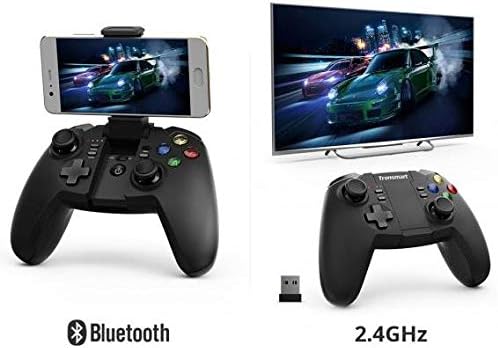
Image: Illustration showing the Tronsmart Mars G02 controller connecting to a smartphone via Bluetooth and to a television via its 2.4GHz USB receiver.
3. Attaching a Smartphone (Optional)
The integrated phone holder can accommodate smartphones between 3.5 and 6 inches.
- Gently pull up the phone holder from the center of the controller.
- Adjust the angle to your preference (up to 135 degrees).
- Carefully place your smartphone into the holder, ensuring it is securely gripped.

Image: Side view of the Tronsmart Mars G02 controller demonstrating the adjustable angles (90 and 135 degrees) of the integrated phone holder, designed for phones between 3.5 and 6 inches.
Operating Instructions
Power On/Off
- Power On: Press the Home button once. The controller will attempt to reconnect to the last paired device.
- Power Off: Press and hold the Home button for 5 seconds until the indicator lights turn off. The controller will also automatically power off after 5 minutes of inactivity.
Button Functions
The Tronsmart Mars G02 features standard gaming controller buttons:
- Left/Right Analog Joysticks: For precise 360-degree movement.
- D-Pad (Directional Pad): For directional input.
- A/B/X/Y Buttons: Action buttons, typically color-coded.
- L1/R1 (Bumpers): Shoulder buttons.
- L2/R2 (Triggers): Analog triggers for variable input.
- Start Button: Typically used to pause or confirm actions.
- Select Button: Often used for menu navigation or secondary functions.
- Home Button: Powers the controller on/off, and returns to the home screen on some devices.
- Turbo Button: Activates rapid-fire for assigned buttons.
Turbo Function
To enable the Turbo function for a specific button:
- Press and hold the Turbo button.
- While holding Turbo, press the desired action button (e.g., A, B, X, Y, L1, R1, L2, R2) once. The Turbo function is now active for that button.
- To disable Turbo for that button, repeat the process: hold Turbo and press the action button again.

Image: The Tronsmart Mars G02 controller positioned in front of a range of compatible devices, including a smartphone, tablet, laptop, and television, illustrating its multi-platform support.
Maintenance
- Keep the controller dry. Avoid exposure to moisture or liquids.
- Clean the controller with a soft, dry cloth. Do not use harsh chemicals or abrasive cleaners.
- Store the controller in a cool, dry place away from direct sunlight and extreme temperatures.
- Avoid dropping or subjecting the controller to strong impacts.
- When not in use for extended periods, charge the controller periodically to maintain battery health.
Troubleshooting
| Problem | Solution |
|---|---|
| Controller does not power on. | Ensure the controller is charged. Connect it to a power source using the USB cable. |
| Cannot connect via Bluetooth. |
|
| Cannot connect via 2.4GHz receiver. |
|
| Buttons are unresponsive or laggy. |
|
Specifications
- Product Dimensions: 7.4 x 18 x 13.8 cm
- Weight: 400 g
- Connectivity: Bluetooth, 2.4GHz Wireless
- Compatibility: Multi (Android, PC, Smart TV, TV Box)
- Manufacturer Reference: 2724572970803
- ASIN: B0777SKFX6
Related documentsG02


Ask a question about this manual
Ask about setup, troubleshooting, compatibility, parts, safety, or missing instructions. Manuals+ will review the question and use this page’s manual context to help answer it.