
1. Introduction
This manual provides instructions for the WatchGuard Firebox T15-W network security appliance. The Firebox T15-W is designed to provide comprehensive network security, including firewall capabilities and wireless connectivity, for small and home office environments. This document covers the physical overview, setup procedures, operational guidelines, maintenance tips, troubleshooting steps, and technical specifications.
2. Product Overview
The WatchGuard Firebox T15-W is a compact, high-performance security appliance. It features multiple network interfaces and integrated wireless capabilities to secure your network infrastructure.
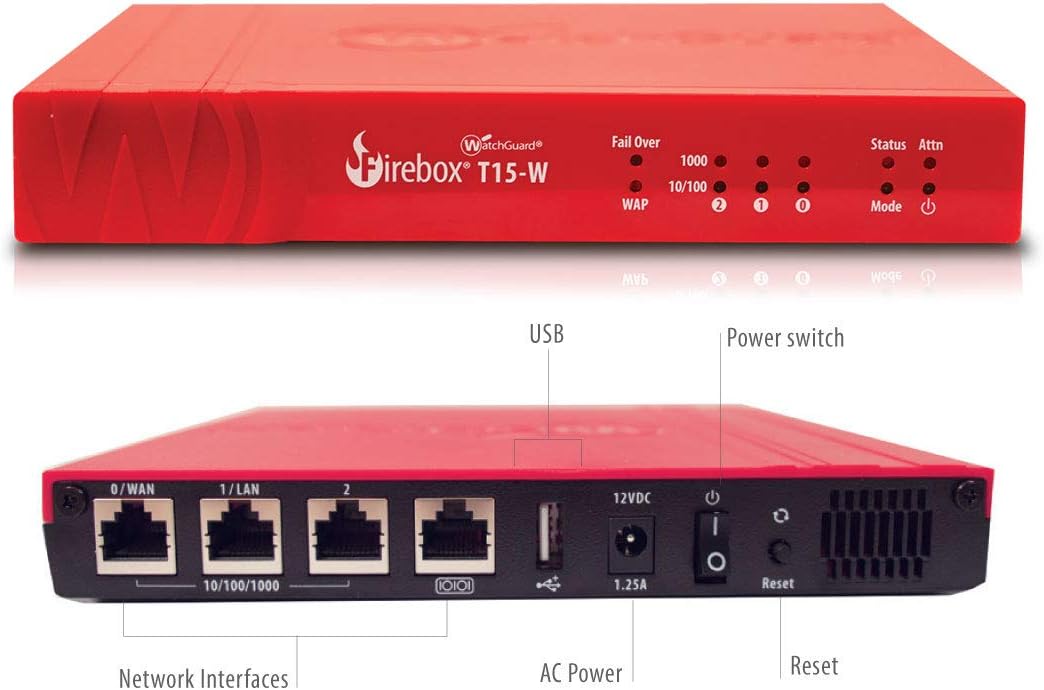
Figure 2.1: Front and Rear View of the Firebox T15-W with Labeled Ports.
This image displays the WatchGuard Firebox T15-W from both the front and rear. The front panel shows LED indicators for status, attention, mode, and wireless access point (WAP) activity, along with indicators for network link speed (1000, 10/100) and port activity (0, 1, 2). The rear panel features three 10/100/1000 Ethernet network interfaces (0/WAN, 1/LAN, 2), a USB 2.0 port, a 12VDC 1.25A power input, a power switch, and a reset button.

Figure 2.2: WatchGuard Firebox T15-W with Wireless Capability Indication.
This image shows the WatchGuard Firebox T15-W appliance, highlighting its wireless capabilities with a cloud and Wi-Fi symbol. The top view shows the front panel with status LEDs and the WatchGuard logo. The bottom view shows the rear panel with Ethernet ports, USB port, power input, power switch, and reset button.
3. Setup Instructions
- Unpack the Device: Carefully remove the Firebox T15-W from its packaging. Verify all components are present.
- Connect Power: Connect the provided power adapter to the 12VDC 1.25A power input on the rear of the device and then to a power outlet. Do not power on the device yet.
- Connect Network Cables:
- Connect your internet source (e.g., modem) to the 0/WAN Ethernet port.
- Connect your internal network devices (e.g., switch, computer) to the 1/LAN or 2 Ethernet ports.
- Power On: Flip the power switch on the rear panel to the 'On' position. The device will begin its boot sequence.
- Initial Configuration: Refer to the WatchGuard documentation for detailed instructions on initial software configuration, including setting up network policies, wireless settings, and security features. This typically involves accessing the device's web interface from a connected computer.
4. Operating Guidelines
Once configured, the Firebox T15-W operates continuously to protect your network. Monitor the front panel LEDs for operational status:
- Status LED: Indicates the overall operational state of the device. Consult the WatchGuard documentation for specific color and blinking patterns.
- Attn LED: Illuminates to indicate an attention-required event or warning.
- Mode LED: Shows the current operating mode.
- WAP LED: Indicates the status of the integrated wireless access point.
- Network Port LEDs (0, 1, 2): Indicate link activity and speed for each Ethernet port.
For advanced operation and feature management, access the WatchGuard Fireware web interface or management software.
5. Maintenance
- Firmware Updates: Regularly check for and apply firmware updates from WatchGuard to ensure optimal performance, security, and access to new features.
- Configuration Backups: Periodically back up your device configuration. This allows for quick restoration in case of an issue or device replacement.
- Physical Cleaning: Keep the device free from dust and obstructions to ensure proper ventilation. Use a soft, dry cloth for cleaning. Do not use liquid cleaners.
- Environmental Conditions: Ensure the device is operated within recommended temperature and humidity ranges to prevent overheating and damage.
6. Troubleshooting
If you encounter issues with your Firebox T15-W, consider the following basic troubleshooting steps:
- No Power:
- Verify the power adapter is securely connected to both the device and a working power outlet.
- Ensure the power switch on the rear panel is in the 'On' position.
- No Network Connectivity:
- Check that Ethernet cables are securely connected to the correct ports (WAN for internet, LAN for internal network).
- Observe the network port LEDs; they should indicate link activity.
- Verify your internet modem or upstream device is functioning correctly.
- Wireless Issues:
- Check the WAP LED for status.
- Ensure wireless is enabled and configured correctly in the device's management interface.
- Device Unresponsive: If the device is unresponsive, press and hold the reset button for a few seconds (consult WatchGuard documentation for specific reset procedures, as this may revert to factory defaults).
For persistent issues, refer to the official WatchGuard support resources or contact technical support.
7. Specifications
| Feature | Detail |
|---|---|
| Brand | WatchGuard |
| Model Name | Firebox T15-W + 3Y Basic Security Suite (WW) |
| Item Model Number | WGT16033-WW |
| Wireless Type | 802.11b, 802.11g, 802.11n (2.4 GHz and 5 GHz bands) |
| Number of USB 2.0 Ports | 1 |
| Operating System | WatchGuard Fireware |
| Product Dimensions (LxWxH) | 5.98 x 7.48 x 1.26 inches |
| Item Weight | 3.1 lbs |
| Voltage | 240 Volts |
| Connectivity Technology | Wireless |
| Antenna Type | Internal |
| Recommended Uses | Business |
8. Warranty and Support
All WatchGuard appliances, including the Firebox T15-W, come with a minimum of 90 days of support. This includes unlimited support cases to assist with any technical issues or questions you may have.
For detailed warranty information and to access WatchGuard's comprehensive support resources, please visit the official WatchGuard website or refer to the documentation included with your purchase.
Online Resources:


