
WeMo 4T-T3X2-Y1HT
WeMo 4T-T3X2-Y1HT Smart Plug Instruction Manual
Model: 4T-T3X2-Y1HT
1. Introduction
The WeMo 4T-T3X2-Y1HT Smart Plug allows you to control your lights and appliances from anywhere using your smartphone or voice commands. This device connects to your home Wi-Fi network, enabling remote management, scheduling, and integration with smart home assistants like Amazon Alexa and Google Home. This manual provides detailed instructions to help you set up and operate your smart plugs effectively.
2. Important Safety Information
WARNING: DO NOT EXCEED CURRENT/WATTAGE RATINGS. PLEASE READ AND FOLLOW INSTRUCTIONS IN THE ENCLOSED MANUAL. EXCEEDING THE LIMITS CAN CAUSE AN ELECTRICAL FIRE.
- Ensure the smart plug is used within its specified electrical ratings (1875 watts).
- Do not use in wet locations or near water.
- Do not disassemble or attempt to repair the device.
- Keep out of reach of children.
- Plug directly into an electrical outlet. Do not daisy-chain smart plugs.
3. Product Overview
The WeMo Smart Plug is designed for convenient control of your household devices. Its compact design allows for easy placement without obstructing adjacent outlets.
Key Features:
- Remote Control: Turn devices on/off from anywhere using the WeMo app on your smartphone.
- Scheduling: Create custom schedules for lights and appliances to automatically turn on or off at specific times, or sync with sunrise/sunset.
- Away Mode: Randomly turn lights on and off to simulate occupancy when you are away, enhancing home security.
- Voice Control: Compatible with Amazon Alexa and Google Home for hands-free operation.
- Compact Design: Sleek and small form factor allows for stacking or using multiple devices in the same outlet.
Product Components:

Figure 1: Front view of two WeMo Smart Plugs.
The image above shows two WeMo Smart Plugs. Each plug features a standard three-prong outlet on the front and a power button with an indicator light. The compact design allows both plugs to fit into a standard duplex wall outlet without blocking each other.

Figure 2: Side view of a WeMo Smart Plug.
This image displays the side profile of a WeMo Smart Plug, highlighting its slim design and the two-prong plug for insertion into a wall outlet. This profile demonstrates how the device minimizes obstruction.
4. Setup Instructions
Follow these steps to set up your WeMo Smart Plug and connect it to your home Wi-Fi network.
- Download the WeMo App: Search for "WeMo" in your smartphone's app store (App Store for iOS or Google Play Store for Android) and download the official WeMo app.
- Plug in Your WeMo Smart Plug: Insert the WeMo Smart Plug into a standard electrical outlet. The indicator light on the plug should begin to blink.
- Connect to WeMo Wi-Fi: On your smartphone, go to your Wi-Fi settings and connect to the WeMo network (it will typically appear as "WeMo.Mini.xxx").
- Launch the WeMo App: Open the WeMo app. It should automatically detect your new smart plug and guide you through the remaining setup steps.
- Connect to Home Wi-Fi: Follow the in-app instructions to connect your WeMo Smart Plug to your home 2.4 GHz Wi-Fi network. You will need your Wi-Fi network name (SSID) and password.
- Name Your Device: Assign a descriptive name to your smart plug (e.g., "Living Room Lamp," "Coffee Maker"). This name will be used for voice commands and app control.
- Complete Setup: Once connected, the indicator light on the smart plug will turn solid white. Your WeMo Smart Plug is now ready for use.
Integrating with Amazon Alexa:
After setting up your WeMo Smart Plug with the WeMo app, you can enable voice control through Amazon Alexa.
- Open the Alexa App: Launch the Amazon Alexa app on your smartphone or tablet.
- Enable WeMo Skill: Go to the "Skills & Games" section, search for "WeMo," and enable the WeMo skill.
- Link Accounts: Follow the prompts to link your WeMo account with your Amazon account.
- Discover Devices: Once accounts are linked, Alexa will discover your WeMo Smart Plugs. You can also say, "Alexa, discover my devices."
- Assign to Rooms (Optional): For easier control, assign your smart plugs to specific rooms within the Alexa app (e.g., "Bedroom," "Kitchen").

Figure 3: WeMo Smart Plug integrated with an Amazon Echo device.
This image illustrates a WeMo Smart Plug in use alongside an Amazon Echo device, signifying its compatibility with Amazon Alexa for voice-activated control of connected appliances.
Video: Smart Plugs and Outlets Overview
This video provides a general overview of smart plugs and outlets, explaining their benefits and how they integrate with smart home systems like Amazon Alexa. It demonstrates basic setup steps and voice commands for controlling devices.
5. Operating Instructions
Manual Control:
Press the power button on the front of the WeMo Smart Plug to manually turn the connected device on or off. The indicator light will show the status (solid for on, off for off).
App Control:
Open the WeMo app on your smartphone. You will see a list of your connected WeMo devices. Tap on a device to toggle its power state (on/off).
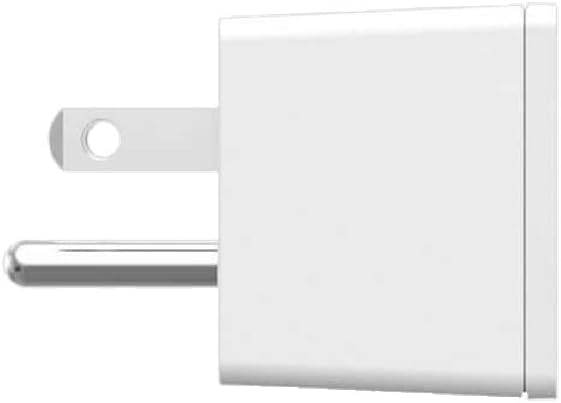
Figure 4: WeMo App interface for device control.
This image displays the WeMo app on a smartphone, showing a user interface with various lights and appliances listed, each with a toggle button for easy remote control.
Scheduling:
Within the WeMo app, navigate to the "Rules" or "Schedules" section. You can:
- Set specific times for devices to turn on or off daily or on selected days.
- Create "Away Mode" rules to randomize light activity for security.
- Sync schedules with local sunrise and sunset times.
Voice Control:
Once integrated with Amazon Alexa or Google Home, use voice commands to control your devices. Examples:
- "Alexa, turn on the living room lamp."
- "Hey Google, turn off the coffee maker."
- "Alexa, set the bedroom light to 50%." (If connected to a dimmable light source via a compatible WeMo dimmer, not this specific plug)
6. Maintenance
- Keep the smart plug clean by wiping it with a dry, soft cloth.
- Avoid exposing the device to extreme temperatures or humidity.
- Ensure the firmware of your WeMo Smart Plug is updated regularly through the WeMo app for optimal performance and security.
7. Troubleshooting
- Device Not Responding:
- Check if the smart plug is securely plugged into the outlet.
- Verify that the connected appliance is working correctly.
- Ensure your home Wi-Fi network is active and the smart plug is within range.
- Restart the smart plug by unplugging it for 10 seconds and plugging it back in.
- Check the WeMo app for any error messages or connectivity issues.
- Cannot Connect to Wi-Fi:
- Ensure your Wi-Fi network is 2.4 GHz. WeMo Smart Plugs do not support 5 GHz networks.
- Double-check your Wi-Fi password.
- Move the smart plug closer to your Wi-Fi router.
- Restart your Wi-Fi router.
- Voice Control Issues:
- Confirm that your WeMo account is correctly linked in the Alexa or Google Home app.
- Ensure your smart plug has been discovered by your voice assistant.
- Use the exact name you assigned to the device in the WeMo app.
8. Specifications
| Feature | Detail |
|---|---|
| Brand | WeMo |
| Model | 4T-T3X2-Y1HT |
| Operation Mode | Automatic |
| Connector Type | Plug In |
| Switch Type | Remote |
| Material | Plastic |
| Item Dimensions (L x W x H) | 30.48 x 25.4 x 6.35 inches |
| Controller Type | Amazon Alexa, Google Assistant |
| Control Method | Voice |
| Connectivity Protocol | Wi-Fi |
| Wattage | 1875 watts |
| Color | White |
| Number of Items | 2 (for 2-pack variant) |
| Item Weight | 11.2 ounces |
| International Protection Rating | IP00 |
| Certifications | FCC Part 15, UL Listed |
9. Warranty and Support
For warranty information and technical support, please refer to the official WeMo website or contact WeMo customer service. Keep your purchase receipt for warranty claims.
Online Support: Visit the official WeMo support page for FAQs, troubleshooting guides, and contact options.
Related documents4T-T3X2-Y1HT


Ask a question about this manual
Ask about setup, troubleshooting, compatibility, parts, safety, or missing instructions. Manuals+ will review the question and use this page’s manual context to help answer it.