1. Introduction
This manual provides detailed instructions for the ILEBYGO H18 2.4Ghz Mini Wireless Keyboard Touchpad Combo. This device combines a QWERTY keyboard with a multi-touch touchpad, offering versatile control for various smart devices. Please read this manual thoroughly before use to ensure proper operation and longevity of your device.
2. What's in the Box
- 1 x ILEBYGO H18 2.4G Mini Wireless Keyboard (Batteries included)
- 1 x USB Receiver
- 1 x USB Charging Cable
- 1 x User Manual
3. Product Overview
The ILEBYGO H18 features a compact design with a large touchpad area that doubles as a keyboard. Key indicators and control buttons are strategically placed for ease of use.
3.1 Device Layout

Figure 1: ILEBYGO H18 device dimensions and top view.
3.2 Indicators and Buttons
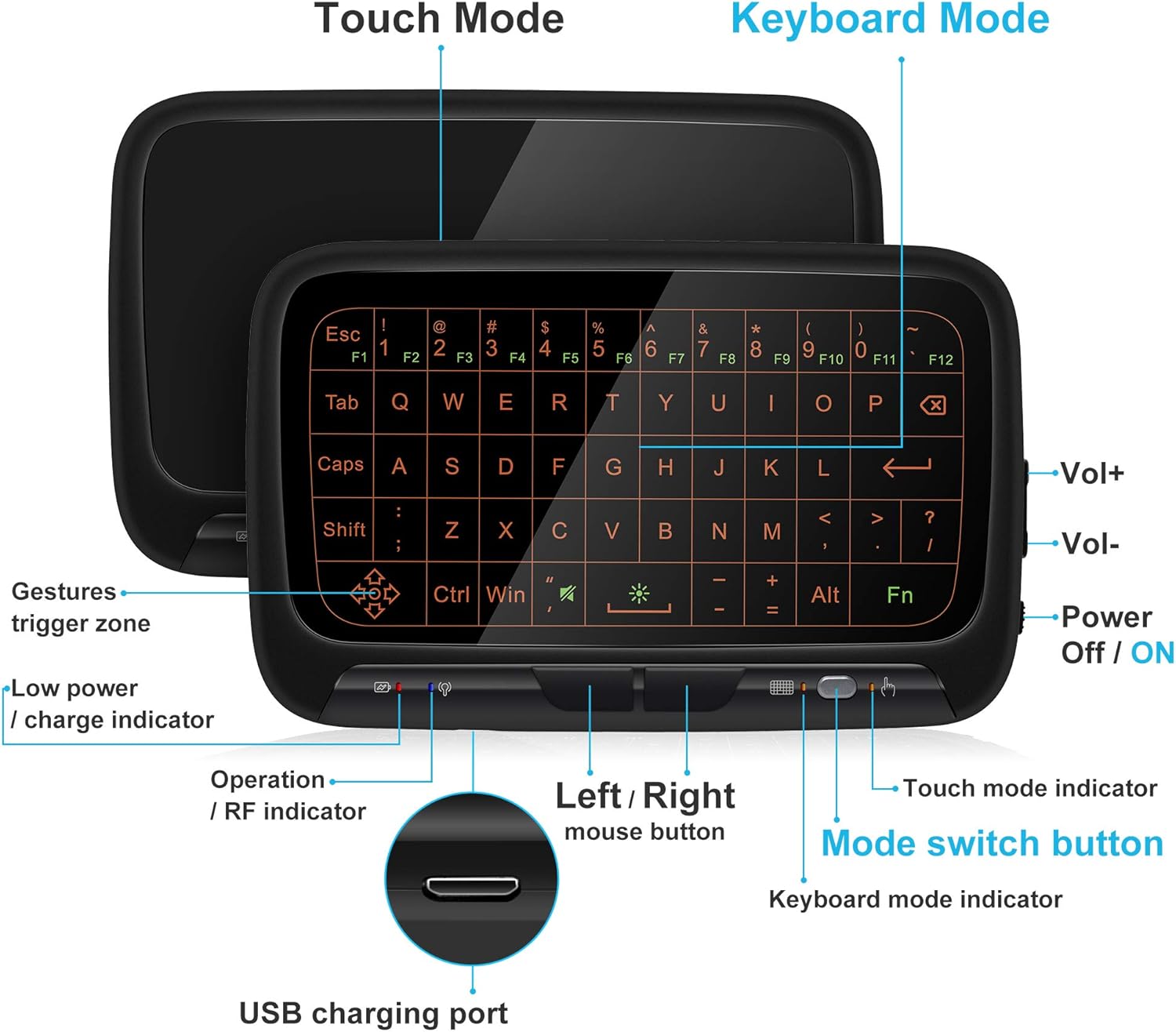
Figure 2: Front view of the ILEBYGO H18 with labeled indicators and buttons.
- USB Charging Port: For charging the device.
- Low Power / Charge Indicator: Shows battery status.
- Operation / RF Indicator: Indicates connection status.
- Left / Right Mouse Buttons: Physical buttons for mouse clicks.
- Mode Switch Button: Toggles between Touchpad Mode and Keyboard Mode.
- Touch Mode Indicator: Lights up when in Touchpad Mode.
- Keyboard Mode Indicator: Lights up when in Keyboard Mode.
- Volume Controls (Vol+ / Vol-): Adjusts audio output.
- Power Off / ON Switch: Turns the device on or off.
4. Setup
4.1 Charging the Device
- Connect the provided USB charging cable to the micro USB port on the device.
- Connect the other end of the cable to a USB power source (e.g., computer USB port, USB wall adapter).
- The Low Power / Charge Indicator will illuminate during charging. It will change or turn off when fully charged.

Figure 3: Charging the ILEBYGO H18.
4.2 Connecting to a Device
- Locate the USB receiver included in the package.
- Insert the USB receiver into an available USB port on your target device (e.g., Android TV Box, Projector, HTPC, PC, Laptop).
- Turn on the ILEBYGO H18 by sliding the Power Off / ON switch to the "ON" position.
- The Operation / RF Indicator will blink, then turn solid blue once a connection is established.

Figure 4: Connecting the ILEBYGO H18 via USB receiver.
5. Operating Instructions
5.1 Switching Between Touchpad and Keyboard Modes
Press the Mode Switch Button (located near the right mouse button) to toggle between Touchpad Mode and Keyboard Mode. The corresponding indicator light will illuminate to show the active mode.

Figure 5: Switching between Keyboard and Touchpad Modes.
5.2 Touchpad Mode Gestures
The touchpad supports various multi-touch gestures for intuitive navigation:

Figure 6: Touchpad gesture guide.
- Single Tap: Left mouse click.
- Two-Finger Tap: Right mouse click.
- Single Finger Drag: Mouse movement.
- Two-Finger Drag: Scroll the screen.
- Two-Finger Pinch: Zoom in/out.
- Three-Finger Swipe: Switch applications or access multitasking view.
5.3 Keyboard Mode
In Keyboard Mode, the touchpad area illuminates to display a full QWERTY keyboard layout. You can type by tapping on the virtual keys. The keyboard supports standard functions like Shift, Ctrl, Alt, and Windows key combinations.
5.4 Backlight Adjustment
The keyboard features a 3-level adjustable backlight. To adjust the backlight brightness, press the Fn key and the backlight adjustment key (often indicated by a sun icon or similar) simultaneously or in sequence, depending on the specific model's implementation.

Figure 7: Adjusting keyboard backlight.
6. Maintenance
- Keep the device clean by wiping it with a soft, dry cloth.
- Avoid exposing the device to extreme temperatures, moisture, or direct sunlight.
- Do not attempt to disassemble the device, as this will void the warranty.
- Charge the device regularly to maintain battery health, even if not in frequent use.
7. Troubleshooting
7.1 Device Not Responding
- Ensure the device is powered on.
- Check if the USB receiver is securely plugged into the host device.
- Verify the device battery is charged. Recharge if the low power indicator is active.
- Try plugging the USB receiver into a different USB port on the host device.
7.2 Backlight Not Working
- Ensure the device is in Keyboard Mode.
- Press the Fn key and the backlight adjustment key to cycle through brightness levels or turn it on.
7.3 Touchpad Sensitivity Issues
- Ensure the device is in Touchpad Mode.
- Clean the touchpad surface to remove any dirt or oils that might affect sensitivity.
8. Specifications
| Feature | Detail |
|---|---|
| Brand | ILEBYGO |
| Model Number | H18 |
| Connectivity Technology | 2.4Ghz Wireless (USB Receiver) |
| Keyboard Layout | QWERTY |
| Special Features | 3-Level Backlit, Rechargeable, Touchpad Mode, Keyboard Mode |
| Battery | Built-in 300mAh Li-ion battery |
| Product Dimensions | 5.6"L x 3.6"W x 0.7"H |
| Item Weight | 0.13 Pounds |
| Compatible Devices | Laptop, PC, Projector, Android TV Box, IPTV, HTPC |
9. Warranty & Support
ILEBYGO provides a 12-month warranty for this product. For any issues, questions, or support needs, please contact our customer service. Refer to the contact information provided with your purchase or visit the official ILEBYGO website.
Note: The warranty does not cover damage caused by misuse, accidents, or unauthorized modifications.
10. Product Videos
Video 1: Official overview of the ILEBYGO 2.4Ghz Mini Wireless Keyboard Touchpad Combo, demonstrating its features and functionality.


