Introduction
This manual provides comprehensive instructions for the setup, operation, and maintenance of your ASUS ZenDrive SDRW-08U9M-U external DVD-Writer. Please read this manual thoroughly before using the device to ensure proper functionality and longevity.
The ASUS ZenDrive SDRW-08U9M-U is a versatile external optical drive designed for reading and writing various CD and DVD formats, including DVD-RAM, DVD±R, and DVD±RW. It supports double-layer media and offers high-speed data transfer for both CD and DVD operations.
Product Overview

Figure 1: Top-down view of the ASUS ZenDrive SDRW-08U9M-U, showcasing its sleek black finish and compact design. The ASUS logo is centrally located on the top surface.

Figure 2: The ASUS ZenDrive SDRW-08U9M-U shown with its included USB Type-C and Type-A cables, highlighting its versatile connectivity options. The image also indicates features like Disc Encryption II, Nero Back It Up, and M-DISC Support.

Figure 3: Illustration of the ZenDrive's dual interface compatibility, showing both a USB-A to Mini-USB Y-cable and a USB-C to Mini-USB cable. This ensures broad compatibility with various computer systems.
Setup and Installation
System Requirements
- Operating System: Multiple Compatible Operating Systems (Windows, macOS).
- Hardware Platform: Laptop or Desktop PC with available USB port.
- USB Port: USB 2.0 or higher recommended for optimal performance.
Connecting the Device
- Ensure your computer is powered on.
- Select the appropriate USB cable (USB-A or USB-C) based on your computer's available ports.
- Connect the Mini-USB end of the cable to the port on the ASUS ZenDrive.
- Connect the other end of the USB cable (USB-A or USB-C) to an available USB port on your computer.
- The operating system should automatically detect and install the necessary drivers. A notification will appear once the device is ready for use.

Figure 4: The ASUS ZenDrive SDRW-08U9M-U connected to a laptop, illustrating its compatibility with both Mac and Windows operating systems. This image emphasizes the plug-and-play nature of the device.
Operation
Inserting and Ejecting Discs
- To open the disc tray, gently press the eject button located on the front of the drive.
- Carefully place the disc onto the tray with the label side facing up. Ensure the disc is seated correctly on the spindle.
- Gently push the disc tray back into the drive until it clicks shut.
- To eject the disc, press the eject button again. Alternatively, you can eject the disc through your operating system's file explorer (e.g., right-click on the drive icon and select "Eject").
Reading Discs
Once a disc is inserted and the tray is closed, your operating system should automatically detect the disc. Depending on your system settings, an autoplay prompt may appear. You can also access the disc's contents by navigating to "This PC" or "My Computer" (Windows) or "Finder" (macOS) and selecting the optical drive icon.
Writing and Burning Discs
The ASUS ZenDrive supports writing to various CD and DVD formats. To burn data, audio, or video to a disc, you will need compatible burning software. The drive is designed to work seamlessly with popular burning applications. Refer to your chosen software's instructions for detailed steps on creating discs.
- Data Backup: Use the drive for archiving important files and documents.
- Media Creation: Create audio CDs, video DVDs, or photo discs.
- Software Installation: Install software from physical media.

Figure 5: The ASUS ZenDrive SDRW-08U9M-U connected to a laptop, demonstrating its utility as a robust backup solution. Icons indicate features such as full backup, disc encryption, and a simplified 3-step burning process.
Maintenance and Care
- Cleaning: Use a soft, dry, lint-free cloth to clean the exterior of the drive. Do not use liquid cleaners or abrasive materials.
- Disc Handling: Always handle discs by their edges to avoid fingerprints and scratches on the data surface.
- Storage: Store the drive in a cool, dry place away from direct sunlight and extreme temperatures. When not in use, disconnect it from your computer.
- Avoid Obstructions: Do not insert foreign objects into the disc tray or any openings of the drive.
Troubleshooting
| Problem | Possible Cause | Solution |
|---|---|---|
| Drive not detected by computer. | Loose USB connection, faulty USB port, driver issue. |
|
| Disc not reading or writing. | Dirty or scratched disc, incorrect disc type, faulty disc, drive lens dirty. |
|
| Disc tray not opening/closing. | Power issue, mechanical obstruction. |
|
Specifications
| Feature | Detail |
|---|---|
| Model Number | SDRW-S08U9M-R |
| Brand | ASUS |
| Connectivity Technology | USB |
| Supported Media | DVD-RAM, DVD±R, DVD±RW, CD-R, CD-RW, Double-Layer Media |
| CD Read Speed | Up to 24x |
| CD Write/Rewrite Speed | Up to 24x |
| DVD Read Speed | Up to 8x |
| DVD Write/Rewrite Speed | Up to 8x |
| Item Weight | 8.6 ounces (245 Grams) |
| Product Dimensions (LxWxH) | 5.33 x 5.61 x 0.55 inches (13.55 x 14.25 x 1.39 cm) |
| Color | Black |
| Cache Size | 512 KB |
| Data Transfer Rate | 0.48 Megabits Per Second (USB 2.0 speed) |

Figure 6: Detailed dimensions of the ASUS ZenDrive SDRW-08U9M-U, showing its ultra-slim profile with measurements of 14.25 cm (length), 13.55 cm (width), and 1.39 cm (height).
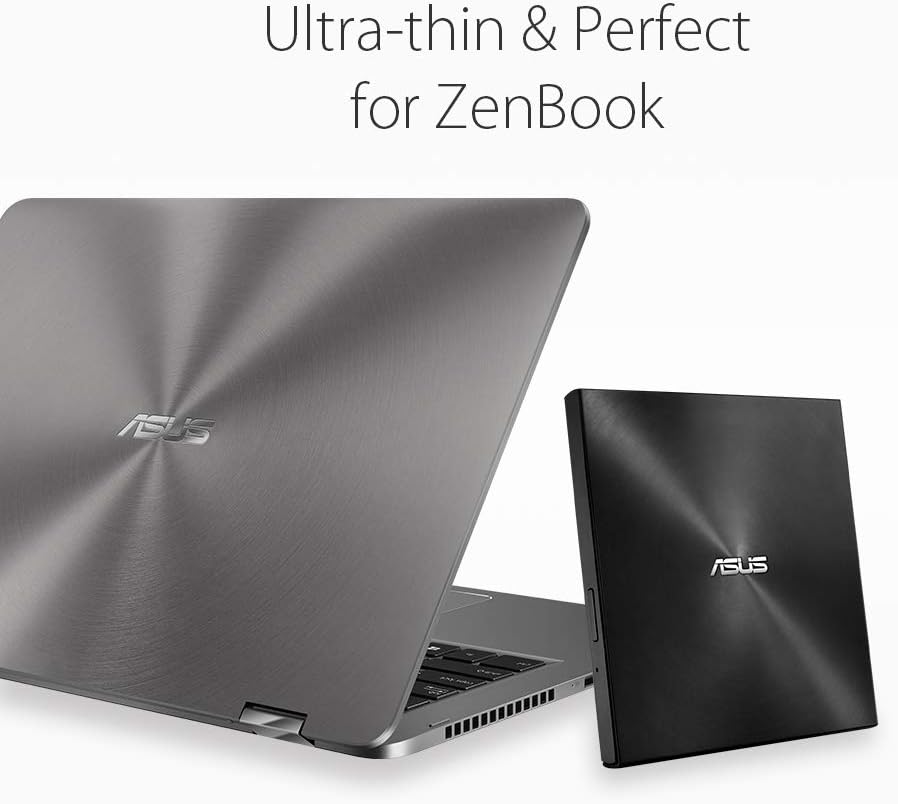
Figure 7: The ASUS ZenDrive SDRW-08U9M-U positioned next to an ASUS ZenBook, illustrating its ultra-thin design and perfect portability match for slim laptops.
Warranty and Support
For warranty information, technical support, or service inquiries, please visit the official ASUS support website or contact ASUS customer service. Keep your purchase receipt and product serial number handy for faster assistance.
ASUS Support Website: www.asus.com/support/


