
1. Introduction
This manual provides detailed instructions for the iGPSPORT GPS Bike Computer, a wireless cycling computer designed to track and display your riding data. It features a high-sensitivity GPS receiver for accurate positioning and is compatible with ANT+ sensors for extended data collection. Please read this manual thoroughly before using your device.
2. Package Contents
- iGS50E GPS Bike Computer x1
- Micro USB Cable x1
- Standard Bike Mount x1
- User Manual x1
3. Product Overview
The iGPSPORT GPS Bike Computer features a 2.2-inch LCD screen with anti-glare properties for clear visibility in various lighting conditions. It is equipped with intuitive buttons for easy navigation and control.
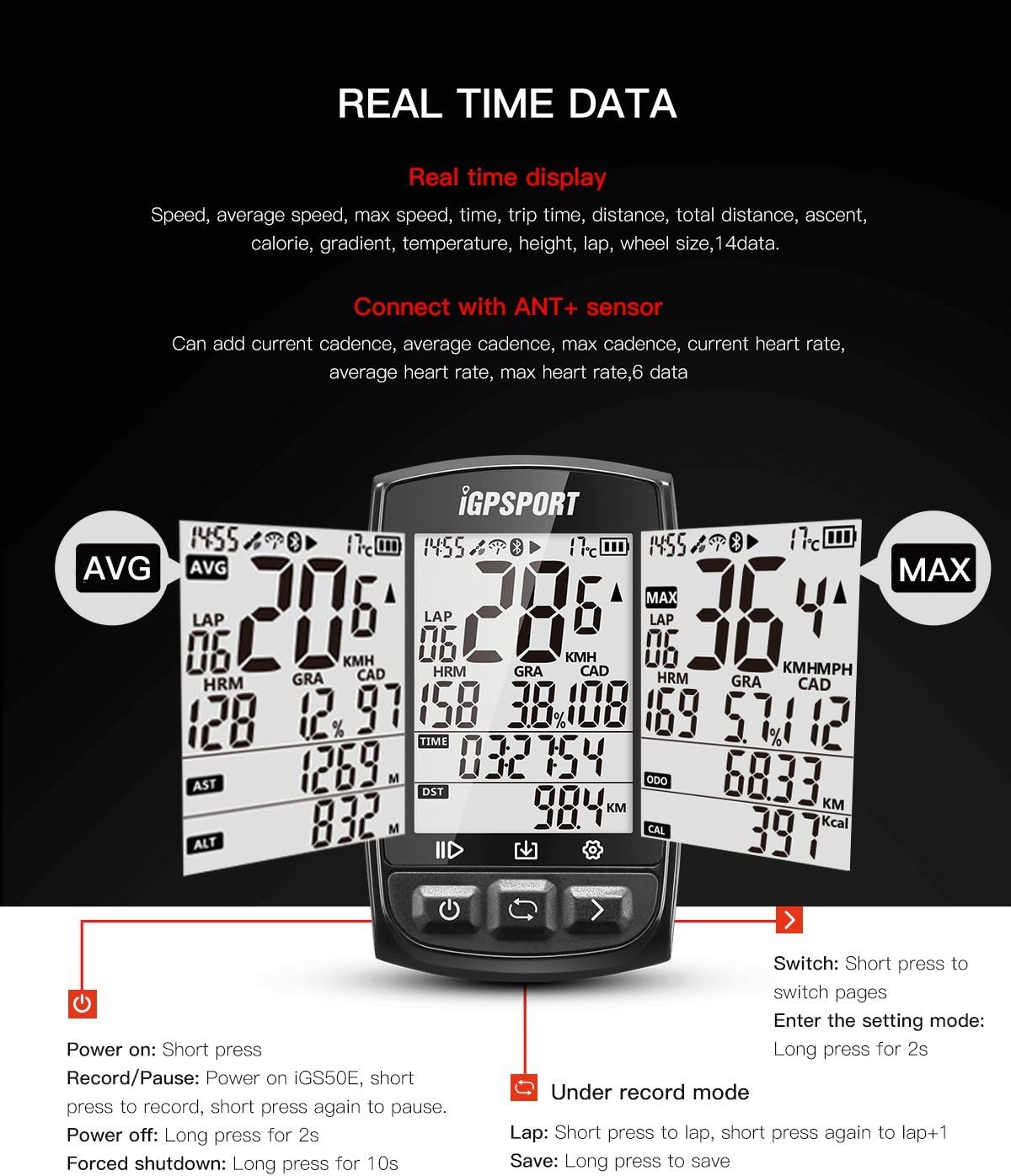
Figure 3.1: Front view of the iGPSPORT GPS Bike Computer.

Figure 3.2: Screen visibility in outdoor conditions.
Button Functions:

Figure 3.3: Real-time data display and button functions.
- Left Button (Power/Record): Short press to power on. Short press to record/pause during a ride. Long press for 2 seconds to power off. Long press for 10 seconds for forced shutdown.
- Middle Button (Return/Save): Short press to switch pages. Long press for 2 seconds to enter setting mode. Long press to save data when in record mode.
- Right Button (Next Page): Short press to switch pages.
4. Setup
4.1 Mounting the Device
The iGPSPORT GPS Bike Computer comes with an Out-Front Bike Mount. Attach the mount securely to your bike handlebar (fits handlebars under 31.8 mm). Ensure the mount is tight enough to prevent slipping during rides. Once the mount is in place, slide the bike computer onto the mount until it clicks securely.

Figure 4.1: iGPSPORT GPS Bike Computer mounted on a bicycle handlebar.
4.2 Initial Power On and GPS Acquisition
To power on the device, short press the left button. For initial GPS acquisition, ensure the device is in an open outdoor area with a clear view of the sky. Keep the device still while it searches for GPS signals. This process may take a few moments. Once GPS is acquired, the device is ready for use.
5. Operating Instructions
5.1 Recording a Ride
After powering on and acquiring GPS, short press the left button to start recording your ride. A 'play' icon will appear on the screen, indicating that recording has begun. To pause recording, short press the left button again. To resume, short press the left button once more. To save the recorded data, hold down the middle button for 2 seconds until you hear a beep and release.
5.2 Automatic Start-Stop Function
The device features an automatic start-stop function. It will automatically pause recording when you stop moving and resume when you start moving again. This ensures accurate tracking of your active riding time without manual intervention.
5.3 Automatic Backlight
The device includes an automatic backlight function that adjusts according to the sunrise and sunset times, optimizing screen visibility and battery life.
5.4 Data Display
The device displays 14 types of real-time data, including speed, average speed, max speed, time, trip time, distance, total distance, ascent, altitude, calorie, gradient, temperature, and lap. When connected to ANT+ sensors, it can display an additional 6 data items such as current cadence, average cadence, max cadence, current heart rate, average heart rate, and max heart rate.
5.5 Motion Wake-up
The device utilizes an acceleration sensor for millisecond motion detection. It automatically enters a dormancy (sleep) state when not in motion and wakes up when motion is detected, conserving battery life.
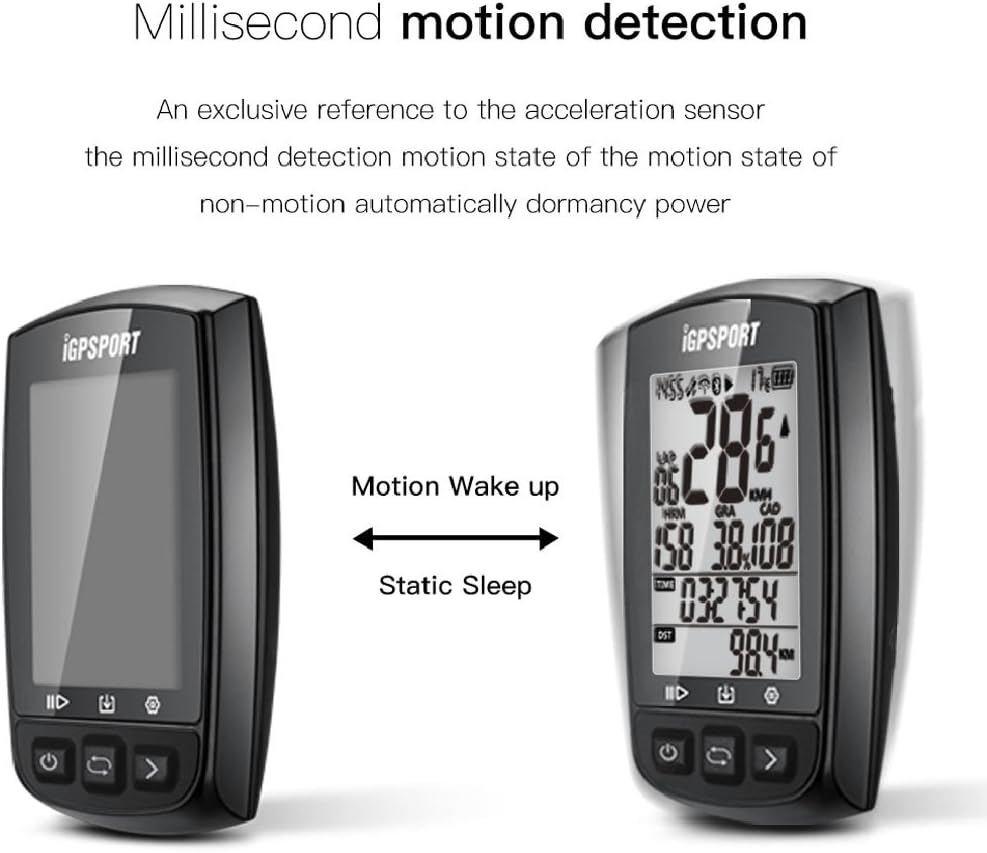
Figure 5.1: Motion wake-up and static sleep states.
5.6 ANT+ Sensor Pairing
The iGS50E is compatible with ANT+ Heart Rate Monitors, Cadence Sensors, and Speed Sensors. To pair a sensor, ensure the sensor is active and within range. Navigate to the device's settings menu (long press the middle button) and select the option to search for ANT+ sensors. Follow the on-screen prompts to complete the pairing process.
6. Connectivity & Data Management
6.1 Smartphone Synchronization
To synchronize your iGS50E with your smartphone, download the official iGPSPORT APP or STRAVA APP from Google Play or the App Store. Enable Bluetooth on your smartphone and open the app. Within the app, search for your iGS50E bike computer to establish a connection. This allows for data transfer and further analysis.
6.2 Data Upload and Sharing
Once synchronized with the app, your riding data can be instantly uploaded and shared. The platform supports cloud storage and analysis of your activities.

Figure 6.1: Data flow from device to app and cloud platform.
7. Maintenance
7.1 Waterproofing
The iGPSPORT GPS Bike Computer has an International Protection Rating of IPX7, meaning it is protected against immersion in water up to 1 meter for 30 minutes. It can be used on rainy days, provided the USB plug is securely closed. After use in wet conditions, please dry the device immediately to prevent damage.

Figure 7.1: Device demonstrating IPX7 waterproofing.
7.2 General Care
Clean the device with a soft, damp cloth. Avoid using abrasive cleaners or solvents. Store the device in a cool, dry place when not in use. Do not expose it to extreme temperatures.
8. Troubleshooting
8.1 Unit Conversion (Metric to Imperial)
To change units from metric to imperial, refer to the user manual (which can be downloaded from the official website) for specific instructions on navigating to Setting Mode 1 to Mode 4. The system automatically converts feet to miles once the distance exceeds 5280 feet.
8.2 Inaccurate Data Display
If data appears inaccurate, ensure the bike computer is kept still and in an open area to search for GPS signals. The system automatically updates data once a stable GPS connection is established. Environmental factors like dense tree cover can affect GPS accuracy.
8.3 Sensor Connection Issues
Ensure your ANT+ sensors (Heart Rate Monitor, Cadence Sensor, Speed Sensor) are active and have fresh batteries. When first using, search for the ANT+ sensors within the device's settings. The iGS50E supports ANT+ sensors but does not support power meters.
8.4 Smartphone Synchronization Problems
If you encounter issues syncing with your smartphone, verify that the iGPSPORT or STRAVA APP is installed, Bluetooth is enabled on your phone, and you are searching for the iGS50E within the app. Ensure the device is not connected to another phone or computer.
8.5 Device Not Powering On / White Screen
If the device fails to power on or displays a persistent white screen, attempt a forced shutdown by long-pressing the power button for 10 seconds. Ensure the device is fully charged. If the issue persists after charging and attempting a forced shutdown, please contact customer support for assistance.
9. Specifications
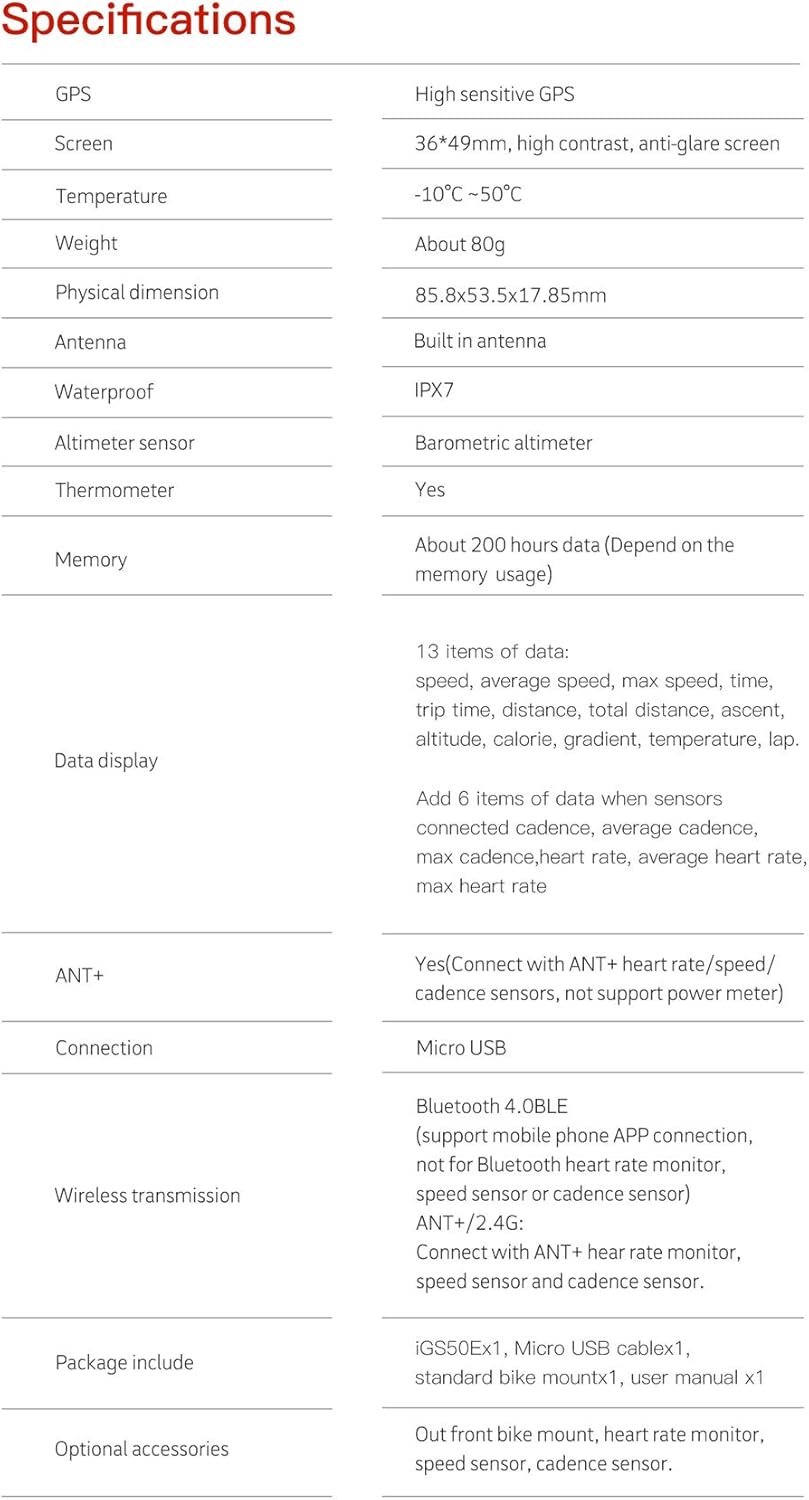
Figure 9.1: Detailed product specifications.
| Feature | Detail |
|---|---|
| Brand | iGPSPORT |
| Model Number | 4347459772 |
| Color | Black |
| Product Dimensions | 2.11"L x 0.7"W x 3.38"H (85.8 x 53.5 x 17.85 mm) |
| Item Weight | 80 Grams |
| Screen Size | 2.2 Inches (36*49mm) |
| Display Type | LCD, High contrast, Anti-glare |
| GPS | High sensitive GPS |
| Antenna | Built-in |
| Operating Temperature | -10°C ~ 50°C |
| Waterproof Rating | IPX7 |
| Altimeter Sensor | Barometric altimeter |
| Thermometer | Yes |
| Memory | About 200 hours data (depends on usage) |
| Data Display | 13 items (speed, average speed, max speed, time, trip time, distance, total distance, ascent, altitude, calorie, gradient, temperature, lap) + 6 items with connected ANT+ sensors (current/average/max cadence, current/average/max heart rate) |
| ANT+ Compatibility | Yes (Connect with ANT+ heart rate/speed/cadence sensors, not support power meter) |
| Connection | Micro USB |
| Wireless Transmission | Bluetooth 4.0BLE (support mobile phone APP connection, not for Bluetooth heart rate monitor, speed sensor or cadence sensor), ANT+/2.4G (Connect with ANT+ heart rate monitor, speed sensor and cadence sensor) |
| Battery Cell Composition | Lithium Polymer |
| Human Interface Input | Buttons |
10. Warranty and Support
For warranty information or technical support, please refer to the documentation included with your product or visit the official iGPSPORT website. If you encounter any issues not covered in this manual, please contact iGPSPORT customer service for assistance.
Contact Email: service@igpsport.com