Introduction
Thank you for choosing the Corsair Dominator Platinum Airflow RGB LED Memory Fan Cooling CMDAF2. This product is designed to provide enhanced cooling for your system's memory modules, ensuring optimal performance and stability. It features high airflow, quiet operation, and customizable RGB LED lighting to complement your system's aesthetics. This manual provides essential information for installation, operation, maintenance, and troubleshooting.
Safety Information
- Always disconnect power from your computer before installing or removing any components.
- Handle components with care to avoid damage from electrostatic discharge. Consider using an anti-static wrist strap.
- Ensure proper ventilation around your computer to prevent overheating.
- Do not attempt to disassemble or modify the cooling unit. This may void your warranty and cause damage.
- Keep out of reach of children.
Package Contents
Please verify that all items are present in your package:
- Corsair Dominator Platinum Airflow RGB LED Memory Fan Cooling Unit
- Mounting Hardware (pre-attached or separate, depending on model revision)
- Quick Start Guide (this manual serves as a comprehensive guide)
Setup and Installation
Follow these steps to install your Corsair Dominator Platinum Airflow RGB LED Memory Fan Cooling unit:
- Prepare Your System: Power off your computer and disconnect the power cable from the wall outlet. Open your computer case.
- Locate Memory Slots: Identify the memory modules (RAM) you wish to cool. The Dominator Platinum Airflow unit is designed to sit directly above your RAM sticks.
- Position the Cooler: Carefully place the cooling unit over your memory modules. The adjustable feet or mounting brackets should align with the retention clips or mounting points on your motherboard or case.
- Secure the Cooler: Use the provided mounting hardware to secure the cooling unit firmly in place. Ensure it is stable and does not obstruct other components or airflow. The design allows for easy installation and fit on most motherboards.
- Connect Power: Connect the 4-pin power connector from the cooling unit to an available 4-pin fan header on your motherboard or a compatible fan controller.
- Connect RGB (if applicable): If your unit includes a separate RGB connector, connect it to a compatible RGB header on your motherboard or a Corsair iCUE controller (e.g., Commander Pro) for lighting control.
- Close Case and Power On: Close your computer case, reconnect the power cable, and power on your system.

Image: The Corsair Dominator Platinum Airflow RGB LED Memory Fan Cooling unit, showcasing its design with illuminated red LEDs.

Image: A front view of the Corsair Dominator Platinum Airflow RGB LED Memory Fan Cooling unit, highlighting its sleek design and fan placement.
Operating Instructions
Fan Speed Control
The fan speed of your Dominator Platinum Airflow unit can be controlled through the Corsair Link software. This requires a Corsair Commander Pro (sold separately) connected to your system. Once connected, you can customize fan curves and monitor temperatures for optimal cooling performance.
RGB LED Customization
Personalize the LED colors of your cooling unit with 16.8 million values to match your system's theme or other Corsair RGB components. This customization is typically managed through Corsair's iCUE software (when connected to a compatible controller like the Commander Pro). The software allows for various lighting effects and synchronization.
Maintenance
To ensure the longevity and optimal performance of your cooling unit, periodic maintenance is recommended:
- Dust Removal: Regularly inspect the fan blades and heatsink fins for dust accumulation. Use compressed air to gently blow away dust. Avoid using harsh chemicals or abrasive materials.
- Cleaning: For stubborn dirt, a soft, dry cloth can be used to wipe down the exterior. Ensure the unit is powered off and disconnected before cleaning.
- Inspection: Periodically check all connections to ensure they are secure.
Troubleshooting
If you encounter issues with your Dominator Platinum Airflow unit, refer to the following common problems and solutions:
- Fan Not Spinning:
- Ensure the 4-pin power connector is securely plugged into a functional fan header on your motherboard or controller.
- Check your motherboard's BIOS/UEFI settings or fan control software to ensure the fan header is enabled and configured correctly.
- Test the fan on a different fan header if available.
- LEDs Not Lighting Up or Incorrect Colors:
- Verify that the RGB connector (if separate) is properly connected to a compatible RGB header or Corsair iCUE controller.
- Ensure Corsair iCUE software is installed and updated to the latest version.
- Check iCUE software settings to confirm the lighting effects are enabled and configured for the device.
- If using a motherboard's RGB header, ensure the motherboard's RGB software is installed and configured.
- Poor Cooling Performance:
- Ensure the fan is spinning at an appropriate speed. Adjust fan curves in Corsair Link/iCUE software if necessary.
- Clean any dust accumulation from the fan blades and heatsink fins.
- Verify that the unit is securely mounted and positioned correctly over the memory modules.
Specifications
Detailed specifications for the Corsair Dominator Platinum Airflow RGB LED Memory Fan Cooling CMDAF2:
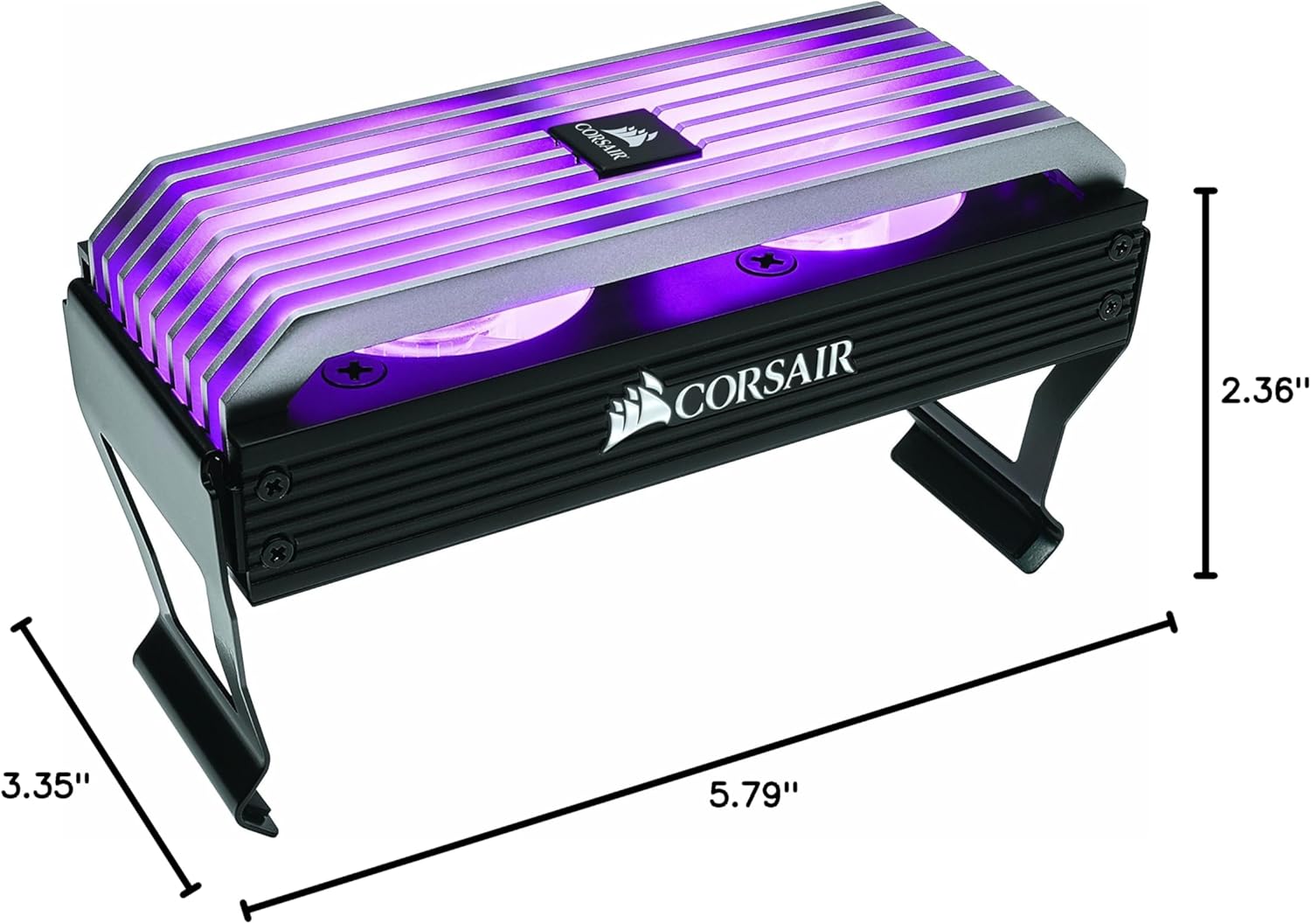
Image: The Corsair Dominator Platinum Airflow RGB LED Memory Fan Cooling unit, illustrating its physical dimensions: 5.79"L x 2.36"W x 3.35"H.
| Feature | Specification |
|---|---|
| Product Dimensions | 5.79"L x 2.36"W x 3.35"H |
| Brand | Corsair |
| Power Connector Type | 4-Pin |
| Cooling Method | Fan |
| Compatible Devices | Desktop |
| Noise Level | 25.6 Decibels |
| Maximum Rotational Speed | 2700 RPM |
| UPC | 843591069984 |
Warranty and Support
Corsair products are designed for reliability and performance. For information regarding warranty coverage, technical support, and frequently asked questions, please visit the official Corsair support website:
You can also find drivers, software updates (like Corsair iCUE), and community forums for additional assistance.


