
1. Introduction
This manual provides comprehensive instructions for the installation, operation, and maintenance of your Antec EarthWatts Gold EA650G Pro 650W ATX Power Supply. Please read this manual thoroughly before installation and use to ensure proper functionality and safety.
2. Safety Information
Important Safety Warnings:
- Always disconnect the AC power cord from the wall outlet before installing, removing, or cleaning the power supply.
- This power supply is designed for use in personal computers only. Using it for other purposes may cause damage and void the warranty.
- Do not open the power supply casing. High voltages are present inside, and opening the unit will void the warranty and pose a risk of electric shock.
- Ensure proper grounding.
- Avoid installing the power supply in environments with high humidity, extreme temperatures, or excessive dust.
- Use only the modular cables provided with this power supply. Third-party cables may not be compatible and could cause damage.
3. Package Contents
Verify that all items are present in your package:
- Antec EarthWatts Gold EA650G Pro 650W ATX Power Supply
- Modular Cable Set (PCI-E, SATA, Peripheral)
- AC Power Cord
- Mounting Screws
- User Manual (this document)
4. Installation
Follow these steps to install your power supply:
- Preparation: Ensure your computer system is completely powered off and the AC power cord is disconnected from the wall outlet. Open your computer case.
- Remove Old PSU (if applicable): If replacing an existing power supply, disconnect all cables from components and unscrew the old PSU from the case.
- Mount the PSU: Carefully slide the Antec EarthWatts Gold EA650G Pro into the power supply bay of your computer case. Align the screw holes and secure the PSU with the provided mounting screws.
- Connect Main Power (24-pin ATX): Connect the 24-pin ATX cable from the power supply to the corresponding port on your motherboard. Ensure it clicks into place.
- Connect CPU Power (4+4-pin EPS12V): Connect the 4+4-pin EPS12V cable to the CPU power connector on your motherboard. This is usually located near the CPU socket.
- Connect PCI-E Power (6+2-pin): If your graphics card requires additional power, connect the appropriate 6+2-pin PCI-E cables from the power supply to your graphics card(s).
- Connect SATA Power: Connect SATA power cables to your storage drives (SSDs, HDDs) and optical drives.
- Connect Peripheral Power (Molex): Connect peripheral power cables to any other components requiring Molex connectors, such as case fans or older accessories.
- Cable Management: Route cables neatly to improve airflow and aesthetics within your case.
- Close Case and Connect AC: Once all connections are secure, close your computer case. Connect the AC power cord to the power supply and then to a wall outlet.
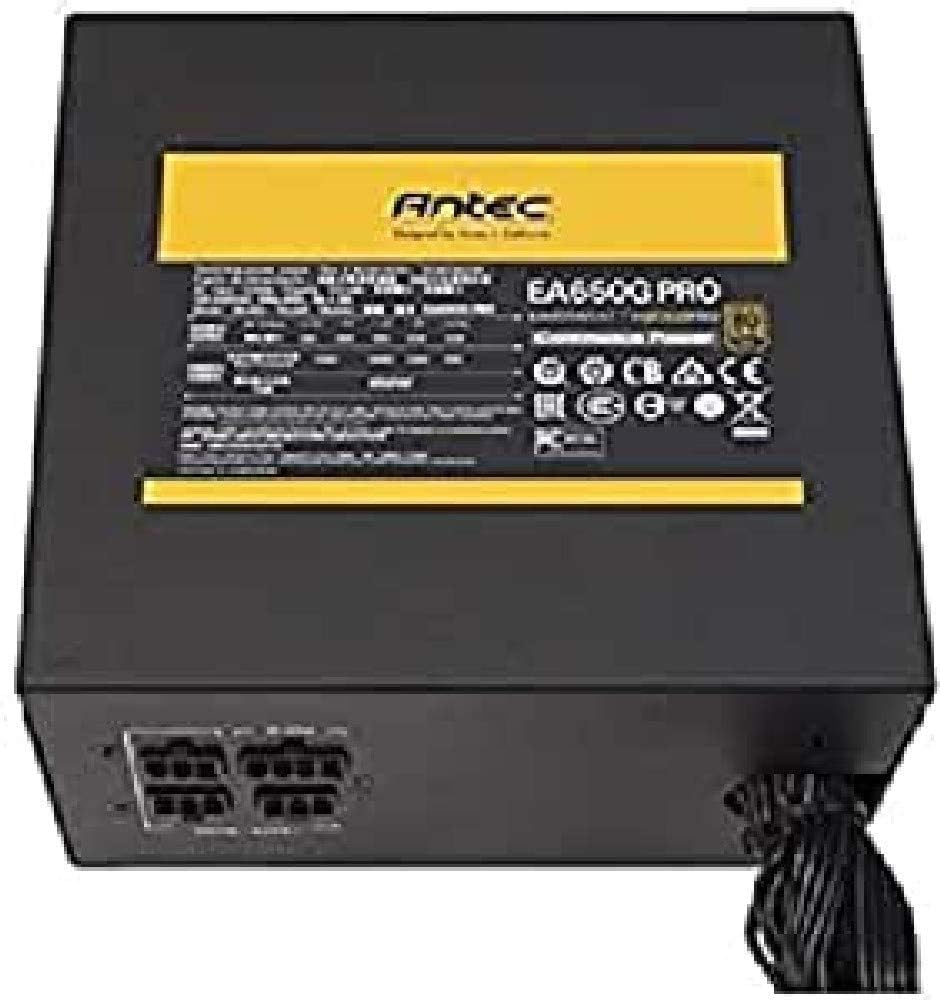
Image: Antec EarthWatts Gold EA650G Pro 650W Power Supply. This image displays the Antec EarthWatts Gold EA650G Pro power supply unit. The top surface features a yellow label with the Antec logo and model number EA650G Pro, along with electrical specifications. The side visible shows multiple modular cable connection ports, indicating its semi-modular or fully modular design, and a bundle of fixed cables exiting the unit.
5. Operating Instructions
After successful installation, you can power on your computer system. The Antec EarthWatts Gold EA650G Pro is designed for reliable and efficient operation.
- Power On: Press the power button on your computer case. The power supply will initiate and provide stable power to all connected components.
- Efficiency: This power supply features 80 PLUS Gold certification, indicating high power efficiency, which reduces heat generation and operating costs.
- Fan Operation: The integrated fan will operate to cool the power supply. Its speed may vary based on load and temperature to maintain optimal performance and acoustics.
6. Maintenance
Proper maintenance ensures the longevity and optimal performance of your power supply:
- Dust Cleaning: Periodically clean dust from the power supply's fan grille and vents using compressed air. Ensure the system is powered off and unplugged before cleaning.
- Airflow: Ensure that the power supply's intake and exhaust vents are not obstructed. Maintain good airflow within your computer case.
- Cable Integrity: Occasionally check that all power cables are securely connected and not damaged.
7. Troubleshooting
If you encounter issues with your power supply, refer to the following common troubleshooting steps:
- No Power:
- Ensure the AC power cord is securely connected to both the power supply and the wall outlet.
- Check the power switch on the back of the power supply; it should be in the 'ON' (I) position.
- Verify all internal power cables (24-pin ATX, CPU, GPU) are correctly seated.
- Test the wall outlet with another device to confirm it has power.
- System Instability/Random Shutdowns:
- Ensure the power supply is adequately rated for all your system components.
- Check for overheating. Ensure proper case airflow and clean any dust from the PSU fan.
- Verify all connections are secure. Loose connections can cause intermittent power delivery.
- Excessive Fan Noise:
- Clean any dust buildup from the fan blades and grille.
- Ensure the power supply is not overloaded, causing the fan to spin at maximum RPM.
- If the noise is a grinding or clicking sound, it may indicate a fan bearing issue. Contact support.
If problems persist after following these steps, contact Antec customer support.
8. Specifications
| Brand | Antec |
| Model | EA650G Pro |
| Wattage | 650W |
| Form Factor | ATX |
| Efficiency Certification | 80 PLUS Gold |
| Dimensions (L x W x H) | 6.5 x 5.91 x 3.39 inches (16.5 x 15 x 8.6 cm) |
| Weight | 5.06 pounds (2.3 kg) |
| Cooling Method | Air |
| Connector Type | ATX |
| Compatible Devices | Personal Computer |
| Date First Available | December 1, 2017 |
9. Warranty and Support
Antec products are manufactured to high quality standards and are backed by a limited warranty. Please refer to the official Antec website or your product packaging for specific warranty terms and conditions applicable to your region.
For technical support, troubleshooting assistance, or warranty claims, please visit the official Antec support website or contact their customer service department directly. Contact information can typically be found on the Antec website or in your product's packaging.