1. Introduction
This manual provides essential information for setting up, operating, maintaining, and troubleshooting your Dell Precision 7520 Mobile Workstation. Please read this guide thoroughly to ensure optimal performance and longevity of your device.
The Dell Precision 7520 is a high-performance mobile workstation designed for demanding professional applications, featuring an Intel i7-7820HQ processor, 16GB DDR4 RAM, and a 512GB NVMe SSD.
2. Setup
2.1 Unboxing and Initial Inspection
Carefully remove all components from the packaging. Verify that the following items are included:
- Dell Precision 7520 Mobile Workstation
- AC Adapter
- User Manual (this document)
Inspect the workstation for any physical damage. If any damage is found, contact Dell support immediately.
2.2 Connecting Power
- Connect the AC adapter cable to the power connector on the workstation.
- Plug the power cable into a grounded electrical outlet.
- The battery will begin charging automatically.
2.3 Initial Boot and Operating System Setup
Press the power button to turn on the workstation. The system will guide you through the initial setup of Windows 10 Pro. Follow the on-screen instructions to configure your language, region, network settings, and user account.
2.4 Connecting Peripherals
Connect external devices such as a mouse, keyboard, external monitor, or USB drives to the available ports on your workstation. The Dell Precision 7520 features multiple USB 3.0 ports and a DisplayPort 1.4 for external displays.

Figure 2.4.1: Front-left view of the Dell Precision 7520 Mobile Workstation with the screen open, showing the keyboard and various ports on the left side.
3. Operating Your Workstation
3.1 Power On/Off
- Power On: Press the power button located on the top-right of the keyboard deck.
- Power Off: Click the Start button in Windows, then select Power > Shut down.
- Sleep Mode: Close the lid or select Power > Sleep from the Start menu.
3.2 Keyboard and Touchpad
The workstation includes a full-sized keyboard and a precision touchpad. The touchpad supports multi-touch gestures for navigation and control within Windows 10 Pro.
3.3 Display Features
Your Dell Precision 7520 features a 15.6-inch display with a resolution of 1920 x 1080 pixels. This display supports high-definition content and provides ample screen real estate for professional tasks.

Figure 3.3.1: Front view of the Dell Precision 7520 Mobile Workstation with the screen open, showcasing the display and keyboard.
3.4 Connectivity
- USB Ports: Utilize the four USB 3.0 ports for connecting external devices.
- Display Output: The DisplayPort 1.4 supports high-resolution external monitors, including 8K resolution and HDR.
- Wireless: Integrated Bluetooth allows for wireless peripheral connections.
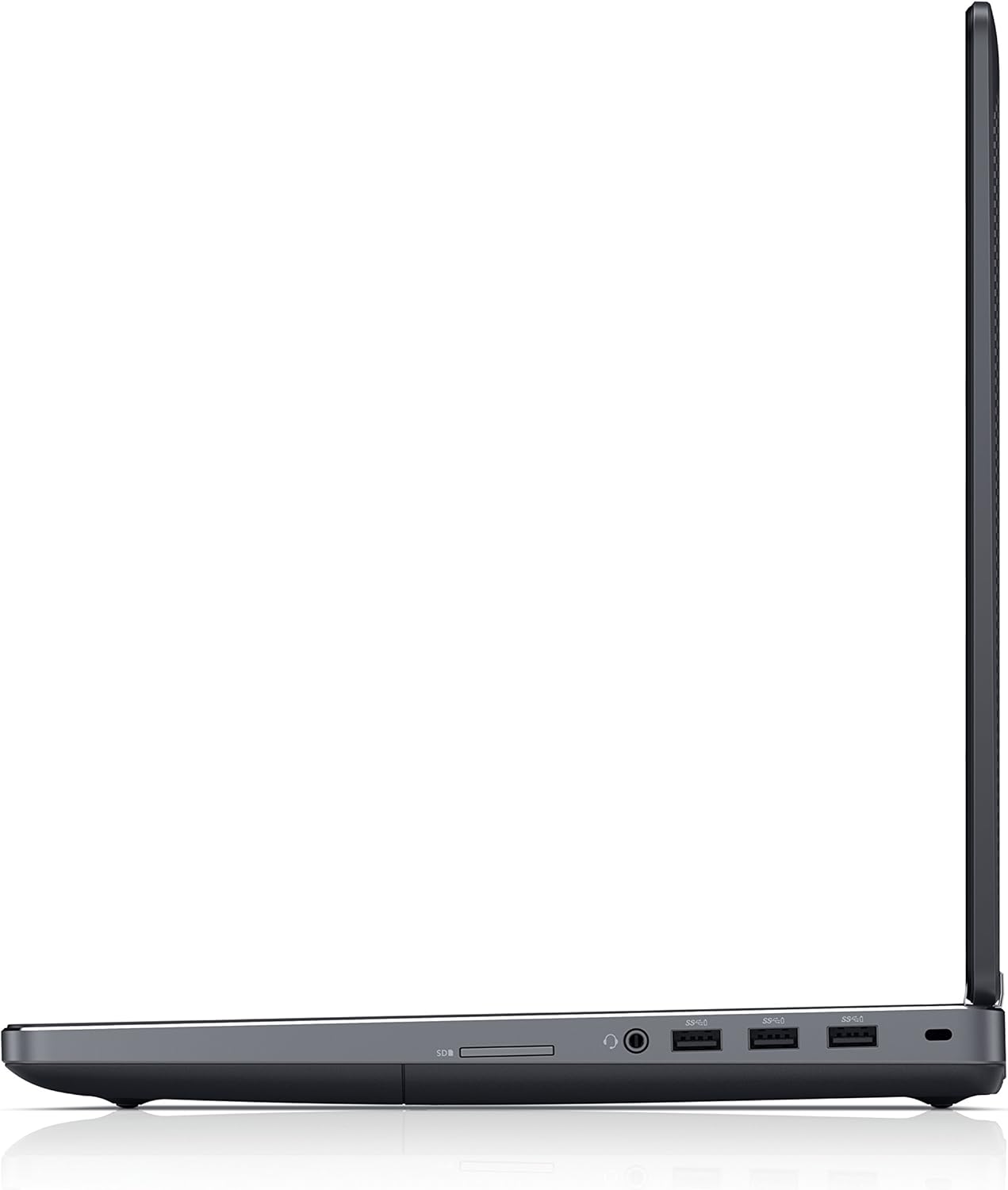
Figure 3.4.1: Left side view of the Dell Precision 7520 Mobile Workstation, highlighting the various ports and slots.
4. Maintenance
4.1 Cleaning Instructions
- Screen: Use a soft, lint-free cloth lightly dampened with water or a non-abrasive screen cleaner. Do not spray liquid directly onto the screen.
- Keyboard and Chassis: Use a soft cloth to wipe surfaces. A can of compressed air can remove dust from between keys.
- Ports: Ensure ports are free of dust and debris to maintain proper connectivity.
4.2 Battery Care
The workstation is powered by a Lithium Ion battery. To maximize battery life:
- Avoid extreme temperatures.
- Do not fully discharge the battery frequently.
- Store the workstation with a partial charge (around 50%) if not used for extended periods.
4.3 Software Updates
Regularly update your Windows 10 Pro operating system and Dell drivers to ensure optimal performance, security, and compatibility. Check for updates through Windows Update and Dell's official support website.
4.4 Storage Management
The 512GB NVMe SSD provides fast storage. Regularly manage your files and applications to prevent the drive from becoming full, which can impact performance. Consider using cloud storage for large files.
5. Troubleshooting
This section addresses common issues you might encounter with your Dell Precision 7520 Mobile Workstation.
5.1 Power Issues
- Workstation does not turn on: Ensure the AC adapter is securely connected to both the workstation and a working power outlet. Check the power indicator light on the adapter.
- Battery not charging: Verify the AC adapter connection. If the issue persists, the battery or adapter may require service.
5.2 Display Problems
- No image on screen: Ensure the workstation is powered on. If an external monitor is connected, try disconnecting it. Adjust display brightness using keyboard function keys.
- External monitor not detected: Verify the cable connection to the DisplayPort. Ensure the external monitor is powered on and set to the correct input source.
5.3 Performance Issues
- Slow performance: Close unnecessary applications. Check for background processes consuming high CPU or RAM. Ensure Windows and drivers are up to date.
- Overheating: Ensure ventilation vents are clear and not obstructed. Operate the workstation on a hard, flat surface.
For more complex issues or if troubleshooting steps do not resolve the problem, refer to the Dell support website or contact Dell technical support.
6. Specifications
Detailed technical specifications for the Dell Precision 7520 Mobile Workstation (Model PRM7520WYDRD).
| Feature | Specification |
|---|---|
| Model Number | PRM7520WYDRD |
| Processor | Intel Core i7-7820HQ (2.9 GHz) |
| RAM | 16 GB DDR4 (2400 MHz) |
| Storage | 512 GB NVMe SSD |
| Graphics Coprocessor | NVIDIA Quadro (Dedicated, 8GB RAM) |
| Display Size | 15.6 Inches |
| Max Screen Resolution | 1920 x 1080 Pixels |
| Operating System | Windows 10 Pro |
| USB 3.0 Ports | 4 |
| Wireless Type | Bluetooth |
| Item Weight | 6.1 pounds |
| Product Dimensions | 14.8 x 10.3 x 1.09 inches |
| Battery | 1 Lithium Ion battery required |
| Optical Drive Type | DVD-RW |
7. Warranty and Support
7.1 Warranty Information
Your Dell Precision 7520 Mobile Workstation is covered by Dell's standard limited warranty. For specific warranty terms and conditions, please refer to the warranty documentation included with your purchase or visit the official Dell support website. Keep your proof of purchase for warranty claims.
7.2 Technical Support
For technical assistance, driver downloads, or service requests, please visit the official Dell Support website. You will need your service tag or express service code, typically found on a label on your workstation, to access personalized support resources.
Dell Support Website: www.dell.com/support


