
LAPLINK USB 3.0 Edition
Laplink PCmover Ultimate 11 User Manual
Migration of Applications, Files, and Settings from Old PC to New PC
1. Product Overview
Laplink PCmover Ultimate 11 is a comprehensive software solution designed to simplify the migration of your entire PC personality from an old computer to a new one. This includes applications, files, and settings, ensuring a seamless transition without the need to manually reinstall programs or search for old license keys. The USB 3.0 Edition includes an optional Super Speed USB 3.0 Transfer Cable for enhanced transfer speeds.

Image: Laplink PCmover Ultimate 11 software box, highlighting its ability to move applications, files, and settings, and mentioning the included SafeErase and Transfer Cable.
2. System Requirements and Compatibility
PCmover Ultimate 11 is compatible with a wide range of Windows operating systems, facilitating transfers between various versions. This ensures that your data and applications can be moved reliably across different Windows environments.
- Supported Operating Systems: Windows XP, Windows Vista, Windows 7, Windows 8, Windows 8.1, Windows 10, Windows 11.
- Product Dimensions: 5.25 x 1.25 x 7.5 inches; 4.16 ounces.
- Manufacturer: Laplink Software.
- First Available: January 12, 2018.
- Country of Origin: USA.
3. Setup and Installation
The setup process for PCmover is designed to be straightforward, guiding users through the necessary steps to prepare both the old and new computers for data transfer.
- Install PCmover: Install and run PCmover on both your old and new computers. Follow the on-screen prompts for installation.
- Connect PCs: Connect both PCs using Wi-Fi, a network cable, or the optional High-Speed USB 3.0 Transfer Cable included with this edition. PCmover's AI and Smart Connection features will help select the fastest transfer method.
- Follow Wizard: Once connected, follow the easy-to-use wizard to initiate and manage the transfer process.
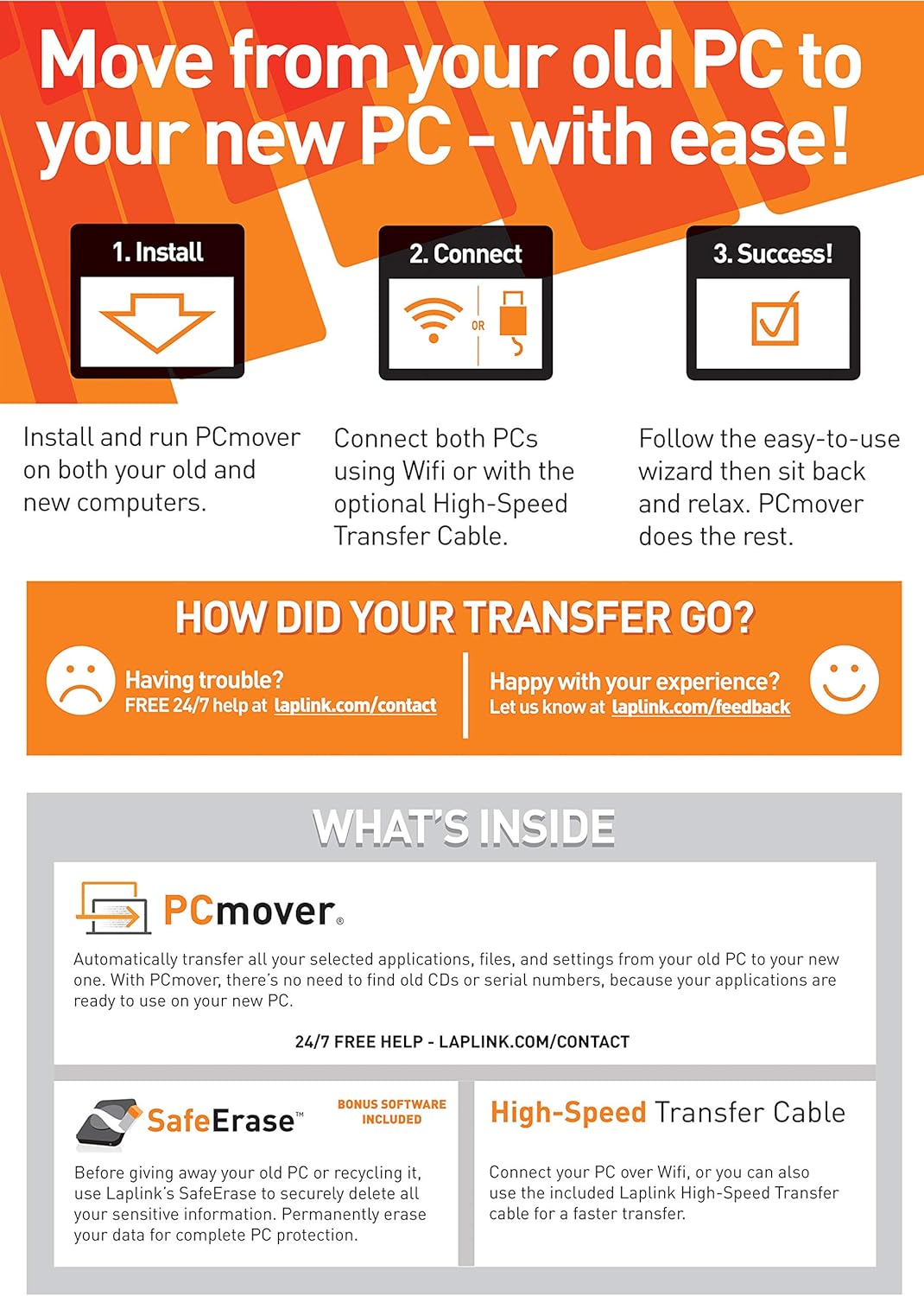
Image: A visual guide illustrating the three main steps for PCmover: 1. Install on both PCs, 2. Connect using Wi-Fi or cable, 3. Success after following the wizard.

Image: The PCmover welcome screen showing options to "Transfer Between PCs" and "View Reports," with an illustration of an old PC connecting to a new PC via Wi-Fi or cable.

Image: The "Find Other PC" screen in PCmover, displaying the detected old and new PCs, the connection method (USB), and an option to switch transfer direction.
4. Operating the Software: Data Transfer
PCmover offers various transfer options to suit your specific needs, allowing you to migrate everything or select specific items.
- Standard (Recommended): This option transfers all your selected applications, files, and settings, making your new PC look and feel like your old one.
- User Accounts, Files, and Settings (No Applications): Transfers important files and settings, allowing you to install applications yourself.
- Files Only Transfer: Transfers only your important files, giving you control over application installation.
- Let Me Choose: Provides full control to customize the transfer by selecting specific applications, files, folders, and settings.

Image: The "Choose What to Transfer" screen in PCmover, presenting four options: Standard, User Accounts, Files Only, and Let Me Choose, each with a brief description.
Official Product Video: The Easiest Way to Move Everything
Video: This official Laplink video demonstrates the simplicity and effectiveness of PCmover in transferring all necessary data and applications from an old PC to a new one, highlighting its ease of use and comprehensive migration capabilities.
5. Maintenance and Data Security
PCmover Ultimate 11 includes SafeErase software, a crucial tool for data security when disposing of your old PC.
- SafeErase: Before giving away or recycling your old PC, use Laplink's SafeErase to permanently delete all your sensitive information, ensuring complete data protection.

Image: A graphic detailing the contents of the PCmover package, including PCmover software, SafeErase software for permanent data deletion, and the optional High-Speed Transfer Cable.
6. Troubleshooting and Support
Laplink provides dedicated support to assist users with any issues encountered during the transfer process.
- 24/7 Customer Support: If you encounter any difficulties or have questions, free 24/7 help is available.
- Contact Information: Visit laplink.com/contact for assistance.
- Feedback: Share your experience at laplink.com/feedback.
- Undo Feature: PCmover includes an "undo" feature, allowing you to revert changes if needed, providing flexibility and peace of mind during migration.
7. Warranty and Service
Laplink stands by its products with comprehensive support services.
- Customer Service: 24/7 customer service is available to ensure a smooth experience.
- License: One license covers unlimited transfer attempts from one source to one destination. Additional licenses are required for more PCs.
Related documentsUSB 3.0 Edition

Ask a question about this manual
Ask about setup, troubleshooting, compatibility, parts, safety, or missing instructions. Manuals+ will review the question and use this page’s manual context to help answer it.