1. Introduction
This manual provides detailed instructions for the proper setup, operation, maintenance, and troubleshooting of your Andonstar ADSM302 Digital Microscope. Please read this manual thoroughly before use to ensure optimal performance and longevity of the device.
The Andonstar ADSM302 is a versatile digital microscope designed for various applications, including circuit board inspection, soldering, and detailed examination of small objects. It features a 5-inch integrated screen, HDMI output, and USB connectivity for enhanced viewing and data capture.
2. Package Contents
Verify that all items listed below are included in your package:
- Andonstar ADSM302 Digital Microscope Unit
- Adjustable Stand with Base
- 5-inch LCD Screen (integrated)
- IR Remote Control
- HDMI Cable
- USB Cable
- Power Adapter
- User Manual (this document)
- Additional Lenses (e.g., Lens L, Lens D, Lens A for various magnifications)
- Integrated LED Lights (2x flexible gooseneck lights)
- Light Source for Transmitted Light (for highest magnification lens)

Figure 1: Andonstar ADSM302 Digital Microscope and included accessories.
3. Setup
3.1 Assembling the Microscope
- Place the microscope base on a stable, flat surface.
- Insert the vertical stand pole into the designated slot on the base and secure it using the tightening knob.
- Attach the microscope unit to the adjustable holder on the vertical stand. Ensure it is securely fastened.
- Connect the flexible LED lights to the designated ports on the microscope unit or base, positioning them to illuminate the working area.
- Connect the power adapter to the microscope unit and plug it into a power outlet.

Figure 2: Assembled Andonstar ADSM302 Digital Microscope with LED lights positioned.
3.2 Initial Power On and Focus Adjustment
- Press the Power On/Off button on the integrated 5-inch LCD screen to turn on the microscope.
- Place a specimen on the base directly under the microscope lens.
- Adjust the height of the microscope unit using the focus knob on the stand until the image appears clear on the screen.
- Adjust the flexible LED lights to provide optimal illumination for your specimen.

Figure 3: Illustration of the microscope's adjustable focus range (5cm to 22cm).
4. Operating the Microscope
4.1 Basic Controls
The microscope can be operated using the buttons on the integrated screen or the included IR remote control.
- Power On/Off: Turns the device on or off.
- Mode/Menu: Accesses the menu for settings adjustments (resolution, date stamp, exposure, etc.).
- OK/Start Video Record: Confirms selections or starts/stops video recording.
- Up/Down: Navigates menu options.
- Picture Capture: Takes a still photograph.
- Brightness +/-: Adjusts the brightness of the LED lights.
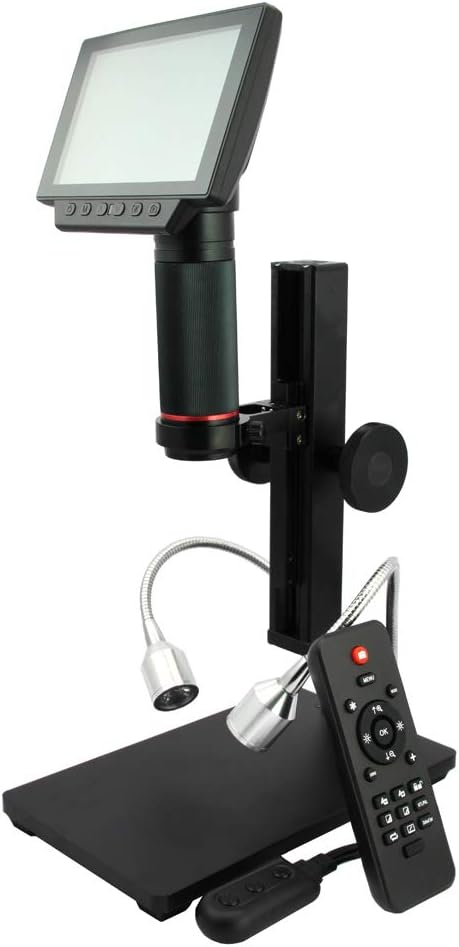
Figure 4: The microscope with its remote control for convenient operation.
4.2 Connecting to External Displays (HDMI/USB)
The ADSM302 supports output to external monitors or computers for a larger viewing experience.
- HDMI Output: Connect the provided HDMI cable from the microscope to an HDMI-compatible monitor or TV. The integrated screen will typically turn off when HDMI output is active.
- USB Connection (PC): Connect the provided USB cable from the microscope to your computer. You may need to download and install the Andonstar software (e.g., AMCap) for full functionality, including measurement tools. The integrated screen will display "PC Camera" and turn off when connected via USB. Note that USB mode may limit resolution to 720p for live viewing and 640x480 for video recording.

Figure 5: Microscope displaying output on an external HDMI monitor.

Figure 6: Microscope connected to a PC via USB, showing measurement software.
4.3 Image and Video Capture
The microscope supports capturing still images and recording videos directly to a Micro-SD card (up to 32GB, not always included).
- Insert a Micro-SD card into the designated slot on the microscope unit.
- Press the "Picture Capture" button on the unit or remote to take a photo.
- Press the "OK/Start Video Record" button to start video recording. Press again to stop.
- Access the menu to adjust photo resolution (e.g., 1080p, 12MP) and video quality.
Video 1: Demonstration of the Andonstar 1080P Digital Microscope in use, showcasing its HDMI output capabilities.
Video 2: The Andonstar microscope used as a helping tool for soldering, demonstrating its utility in detailed electronic work.
5. Maintenance
- Cleaning the Lens: Use a soft, lint-free cloth and lens cleaning solution to gently wipe the lens. Avoid abrasive materials or harsh chemicals.
- Cleaning the Screen: Use a microfiber cloth to clean the LCD screen. Do not press hard on the screen.
- General Cleaning: Keep the microscope free from dust and debris. Use a soft brush or compressed air to clean hard-to-reach areas.
- Storage: Store the microscope in a dry, dust-free environment when not in use.
6. Troubleshooting
- No Image on Screen:
- Ensure the power adapter is securely connected and the device is turned on.
- Check if an HDMI or USB cable is connected; the integrated screen may turn off when external output is active.
- Adjust the focus knob to bring the specimen into view.
- Blurry Image:
- Adjust the focus knob carefully.
- Ensure the specimen is flat and properly positioned under the lens.
- Clean the lens if smudges or dust are visible.
- No Image on External Monitor/PC:
- Verify that the correct input source is selected on your monitor/PC.
- Ensure cables are securely connected.
- For PC connection, confirm the Andonstar software is installed and running, and the microscope is in "PC Camera" mode.
- Remote Control Not Responding:
- Ensure there are no obstructions between the remote and the microscope's IR receiver.
- Check and replace the remote control batteries if necessary.
7. Specifications
| Feature | Detail |
|---|---|
| Product Dimensions | 6.89 x 4.72 x 10.43 inches |
| Item Weight | 4.49 pounds (2.04 Kilograms) |
| Item Model Number | ADSM302 |
| Screen Size | 5 inch |
| Video Output | 1080P Full HD (via HDMI) |
| Magnification Maximum | 560x (Digital) |
| Light Source Type | LED (Adjustable) |
| Material | Metal |
| Color | Black, Silver |
| Voltage | 5 Volts |
| Batteries | 1 Lithium Metal battery required (included) |
8. Warranty and Support
For warranty information, technical support, or service inquiries, please refer to the documentation included with your product or visit the official Andonstar website. Keep your purchase receipt as proof of purchase for warranty claims.
Online resources and FAQs may also be available on the Andonstar Store Page.


