
1. Introduction
The Garmin Striker Plus 4 is a fishfinder designed to provide clear underwater images and precise navigation. It features a bright 4.3-inch display, CHIRP traditional sonar, and Quickdraw Contours mapping software. Integrated GPS allows for waypoint marking, route creation, and speed tracking.

Figure 1: Front view of the Garmin Striker Plus 4 Fishfinder.
2. What's in the Box
The Garmin Striker Plus 4 package includes the following components:
- STRIKER Plus 4 display unit
- Garmin dual-beam transducer
- Transom mount for transducer
- Trolling motor mount for transducer
- Power/data cable
- Tilt/swivel mount for display unit
- Documentation (User Manual, Quick Start Guide)
3. Setup and Installation
3.1. Mounting the Display Unit
The display unit can be mounted using the included tilt/swivel mount. Secure the mount to a flat surface on your vessel, ensuring it is within easy reach and view. The display unit then slides into the mount, allowing for angle adjustment.

Figure 2: Garmin Striker Plus 4 display unit mounted on its stand.
3.2. Transducer Installation
The dual-beam transducer can be installed using either the transom mount or the trolling motor mount. Choose the mount appropriate for your vessel type. Ensure the transducer is positioned correctly to avoid interference and provide optimal sonar readings.
3.3. Power Connection
Connect the power/data cable to the back of the display unit and to a 12V DC power source on your vessel. Ensure proper polarity (red to positive, black to negative) to prevent damage. The unit is designed for corded electric power.

Figure 3: Rear view of the display unit, showing transducer and power ports.
4. Basic Operation
4.1. Powering On/Off
Press and hold the power button (usually marked with a power symbol) to turn the device on or off. A short press typically accesses backlight settings or other quick options.
4.2. Navigating the Menu
Use the directional keypad and the 'OK' button to navigate through the device's menus and select options. The 'Back' button returns to the previous screen.
4.3. Display Modes
The Striker Plus 4 offers various display modes to suit different fishing conditions:
- Traditional Sonar: Displays classic sonar returns, showing fish arches and bottom structure.
- ClearVü Sonar: Provides a photographic view of fish and structure below your boat.
- Split Frequency: Shows two different sonar frequencies simultaneously for varied detail.
- Quickdraw Map: Displays your custom-created contour maps.
- Map + Traditional: Combines a map view with traditional sonar on a split screen.
Video 1: Product Overview - This video demonstrates the various display modes and features of the Garmin Striker Plus 4.
5. Advanced Features
5.1. Using CHIRP Sonar
The dual-beam transducer utilizes Garmin CHIRP traditional sonar, which sends a continuous sweep of frequencies. This technology provides crystal-clear images with excellent target separation, allowing you to distinguish individual fish and structure more effectively.
5.2. Interpreting Sonar Readings
Familiarize yourself with the different color palettes and how fish and structure appear on the screen. Fish typically appear as arches or dots, while bottom structure will show as solid areas. The depth is indicated on the side of the screen.
5.3. GPS Functionality
The built-in GPS allows you to:
- Mark Waypoints: Save the exact location of fishing spots, submerged structures, or other points of interest.
- Create Routes: Plan your navigation path to and from marked waypoints.
- View Speed: Monitor your boat's speed directly on the display.
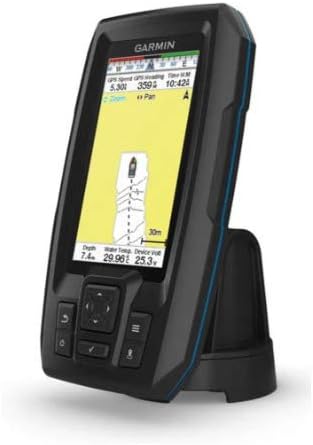
Figure 4: GPS map view on the Garmin Striker Plus 4.
5.4. Quickdraw Contours Mapping
This feature enables you to create personalized fishing maps with 1-foot contours of the areas you fish. The device can store up to 2 million acres of content. These maps are generated in real-time as you navigate, providing detailed depth information for your favorite spots.
6. Maintenance
To ensure the longevity and optimal performance of your Garmin Striker Plus 4, follow these maintenance guidelines:
- Cleaning: Wipe the display and unit with a soft, damp cloth. Avoid harsh chemicals or abrasive cleaners.
- Transducer Care: Regularly inspect the transducer for marine growth or damage. Clean with fresh water after each use in saltwater.
- Storage: When not in use, store the unit in a dry, cool place away from direct sunlight. Disconnect the battery if storing for extended periods.
7. Troubleshooting
If you encounter issues with your Garmin Striker Plus 4, consider the following common solutions:
- No Power: Check all power connections, battery charge, and fuses. Ensure the power cable is securely plugged into the unit.
- No Sonar Readings: Verify the transducer is properly connected and submerged in water. Check for obstructions or damage to the transducer face. Ensure the correct sonar frequency is selected.
- Inaccurate Depth: Confirm the transducer is mounted correctly and not experiencing air bubbles or turbulence.
- GPS Signal Loss: Ensure the unit has a clear view of the sky. Move away from tall structures or dense foliage that might block the signal.
For further assistance, refer to the detailed troubleshooting section in the full product manual or contact Garmin Support.
8. Specifications
| Feature | Detail |
|---|---|
| Brand | Garmin |
| Model Name | 010-01870-00 |
| Power Source | Corded Electric |
| Screen Size | 4.3 Inches |
| Display Type | QSVGA |
| Item Weight | 11.2 ounces |
| Product Dimensions | 3.9"L x 1.8"W x 6.9"H |
| Maximum Measuring Depth | 20 Meters |
| Mounting Type | Transom and Trolling Motor Mount |
| UPC | 753759184162 |
| Connectivity Technologies | Bluetooth |
| Special Features | Bluetooth |
| Display Technology | QSVGA |
| Other Display Features | Wireless |
| Human Interface Input | Buttons |
| Scanner Resolution | 800 x 480 pixels |
| Color | Black |
| Manufacturer | Garmin |
| Date First Available | October 31, 2017 |
9. Warranty and Support
The Garmin Striker Plus 4 is covered by Garmin's standard limited warranty. For specific warranty terms and conditions, please refer to the documentation included with your product or visit the official Garmin website.
For technical support, product registration, or additional resources, please visit the Garmin Support Center.