
1. Introduction
This manual provides detailed instructions for the installation, operation, and maintenance of your XTRONS 12.1 Inch 1080P Video Car Overhead Player. Please read this manual thoroughly before using the product to ensure proper functionality and safety.

Figure 1.1: XTRONS 12.1 Inch Car Overhead Player with included IR headphones.
The XTRONS CM121HD+DWH006x2 is a roof-mounted monitor designed to provide in-car entertainment. It features a 12.1-inch HD digital TFT screen, 1080P video support, and an HDMI port for mobile device integration. This unit does not include a DVD drive. Two white IR headphones are included for wireless audio listening.
2. Key Features
- 12.1" HD Digital TFT Screen: Offers a 1280*800 HD resolution for clear visuals.
- 1080P Video Support: Capable of playing full 1080p HD videos smoothly.
- Built-in HDMI Port: Allows connection with mobile phones for screen mirroring and content sharing.
- USB and SD Card Inputs: Provides multiple options for media playback.
- 120° Max Open Angle: The monitor can be adjusted up to 120 degrees for optimal viewing.
- Ultra-Thin Design: Measures only 27mm thick when folded.
- Blue Atmospheric LED Light Bar: Enhances the vehicle's interior ambiance.
- Positive & Negative Door Control Support: Lights can automatically turn on/off with door status.
- Infrared (IR) and FM Transmitter: Offers various sound output choices, compatible with XTRONS IR headphones.

Figure 2.1: Overview of the XTRONS CM121HD's primary features.
3. Setup and Installation
3.1 Package Contents
Before installation, ensure all components are present:
- 1 x XTRONS 12.1 Inch Car Overhead Player (CM121HD)
- 2 x White IR Headphones (DWH006)
- 1 x Remote Control
- 1 x User Manual (this document)
- 5 x Mounting Nuts

Figure 3.1: Product dimensions and included accessories.
3.2 Mounting the Unit
The unit is designed for roof mounting in a vehicle. Professional installation is recommended to ensure secure mounting and proper electrical connections. Ensure the mounting location provides sufficient clearance for the monitor to open to its maximum 120° angle without obstruction.
3.3 Electrical Connections
Connect the power cables to your vehicle's electrical system. The unit supports both positive and negative door control wires. If connected, the built-in LED lights will synchronize with your vehicle's door status (on when doors open, off when closed). This unit's light will replace your existing roof light.
4. Operating Instructions
4.1 Powering On/Off
Once installed and connected to power, the unit will typically power on with the vehicle's ignition. Use the power button on the unit or the remote control to turn the display on or off.
4.2 Adjusting the Screen Angle
The monitor can be manually adjusted to an open angle of up to 120 degrees to provide optimal viewing for passengers. Gently pivot the screen to the desired position.

Figure 4.1: The monitor's 120° maximum open angle for flexible viewing.
4.3 Media Playback
The unit supports various media inputs:
- USB Input: Insert a USB drive containing compatible media files into the USB port.
- SD Card Input: Insert an SD card with media files into the SD card slot.
- HDMI Input: Connect a mobile phone or other HDMI-enabled device using an HDMI cable (not included) to mirror content on the monitor.

Figure 4.2: Media input ports: HDMI, USB, and SD.
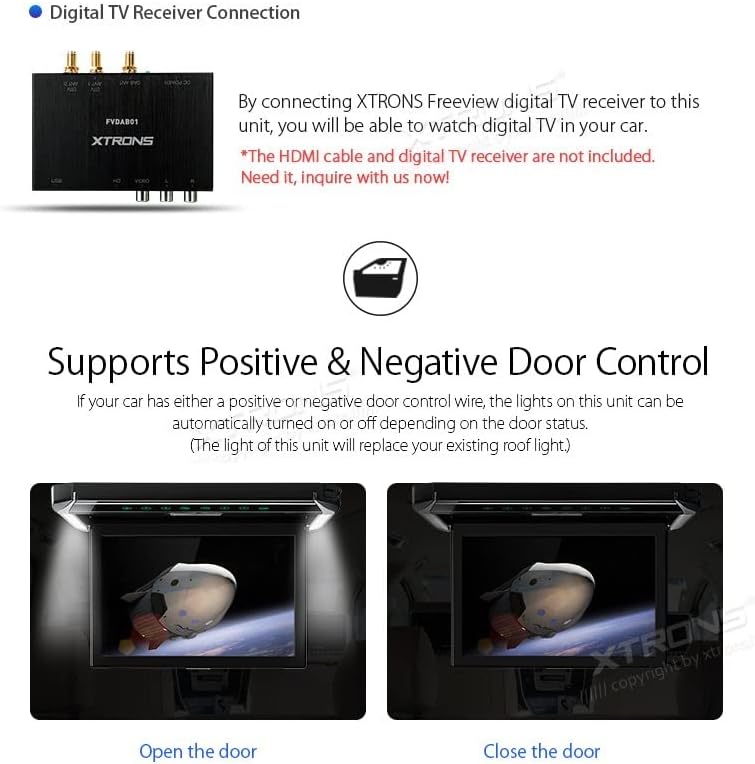
Figure 4.3: Integrating mobile entertainment via the built-in HDMI port.
4.4 Sound Output Options
The unit offers multiple ways to output audio:
- Built-in Infrared (IR) Transmitter: For wireless audio, use compatible IR headphones such as the included XTRONS DWH006 models.
- FM Transmitter: Transmit audio to your vehicle's FM radio by tuning to a specific frequency.

Figure 4.4: Sound output options: IR for headphones and FM for car radio.
4.5 Door Control Feature
If connected to your car's door control wire (positive or negative), the unit's LED light bar will automatically illuminate when a door is opened and turn off when all doors are closed. This feature replaces the function of your vehicle's original roof light.

Figure 4.5: Automatic LED light control based on door status.
5. Maintenance
5.1 Cleaning the Unit
To clean the monitor screen and casing, use a soft, dry, lint-free cloth. For stubborn marks, lightly dampen the cloth with water or a mild, non-abrasive screen cleaner. Avoid using harsh chemicals, solvents, or abrasive materials, as these can damage the surface.
5.2 General Care
Ensure the unit is folded securely when not in use or when driving over rough terrain to prevent damage. Avoid exposing the unit to extreme temperatures, direct sunlight for prolonged periods, or excessive moisture.
6. Troubleshooting
6.1 No Power
- Check all power connections to ensure they are secure.
- Verify the vehicle's ignition is on.
- Inspect vehicle fuses related to the unit's power supply.
6.2 No Picture/Poor Picture Quality
- Ensure the correct input source (USB, SD, HDMI) is selected.
- Check the media files for compatibility and corruption.
- For HDMI connections, ensure the cable is securely connected and the source device is outputting video.
- Adjust display settings if available.
6.3 No Sound/Poor Sound Quality
- Verify the volume is not muted or set too low.
- If using IR headphones, ensure they are powered on, charged, and within range.
- If using FM transmission, ensure the car radio is tuned to the correct frequency and there is no interference.
- Check audio settings on the unit and the source device.
6.4 Remote Control Not Working
- Replace the remote control batteries.
- Ensure there are no obstructions between the remote and the unit's IR receiver.
7. Specifications
| Feature | Specification |
|---|---|
| Model | CM121HD+DWH006x2 |
| Screen Size | 12.1 Inches |
| Display Type | HD Digital TFT LED |
| Resolution | 1280*800 |
| Video Support | 1080P |
| Connectivity | HDMI, USB, SD Card |
| Audio Output | Infrared (IR), FM Transmitter |
| Folded Dimensions (approx.) | 342mm (W) x 295mm (L) x 27mm (H) |
| Open Dimensions (approx.) | 342mm (W) x 435mm (L) x 27mm (H) |
| Item Weight | 8.8 pounds |
| Manufacturer | XTRONS |

Figure 7.1: Screen size and resolution details.
8. Warranty and Support
For warranty information and technical support, please refer to the official XTRONS website or contact their customer service. Keep your purchase receipt as proof of purchase.
- Official Website: www.xtrons.com
- UK Website: xtrons.co.uk

