
1. Introduction
Thank you for choosing the Rii K66 Mechanical Gaming Keyboard. This manual provides detailed instructions on setting up, operating, and maintaining your keyboard to ensure optimal performance and longevity. The Rii K66 is designed for both gaming and office use, featuring durable mechanical red switches, customizable LED backlighting, and anti-ghosting capabilities for a responsive and reliable experience.

Figure 1.1: Rii K66 Mechanical Gaming Keyboard - Top View
This image displays the full layout of the Rii K66 mechanical gaming keyboard, showcasing its 104-key design with red LED backlighting. The integrated wrist rest is visible at the bottom.
2. Setup
2.1 Package Contents
- Rii K66 USB Wired Mechanical Gaming Keyboard
- User Manual (this document)

Figure 2.1: Rii K66 Keyboard and Packaging
This image shows the Rii K66 mechanical gaming keyboard alongside its retail packaging and the included user manual, illustrating the complete product package.
2.2 Connecting the Keyboard
- Locate an available USB port on your computer.
- Plug the USB connector of the Rii K66 keyboard into the USB port.
- The keyboard is plug-and-play; no additional drivers are required for basic functionality. Your operating system will automatically detect and install the necessary components.
2.3 Compatibility
The Rii K66 Mechanical Gaming Keyboard is compatible with the following operating systems:
- Windows Vista
- Windows 7
- Windows 8
- Windows 10
- MAC (basic functionality)
- Linux (basic functionality)
It can be used with Laptops, Notebooks, and PCs.

Figure 2.2: Rii K66 Keyboard Underside
This image displays the underside of the Rii K66 keyboard, highlighting its support frames for height adjustment and the rubber pads for stability on various surfaces.
3. Operating Instructions
3.1 Key Features
- 104 Anti-Ghosting Keys: Allows multiple keys to be pressed simultaneously without conflict, ensuring accurate input during fast-paced gaming or typing.
- Mechanical Red Switches: Provides a linear, smooth keystroke with minimal actuation force, ideal for rapid key presses. Rated for 50 million keystrokes.
- Double Injection Keycaps: Ensures durability and prevents legends from fading over time.
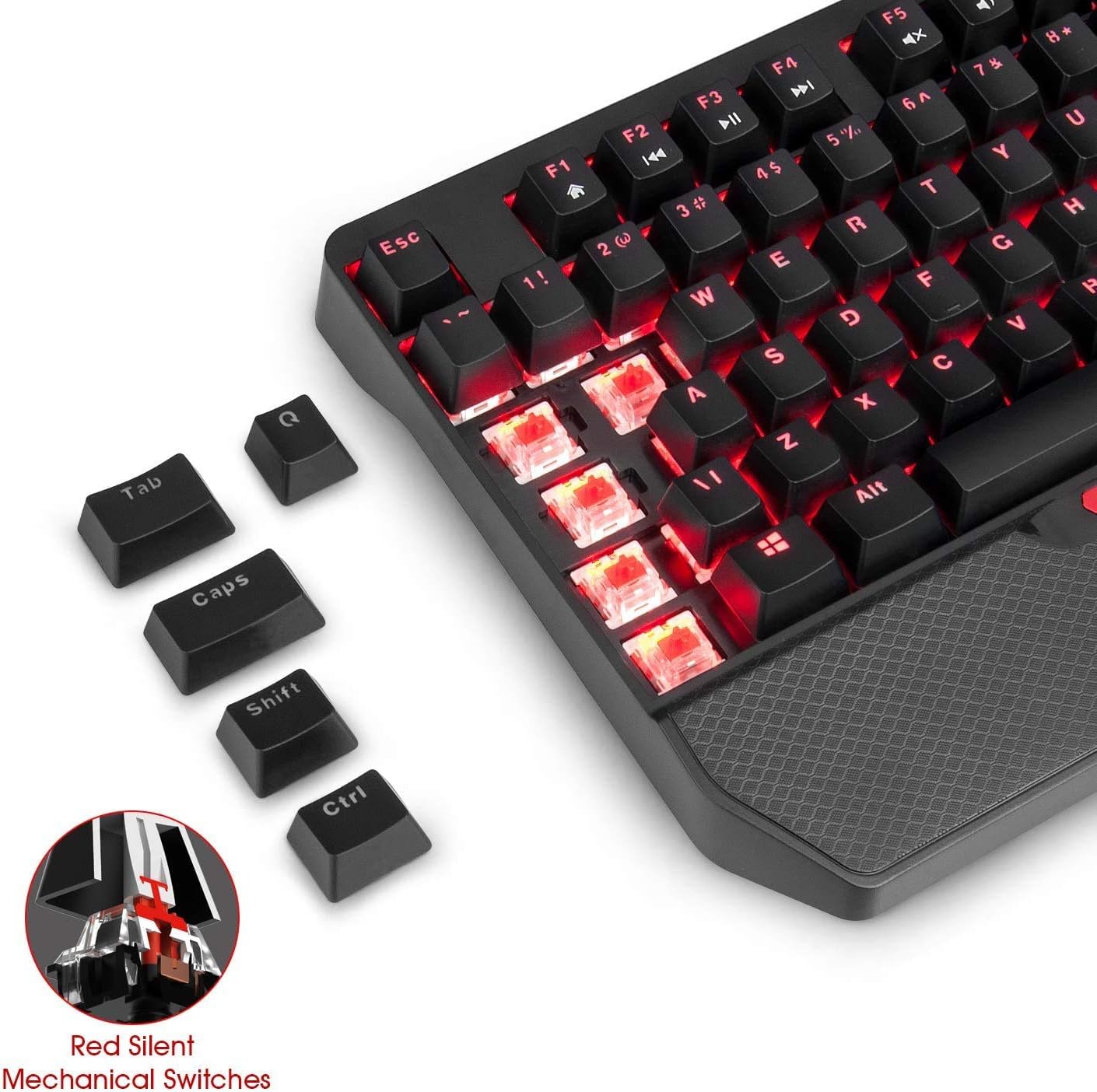
Figure 3.1: Rii K66 Keycaps and Switches
This close-up image shows several keycaps removed from the Rii K66 keyboard, revealing the underlying red mechanical switches and the LED backlighting beneath them.
3.2 Backlighting Modes and Control
The Rii K66 features 5 customizable LED backlighting modes. The backlighting is red and can be set to breathing or permanent lighting modes.
- Changing Lighting Modes: Use the dedicated lighting control keys or Fn combinations as detailed in the 'Function Short Keys' section below.
- Adjusting Brightness: Increase or decrease LED brightness using the designated Fn key combinations.
- Adjusting Flash Frequency: Modify the speed of breathing or flashing effects.
- Customizable Macro LED: This feature allows you to select specific keys to be lit or unlit, creating custom lighting patterns. Note that this refers to lighting customization, not programmable key macros for actions.
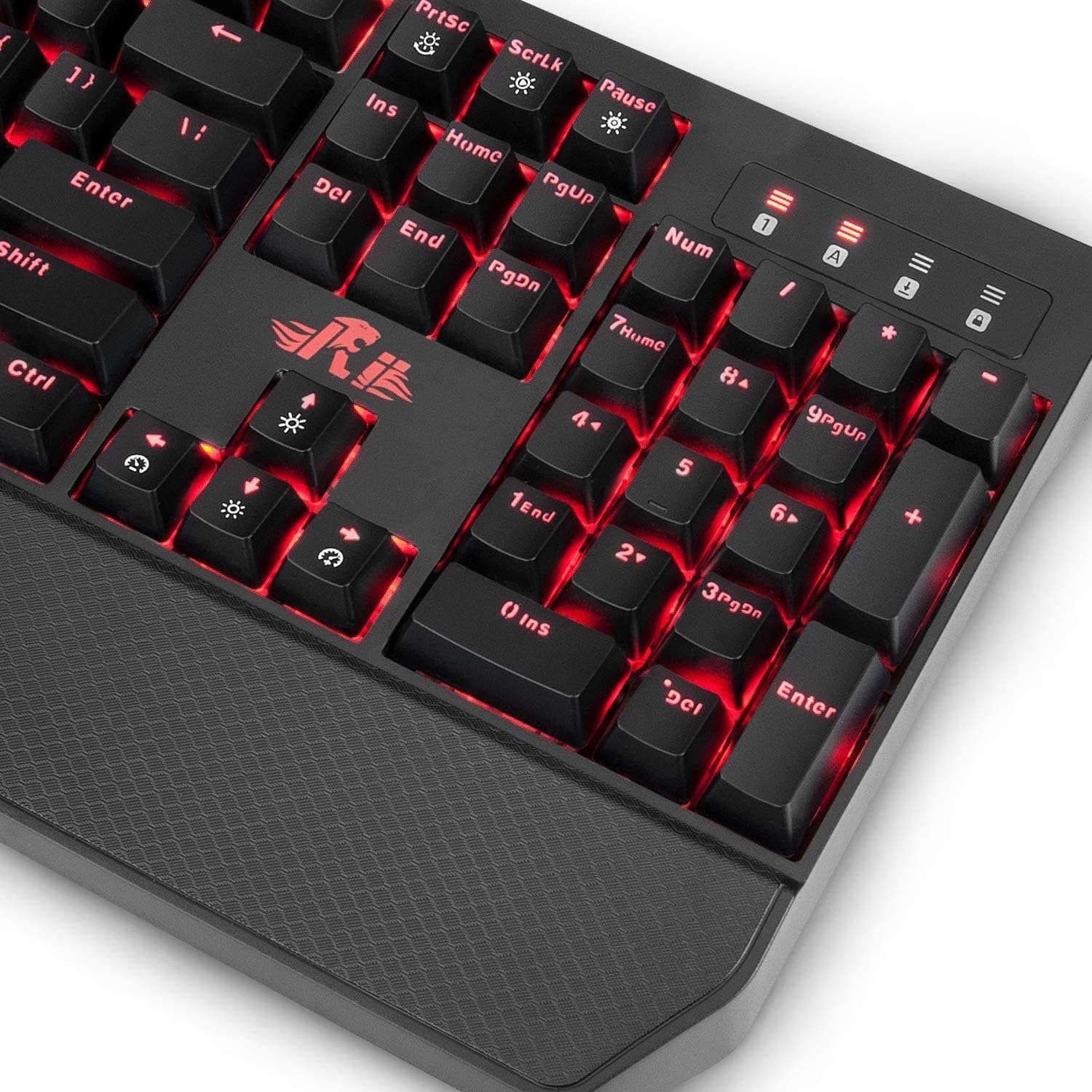
Figure 3.2: Rii K66 Right Side Close-up
This image provides a close-up view of the right side of the Rii K66 keyboard, highlighting the numeric keypad, indicator lights, and specific function keys related to backlighting control.
3.3 Function Short Keys
The Rii K66 keyboard includes various function key combinations (Fn + F-keys or other keys) for quick access to multimedia controls and keyboard settings.

Figure 3.3: Rii K66 Function Short Keys Diagram
This diagram illustrates the various function key combinations (Fn + key) available on the Rii K66 keyboard, detailing their respective actions such as multimedia control, LED brightness adjustment, and keyboard lock.
Refer to the diagram above for a comprehensive list of function short keys:
- Fn + F1: Home
- Fn + F2: Previous Track
- Fn + F3: Play/Pause
- Fn + F4: Next Track
- Fn + F5: Mute
- Fn + F6: Volume -
- Fn + F7: Volume +
- Fn + F8: Keyboard Lock
- Fn + WIN: WIN Lock
- Fn + PrtSc: Adjusting LED brightness
- Fn + ScrLk: Adjusting Flash Frequency
- Fn + Pause: ON/OFF LEDs
- Fn + Home: Light mode
- Fn + PgUp: Macro Play
- Fn + PgDn: Macro Recording
- Fn + Del (Press 3S): Return to Factory Defaults (All LEDs flash 3 times)
3.4 Automatic Sleeping Mode
The keyboard is designed to automatically enter sleeping mode when not in operation, turning off the backlights to conserve energy. Any key press will awaken the keyboard and turn the backlights back on.
4. Maintenance
4.1 Cleaning the Keyboard
To maintain the appearance and functionality of your Rii K66 keyboard:
- Disconnect the keyboard from your computer before cleaning.
- Use a soft, lint-free cloth slightly dampened with water or a mild cleaning solution to wipe down the surface.
- For dust and debris between keys, use compressed air.
- Avoid using harsh chemicals, abrasive cleaners, or excessive moisture.
4.2 Durability
The Rii K66 is constructed with a metal material and a matte-finish texture, making it sturdy and robust. It is designed to withstand scratches, bumps, and corrosion. The mechanical switches are rated for 50 million keystrokes, ensuring long-term reliability.
5. Troubleshooting
If you encounter any issues with your Rii K66 keyboard, please refer to the following common troubleshooting steps:
- Keyboard Not Responding:
- Ensure the USB cable is securely plugged into both the keyboard and the computer's USB port.
- Try plugging the keyboard into a different USB port on your computer.
- Restart your computer.
- Backlighting Not Working:
- Check if the backlighting is turned off (Fn + Pause).
- Adjust the brightness (Fn + PrtSc).
- The keyboard enters sleeping mode and turns off backlights when idle; press any key to wake it up.
- Keys Not Registering or Double-Typing:
- Ensure the keyboard is clean and free of debris.
- Try resetting the keyboard to factory defaults (Fn + Del for 3 seconds).
If the problem persists after trying these steps, please contact Rii customer support for further assistance.
6. Specifications
| Feature | Specification |
|---|---|
| Model | K66 |
| Item Model Number | 6952917772737 |
| Key Quantity | 104 |
| Switch Type | Mechanical Red Switches |
| Key Lifespan | 50,000,000 times strokes |
| Interface | USB Wired |
| Working Voltage | 5V |
| Keyboard Size | 436 x 188 x 36 mm |
| Color | Black |
| Material | Metal |
| Backlighting | Red LED, 5 modes |
| Compatibility | Windows Vista/7/8/10, MAC, Linux |
7. Warranty and Support
The Rii K66 Mechanical Gaming Keyboard comes with a standard manufacturer's warranty. Please refer to the warranty information provided with your purchase documentation for specific terms and conditions.
For technical support, troubleshooting assistance, or warranty claims, please contact Rii customer service through their official website or the retailer from whom you purchased the product. Ensure you have your product model number (K66) and any purchase details ready when contacting support.
This user manual is included in the product package for your convenience.