
Introduction
This manual provides comprehensive instructions for the installation and operation of the VAIS Technology GSR-TY01 SiriusXM Satellite Radio Add-on Adapter. This device seamlessly integrates SiriusXM Satellite Radio into your vehicle's existing factory radio system, preserving original aesthetics and functionality without requiring additional mounts or FM modulation adapters.
What's Included
The VAIS Technology GSR-TY01 kit includes the following components:

Figure 1: Included Components Diagram
- GSR Interface Adapter
- GSR USB Cable
- Power Harness
- Vehicle Antenna
- SiriusXM Tuner SXV300
Product Overview: GSR Connectors and Ports
Familiarize yourself with the connection points on the GSR Interface Adapter:

Figure 2: GSR Connectors and Ports
- Brown USB Interface Connector: Connects to the vehicle's factory USB data port.
- Interface Connector for SiriusXM SXV300 Tuner: Connects the SiriusXM tuner.
- Power Connector: Connects to the vehicle's power source via the OBD II harness.
- LEDs: Indicate device status.
- Micro USB Connector: Used for firmware updates.
Compatibility
The VAIS Technology GSR-TY01 is designed for select Factory Toyota models. Ensure your vehicle is listed below for proper functionality:
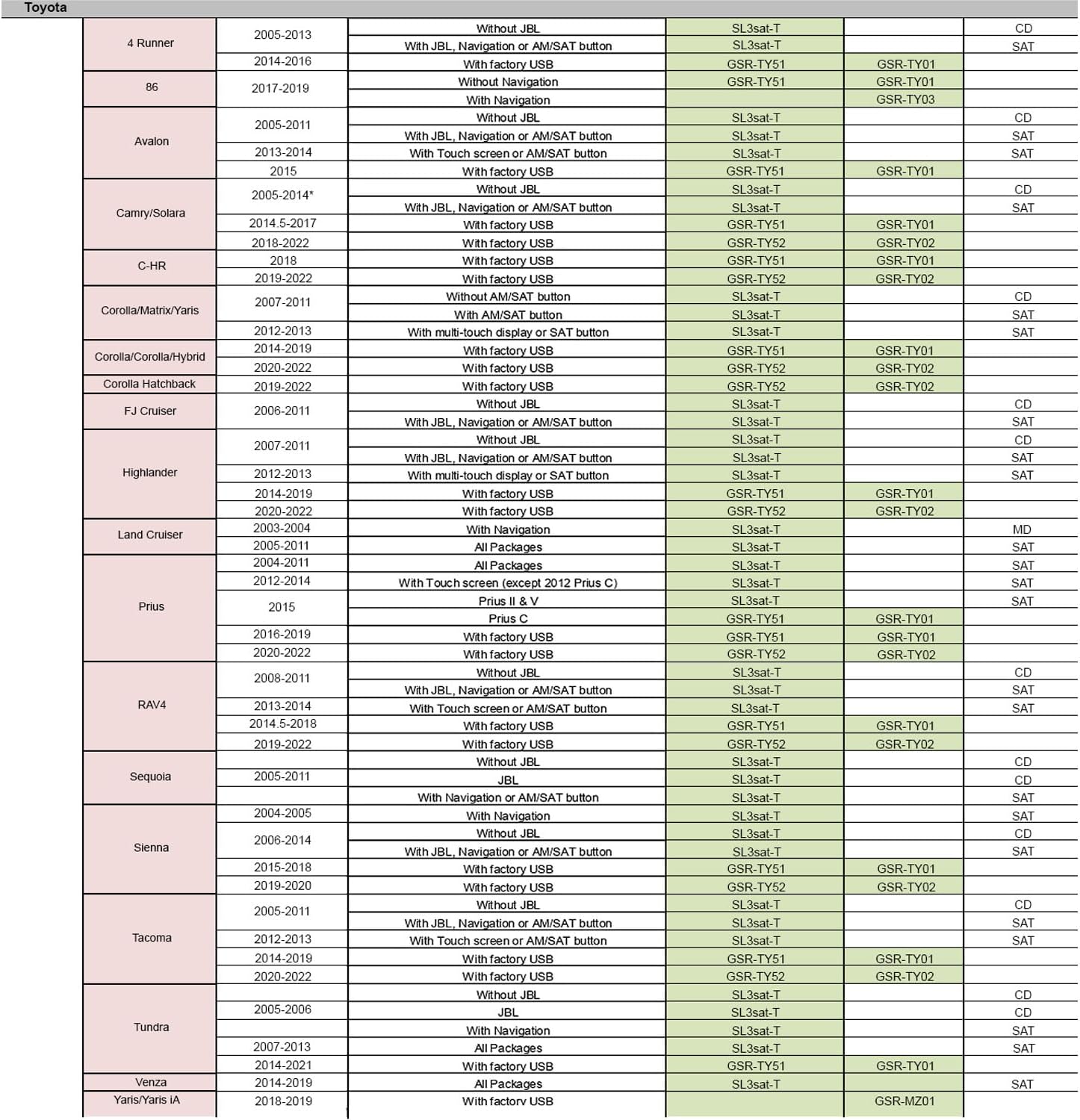
Figure 3: Toyota Vehicle Compatibility Table
- 4Runner: 2014-2016 (with factory USB)
- 86: 2017-2019 (without Navigation)
- Avalon: 2015 (with factory USB)
- Camry/Solara: 2014.5-2017 (with factory USB)
- C-HR: 2018 (with factory USB)
- Corolla/Corolla Hybrid: 2014-2019 (with factory USB)
- Highlander: 2014-2019 (with factory USB)
- Prius: 2015 (Prius C), 2016-2019 (with factory USB)
- RAV4: 2014.5-2018 (with factory USB)
- Sienna: 2015-2018 (with factory USB)
- Tacoma: 2014-2019 (with factory USB)
- Tundra: 2014-2021 (with factory USB)
- iM, tC: 2016 (with factory USB)
Installation
Follow these steps for proper installation of your VAIS Technology GSR-TY01 adapter:

Figure 4: Installation Overview
- Connect OBD II Connector: Connect the OBD II connector to your vehicle's OBD II port. This provides power to the system.
- Connect GSR to Factory USB Port: Plug the VAIS adapter into the factory USB data port. This sends SiriusXM data to your radio.
- Install Antenna on the Roof: Mount the antenna on the highest point of the vehicle's roof for optimal reception. The antenna must be mounted outside the vehicle. For detailed antenna installation, refer to the video below.
- Mount Everything Behind the Panels: Secure the GSR and SiriusXM tuner behind the dash panels to keep them hidden and organized.
Antenna Installation Guidance
Video 1: How to Install SiriusXM Antenna
This video demonstrates the proper placement and routing of the SiriusXM antenna cable. It covers recommended mounting locations for various vehicle types (sedan, coupe, pickup, SUV, convertible) and shows how to route the cable discreetly through the vehicle's interior, avoiding obstacles and moving parts.
Operation
Once installed, operating your SiriusXM Satellite Radio through your factory radio is straightforward:

Figure 5: How to Use SiriusXM
- Activate Subscription: After connecting the adapter, activate your SiriusXM subscription.
- Select SiriusXM Source: Turn on your vehicle and select 'SiriusXM' from your factory radio's source menu.
- Browse Channels: Use your factory radio controls and steering wheel controls to browse and enjoy SiriusXM channels. You can typically add up to 36 presets.

Figure 6: SiriusXM Source Selection and Controls
Demonstration Videos
Video 2: Adding SiriusXM to Your Factory Radio
This video illustrates how the VAIS Technology adapter allows you to add SiriusXM to your factory original radio, maintaining the original look and feel of your car's interior. It highlights the use of steering wheel and factory radio controls for seamless channel browsing.
Video 3: Quick Installation and Use of GSR Adapter
This video provides a concise overview of how to install the GSR adapter and begin enjoying SiriusXM through your factory radio in minutes. It emphasizes the ease of installation and the integrated experience.
Specifications
| Feature | Detail |
|---|---|
| Item Weight | 26.4 pounds |
| Product Dimensions | 81.69 x 53.15 x 41.73 inches |
| Item Model Number | VHP60 - AF245 |
| ASIN | B076KRZ644 |
| Date First Available | May 9, 2018 |
Troubleshooting
If you encounter issues with your VAIS Technology GSR-TY01 adapter, consider the following:
- No Signal: Ensure the antenna is correctly positioned on the vehicle's roof with a clear view of the sky. Check all cable connections for security.
- No Power: Verify the OBD II connector is fully seated in the vehicle's port.
- No Audio: Confirm that 'SiriusXM' is selected as the audio source on your factory radio. Check the connection between the GSR adapter and the factory USB port.
- Controls Not Responding: Ensure all connections are secure. If issues persist, consult the VAIS Technology support resources.
Warranty and Support
For warranty information, technical support, or further assistance, please visit the official VAIS Technology store or contact their customer service. Details regarding product returns and support can often be found on the product's purchase page or the manufacturer's website.
Visit the VAIS Technology Store for more information.


