
Introduction and Overview
The Ticwatch E is a super lightweight smartwatch designed for everyday use and fitness tracking. It runs on Android Wear 2.0, offering access to a wide range of applications and features directly from your wrist. This manual provides essential information for setting up, operating, and maintaining your device.
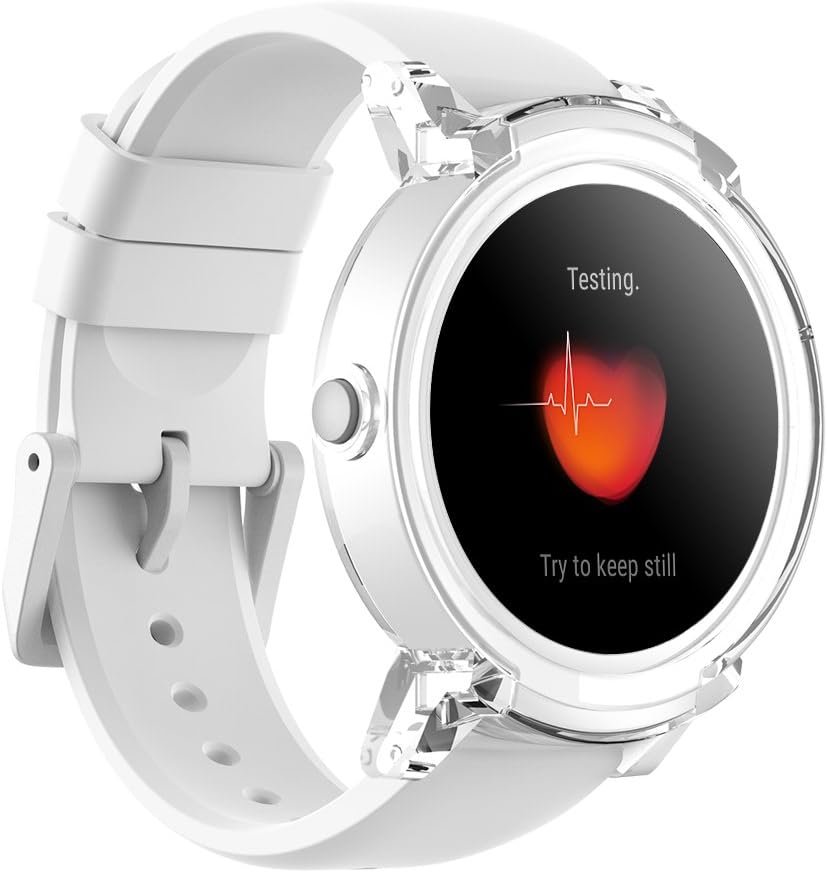
Key features of your Ticwatch E include:
- Android Wear 2.0: Access thousands of apps and customize watch faces.
- Fitness Tracking: Monitor walks, runs, rides, heart rate, and strength training with Google Fit and other fitness apps.
- Google Assistant: Use voice commands to find answers, set reminders, and get directions.
- Smart Notifications: Receive alerts and manage calls directly from your wrist (phone calls compatible with Android devices only).
Setup
Initial Charging
Before first use, fully charge your Ticwatch E for at least 2 hours. For optimal battery capacity indication, allow the battery to fully deplete and then charge it to full capacity for 1-3 cycles.
What's in the Box
- Ticwatch E Smartwatch
- Watch Band (pre-attached)
- Charging Cable
- User Manual (this document)
Operating Your Ticwatch E
The Ticwatch E features a responsive touchscreen and a single crown button for navigation and interaction. The watch body is made of plastic with a transparent overlay, giving it a unique 'Ice' appearance. The silicone band is designed for comfort and flexibility.
Screen and Display
The 1.4-inch OLED display offers a high resolution of 400x400 pixels. While clear indoors, visibility in direct sunlight may be limited even at full brightness. The screen is slightly recessed, with the plastic body proud of the screen, which may result in a noticeable edge when swiping across the display.

Fitness Tracking
Your Ticwatch E is an excellent fitness companion, capable of tracking a variety of activities. It includes a built-in heart rate monitor and GPS for accurate data collection during workouts.
- Heart Rate Monitor: Located on the underside of the watch, it continuously tracks your heart rate during activities.
- GPS: Track your routes and distance accurately during outdoor activities like walks, runs, and rides.
- Google Fit Integration: Sync your activity data with Google Fit and other popular fitness apps like Strava.

Personal Assistant and Notifications
The Ticwatch E brings the power of Google Assistant to your wrist. Simply hold the power button or say "Ok Google" to ask questions, set reminders, or get directions. You can also receive and manage notifications from your smartphone directly on the watch.
- Google Assistant: Get answers and complete tasks hands-free.
- Smart Notifications: Stay updated with messages, calls, and app alerts.
- Phone Calls: Make and receive calls directly from the watch (compatible with Android devices only).


Specifications
| Feature | Detail |
|---|---|
| Product Dimensions | 9.21 x 1.73 x 0.53 inches |
| Item Weight | 1.46 ounces |
| Item Model Number | Ticwatch E Ice |
| Operating System | Wear OS by Google |
| Display Technology | OLED |
| Screen Size | 1.4 Inches |
| Scanner Resolution | 416 x 416 |
| Special Features | Heart Rate Monitor |
| Connectivity Technologies | Bluetooth, Wi-Fi |
| Water Resistance | IP67 (from video) |
Maintenance
Battery Care
To ensure optimal battery performance, charge your watch regularly. If you experience sudden battery drops or short battery life, it is recommended to fully charge the watch for more than 2 hours before use, and then allow it to fully deplete and recharge for 1-3 cycles to recalibrate the battery indicator.
Changing the Watch Band
The Ticwatch E features quick-release strap settings, making it easy to change the watch band for customization or replacement. Simply locate the small pins on the underside of the band near the watch lugs, slide them to release, and attach your new compatible band.

Troubleshooting
Screen Visibility Issues
If you find the screen difficult to read in bright daylight, try adjusting the brightness settings. While the OLED display is vibrant indoors, direct sunlight can reduce visibility. Consider using watch faces with higher contrast for outdoor use.
Physical Design Concerns
The transparent plastic lugs, while contributing to the lightweight design, may feel less robust compared to metal alternatives. The slightly sharp edge of the screen bezel can also be noticeable during swiping. These are inherent characteristics of the design and material choice for this model.
Warranty and Support
Your Ticwatch E comes with a 30-day money-back guarantee for any reason, and a 12-month warranty for quality-related issues. For further assistance, please refer to the official user guide PDF available here.
